9 Vintage Photo Apps Behind Today’s Retro Aesthetic
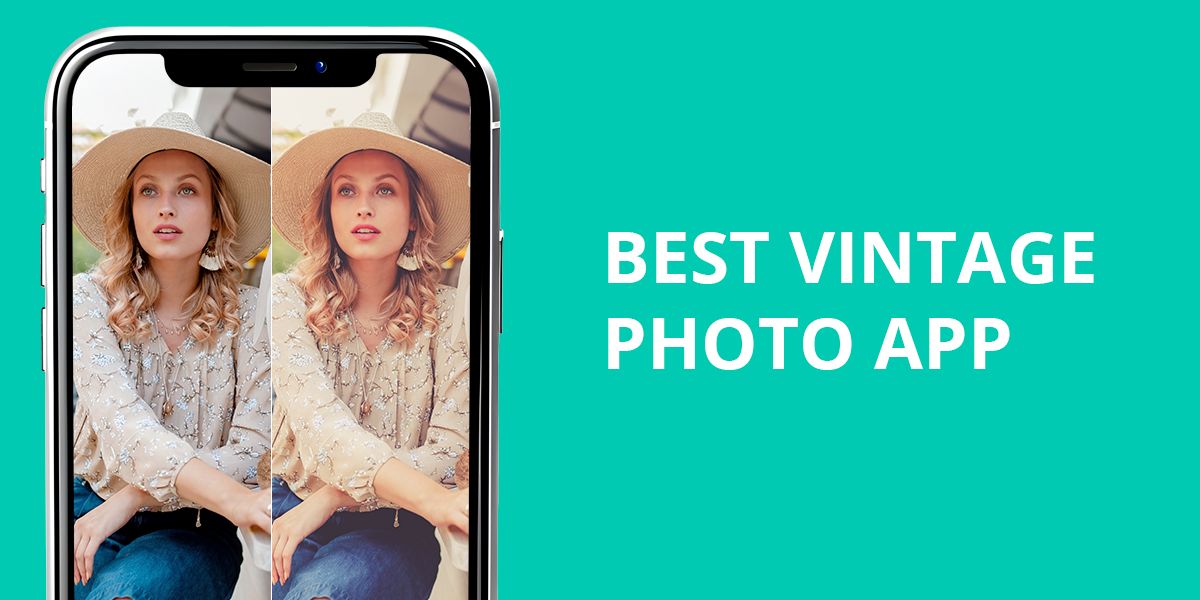
These days, I receive the same questions about vintage photo apps from clients, mates, or just people online. They wonder how I get a genuine film look without touching Photoshop? I totally get the obsession.
Nostalgia is having a serious moment right now. The 80s, 90s, and early 2000s have crawled back into fashion, music, advertising, and photography all at once. There’s something about the warm imperfections of a disposable camera, a chunky point-and-shoot, or an old iPhone photo that feels raw and real. Such images are more soulful than today’s overly polished shots.
This trend hits close to home because I actually grew up in that period. Those photos had a character all their own like blown-out highlights, weird color shifts, accidental light leaks, motion blur, and a certain emotional roughness that modern cameras simply can’t replicate naturally.
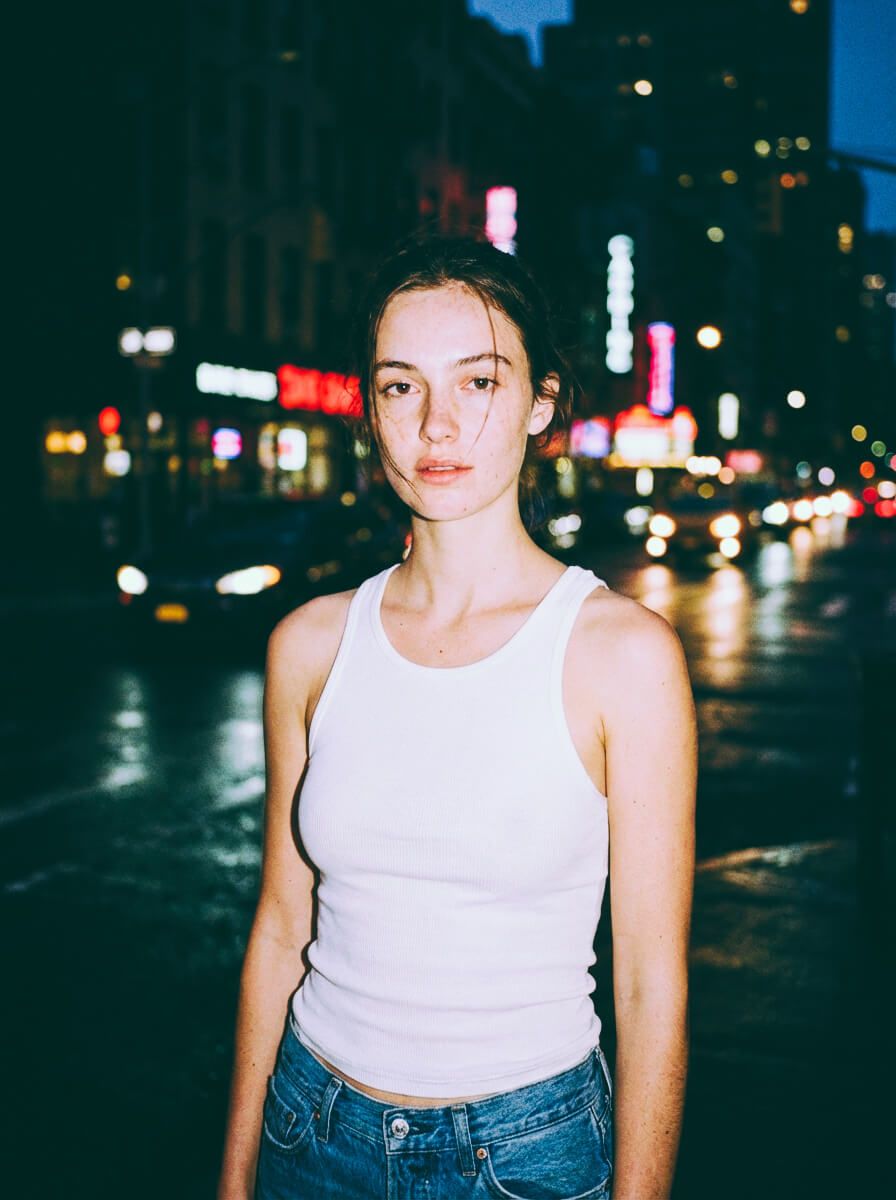
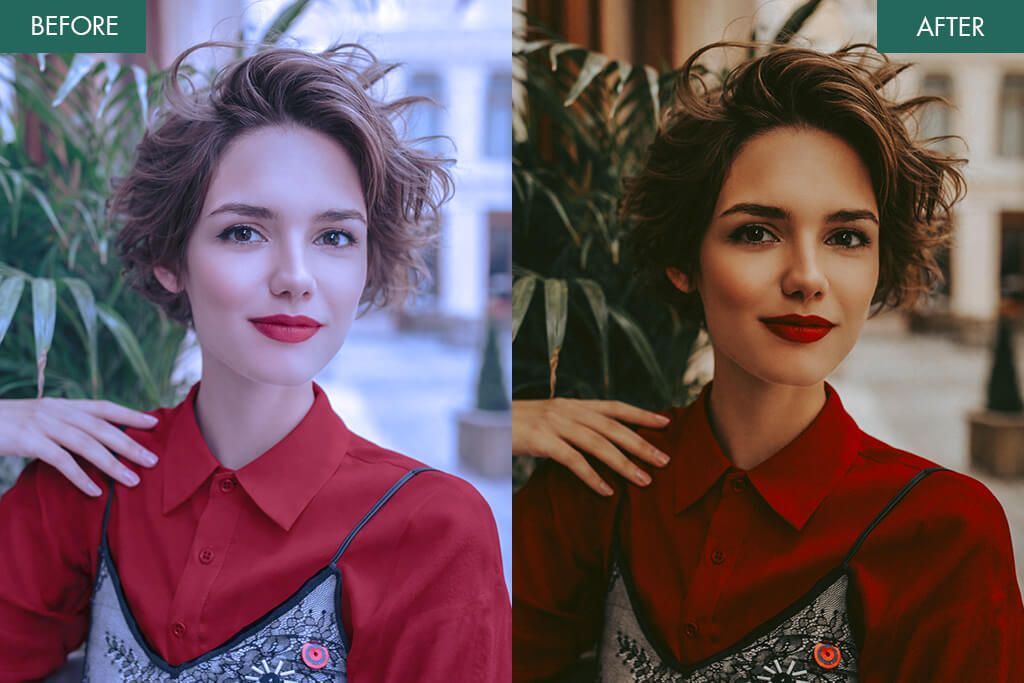
At WeEdit Photos, I manually rebuild these qualities inside Photoshop every single day. I make grain from nothing, shape color curves, mimic how real film behaves, and purposely introduce the kind of flaws old cameras produced. When done well, the final image looks vintage and feels genuinely lived-in and real.
Most vintage filters out there are pretty terrible. They look cheap, overdone, and completely lack the warm and nostalgic aesthetic you’re actually going for. But who has time to dig through countless vintage photo apps hoping to find something decent?
So, I decided to handle the most tiresome part myself. I spent time testing the most popular vintage photo editor apps across iOS and Android, so you don’t have to. Some impressed me, some disappointed me, and a few genuinely surprised me. If you want edits that look good, keep reading.
Here’s what the best vintage photo app should deliver:
- Film grain and noise that look authentic
- Natural color shifts and proper skin tones
- Adjustable filter intensity
- Fun camera details, including dust, light leaks, and timestamps
- No heavy smoothing or AI “plastic skin” effect
- Fast and accurate edits
- Emphasis on the unique traits of every shot
AI in Vintage Photo Apps: Help or Harm?
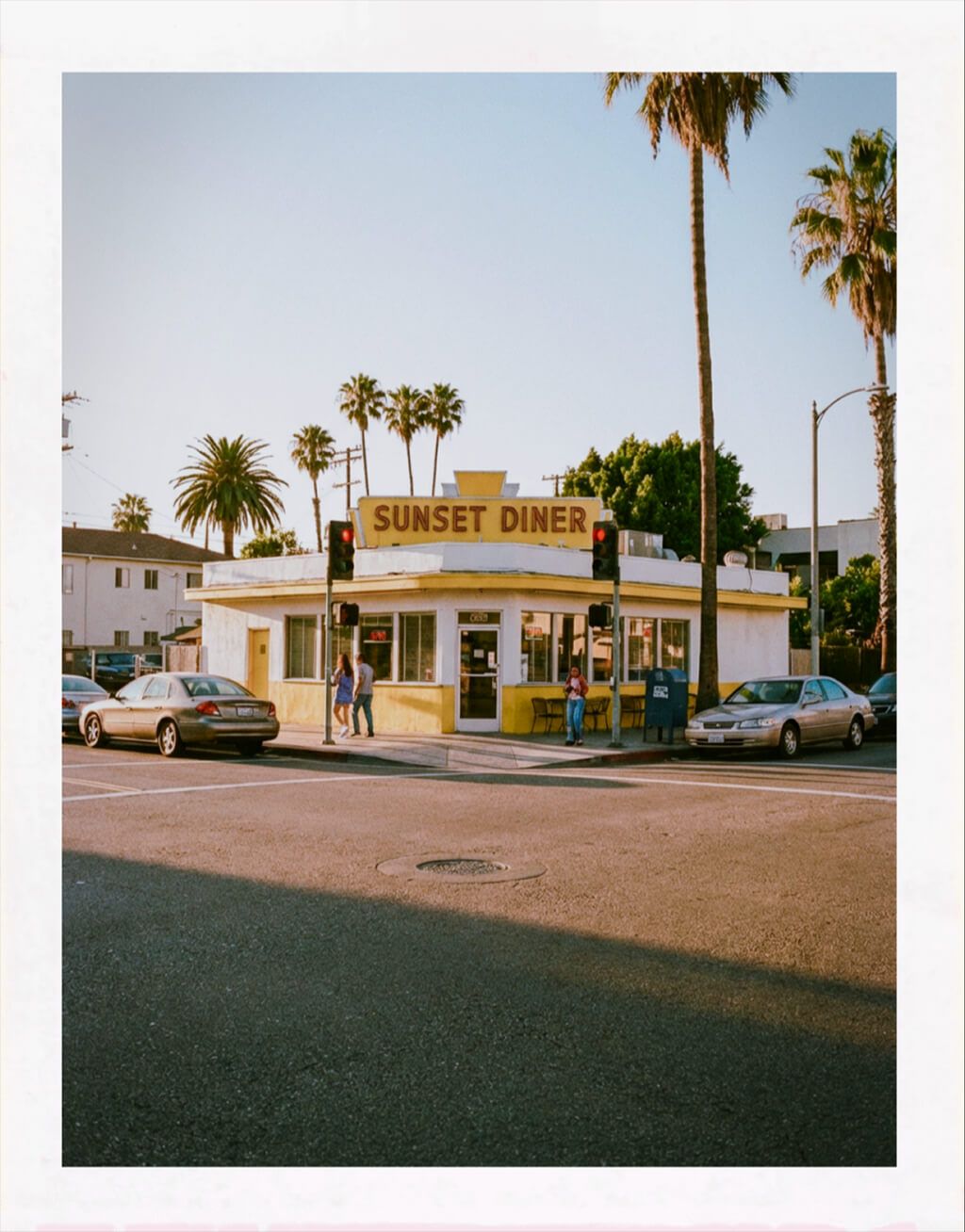
AI has found its way into nearly every vintage photo editor app, and it’s a love-hate situation. Done right, it quietly enhances that vintage feel. Done wrong, it strips away everything that made the aesthetic special.
The good side of AI:
I was pleasantly surprised by Photoshop on iPhone and Fix The Photo Body Editor&Tune. The AI features are optional and easy to use. They assist without hijacking your edit.
If your app fixes every flaw, it kills the whole point. Vintage photos are meant to look imperfect.
1. Dazz Cam
Vintage camera app realism
- Realistic camera simulations
- Authentic film grain
- Shoot-first workflow
- No AI plastic look
- Pure retro vibe
- Limited fine editing
- For iOS devices only
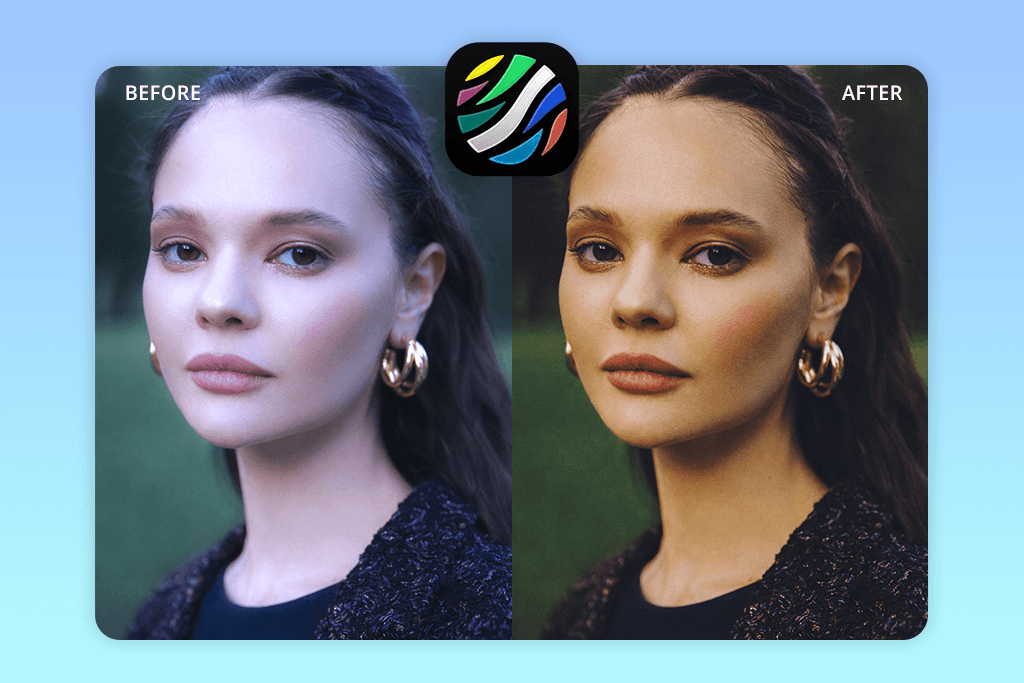
I discovered Dazz Cam from YouTube creators who shoot with it daily. Most vintage look photo apps just apply a filter to your image and call it a day. Dazz Cam takes a completely different approach. It wants you to feel like you’re holding a real film camera, not just editing on your phone.
The moment you launch it, you’re inside a live camera interface. From there, tapping the camera icon lets you cycle through various camera models, and each one genuinely works differently. The colors shift, the grain changes, light reacts uniquely, and even motion has its own character. In fact, it doesn’t make images look vintage. It lets you grasp the point of shooting vintage.
To jazz up your photo with a vintage feel, go to Album, tap Import Photo, and choose a camera simulation. At this stage, I like to pop into Adjust to play with exposure and contrast, then hit FX for fun extras like dust overlays, light leaks, or a date stamp. What I love is how organic the grain feels. It doesn’t just coat the image – it responds to light, so the outcomes are very believable.
During testing, I noticed that this app works step by step. You won’t end up with over-processed colors, smoothed-out skin, or artificial glow. Highlights clip naturally, skin tones stay true, and the final photo looks raw in the best way possible. With Dazz Cam, it is very easy to play around with trendy Instagram photo ideas.
The weak spot is limited manual control. Plus, stacking too many effects can ruin the shot quickly. Keep it simple – one camera, minimal tweaking, and let Dazz Cam do its thing.
Pricing: Free (limited cameras); in-app purchases from $0.99
2. Photoshop on iPhone
Pro-level vintage photo editing
- Complete layer control
- Custom film looks
- Precise color editing
- Non-destructive workflow
- Amazing results
- May confuse novices
- Slower than filters
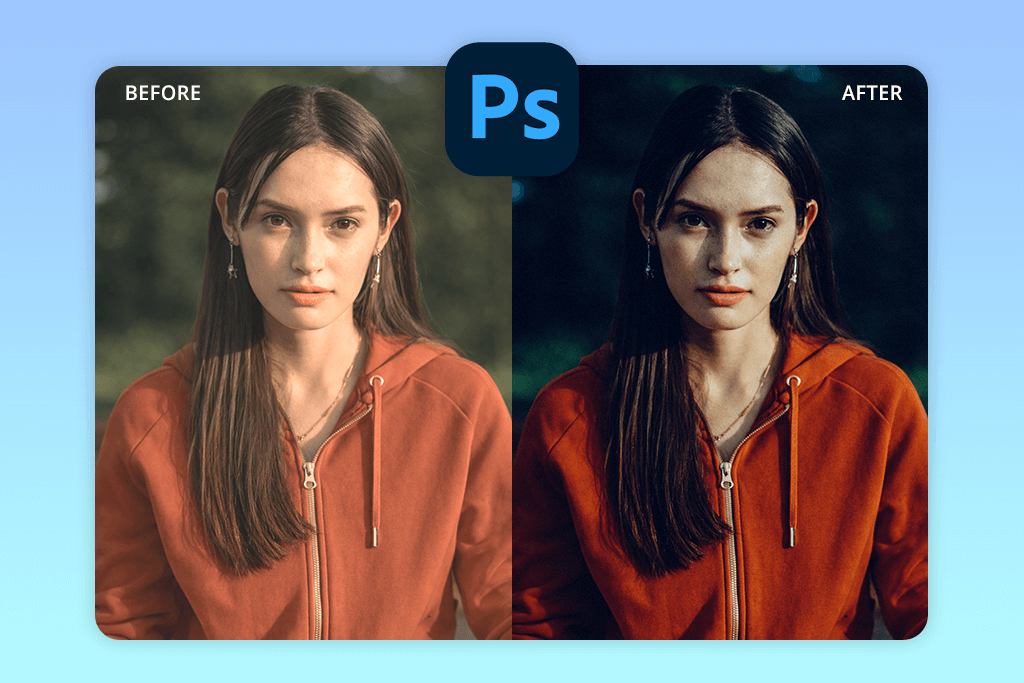
I use Photoshop on iPhone every day for my professional needs, so I know that it’s the most powerful option out there if you know how to use it. But don’t expect magic filters or instant results. This free Adobe app rewards people who want to spend time on proper image editing.
My usual starting point is Adjustments, then Curves, where I pull the blacks up slightly and tame the highlights. It immediately gives the photo a soft, filmy quality. From there, Color Balance or Selective Color helps me push shadows toward cool tones and highlights toward warmth, mimicking how actual film stock renders color.
I add grain by hand through the Noise tool, keeping it subtle, and occasionally layer in some dust using Blend Modes like Overlay or Soft Light. But the real highlight is layers. You can mask grain, tweak opacity, and fade effects, so no wonder many users claim Photoshop is the best vintage camera app that surpasses basic filters.
The best part is that you’re always in the driver’s seat. You choose exactly how old or worn the photo feels. The catch is that it’s more complex and slower than your average retro app.
My tip: Build and save your own vintage presets. Once you have two or three ready to go, the whole process becomes quicker and much more consistent.
Pricing: Free (basic tools); from $7.99/month
3. Fix The Photo Body Editor&Tune
Custom vintage photo editing
- Human-made edits
- Realistic film grain
- Subtle filters
- Great skin tones
- Time-efficient editing option
- No instant results
- Limited post-edit tweaks
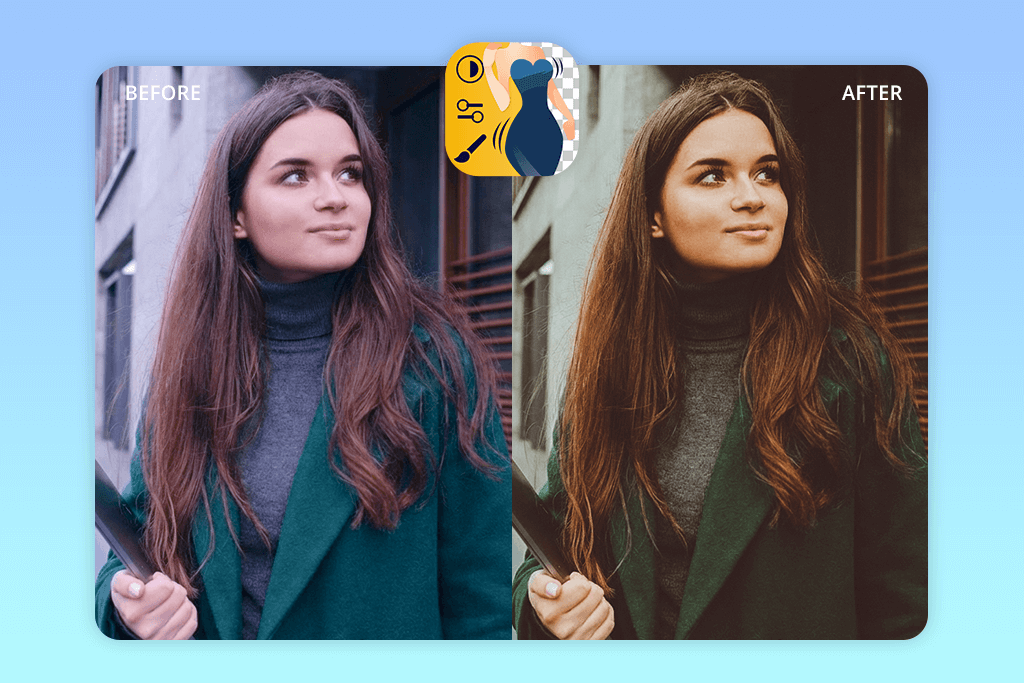
I found Fix The Photo Body Editor & Tune when I needed a quick but professional edit, basically when Photoshop required too much effort. Unlike other tools that just slap on pre-made filters, this app that photographers use resembles a mini retouching studio in your pocket. It’s perfect if you want clean, high-quality results without spending forever adjusting sliders.
My usual routine is importing a photo and going to Photo Retouch → Color Correction, where I type out the look I want. I typically ask for vintage tones, soft grain, or washed-out blacks. There are preset options available, too, but this retro photo app stands out with customization flexibility.
One thing that makes this app different is that real editors are actually working on your photo. That’s why the grain looks genuine, the contrast seems purposeful, and skin tones don’t get wrecked in the process. The final photo doesn’t have that obvious “filter” look, which is surprisingly rare for retro editing apps.
I was really impressed by how it mimics classic, film-inspired aesthetic, especially for portraits or lifestyle shots where you want a nostalgic vibe without overdoing it. The one drawback is that it isn’t instant, and editing options after delivery are limited.
My tip: Be super specific with your request from the start. A clear vision leads to a much better outcome.
Pricing: Free first photo; From $0.99
4. 1998 Cam
One-click retro photo app
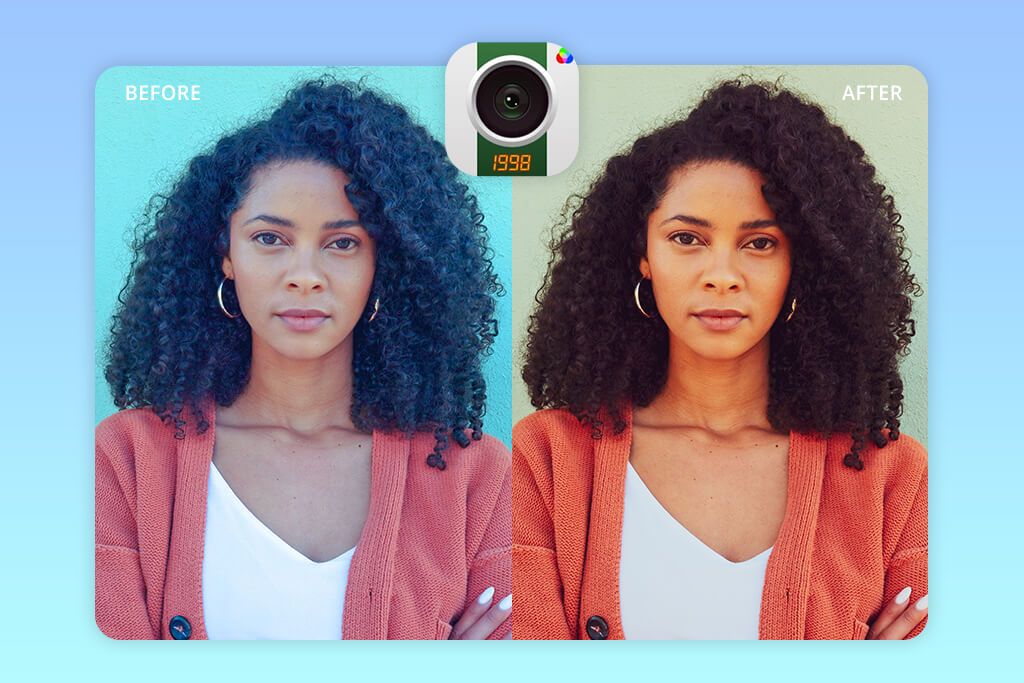
- Immediate 90s look
- Newbie-friendly
- Natural timestamps
- Lightweight workflow
- Great social results
- Poor control
- For iOS devices only
My colleague told me about 1998 Cam. He kept using it for quick Instagram photo editing and creating candid shots. At first, I wasn’t sold. It looked too simple. But that’s actually the whole point.
This retro photo editor app is designed for anyone who wants old-school, nostalgic photos without dealing with a complicated editing process. The moment you open it, you’re ready to edit. Hit Import, select your shot, and wait for the app to transform it into something that looks straight out of the late 90s or early 2000s.
From there, I like to pop into Adjust to play with brightness and contrast, then switch on the Date Stamp and grain effect. Unlike other vintage filter apps, 1998 Cam is a minimalistic app in the best possible way. It skips the overwhelming options and sticks to what actually made early digital photos look the way they did – grainy textures, faded colors, compression, and timestamps.
It works really well for party pictures, flash shots, and everyday portraits where you care more about the feeling than the details. Unfortunately, you can’t dig deep into settings like grain or color channels.
My tip: just pick one look and stick with it. That’s where this retro app truly does its job.
Pricing: Free (ads, limited tools); in-app purchases from $1.99
5. Huji Cam
Disposable-style vintage photo app
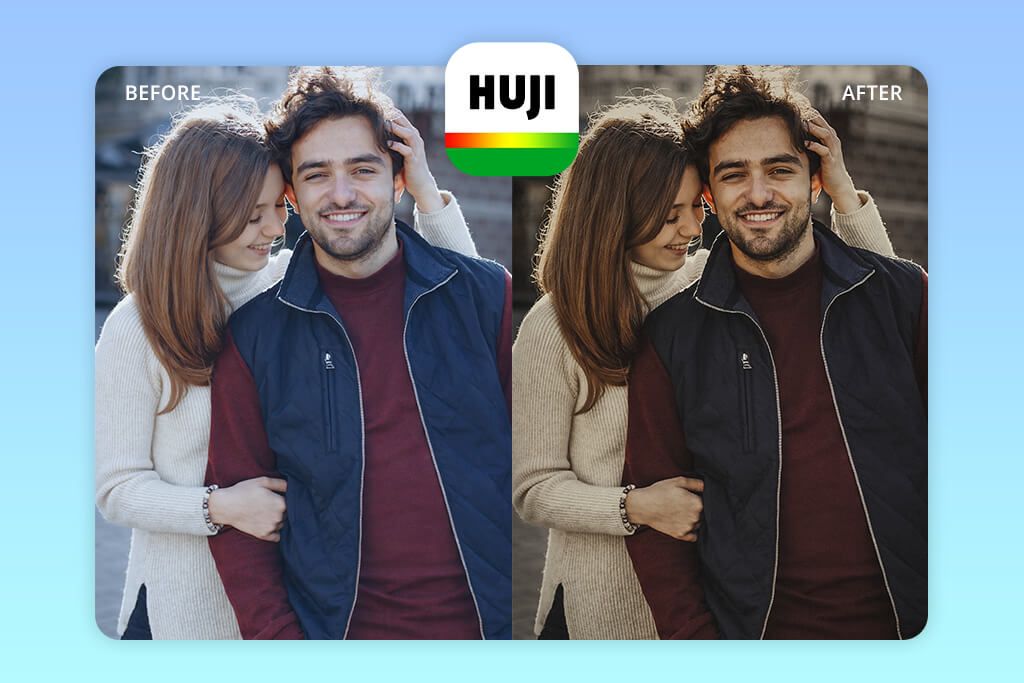
- Mimics the film effect neatly
- True shoot-first workflow
- Good set of filters
- Iconic date stamp
- Authentic retro mood
- No manual editing
- Results vary
I found out about Huji Cam through Reddit. Whenever someone asked about getting that disposable camera feel, this app kept coming up in recommendations. And people weren’t talking about something retro-inspired or stylized. They meant something that looks truly raw, messy, and nostalgic.
Huji Cam is built differently. The second you open it, you’re in a camera, instead of an editing interface. You take the shot and discover the result afterward, which already changes how you shoot. I keep the Date Stamp on and flash set to Auto. There are zero sliders or color controls.
Huji Cam stands out from every other vintage photo filter app because it makes the whole process as easy as it should be. There’s no manual editing here. The grain, color shifts, soft focus, and blown highlights are just part of the deal. Coming from a retouching background, losing that control feels uncomfortable at first. But it’s a creative breath of fresh air.
The results look real and unplanned – genuinely close to what a 90s film point-and-shoot would produce. I personally loved using it for parties, late-night walks, and those casual in-between moments where imperfection adds character. The obvious downside is zero flexibility. What you shoot is what you get.
My tip: treat it like an actual disposable camera. Don’t overthink and don’t overshoot.
Pricing: Free (watermark, limited saves); in-app purchases from $0.99
6. Daze Cam
Experimental retro camera app
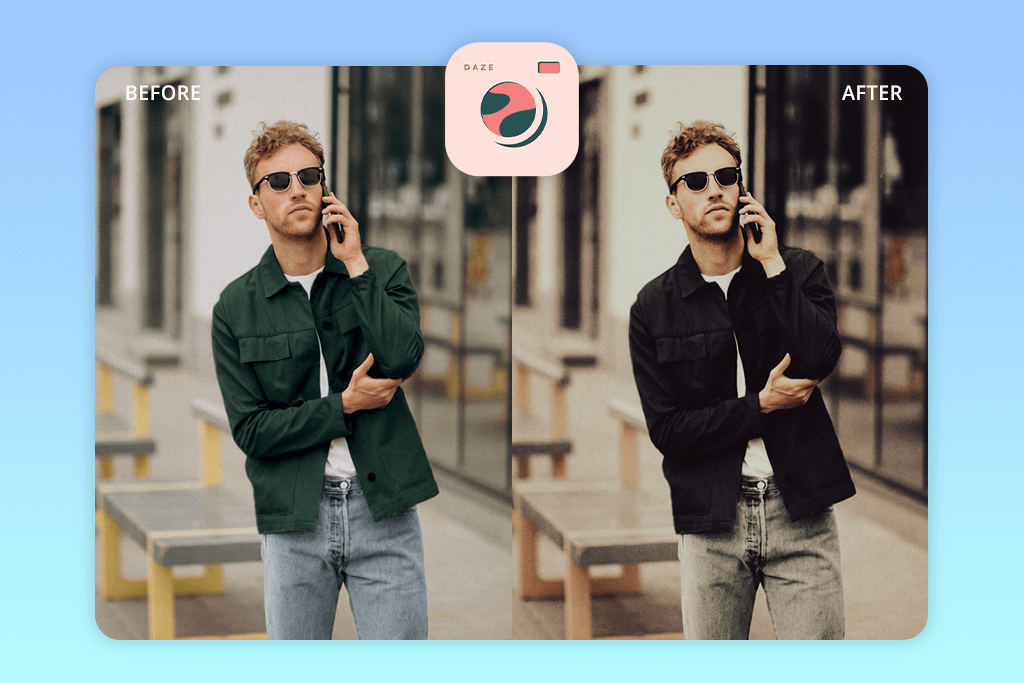
- Amazing retro effects
- Beautiful light leaks
- Great for fast experiments
- Strong visual character
- Trending looks
- Easy to go overboard
- Poor precision
I found Daze Cam sitting near the top of the vintage camera charts on the App Store, so I became curious. After trying it out, I’d call it the most expressive vintage filter app in this bunch. It’s part camera and part creative tool. You can take photos inside the app or import ones you already have, then apply the effects.
My go-to move is choosing a camera mode first, then stacking on Effects or light leaks, blur, dust, and color glitches. It doesn’t try to look sophisticated or perfect. It favors unique imperfections, which is truly great.
This auto photo enhancer differs from most retro photo editor apps by favoring distortion. The light leaks hit hard, the blur is rough and uneven, and colors can go full chaos mode. The results look like a film that got damaged or left out too long, which makes them more interesting.
For music visuals, bold portraits, or fashion shoots, that raw energy works really well. I loved reaching for it whenever I wanted loud and a little wild photos. The tricky part is knowing when to stop, as effects can pile up fast.
My tip: keep it simple, use one or two effects, and ease off the opacity. Done right, you get an eye-pleasing vintage style look.
Pricing: Free (limited effects); in-app purchases from $3.99
7. Snapseed
Manual vintage photo editing
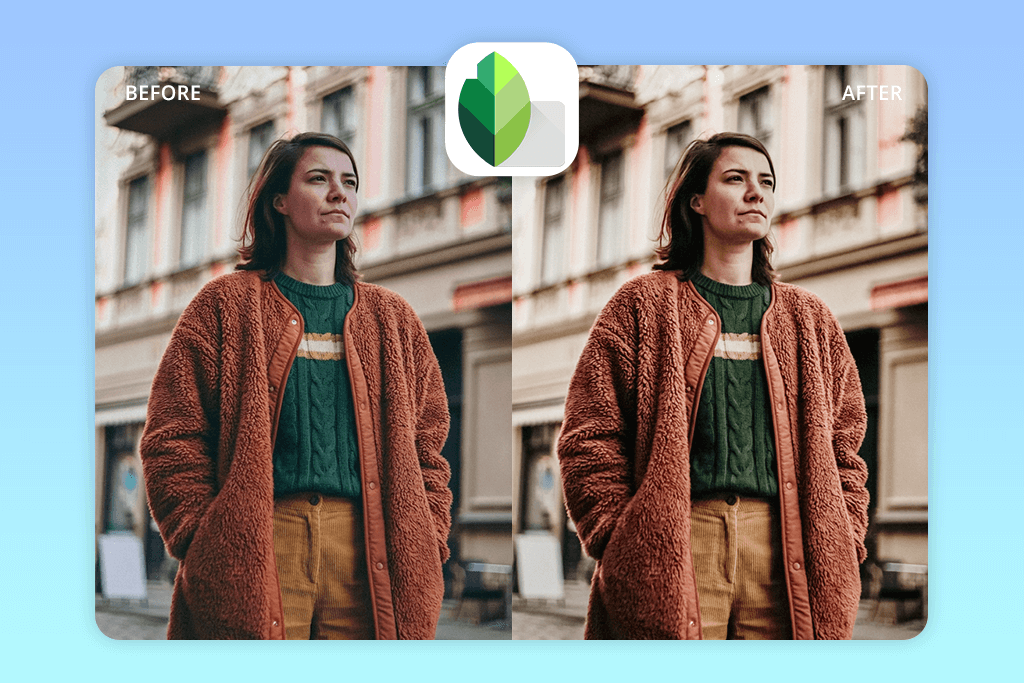
- Absolutely free
- Precise curve control
- Selective editing
- Beautiful and neat vintage looks
- No forced filters
- Lacks instant presets
- Slower workflow
Snapseed is my favorite Android and iPhone photo editor. It’s not built for vintage looks, but you can absolutely get there with a little patience. I usually start by toning down the saturation and contrast in Tune Image.
After that, I open Curves and raise the black point just a touch. That alone gives photos a washed-out, film-like quality. Then comes Grainy Film, which I use very lightly. Too much grain looks overdone, so I dial back the strength and soften the style. It takes a few minutes, but the result looks natural rather than like a cheap filter was slapped on.
Snapseed gives you precision that most old photo effect apps simply don’t. Using brushes and masks, you can apply edits to specific parts of a photo. This is great for keeping skin tones natural while adding grain or texture elsewhere. It’s not the quickest tool, but it delivers mesmerizing results.
I especially liked it for portraits, outdoor shots, and simple vintage edits. Yes, it takes patience, but I’d like to share a simple trick.
My tip: save your favorite edits as a custom look and reapply them next time. It cuts your editing time down significantly.
Pricing: Free
8. YouCam Perfect
AI-powered retro photo app
- Beginner-friendly tool
- Stylish retro effects
- Quick results
- AI-assisted edits
- Social-friendly looks
- Over-edited results sometimes
- Less professional control
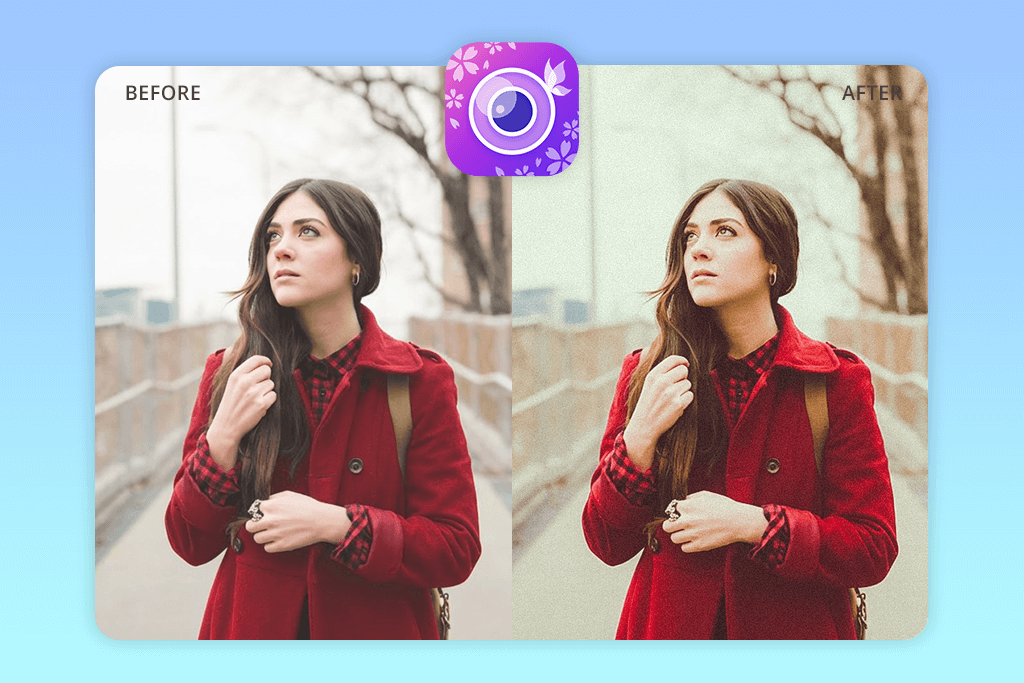
I came across YouCam Perfect on Reddit. People were praising it as an easy-to-use AI photo enhancer app with multiple effects. I wanted to test it specifically as a vintage photo editing app to check if it could create genuine retro vibes without making photos look plastic or artificial.
The app is simple to use. Import your photo, head to Effects → Retro, pick a style, and tweak the intensity. You can also layer on blur or noise for extra texture. The standout feature is its built-in AI. It handles face retouching, background removal, and smart edits on its own.
Once you master the tool, you’ll receive soft, trendy vintage results that look great on social networks. I found it works best for selfies and lifestyle content. The main issue is over-editing. The AI smoothing tends to remove natural texture if you’re not careful.
My tip: switch off the beauty tools, reduce the effect intensity, and let the color do the work. That’s the easiest way to get a good retro look from this app.
Pricing: Free (watermark, limited tools); in-app purchases from $5.99
9. Retro App
Social-first vintage photo app
- Nostalgia mood
- Film-like workflow
- User-friendly
- Great for group images
- Candid scenes
- No editing control
- Mediocre results
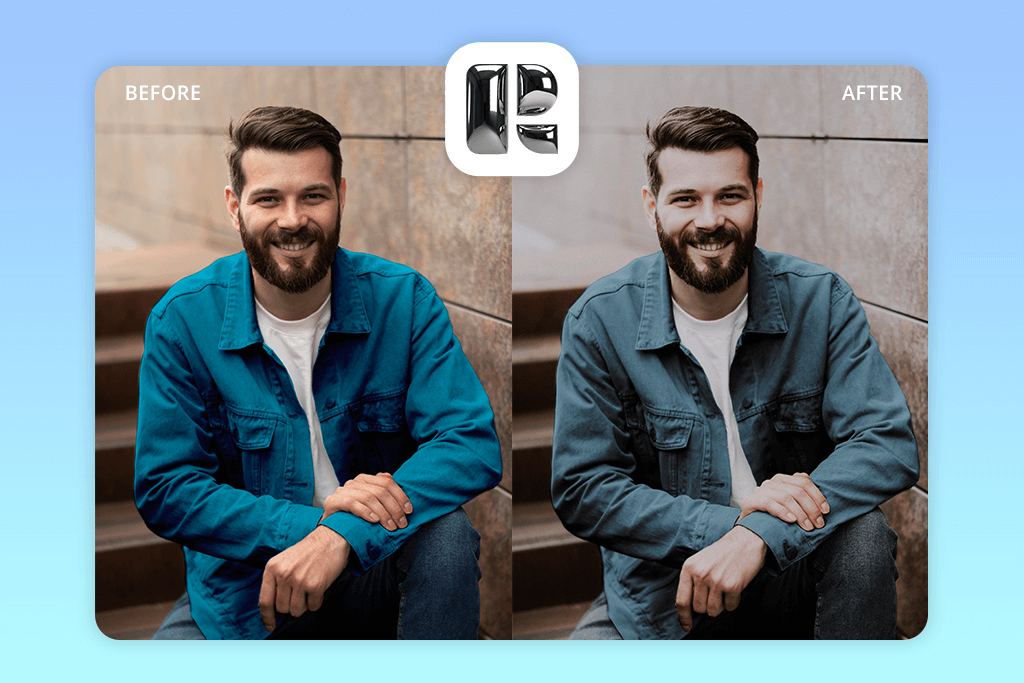
I came across Retro App while searching for the best retro photo app on Google. It stood out immediately, but not for the usual reasons. What makes it special isn’t the filters or effects. It’s the idea behind it. You take photos with your friends, and those photos stay locked until they’re revealed later, almost like the old days of developing film.
The process is very intuitive. Open the camera, take the shot, and wait. There are no editing tools or adjustments. This app favors the experience of sharing a moment and looking forward to seeing it together.
This app stands out because of how it makes you feel. It deliberately removes control, and your photos end up looking spontaneous, imperfect, and genuinely nostalgic in the best way. It’s not made for professional content or careful editing. It’s made for real memories.
I had a great time using it during trips and casual hangouts. The obvious downside is that you can’t shape the final look at all.
My tip: stop treating it like an editor and start treating it like a memory tool.
Pricing: Free (core features); in-app purchases from $1.99
Hottest Vintage Photo Trends & How to Do Them Right
I’ve spotted 3 big trends taking over right now. I’ll show you how to copy them easily using a basic filter app or a manual editing tool.
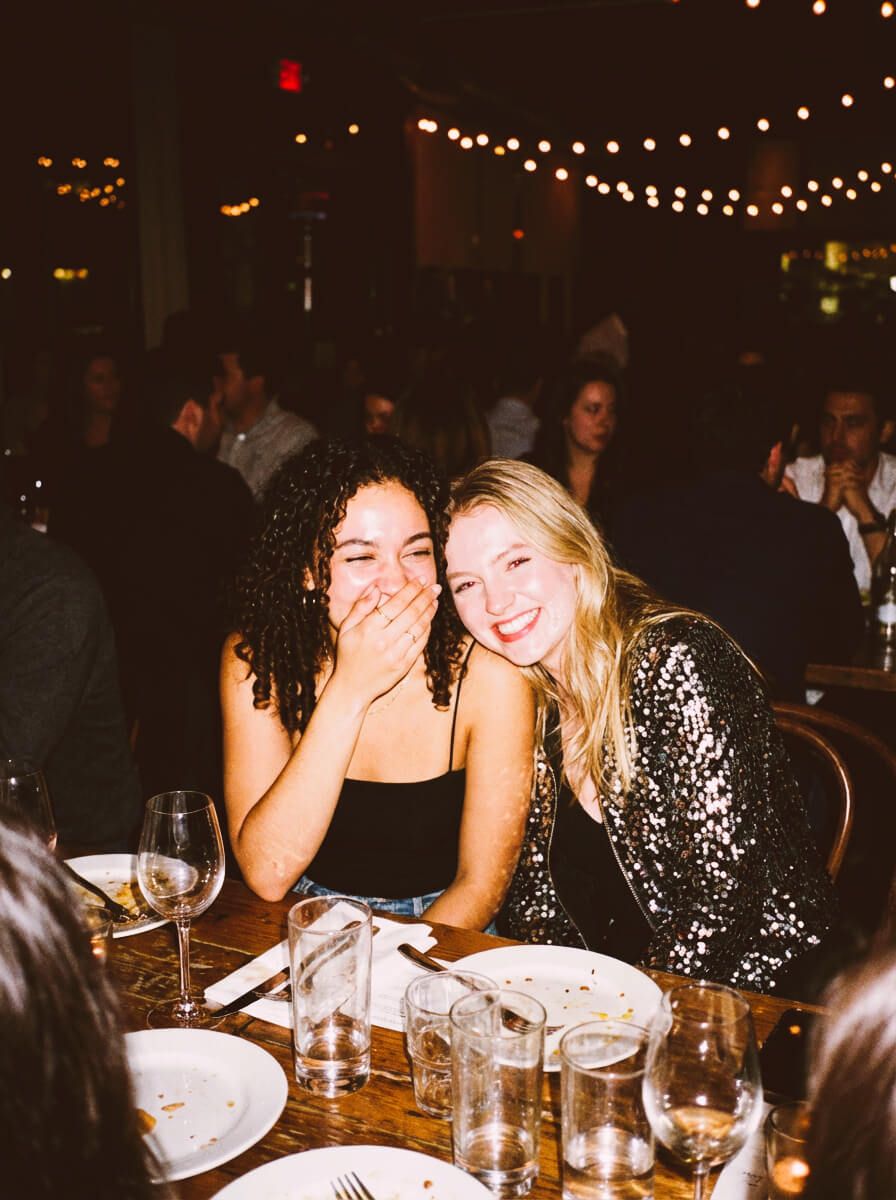
Early 2000s Flash Photos
How to shoot:
- Use direct flash, even in daylight
- Take slightly awkward poses
- Stay near the subject
Outfits: low-rise jeans, glossy makeup, logo tees
Tips:
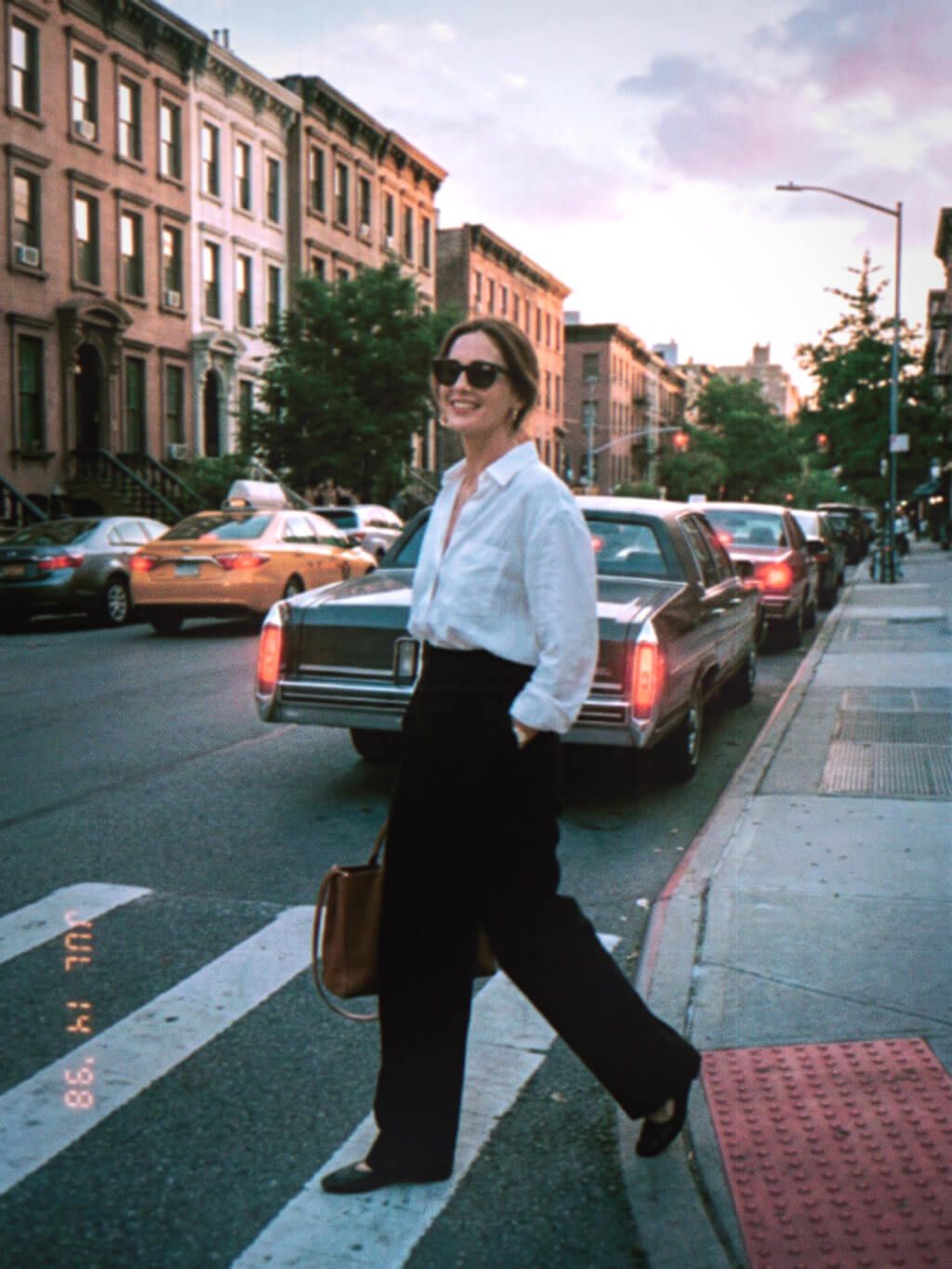
Disposable Camera Street Moments
How to shoot:
- Motion blur is welcomed
- Crooked framing
- Natural expressions
Scenes: parties, taxis, bathrooms, night streets
Tips:
Soft Film Lifestyle Aesthetic
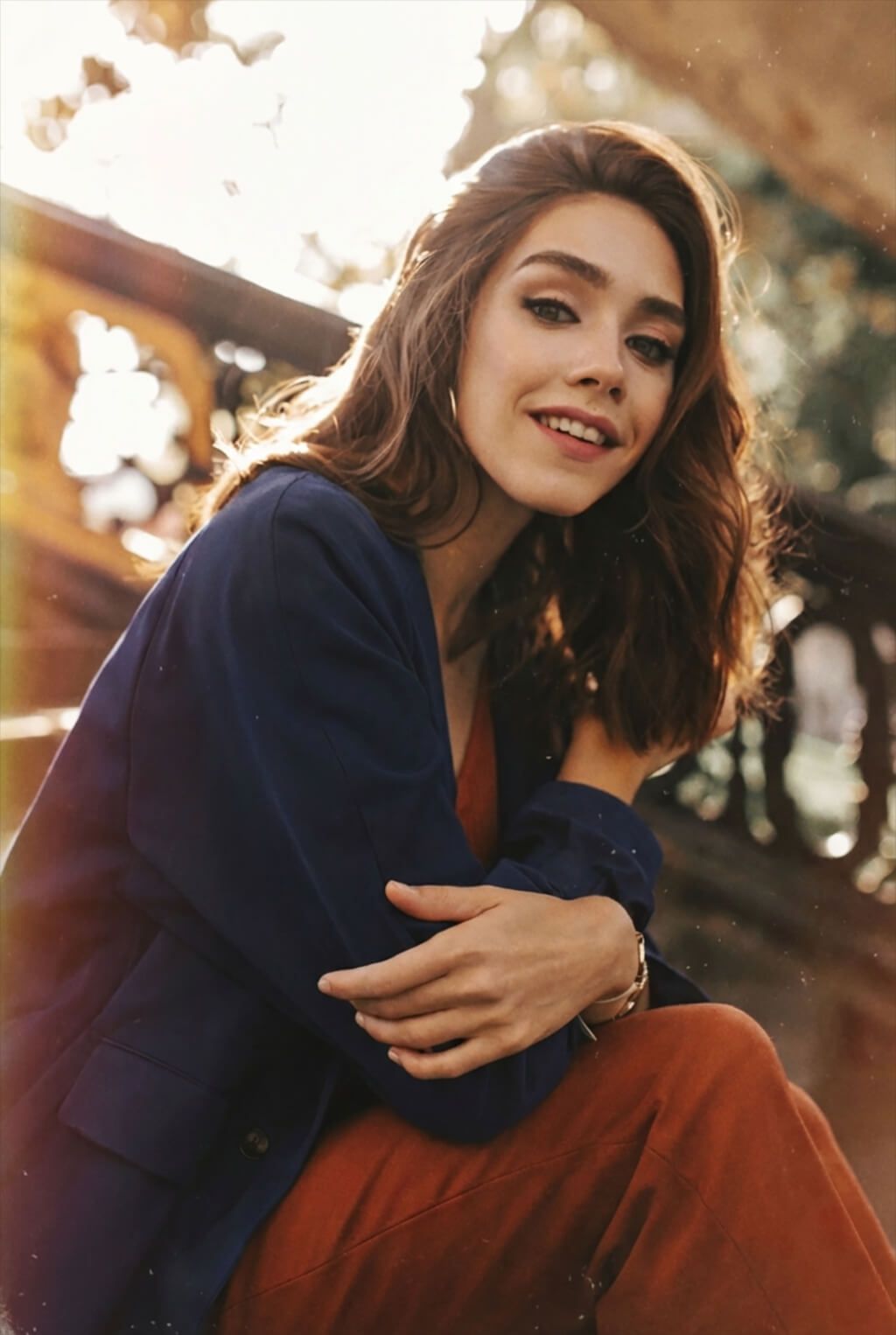
How to shoot:
- Window light or golden hour
- Relaxed poses and minimal movement
- Natural settings
Outfits: neutral tones, denim, vintage silhouettes
Tips:
FAQ
- Which vintage style photo app makes photos look like real old film?
Dazz Cam and Huji Cam are your best bets. They neatly mimic how film cameras work, with natural grain, lighting flaws, and color changes. If you want more control, try Photoshop on iPhone.
- Should I use automatic vintage photo apps?
They’re worth it for the right moments. Something like 1998 Cam works really well for everyday photos and social media. The trick is knowing when to stop. If every picture starts looking the same and too perfect, tone it down a little.
- Do free film vintage apps do a decent job?
Yes, some really do. Snapseed, for example, is completely free and can produce a vintage feel if you use it right. The catch is that most free apps have heavy-handed presets, so a little patience and a light touch go a long way.
- Is AI a friend or enemy when editing vintage photos?
It can go either way. AI helps with color and texture, but it often makes photos look too clean and perfect, which kills the vintage vibe. Real old photos had flaws, so I always turn off AI smoothing tools when doing retro edits.
- What’s the best way to create authentic vintage-style photos?
Think about the shot first. Try natural light or bold flash, and leave in small flaws. Avoid over-editing or making everything super sharp. Vintage images look believable because they aren’t flawless. Choose one classic look for each photo and keep it consistent.
- Is it worth paying for professional vintage editing?
Yes, especially for important projects like campaigns or high-end portraits. Professionals know how to create an authentic film style without relying on cheap vintage photo filter apps. At WeEdit.Photos, real retouchers fine-tune every detail, so the final image looks natural and truly vintage.