7 Best Grainy Filter Apps to Give Your Photos a Vintage Feel
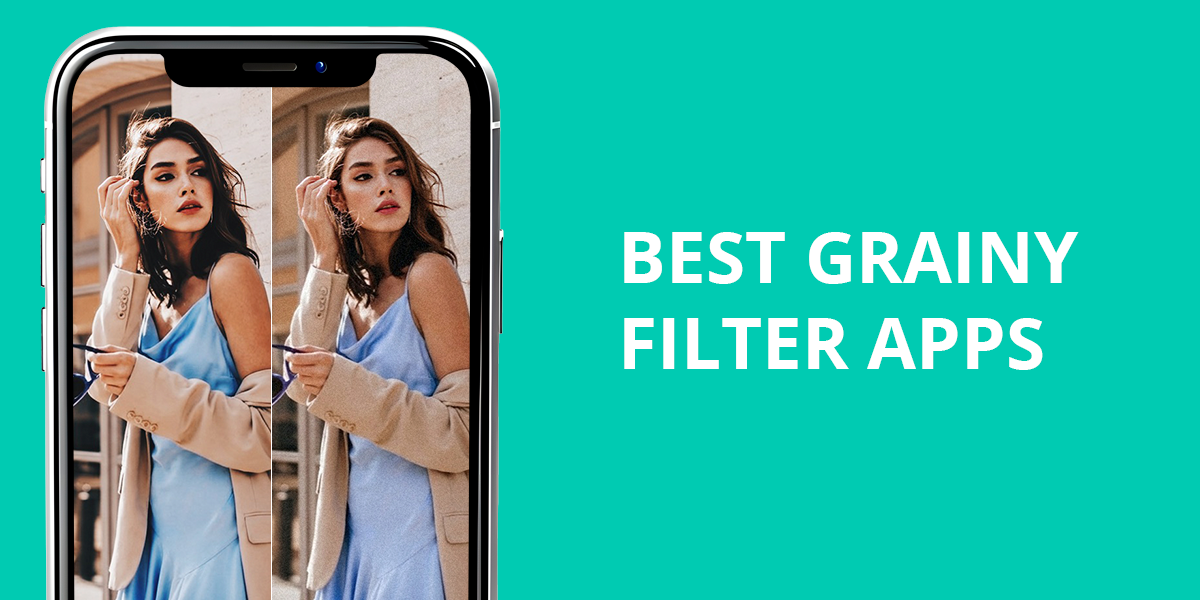
I wanted my photos to have a trendy, retro-inspired feel that’s popular across social platforms right now. That’s what led me to test different grainy filter apps, which can quickly add a cinematic texture and mood to images. While comparing the top options, I noticed that some tools applied the effect too heavily, making pictures look rough instead of stylish.
Others didn’t offer enough control, and a few even slowed down my workflow. Still, finding dependable grainy filter apps makes it much easier to experiment with creative looks and give posts a distinctive style that stands out.
Tips for Using Grainy Filters Without Overdoing It
A touch of grain can create atmosphere and a classic look, but excessive use can harm the final result. From what I’ve learned, these are the ways I keep the effect controlled and polished:
These tricks help create stylish images with more depth, without making them look too strong. Keeping the effect light and placing it carefully is what works best.
1. I Love Film
Natural-looking results
- True-to-life film texture
- Instant preview
- Simple, beginner-friendly controls
- Built-in social sharing
- Limited advanced settings
- iOS only
Pricing: Free or from 4.99/mo.
OS: iOS
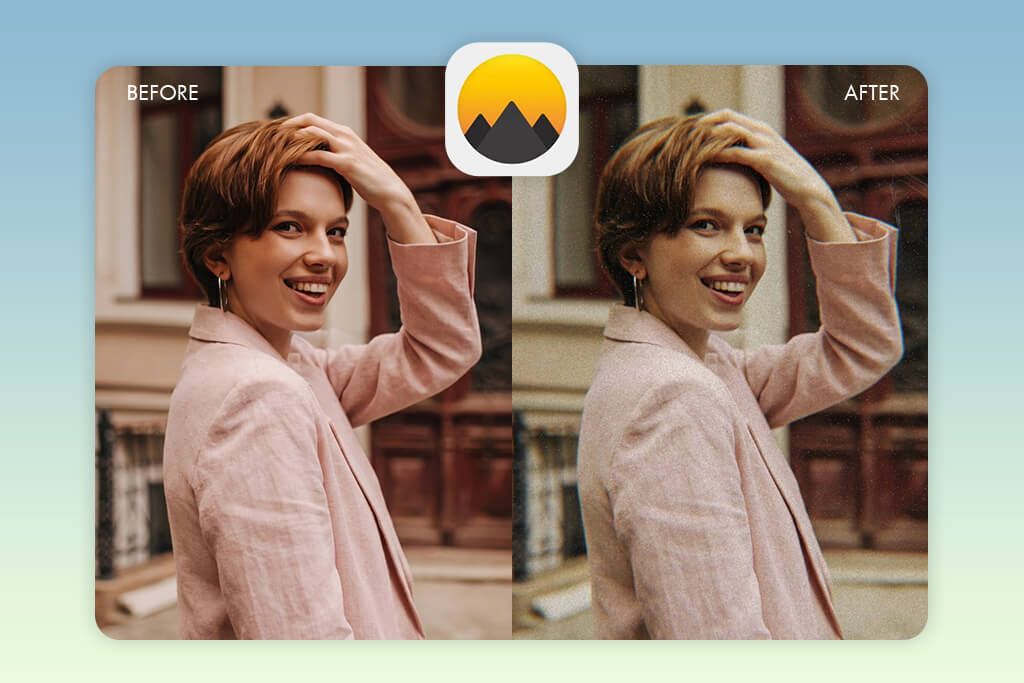
With more than 130 film presets, I Love Film offers a wide range of textures that closely resemble classic photography styles. Each preset includes its own unique grain pattern, helping photos achieve a naturally aged look. While testing this grainy filter app on travel and lifestyle images, I noticed how it added depth and personality without appearing artificial. Another highlight is Film Live-View, which allows you to preview the grain effect in real time as you frame your shot.
Beyond grain, this iPhone photo editor includes helpful extras like light leaks, vignette, and bokeh, which enhance mood and make your subject pop naturally. The interface of this grain overlay photo app is simple and intuitive, so applying the grain and minor tweaks like contrast, exposure, and crop is fast and straightforward.
One drawback is the absence of batch processing, which makes handling several images slower than expected. There’s also limited flexibility when adjusting grain styles, and the export process can feel a bit clumsy. On the plus side, sharing to social media or storing images locally is straightforward.
2. Fix The Photo Body Editor&Tune
Pro-level quality

- Edits done by human experts
- Natural-looking results
- Custom grain style options
- Clean, ad-free interface
- First edit is free
- Accepts detailed requests
- No search filters by type
- Not instant turnaround
Pricing: Free; edits from $0.99 per photo
OS: Android and iOS
Most apps I tried that promised grain effects ended up creating rough, unrealistic textures that spoiled the overall look. So, I decided to test Fix The Photo Body Editor & Tune as a grainy photo filter app to see how professional editing would compare. The process is very simple – you upload your photo and describe the style you want, such as a soft film-style finish, a strong analog feel, or a trendy social media look. There are no complicated sliders or crowded menus to deal with.
To see how well this film grain filter app performs, I tried it on several types of photos, including portraits, street scenes, and lifestyle shots. For each image, I asked for a different style – subtle vintage film, detailed black-and-white texture, and gentle analog-style noise. The professional retouchers adjusted the effect carefully so it matched the lighting, shadows, and fine details. The final results looked smooth and natural, adding atmosphere and depth without washing out details or making colors look too strong.
What impressed me most was the clarity – details like hair and clothing stayed crisp, while the added texture made the photos feel more expressive. I also liked that you can describe the exact look you want, including the strength and style, and the team tailors it to your photo. The main drawback is waiting about 15-20 minutes for delivery, and you need to explain your request clearly.
Beyond grain effects, this service offers useful extras like body shaping, color correction, an app to blur background, and full retouching, making it a flexible choice for creating polished, social media-ready photos. The pricing system is simple – you can begin with a first free edit, then purchase credits (for example, 5 credits for $0.99). Since the team works 24/7, it’s especially helpful when you have tight deadlines or need quick updates for social media.
3. Lightroom Mobile
Flexible grain customization
- Professional-looking layout
- True-to-life results
- Preset saving available
- High-res file support
- Subscription needed for all features
- Learning curve for new users
Pricing: Free or from $4.99/mo.
OS: Android and iOS
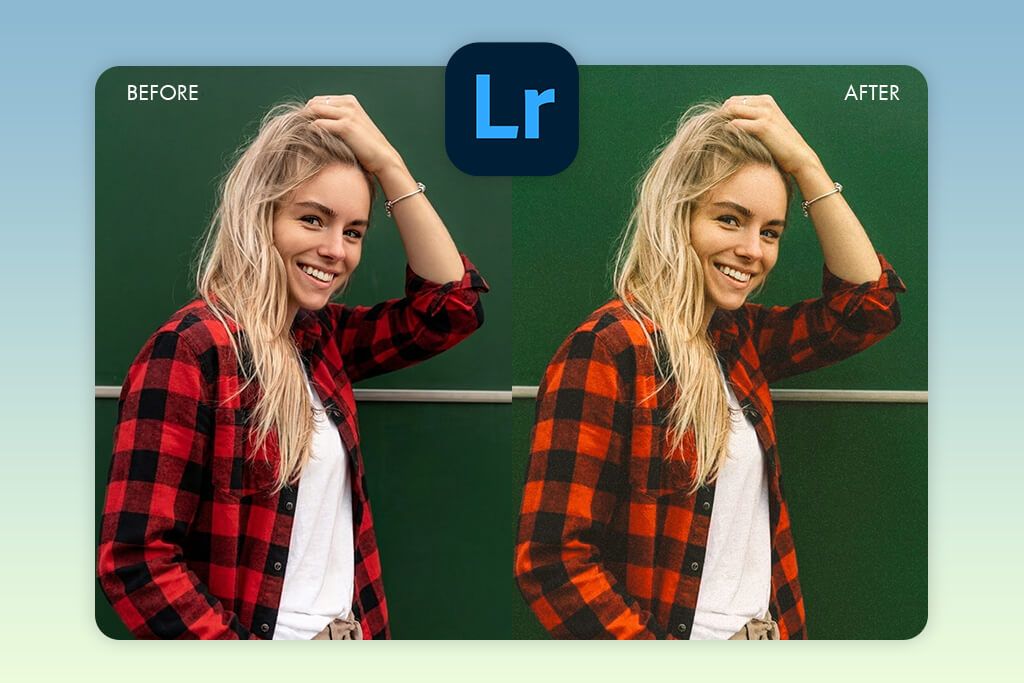
Lightroom works well for creating film-style texture because you can use the Effects panel to adjust Grain, Size, and Roughness controls. Setting Grain close to 30-35 usually produces a balanced look that feels vintage or cinematic, while also softening the overly crisp look of digital photos and improving atmosphere. The layout of this free Adobe app looks modern and polished, although new users may need some time to get comfortable with all the tools.
What stood out to me most were the selective editing tools, which made it easy to add texture only to certain areas while keeping skin and fine details untouched. Features like vignettes, color grading, and noise reduction also helped refine the overall look and keep everything balanced. Saving finished images is simple, and the option to store presets allows me to reuse the same settings on future photos without repeating the process.
The finished images looked clean and natural, with texture that added character without feeling exaggerated. This grain overlay photo app works reliably, though full features require a subscription, and it lacks built-in “film emulations” found in some other apps.
4. Wild Shot
Huge filter library
- True-to-life retro effects
- Simple and quick to use
- Adjustable grain dimensions
- Fast export tools
- Paid access only
- iOS-only availability
Pricing: 7-day free trial or for $7.99/year
OS: iOS
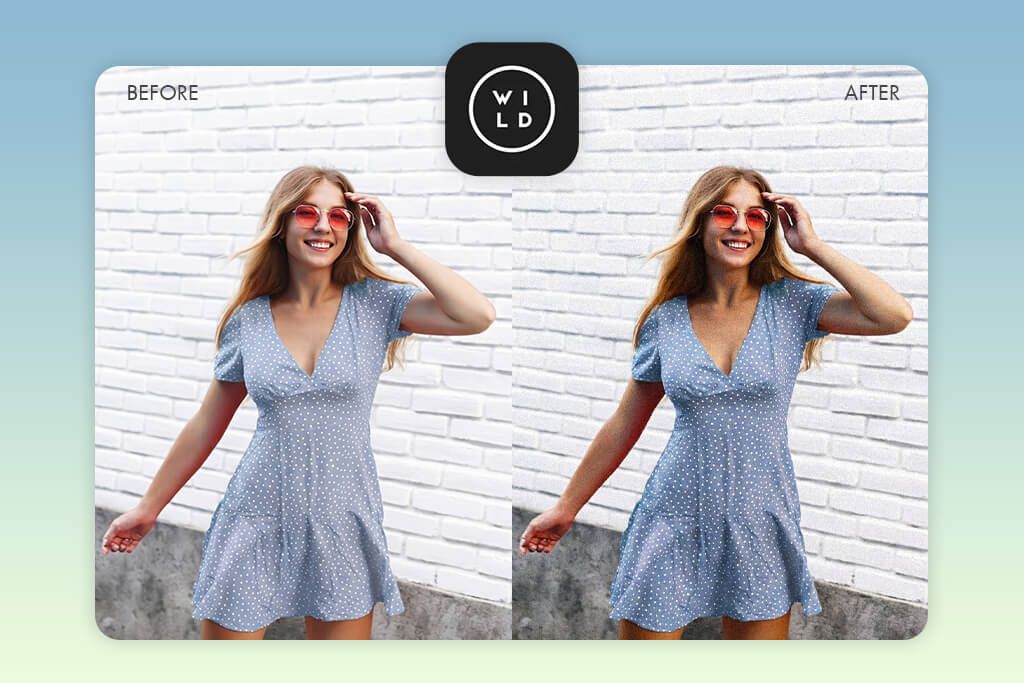
With Wild Shot, creating retro-style images is straightforward thanks to its library of 200+ vintage presets. My workflow was simple: first, I selected a preset, then adjusted the look using grain, dust & scratches, and chromatic aberration controls. The final texture feels more artistic than technical, but that actually works well for trendy social media visuals where a bold, stylized look is often preferred.
I enjoyed experimenting with film burn, light leaks, and halation to build a strong analog-style look. The interface of this retro grain filter app feels simple and easy to navigate, so adding a grainy effect only takes a few taps. There are also manual options like brightness, contrast, and shadows, which make it easy to fine-tune the image. In the end, the photos turned out rich in mood and visually striking.
The level of control over the texture isn’t as detailed as what you’d find in professional software, but it still blends nicely with other effects, helping images look unified and creative. One thing to keep in mind is that many advanced presets require a subscription. Also, this grain filter app for iPhone isn’t available on Android, which may limit access for some users.
5. Grain – Pro Film Camera
Instant editing with a single tap
- Instant grain preview
- Fast device-based performance
- Smooth, natural-looking texture
- Streamlined shooting workflow
- Fewer artistic options
- Easy to overapply the effect
Pricing: Free
OS: Android
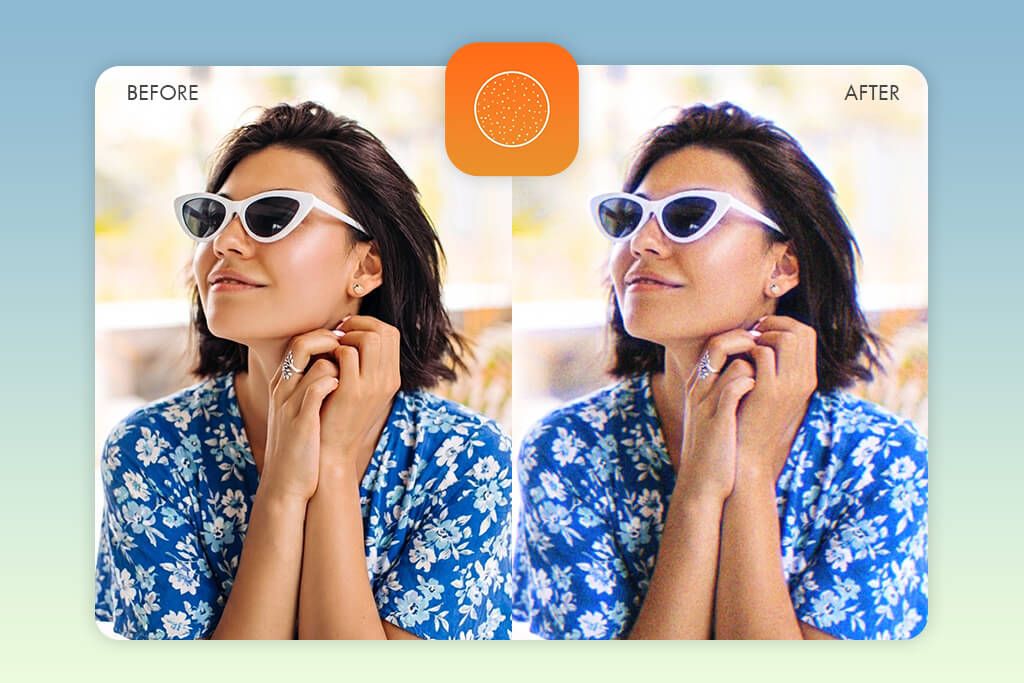
Real-time processing is what makes Grain – Pro Film Camera unique among grain effect photo editors. The OpenGL live preview lets you check how the texture will appear before capturing the image, which helps avoid extra editing later. To use it, I chose a preset and then fine-tuned grain intensity, tonal balance, and contrast to suit the lighting conditions.
Creating custom “films” makes it easy to keep a consistent style across images. Presets like Acrux B&W and Retro Negative already look balanced, but you can adjust them for more control. The app runs quickly on-device, doesn’t need extra edits later, and works without requiring an account.
The final photos appeared balanced and natural, with texture that merged smoothly into bright and dark areas. That said, the preset selection is smaller, and there are fewer artistic options than in more stylized grainy filter apps. I also noticed that the final look can differ depending on the phone’s camera system and hardware. Since the app is built for Android CameraX, it may not be available for iOS devices.
6. Snapseed
Accurate manual control
- Adjustable grain presets
- Wide range of enhancement tools
- Free to use with no ads
- Supports RAW file editing
- No cloud syncing
- Slower performance with big files
Pricing: Free
OS: Android and iOS
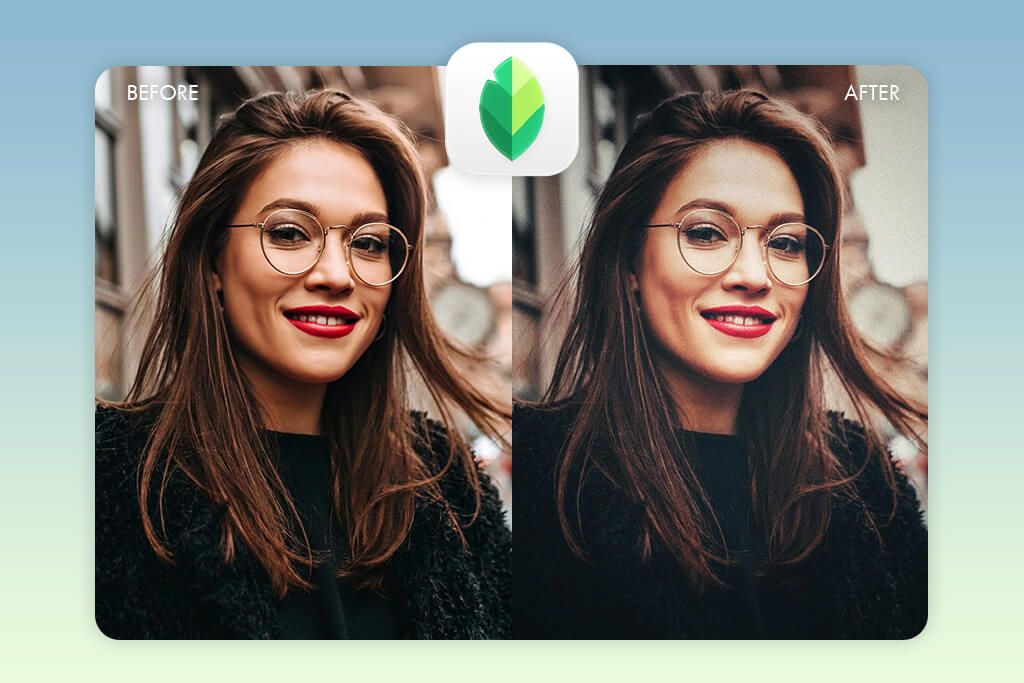
Snapseed works well as a free aesthetic grain filter app because it offers detailed control over texture placement. I used the Grainy Film feature from the Film section to set the texture style and strength, then balanced the image using minor adjustments to contrast, brightness, and saturation. With selective tools, I could limit the effect to specific zones like backgrounds, while keeping skin tones smooth.
Using this app feels very straightforward because the sliders are clearly labeled, making it easy to try different texture looks without confusion. This iPhone and Android photo editor also offers helpful tools like vignette, HDR scape, and perspective adjustments, which make it easier to shape the mood and fix alignment without making the grain too strong.
The finished photos looked polished and natural, without feeling overly processed. However, the selection of film emulations is smaller compared to premium vintage grain filter apps, and keeping a consistent style across several images requires manual adjustments.
7. Fotor
Many creative photo effects
- Simple for beginners
- Variety of AI features
- Good layout controls
- One-tap quick effects
- Can lag with intense effects
- Limited free access
Pricing: Free or for $8.99/mo.
OS: Android and iOS
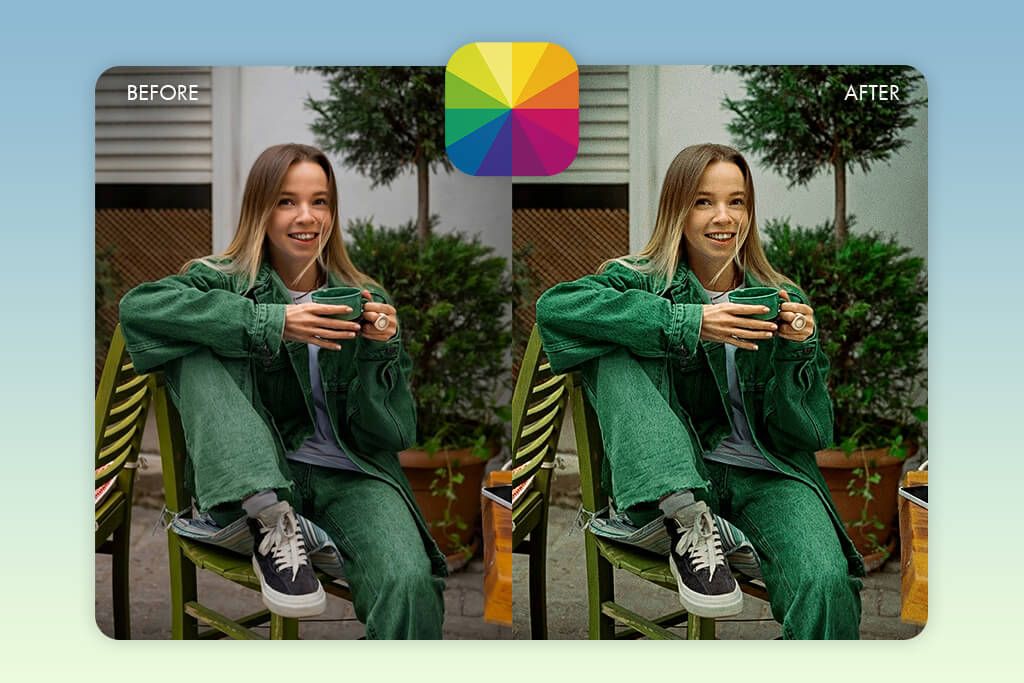
What makes Fotor appealing is how simple the editing process feels. After uploading my images, I selected the Film Grain feature and adjusted Intensity and Roughness to control the look. In one portrait example, the texture strengthened details on accessories and fabrics while leaving skin smooth. As an auto photo enhancer, this film grain app uses a clean layout that doesn’t require much prior experience, making it a strong choice for newcomers.
One thing I found very helpful was the real-time preview, which made it quick and easy to adjust grain and other settings. I also liked that Fotor includes one-tap filters for fast edits, along with a variety of AI-powered tools. Extra options such as brightness, contrast, and color controls made it simple to refine the final look while keeping the texture balanced and natural.
Overall, the photos turned out stylish and well-balanced, with texture that improved the atmosphere without feeling fake. On the downside, several premium filters and AI tools require a paid upgrade. In addition, one-tap options are quick but don’t provide the same level of control as professional software such as Lightroom.
FAQ
- Why would I want to add grain to my images?
Using grain helps images feel richer and more expressive. It tones down harsh digital clarity, enhances fine details, and adds a classic or movie-style mood that makes everyday photos look more refined.
- Can I control the amount of applied grain?
Many aesthetic grain filter apps include settings for grain intensity, size, and roughness, giving users plenty of flexibility. More advanced tools like Lightroom Mobile or Fix The Photo Body Editor & Tune offer detailed control over where the effect appears, while one-tap apps provide preset levels for faster editing. Depending on the photo, you can use lighter textures for portraits or heavier ones for dramatic street scenes.
- Do grain filters work on all types of pics?
Grain effects work well across many photo types, including portraits, city scenes, lifestyle shots, night images, and even product photography. The important part is matching the texture level to the subject. For example, using too much grain on close-up portraits can hide fine details, while urban or landscape photos usually look great with stronger textures.
- What app gives the most lifelike grainy results?
Unlike simple one-tap tools, Fix The Photo Body Editor & Tune focuses on applying texture in a more controlled way. This results in grain that looks natural and evenly blended, while important details remain sharp. The finished images feel more professional and balanced.
- Can I combine grain with other effects?
Most grain effect photo editors support layering effects, which makes them very versatile. In tools like I Love Film, Snapseed, and Fotor, you can pair grain with vignettes, color grading, light leaks, and film burn to create vintage or cinematic looks. This freedom allows you to experiment and shape a personal visual style.
- Does hiring an expert for grain-style photo effects make sense?
Professional editing is often worth considering for projects where quality matters most, such as portfolios or product photos. Teams like Weedit.Photos can create realistic film-style texture with greater accuracy than most apps. Apps are convenient for fast edits, but professional work typically produces more polished and dependable results.