7 Piercing Filter Apps That Don’t Look Fake
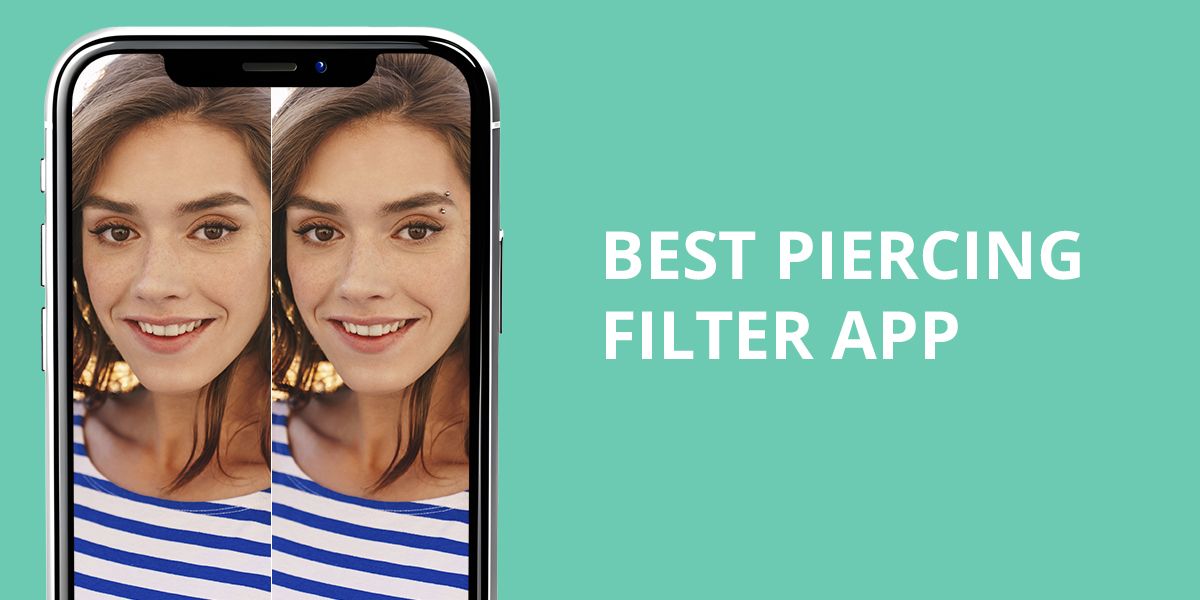
As a photo editor for WeEditPhotos, I’m the first to admit that hiring a professional retoucher just to preview a lip or septum ring is complete overkill. Fine-tuning details by hand is my bread and butter, but if you’re only curious about how a piece of body jewelry looks on your face, a solid piercing filter app gets the job done just fine.
Still, most filters drop a low-res image of a hoop onto your skin and call it a day. The results frequently look unrealistic. Wanting to separate worthy tools from mediocre ones, I tested more than 30 piercing filter apps.
I judged them with the same ruthless eye I use on my professional jobs, analyzing how realistic the metal looked across front-facing headshots, profile angles, tight close-ups, tricky lighting conditions, and shots where hair falls across the face.
When rating these apps, I concentrated on usability for real-life tasks. At first, I checked a delicate nose stud against a chunky ring. Next, I tried different lip spots to figure out which layout suited a selfie best. To be worth downloading, an app had to deliver on six key points:
I wasn’t holding out for a mobile tool that rivals full-fledged editing software. I just wanted something speedy for everyday testing that gave lifelike results to trick your eye during a quick scroll. Finding that balance proved harder than it should have been.
5 Formats for Viral TikTok/Reels Piercing Content
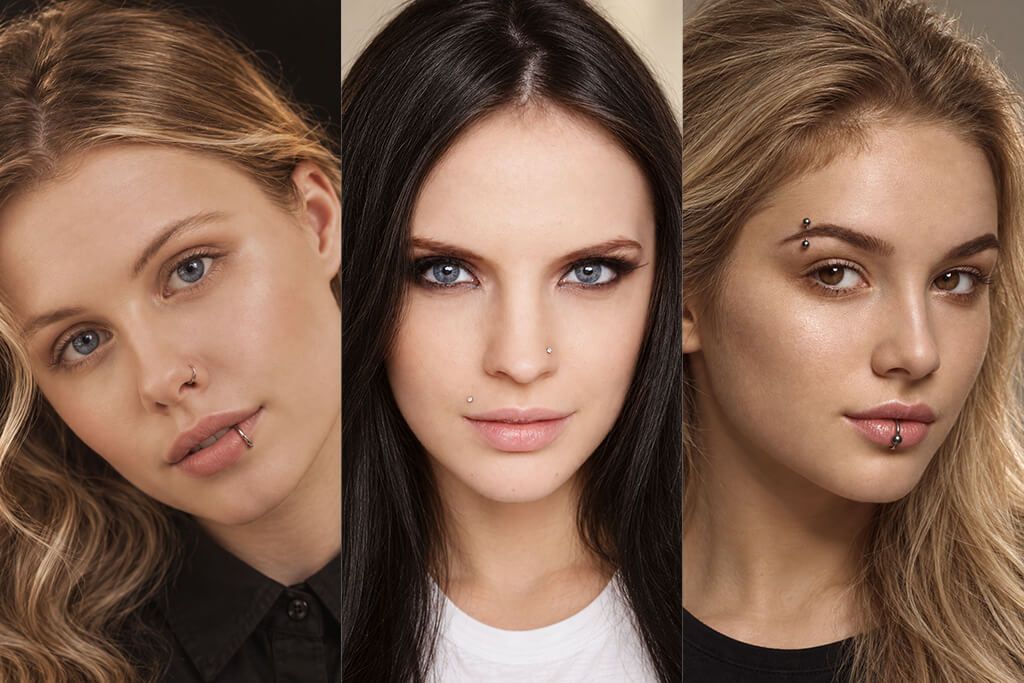
While testing these apps, I realized something unexpected. A virtual piercing preview is a shortcut to viral content. Beyond just helping you decide if a nose ring fits your vibe, it’s cool photo ideas for Instagram, TikToks, Reels, and Shorts. Short-form video platforms run on quick visual transformations, and a sudden new face feature instantly grabs someone’s attention.
You don’t need a production budget or fancy software, either. You can shoot the whole thing on your phone in five minutes.
My top concept for this is “Before vs After Comparison”. Show your normal face at first. Cut to the app-edited photo with your virtual piercing. Finish with the real-life result.
The secret to making this work is milking the suspense. Drag out the reveal just enough to hook the viewer. Try adding a text overlay like: “I ran this digital preview by my friends for a month… and then I booked the appointment.” Show the edited picture for a quick beat to build curiosity, then drop the real reveal.
Just remember: if the app convinces you to go for the real deal, leave the needle to a licensed pro. DIYing it for the camera is never worth the clout.
The “I Got Pierced” Fake-Out may be the absolute easiest way to farm engagement right now. All you do is generate a realistic edit of yourself with a new piercing, text it to your group chat or family, and screen-record their genuine reaction. The most fascinating moment is the exact split-second where someone replies, “WAIT… is that real?!”
The numbers back this up, too. Pranking people with fake body modifications is a proven view magnet. Clips like the famous “Piercing PRANK Gone BAD” blew past 178 million views on YouTube Shorts, while a simple fake tongue ring trick racked up 15 million hits on TikTok.
Another content format I really love is the “7 Days, 7 Piercings” Challenge. Instead of treating photo-editing apps as a one-and-done tool, you can use them to test out offbeat profile picture ideas and stretch a single photo into a full week-long mini-series. The concept is simple – transform your look each day by adding a different virtual piercing to your avatar:
- Day 1: Classic nostril stud
- Day 2: Bold septum ring
- Day 3: Sleek eyebrow bar
- Day 4: Edgy snake bites
- Day 5: Statement bridge piercing
- Day 6: Minimalist lip ring
- Day 7: The Wildcard (your followers vote on the style)
This strategy is so effective because it is based on audience retention. You not only post a photo, but dwell on an ongoing storyline. Wrapping up each short clip or story with an interactive prompt like “Keep it or lose it?” gives viewers an immediate reason to comment, share their hot takes, and check back tomorrow to see the next transformation.
The “Guess Which One Is Real” format can drive replay loops and zoom-in inspects. Set up 3 or 4 closely matching selfies, edit believable virtual jewelry onto all but one, and leave a single genuine piercing in the mix. (Or plot twist: make every single one a digital edit and call yourself out in the final frame.) Wrap it with a direct challenge: “Only one is 100% real. Can you spot it?”
Subtlety is your best friend here. Unbelievable edits can go viral purely on shock factor, like that notorious “eyeball piercing” video that pulled in nearly 6 million views on TikTok before revealing the hoax, but believable mods work better for quick engagement. Stick to realistic placements like a small nose stud, an eyebrow ring, or a subtle lip cuff. When the edit looks realistic, viewers naturally pause, freeze-frame, and rewatch to spot the pixel differences.
1. Fix The Photo Body Editor&Tune
Human-powered piercing photo editor
Platform compatibility: iOS, iPadOS, Android
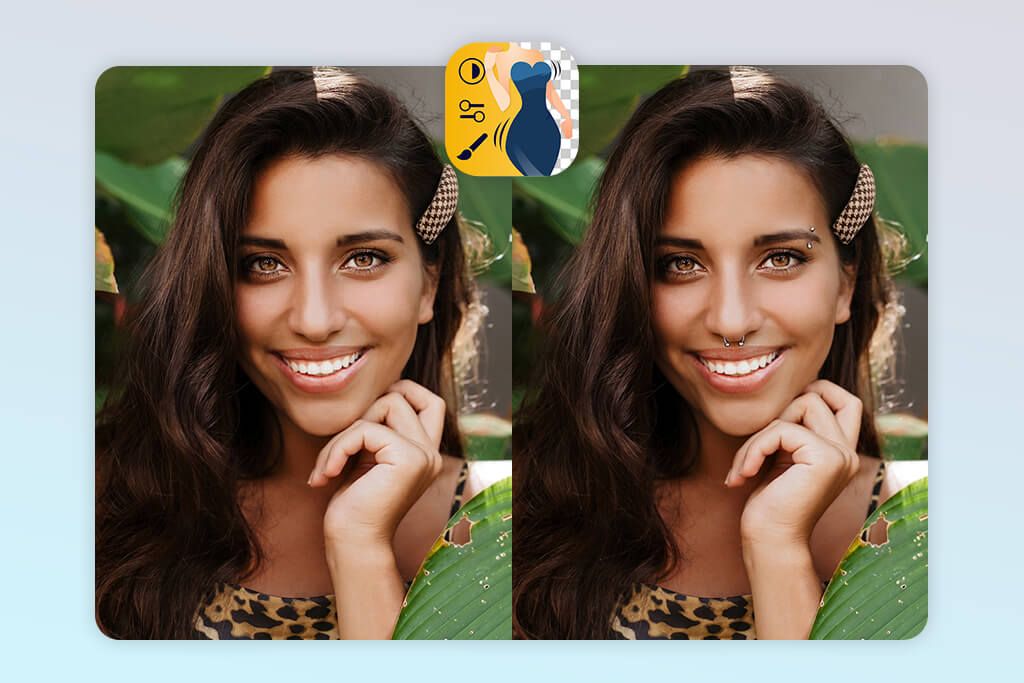
- Manual editing
- Personalized jewelry references
- Limitless body placement options
- Quick current jewelry removal
- Full image retouching
- Not immediate results
- Uses pay-per-edit credits post-trial
Out of all the piercing photo editors I tested, Fix The Photo’s Body Editor & Tune easily comes out on top. It is not a typical automated filter, but a convenient app for ordering expert personal photo editing services.
The setup is simple. You upload a portrait, hit “Add Object,” and pick your spot, whether that’s a nose ring, belly button piercing, lip stud, eyebrow bar, tongue ring, or standard earrings. Already have images you want to edit out? The “Remove Objects” feature lets you wipe it clean just as fast.
The most impressive feature of this app is the Custom Retouch box. Instead of dragging and dropping rigid graphics, you can type out exact instructions. You can drop in a link from an online jewelry store, ask to mimic a celebrity’s setup, or even request advice on which placement actually flatters your facial features.
I gave it a multi-part challenge: “Add a small silver nostril hoop, smooth out a few blemishes, and keep my natural skin texture intact.”
The result is incredibly realistic. Instead of slapping a flat sticker onto your image, real human retouchers manually adjust the jewelry to match your face’s lighting, angle, and unique anatomy (using AI to help power the process). It takes longer than a standard filter, but the realism is unmatched.
That custom prompt box isn’t a one-trick feature. You can use it to test out tattoos, swap backgrounds, try a free hairstyle app, erase distracting objects, or insert someone new into the photo.
The main drawback comes down to speed and cost. If you want to sample 30 different looks in under a minute, this isn’t the app for you. Most edits rely on a credit system and take time to process. But if you’re serious about getting an accurate, lifelike preview before seeing a piercer, it’s easily the best piercing app.
Pricing: Free download; new users can get a free test order worth $12. Paid edits start from $0.99
2. Adobe Firefly
Generative piercing editor app with prompt control
Platform compatibility: iOS, Android, web
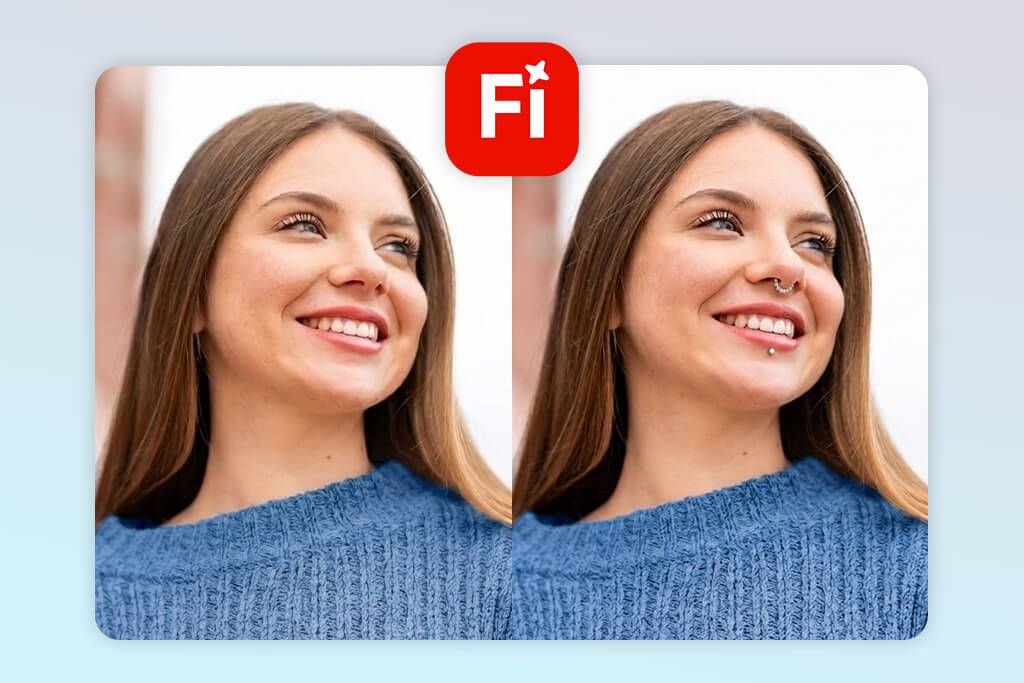
- True-to-life metallic surface details
- Many custom jewelry ideas
- Accurate target-area AI edits
- Accepts photo inspiration inputs
- Variety of AI model choices
- Background features may shift
- Top quality depends on text prompts
Most virtual piercing apps rely on the same tired library of pre-made sticker overlays. Adobe Firefly takes a completely different approach. Because it operates as a generative editing tool, you aren’t stuck choosing from a limited menu. You can type out precisely what you want, where you want it, and watch the AI build it. Want a tiny titanium nostril stud, a detailed gold septum clicker, or an entire curated ear stack? You can create all of it from scratch.
During my testing, the fastest method was using Generative Fill. You simply upload a clear portrait, brush over the target spot, tap Insert, type a quick description of the jewelry, and hit Generate. Firefly then produces a few different options, allowing you to pick the most realistic look or run another round. It works on both the iOS and Android mobile apps.
The trick to getting hyper-realistic results comes down to prompting context rather than just naming the item. Telling the AI how the metal interacts with your face is important.
Here are two prompt formulas that yielded incredible results for me. For a nose ring, I wrote: “Add a small polished silver nostril hoop following the natural curve of the nose, realistic contact shadow, matching the existing lighting, preserve skin texture.”
For an eyebrow ring, I typed in:“Thin titanium curved barbell through the outer eyebrow, anatomically believable placement, subtle shadow, no changes to the face.”
It rendered realistic metal sheen, natural light reflections, and custom designs very realistically. Just keep your brushed selection zone as small as possible. The tighter your selection, the better this free Adobe app preserves your original skin texture and photo quality.
If you are on an iPhone, you can also try the “Prompt to Edit” feature. Just upload your picture, describe your tweak in plain English, select your model, and let it build the edit.
However, it isn’t flawless. Firefly’s biggest hurdle is predictability. If your selection area is too wide, the AI may warp nearby facial features, distort skin, or mess up symmetry.
It’s easily the best free virtual piercing try-on app for creative folks who want total freedom over their virtual jewelry, but always zoom in and inspect the skin boundaries and attachment points before saving your photo.
Pricing: Free with a limited number of free generations/credits; Firefly Mobile from $4.99/mo or $49.99/year. Additional credit packs are available.
3. Piercing AI: Piercing Filter
Dedicated piercing try-on app
Platform compatibility: iOS, iPadOS, Android
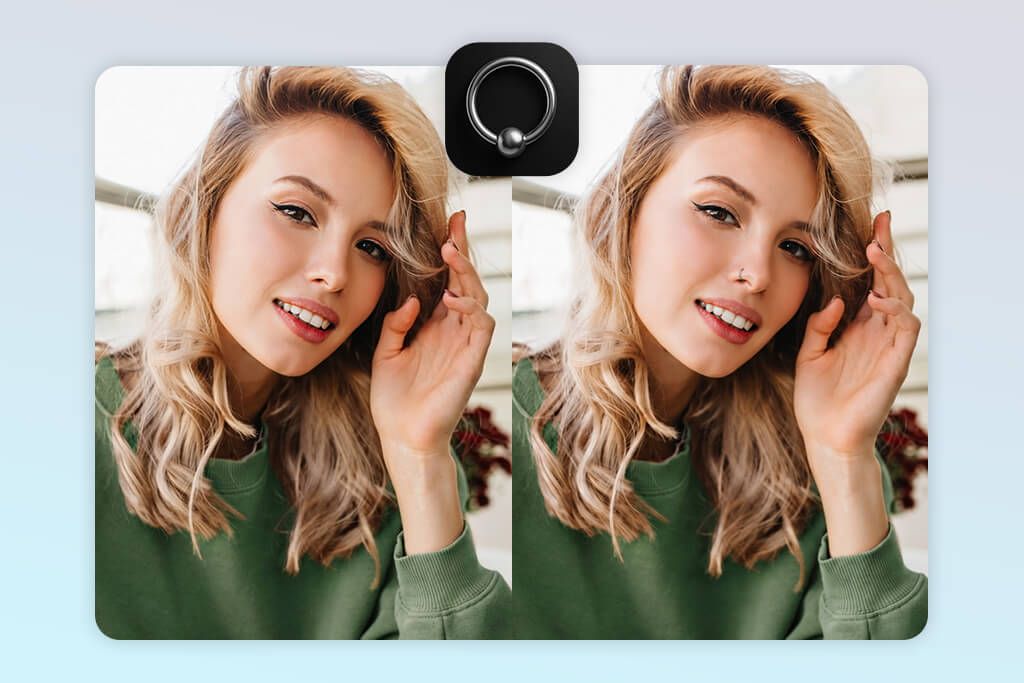
- Created specifically for piercing
- Body-shape-accurate positioning
- Hand-tuned scale and tilt tools
- Helpful Describe Mode
- Simple side-by-side option checks
- Pushy subscription screens
- Lacks standard recurring monthly options
If you want to test out a new look without wading through many makeup filters or complex photo editors, Piercing AI: Piercing Filter gets straight to the point. The setup is remarkably simple. You need to pick a style, upload a selfie, and let the tool do its work.
Unlike basic try-on apps, this app offers post-generation control, as you aren’t stuck with the AI’s first guess. You can manually tweak the jewelry’s size, rotation, angle, and specific style until it matches your exact vision.
The app’s menu covers almost every spot you may want to decorate before booking an actual appointment, spanning ear placements like helix, daith, tragus, and conch to facial spots (septum, nostril, medusa, labret, and eyebrow). In my tests across straight-on shots and side profiles, lighting was important. On crisp, well-lit selfies, the rendering was shockingly convincing because this piercing try-on app calculates realistic drop shadows and skin contact, so the jewelry looks naturally grounded.
The standout feature for me was Describe Mode. If you have a specific vision that isn’t in the standard selection, you can simply type out a prompt like “double helix with two delicate silver rings on the left ear” to generate a tailored setup. It gives you the custom freedom of full-scale AI photo enhancer apps, but with the speed and simplicity of a dedicated mobile app.
That’s why it is an ideal planning tool if you want to test out placements, especially since the built-in History feature lets you save different versions side-by-side to show your piercer or poll your friends before pulling the trigger.
The main drawback is the aggressive subscription ads. While a free trial is advertised, the app heavily pushes a subscription screen before you can even view your finished edits, so don’t expect an enjoyable free experience. Still, for sheer speed and realistic previewing, the tech itself delivers.
Pricing: Free download; free trial. Pro costs $9.99/week or $39.99/year; credit packs start at $3.99.
4. YouCam Perfect
AI-powered add piercing to photo app
Platform compatibility: iOS, iPadOS, Android
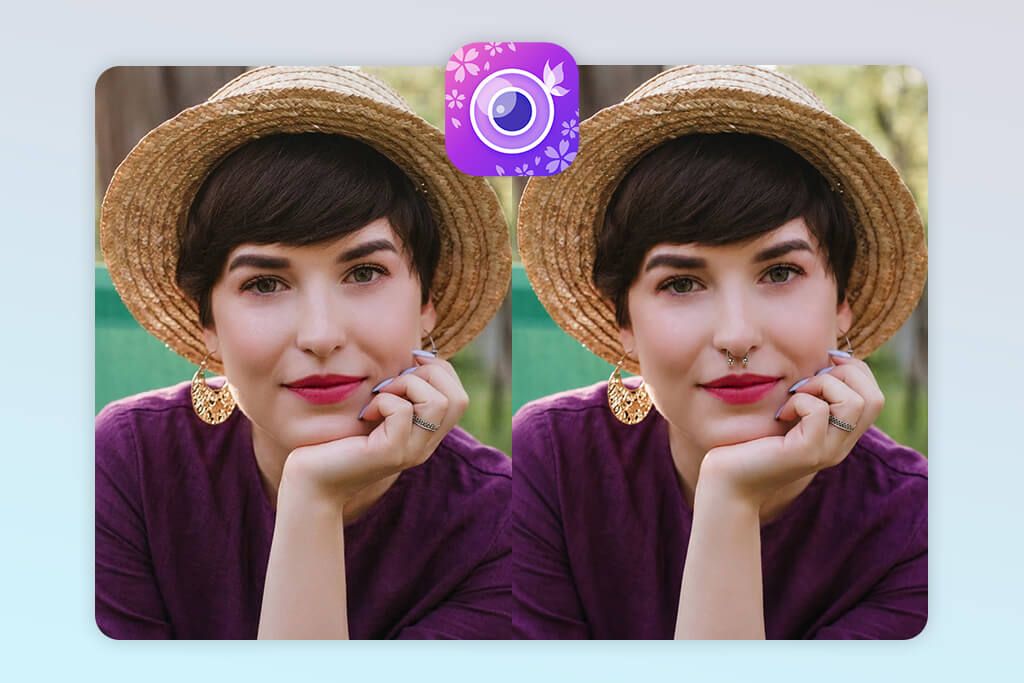
- Text-driven custom piercing
- Full portrait retouching
- AI-based swaps
- Step-by-step image adjustments
- Great for post-ready photos
- No dedicated jewelry collection
- Premium needed for AI fixes
To envisage how a new piercing will look on your face, you typically need to download a single-purpose app, apply a clunky sticker, and export the result. But YouCam Perfect follow a different route. While it isn’t built solely for virtual jewelry, it became my favorite piercing photo app to experiment with, mostly because I could handle the piercing simulation and the full photo cleanup in one session.
Rather than jumping across separate apps to tweak lighting, clear up a blemish, swap out a background, and test a hoop, YouCam combines everything under one hood. Alongside its core suite of retouching, body tuning, makeup, and object-removal features, its built-in AI Agent expedites the most tedious tweaks.
If speed is your priority, you can jump straight into the AI Agent by uploading your portrait and typing a detailed request. Skip basic phrases like “add nose piercing” and write something more specific, like “Add a tiny polished silver hoop to my left nostril, realistic size and shadow, preserve my face and skin texture,” to receive a believable composite. Best of all, you can chat with the Agent to refine the result, asking it to shrink the ring size or swap silver for gold without resetting your progress.
When precise placement matters most, switching over to Photo Edit → Edit → AI Replace gives you ultimate control. Simply brush over the exact target zone, whether it’s an eyebrow ridge, nostril, or lip, type in your custom jewelry description, and regenerate until the placement looks completely natural.
This prompt-based approach frees you from rigid, pre-set catalog stickers. Whether you’re curious about a subtle nostril stud, a bold septum clicker, or an eyebrow barbell, the app generates bespoke pieces on demand.
This app to smooth skin and jazz up portraits certainly requires a bit more guidance than single-purpose apps like Piercing AI, which feature dedicated, one-click jewelry menus. However, if you want to test out a potential piercing while finishing an edit-ready portrait in the exact same workspace, that small bit of extra typing pays off immediately.
Pricing: Free download with ads and limited premium/AI access. Premium options currently start from $5.99/month, while annual in-app offers start from about $29.99/year; higher Pro tiers can cost more.
5. Piercing Simulator Photo Edit
320+ designs for virtual piercing try-on
Platform compatibility: iOS, iPadOS, Android
- Over 320 jewelry styles
- Various body area options
- 3D fine-tuning
- Supports custom-made pieces
- Personalized collection
- Very short trial access
- Tools take time to master
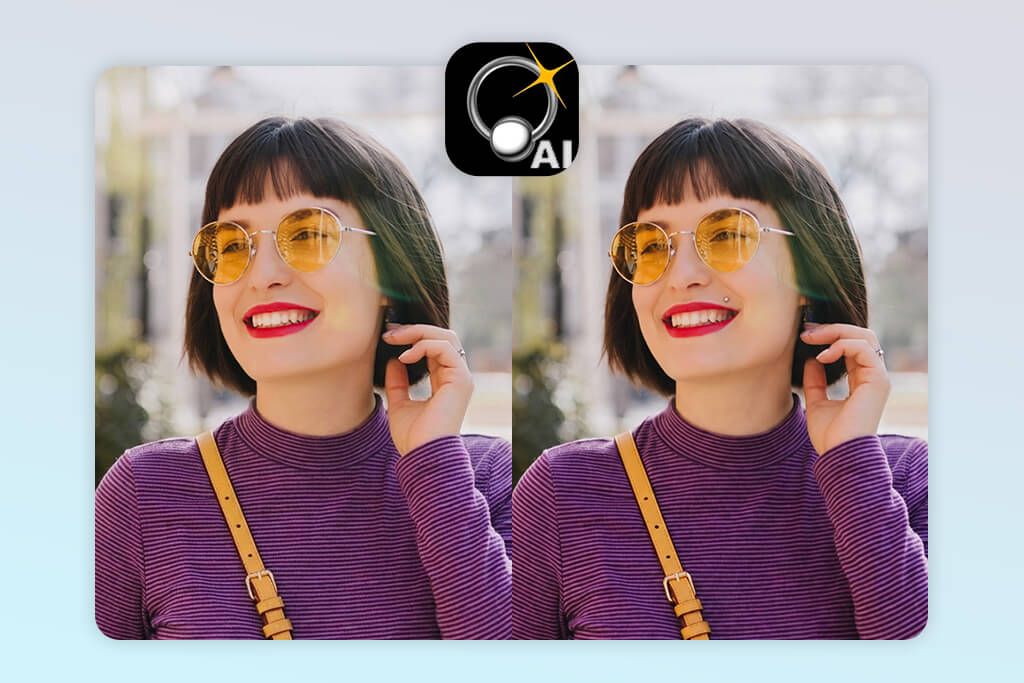
When I tested Piercing Simulator Photo Edit, I was impressed by the variety. The app advertises over 320 piercing options across multiple placement areas, so I could compare subtle studs, basic rings, and larger decorative designs side by side.
Testing out a look is straightforward from the start. You simply upload a clear portrait, browse the catalog for a piece of jewelry, and drag it into position over your skin while adjusting the scale to match your proportions. A major highlight here is the 3D control system, which lets you tweak the perspective and depth of a piece rather than just spinning a flat graphic around. The developers clearly added this feature to keep jewelry looking natural, even on three-quarter portraits or angled body contours.
This piercing simulator app also lets you import custom jewelry images. The built-in AI strips away the background automatically, allowing you to save cutouts directly into your personal library. So, if you want to test-drive a specific item you spotted in an online shop or on social media, you can do that easily with Piercing Simulator Photo Edit.
However, the app does have its drawbacks. Smaller, simpler pieces look reasonably realistic, but wider horizontal designs are noticeably trickier to align naturally. Plus, the free tier is restricted. Ultimately, it works best for anyone who wants to browse and preview multiple real-world jewelry styles before making an actual appointment at the studio.
Pricing: Free download, but useful access is heavily limited without payment. Premium from $12.99/mo or $19.99/year; lifetime purchase from $29.99.
6. Piercing Photo Editor FX-Pics
Classic piercing photo editor with artist ideas
Platform compatibility: iPhone, iPad
- Specialized body jewelry gallery
- Creator-selected idea feeds
- Manual dimension scaling
- Location and rotation settings
- Fast setup
- Some items look pasted on
- Paid upgrade required for full access
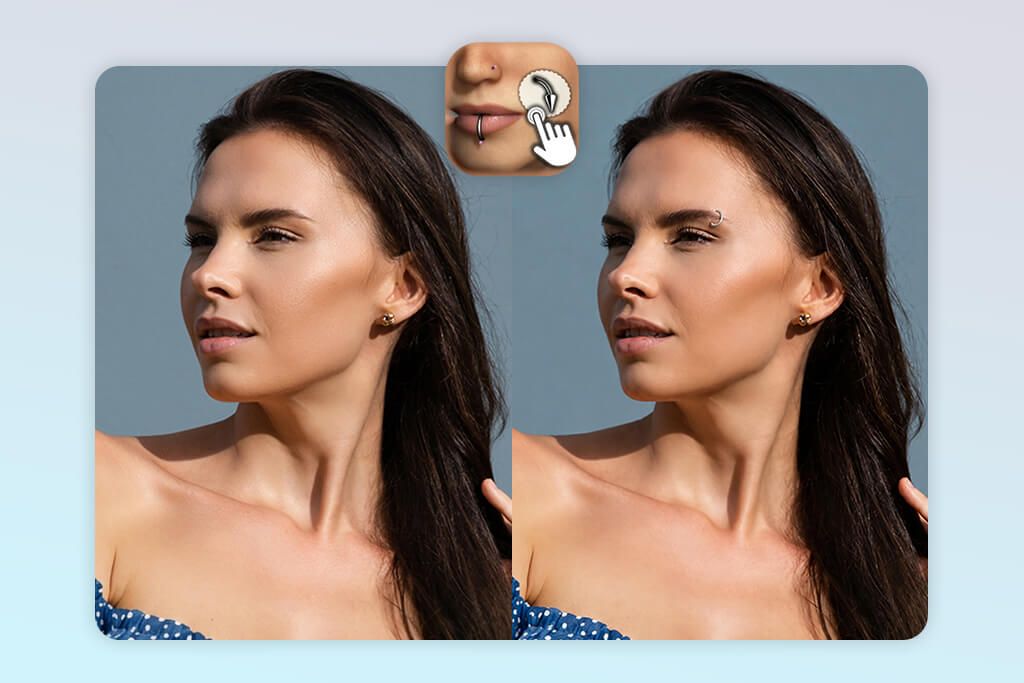
Out of all fake piercing apps I tested, Piercing Photo Editor FX-Pics is the most traditional option, which works in its favor. There are no advanced tools to master. You just snap a fresh selfie or pull a photo from your gallery, pick a piece of jewelry from the catalog, and manually drag, pinch, and rotate it until the fit looks right.
The app covers nose, ear, lip, and eyebrow placements, and performs best with clean, straight-on portraits. Working with a clear close-up makes it easy to make subtle hoops and tiny studs look natural enough to see if a specific spot suits you. However, on photos taken at sharper angles, the graphics tend to look like flat overlays compared to what modern AI-driven editors can pull off.
The Artists Section is amazing. Rather than forcing you to scroll through generic graphics, it offers collections curated by actual professional piercers. This makes it an excellent source of inspiration if you know you want to get pierced but have no idea which aesthetic or layout to go for.
All in all, FX-Pics ensures fast previewing, but may disappoint if you want ultra-photorealistic edits. It’s straightforward and reliable, though the final realism comes down entirely to how carefully you position the overlay yourself.
Pricing: Free download with limited access; Premium from $9.99/mo and $29.99/year. Weekly plans start from $2.99.
7. PixelBin
AI add piercing to photo app
Platform compatibility: iOS, iPadOS, Android, web
- Text-prompt smart photo adjustments
- Focused area-only modification
- Preserves original photo quality
- Integrated 4K enhancer
- AI smart features
- Lacks ready-made jewelry templates
- Image outputs consume credits fast
While FX-Pics relies on a pre-set catalog, PixelBin takes a completely different route. You build your look using its AI Editor and custom prompts.
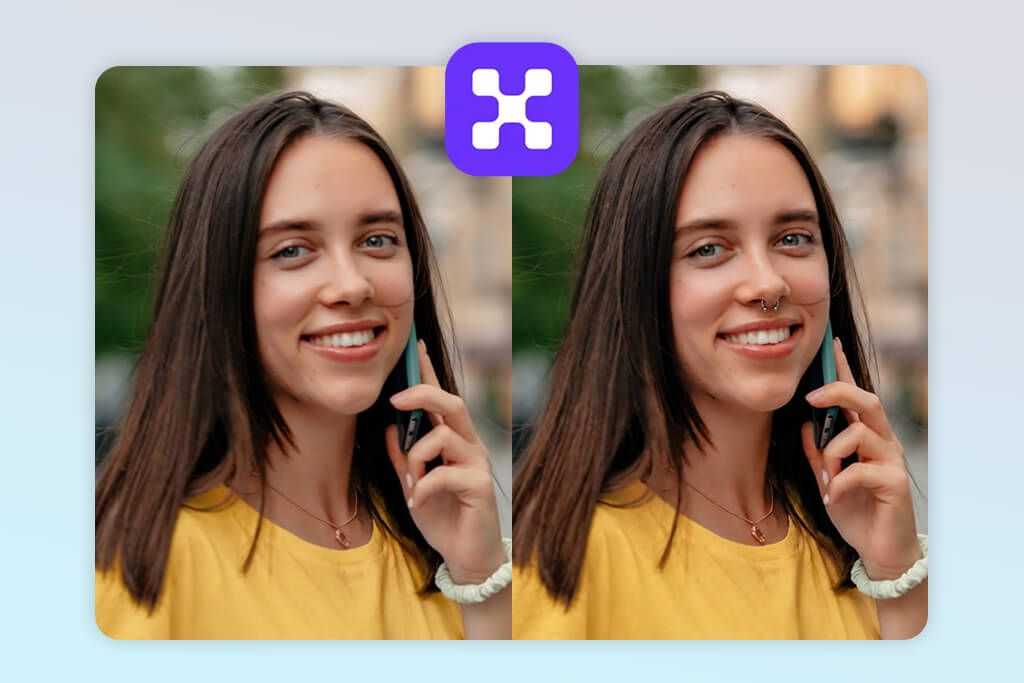
The process is simple. Open the AI Photo Editor, upload a portrait, type in what you want, and click Generate. The selective editing tools, namely Smart Select and Brush, are very helpful for applying virtual piercings. Instead of altering the entire image, you can pinpoint the exact area around a nose, lip, or eyebrow to keep the changes contained.
Precision in your prompt is crucial. By writing a detailed prompt, “Add a tiny silver nostril stud, realistic metal reflection, natural contact shadow, preserve the nose shape and skin texture”, I received better results than when using a generic request like “add a piercing.”
PixelBin outperforms a standard filter app with its post-processing suite. You can tweak lighting, clear up noise, edit backgrounds, remove unwanted objects without resorting to a third-party object removal app, and upscale the final shot to HD or 4K. This comes in handy when working with low-res or compressed selfies, where adding crisp new jewelry usually makes a blurry photo look worse.
Keep in mind that AI can occasionally misinterpret tiny details or warp the nearby skin. To avoid this, keep your selection area tight and tackle one change at a time. This is the strategy PixelBin suggests for complex edits. If you want to go from a quick piercing mock-up to a post-ready photo in one place, it’s a more flexible tool than a basic overlay app.
Pricing: Free download; AI editing is credit-limited. Free AI edits each month online. In-app subscriptions start from $11.99/mo
FAQ
- Which piercing photo app delivers the best results?
It boils down to your end goal. When I need a photo that accurately tricks the eye, I rely on Fix The Photo Body Editor&Tune since actual human editors do the work. If I just play around with different placements to see what sticks, Piercing AI is a quick tool. For totally custom, out-of-the-box jewelry concepts, prompting Adobe Firefly gives me complete creative control.
- Is there a way to test-drive a piercing before making it permanent?
Absolutely. Visualizing the final look is the single best reason to use these tools. You can drop a septum ring, nostril stud, or ear stack onto your photo in seconds to see how it sits. I typically test the placement on both a direct headshot and an angled photo. A piece that looks incredible head-on may look totally off from the side.
- Do virtual piercing filter apps give realistic outcomes?
It’s a mixed bag. The lower-tier apps basically slap flat stickers over your face. They float, lack shadows, and look too shiny. The ones that rely on AI depth-mapping or human retouching account for natural lighting, skin curvature, and real shadows. Stick to generative tools or professional editing services if you want a believable outcome.
- Can I preview a specific piece of jewelry I found online?
Yes, though your options depend on the software. Certain add-piercing-to-photo apps let you cut out and overlay your own image files, while generative AI tools can recreate a design if you describe it accurately. If you go the Fix The Photo route, you can just paste a URL or reference photo directly to the retouching team and let them blend it into your image.
- Can an app show me which piercing flatters my face shape?
It gives you a visual baseline, but don’t treat it as absolute truth. I usually mock up three or four distinct options, like a lip ring versus a brow bar, and view them side by side. While facial symmetry plays a role, your hairstyle, ydaily makeup, and overall personal vibe heavily influence what looks right on you.
- What if my photo needs general retouching alongside the new piercing?
If you try to improve a picture for a portfolio, print, or main social feed, skip the single-use apps and hand it over to WeEditPhotos. Their team can insert the digital jewelry while simultaneously tackling skin smoothing, flyaway hairs, lighting fixes, and background cleanup all in one go. It saves you from stacking multiple app edits on top of each other.
- Are these apps enough to decide if I should make a real piercing?
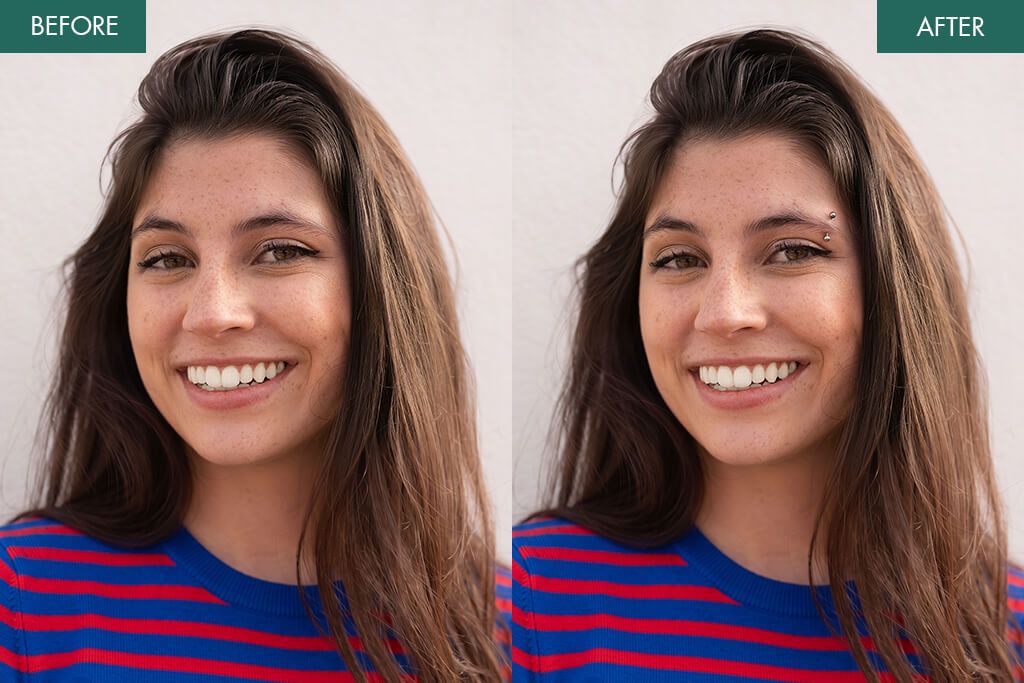
They’re fantastic for narrowing down aesthetic choices, but they don’t replace an actual consultation. A digital preview shows you the style, not how your specific anatomy holds a needle, how the healing process feels, or whether a ring will snag on your daily wear. Use the edit as a conversation starter, take it to a certified piercer, and let them evaluate your physical setup in person.