9 Best Apps for Merging Pictures Without Quality Loss
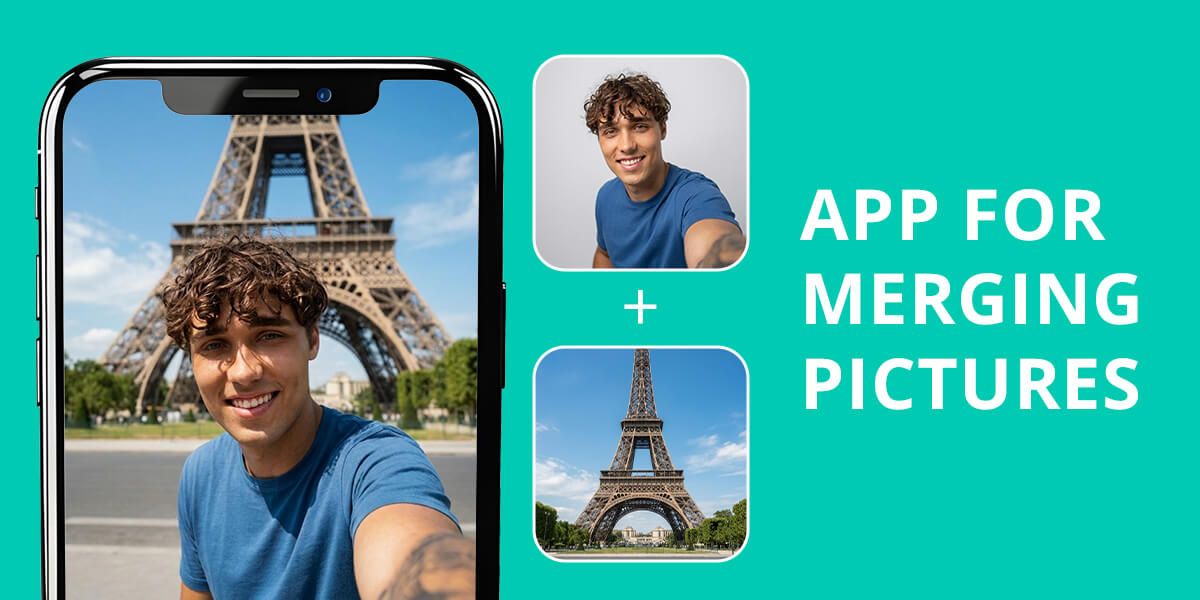
As soon as you begin creating visuals for Instagram, blogs, or online stores, combining multiple images becomes a regular task. That’s why I decided to look for the most effective apps for merging pictures available today.
As a photo retoucher, I normally put images together by hand in Photoshop for tricky edits. But if you only need to combine pictures quickly, there are faster apps. The issue is that many of these apps either lower the image quality, leave obvious lines where the images meet, or don’t blend the colors and lighting well.
My goal was to see if these apps go beyond simple collages and can merge photos realistically using AI. I tested different apps for merging pictures to find those that deliver clean, natural-looking outcomes.
Why Simple Merges Don’t Work Anymore
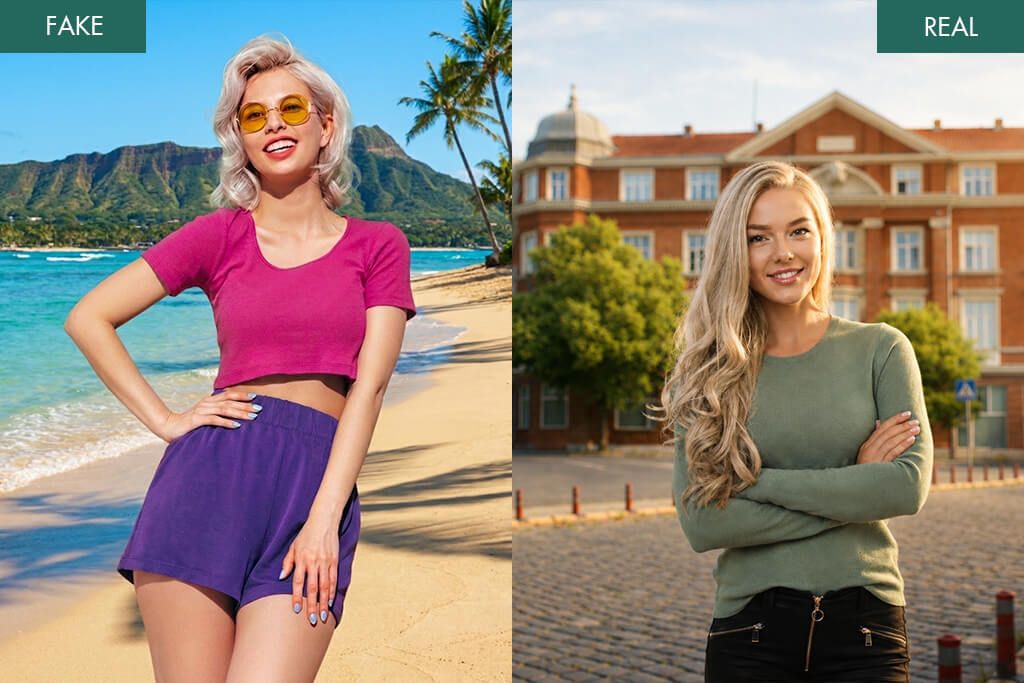
In the past, merging pictures just meant putting two images next to each other. But now, people expect the final photo to look like one real, natural shot – not a quick collage. That’s why most apps still don’t do a good job.
What really matters now is how intelligent the tools are. It’s not just about putting pictures together – it’s about how well the app understands things like depth, light, and where objects should go. The best results come from apps that can automatically fix the background, match colors, and blend everything, so you can’t tell the edit was made. Examples include Canva or PicsArt.
Speed has become very important too, based on what I noticed during testing. You don’t want to spend 30 minutes fixing edges, whether you’re creating content for Instagram, product pages, or ads. Without hurting the quality, good apps let you merge images, adjust how they’re arranged, and save the final picture in just a few taps. Adobe Express is a great example of a tool that does this well.
What works best often depends on your goal. For example:
- Product images: Focus on clean background swaps and properly matched shadows.
- Social content: Quick templates and layout tools save valuable time.
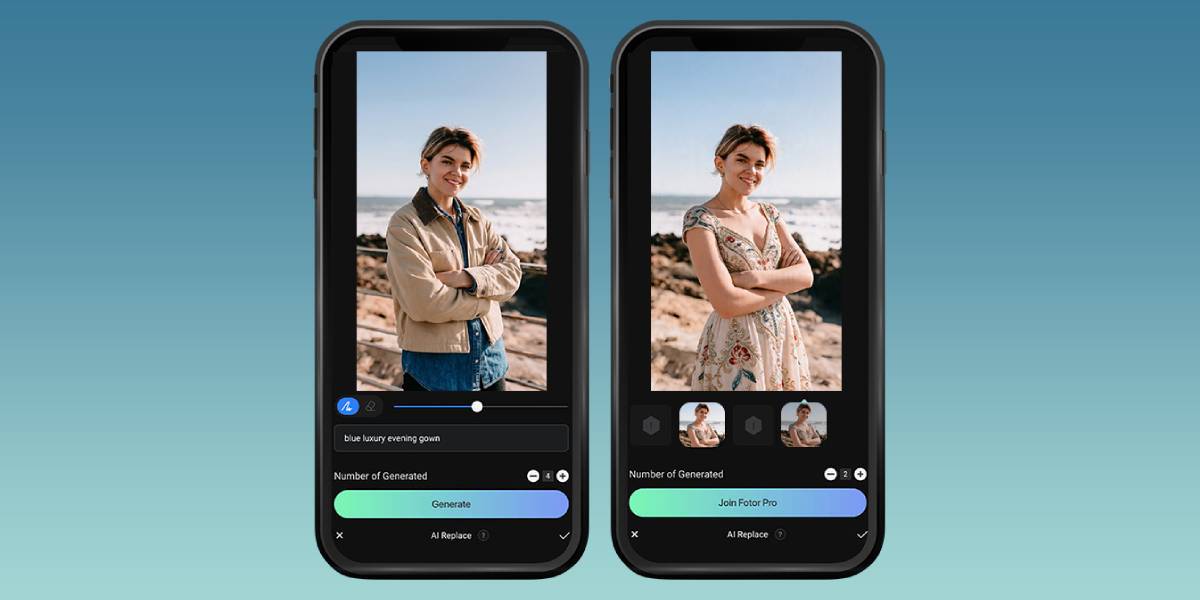
- Creative designs: Options such as AI replace and layering allow greater artistic control.
The right photo merge app really depends on how you like to work. Some tools are built to be fast, while others give you more control. But the best ones do both well.
When you get this idea, picking the app with excellent functionality gets a lot easier. You don’t just look at what features it has. Instead, you think about how you’ll really use it day to day.
1. Canva
Simple template-driven photo merging
Platforms: iOS, Android
- Pre-designed layouts
- Drag-and-drop workflow
- Neat positioning tools
- Quick editing flow
- Easy for beginners to learn
- Limited fine-tuning for blends
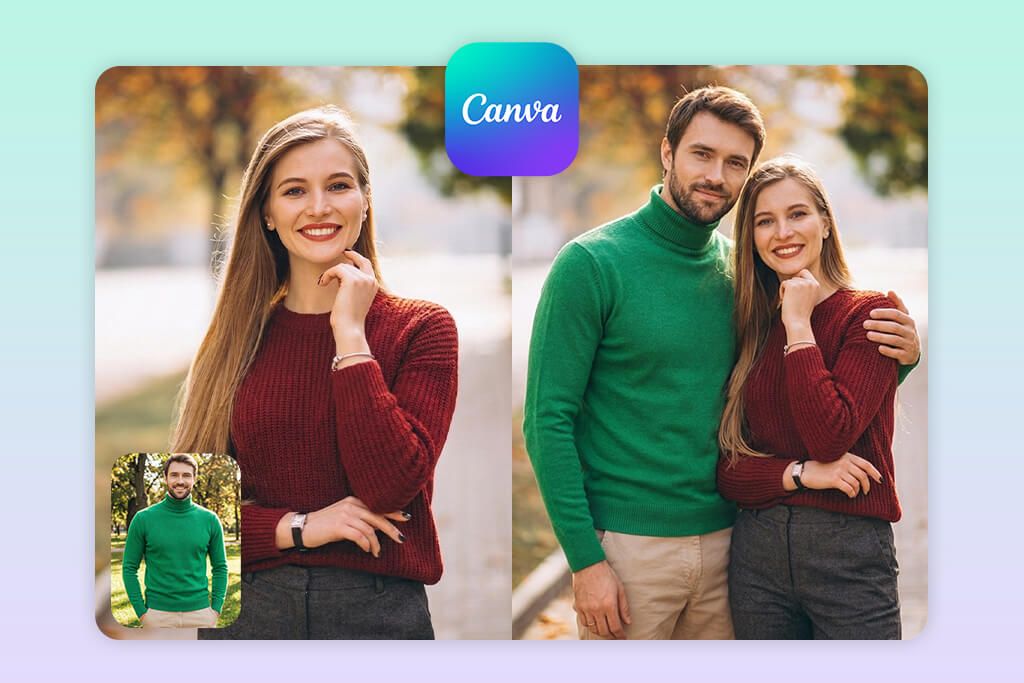
I used Canva to combine several pictures into one neat and organized layout, and it was very fast. This kind of quick editing is helpful in the same way as the best apps to blur background – they also make simple visual changes easy. I began with a template and used Canva’s “Grid” feature to add my photos. The grid automatically arranged everything in a balanced way, so I didn’t have to do any extra work.
To make the images look more consistent, I used tools like “Position”, “Spacing”, and “Adjust” to line up elements and balance the colors between photos. This made the final layout feel more uniform, even when the original images had slightly different lighting or tones. However, since Canva is mainly designed for layouts, it doesn’t offer advanced blending options for highly realistic merges.
What I really liked was how easy it is to guess what will happen next. You always know what the final picture will look like. That makes it great for making social media posts, blog images, or simple product pictures without wasting too much time on editing.
Key features:
- Grid layouts
- Drag-and-drop editor
- Position & spacing tools
- Change colors
- Add text over images
2. Adobe Express
Clean layout + quick edits
Platforms: iOS, Android
- Custom page sizes
- Simple layer control
- High-quality file export
- Tool to remove backgrounds
- Easy-to-use interface
- Premium assets locked
- Free export limitations
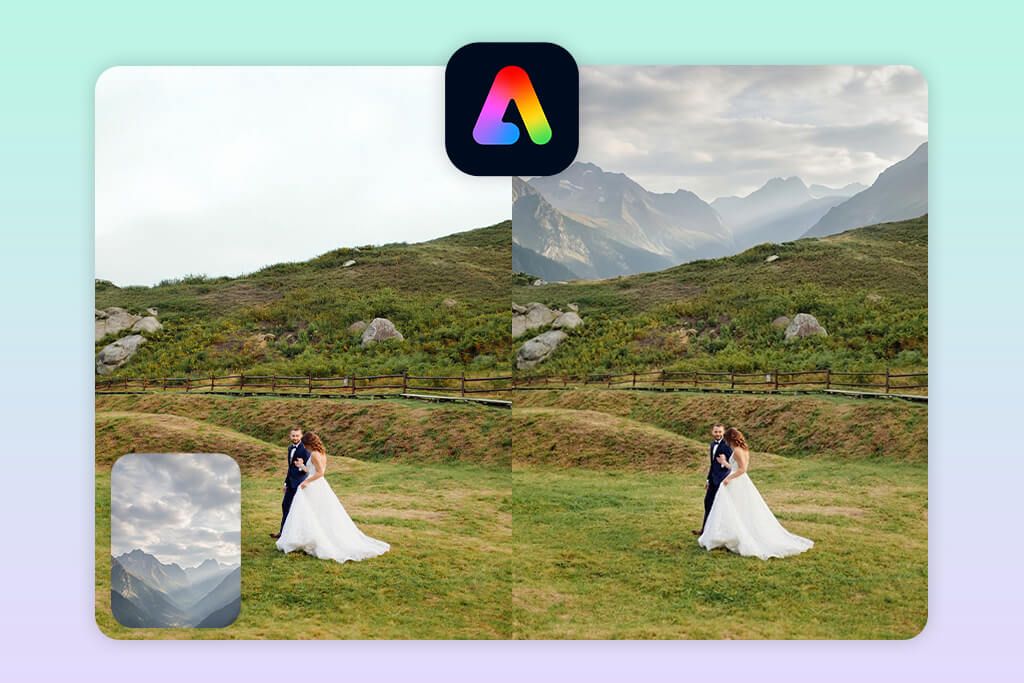
When I tried Adobe Express as an image merger app, I wanted to make neat designs by placing several images on my own custom canvas. I didn’t use templates – instead, I moved the photos around myself. This gave me more control over how the final layout turned out.
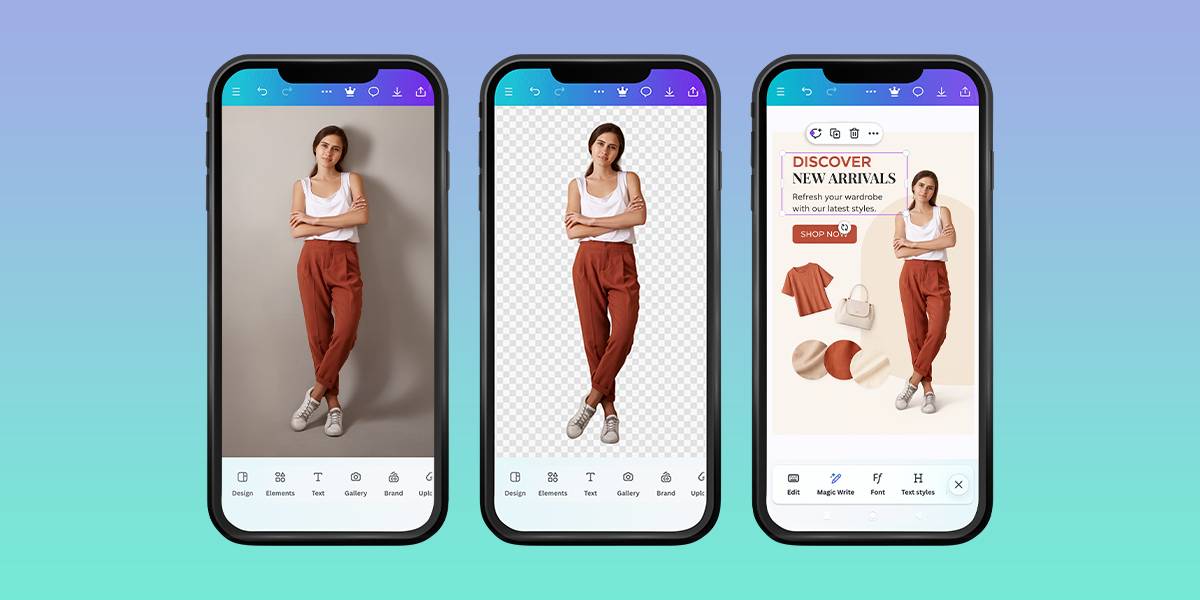
I mostly used the “Remove Background” tool to cut out objects, then arranged them with the “Layers” feature and fixed the colors using “Adjust” tools so everything looked the same. This method worked really well for product-style pictures, where neat placement is more important than tricky blending.
After saving, everything looks surprisingly nice. The images turn out clear and well-balanced even if you don’t edit them much. So, if you want quick results that still look professional, this app is a great choice.
Key features:
- Erase the background
- Edit using stacked images
- Set your own canvas size
- Change colors and brightness
- Save images in high quality
3. Blend Photos
Creative blending effects
Platforms: iOS, Android
- Seamless mixing effects
- Double-exposure options
- Simple to operate
- Quick performance
- Produces artistic results
- Placement control is basic
- Fine adjustments are limited
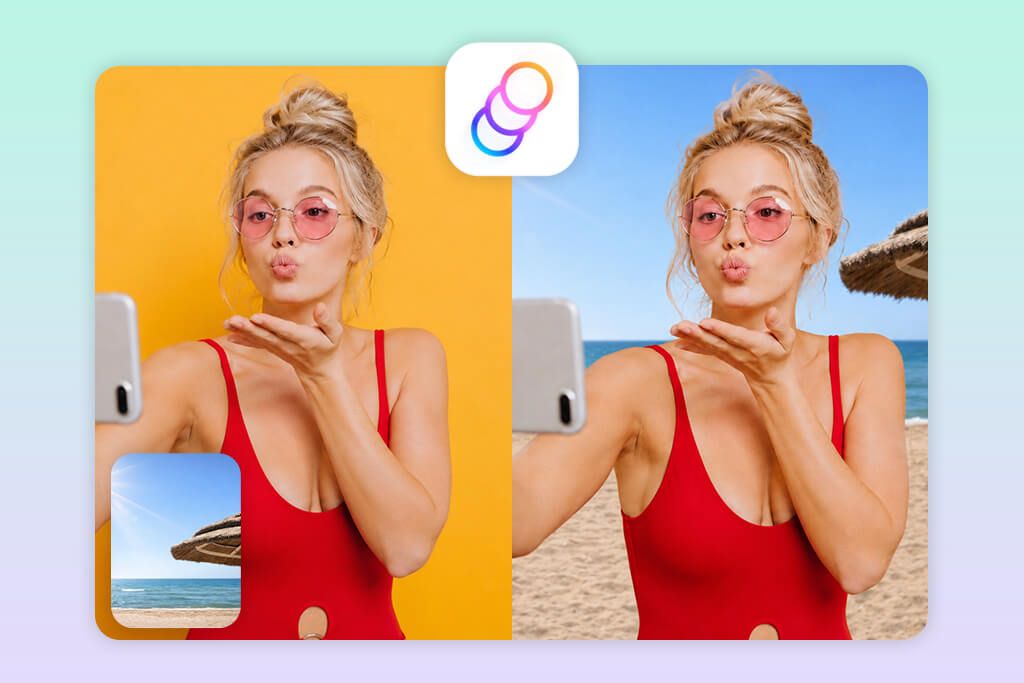
When I tested Blend Photos as a free merge photos app, I focused on blending two images into one artistic look, instead of making a neat, organized layout. The app acts more like a creative tool, automatically combining photos using different overlay effects.
I mostly used the “Blend Mode”, “Opacity”, and “Overlay” tools to control how the two images worked together. Lowering the opacity made the images fade into each other more smoothly, and using different blend modes gave the final picture a more artistic feel without needing to edit by hand.
What I liked most is how quickly you can create something that looks interesting. This app isn’t made for realistic editing, but it’s great for artistic backgrounds, creative social media posts, or any content where style matters. It works especially well in workflows similar to the best software for color grading, where getting the right visual mood is key.
Key features:
- Blend modes
- Opacity control
- Overlay effects
- Double exposure tools
- Fast export
4. Fix The Photo Body Editor&Tune
Manual tools for natural-looking merges
Platforms: iOS, Android
- Lifelike results
- Manual retouching
- Precise lighting match
- Lack of distortions
- Natural textures
- Not instant
- Needs request submission
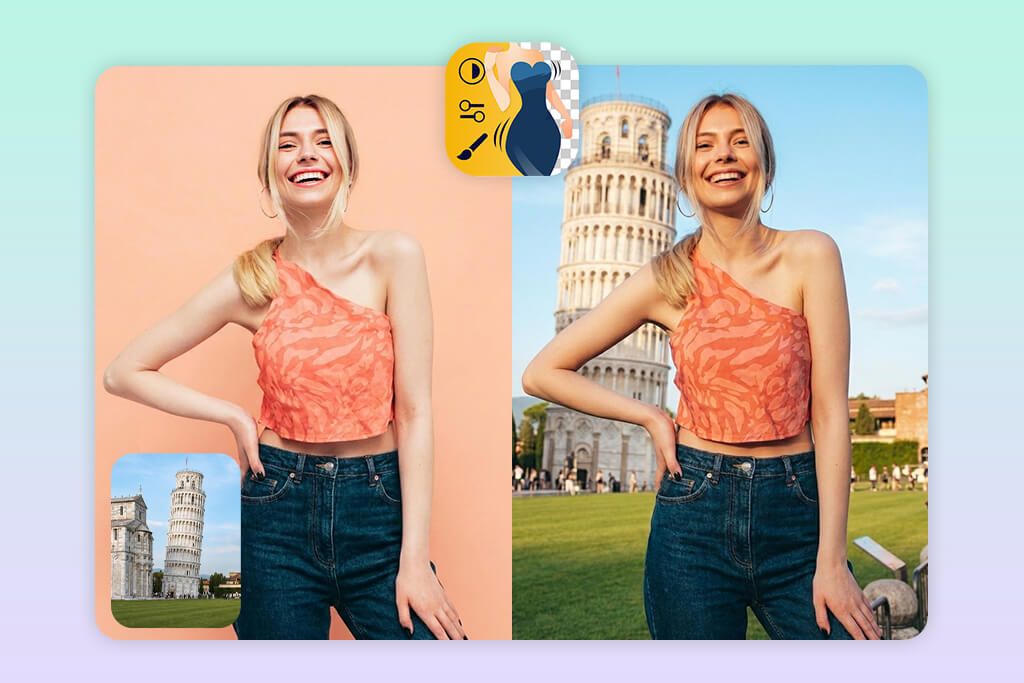
When I used Fix The Photo Body Editor & Tune as a photo merge app, my approach was different from normal apps. Instead of combining the images myself, I sent a request that explained how I wanted several pictures put together into one final image.
I asked for specific changes like replacing the background, blending objects, and fixing the lighting. The retouchers did all the work by hand. The final image looked natural, with correct shadows, proper depth, and matching colors – things that most automatic apps find hard to do well.
The final merged photo looked so precise that it felt like a single shot rather than an edited image. That level of accuracy really stood out to me. If your goal is high-quality, professional-looking results instead of quick, basic edits, this option is a strong choice.
Key features:
- Expert manual editing
- Object merging
- Background change options
- Light and shadow fixes
- High-quality natural results
5. Pixlr
Editing photos with layers
Platforms: iOS, Android
- Editing with layers
- Accurate object placement
- Built-in background removal
- Lightweight and fast app
- Strong editing control
- Interface may feel confusing at first
- Needs hands-on adjustments
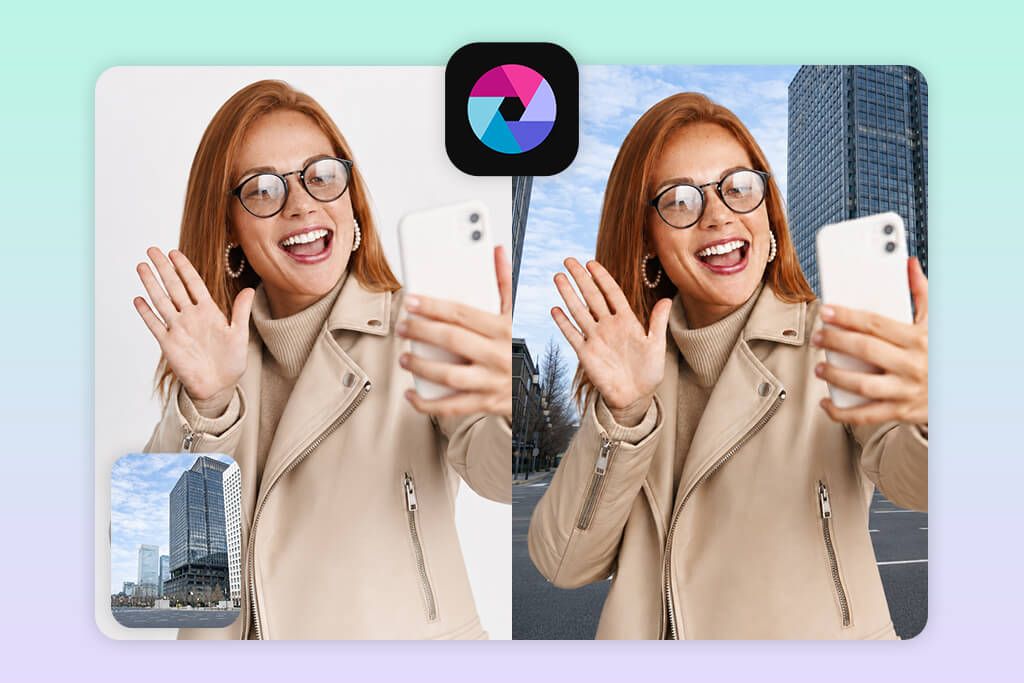
When I wanted more control instead of just basic collage tools, Pixlr felt like a good upgrade. As a photo collage merge app, it gives you access to layers. That immediately changes how you work with images compared to simple drag-and-drop apps.
First, I brought in several photos and placed each one on its own layer. Then, using the “Cutout” tool, I removed the backgrounds. After that, I moved the images around by hand so everything lined up correctly. Finally, I used “Adjust” to fix the brightness, contrast, and color. This helped all the pictures look like they belonged together, not like they came from different places.
What really stood out to me is the amount of control you have. It’s not fast, but that’s precisely why the results look cleaner. You aren’t depending on AI to guess what you want – instead, you can adjust every little detail yourself, like edges, lighting, and placement. That makes a huge difference if you want the final image to look real.
Key features:
- Layer editing support
- Cutout function
- Color and lighting tools
- Manual positioning tools
- Background erase option
6. PicsArt
AI + manual editing combo
Platforms: iOS, Android
- AI plus manual controls
- Background cutout feature
- Object merge tools
- Large resource library
- Flexible workflow
- Ads in free mode
- Premium needed for some tools
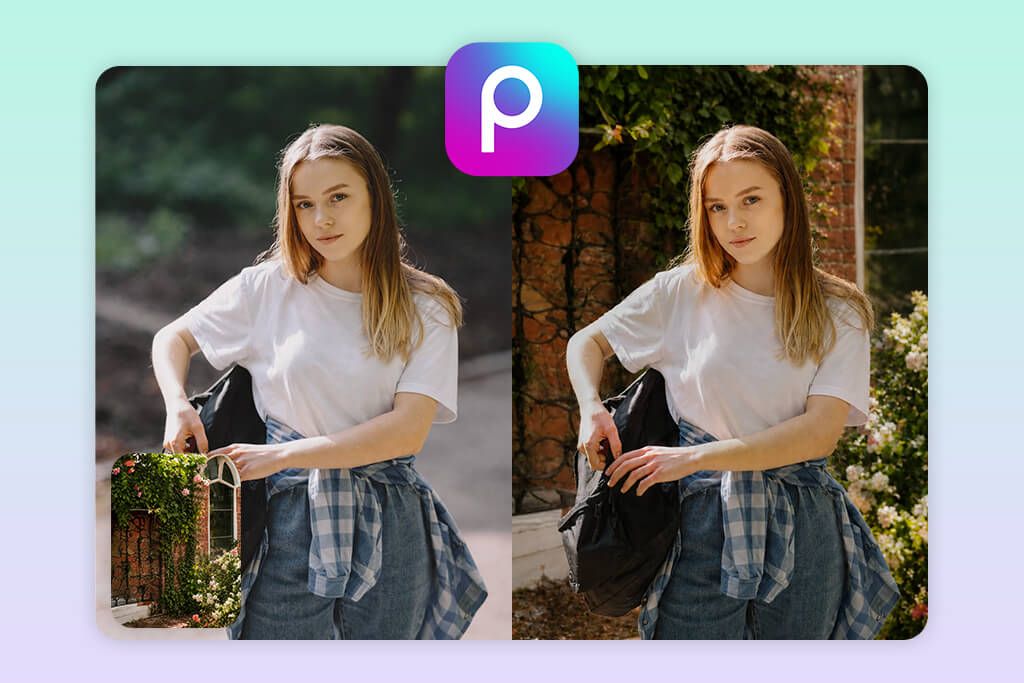
PicsArt works well for merging pictures because it gives you control instead of locking you into preset-based results. I focused on blending images manually, using its tools to shape the final look rather than depending entirely on AI features.
I began by cutting out the subject with “Remove.” Then I brought in a second image through “Add Photo” and placed it exactly where I needed. To finish, I smoothed the edges using the “Brush” tool and corrected the colors so the two images matched visually.
What stood out to me most was the balance between speed and control. You can build the initial result quickly with AI, then refine small details by hand. This combination makes the finished image look more polished and realistic.
Key features:
- AI background erase
- Photo add feature
- Edge-fixing brush
- Color edit tools
- Layer-style workflow
7. PhotoGrid
Quick collage-style designs
Platforms: iOS, Android
- Fast layout creation
- Built-in grid templates
- Simple to navigate
- Quick saving options
- Presets for social platforms
- Few options for detailed control
- Blending results look basic
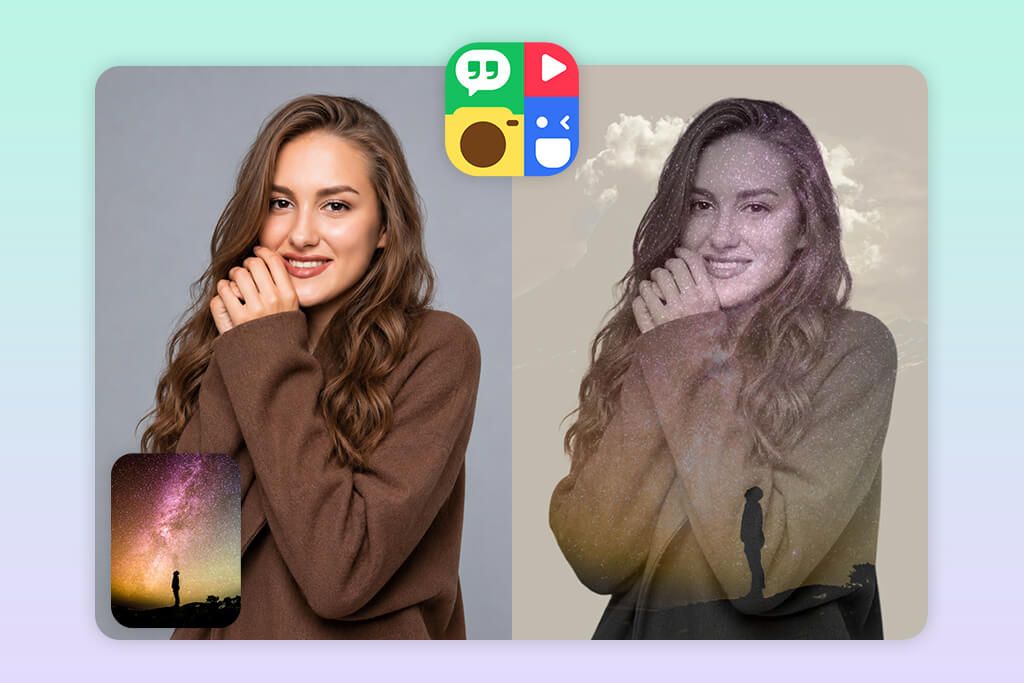
For making quick photo arrangements, PhotoGrid is a good free merge images app for Android. You don’t need any setup or editing experience. The whole process feels simple, especially when all you want is to put several images together into one single frame.
I began by selecting a layout in “Grid” and inserting images through “Add Photo.” Since the app arranged everything on its own, only minor spacing tweaks were necessary. To match the look of all photos, I used “Adjust” to correct brightness, contrast, and color tones, much like an auto photo enhancer would.
The thing I like best is how fast everything is. You don’t have to worry about layers or masking – the app takes care of the layout for you. It’s not made for realistic merging, but for basic collages and social media images, it works great.
Key features:
- Ready-made grids
- Add-image feature
- Simple adjustment tools
- Auto positioning
- Fast export process
8. Pic Collage
Template-based
Platforms: iOS, Android
- Pre-designed layouts
- User-friendly design
- Drag-and-place tools
- Creative stickers included
- Quick editing speed
- Not ideal for natural-looking merges
- Few detailed adjustments
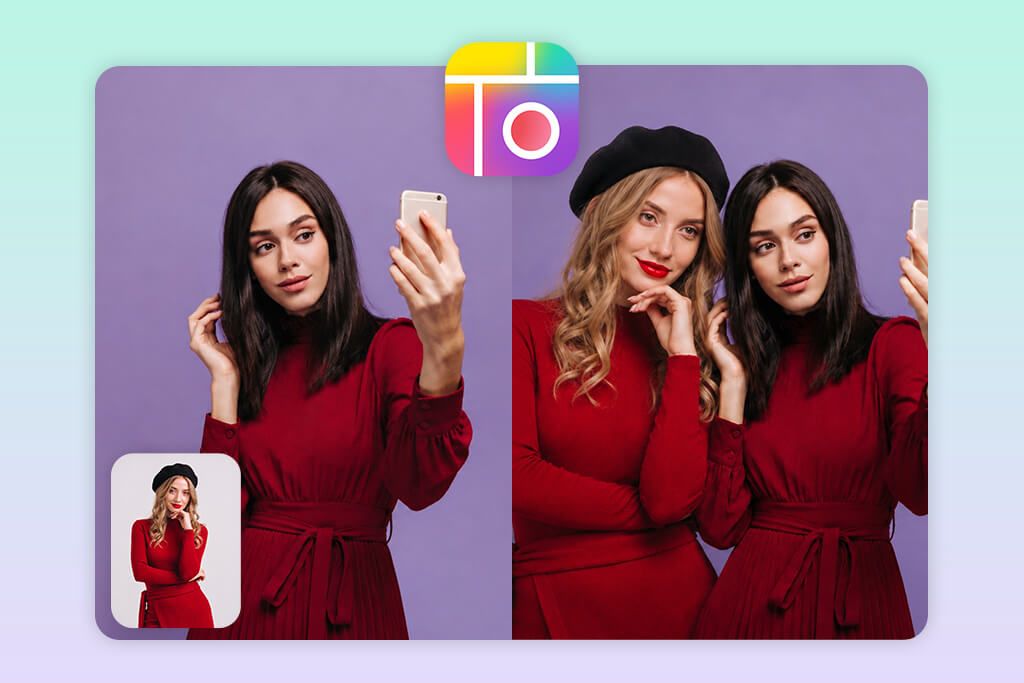
If you’re looking for a more relaxed and playful option, Pic Collage is a photo merge app designed for quick, fun layouts rather than precise positioning. Using it feels less like detailed editing and more like putting together a creative picture board.
I began by choosing a template and uploading pictures through “Photos.” After that, I used “Layout” to reposition the images and adjust their size or angle. Since you can freely move and rotate items, testing different arrangements feels quick and simple. To finish, I tweaked spacing and included a few decorative elements to improve the overall look.
Using the app feels very straightforward because all actions rely on drag-and-drop controls. This makes it easy to create something visually appealing without dealing with technical settings. While it’s not built for realistic merges, it’s a great choice for fun and creative collages.
Key features:
- Built-in templates
- Photo upload option
- Layout edit tools
- Drag-and-drop controls
- Fun graphic elements
9. Diptic
Adjustable photo grid editor
Platforms: iOS, Android
- Flexible grid options
- Resizable frame controls
- Clean-looking interface
- High-quality file output
- Detailed spacing control
- Lacks AI assistance
- Manual preparation required
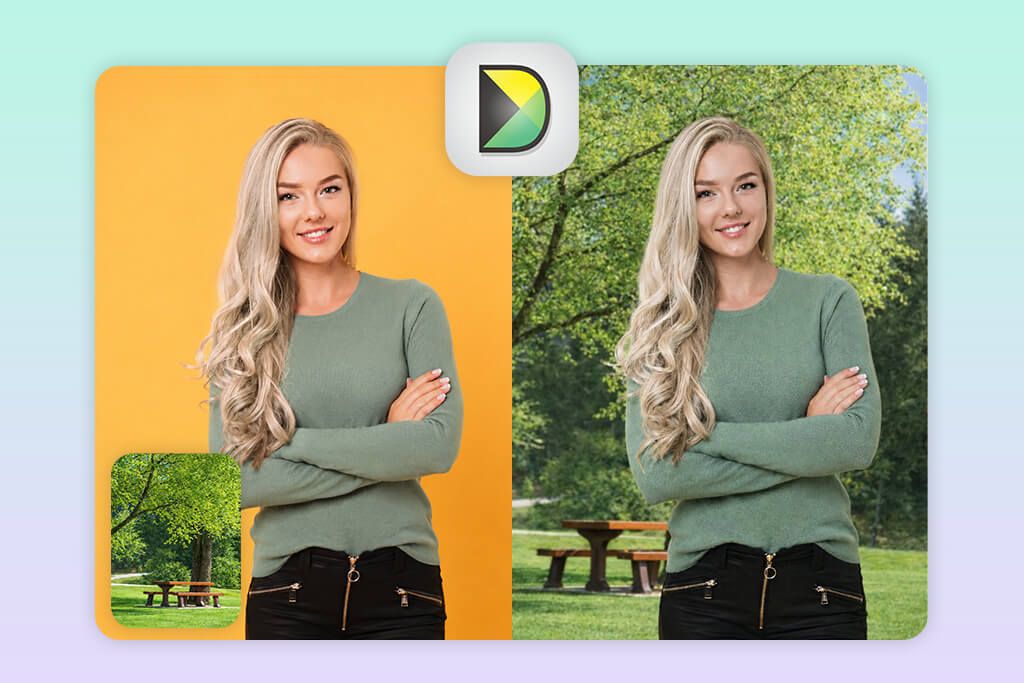
If you want more structured layouts without using complex editors, Diptic works well as a merge images app for iPhone because it focuses on neat and controlled placement. This can be especially helpful in workflows similar to add a person to a photo apps, where precise positioning really matters. It’s a good choice when you want your layout to look organized instead of random.
I first selected a grid through “Layout,” then imported my pictures with “Add Photo.” Once everything was in place, I fine-tuned borders, spacing, and size to maintain a clean and consistent look. These adjustments helped eliminate uneven spaces and alignment issues.
Using this app feels very controlled because you can adjust spacing and frames with great accuracy. That attention to detail makes the finished image look organized and intentional. It may not support realistic merging, but it’s excellent for structured multi-photo designs.
Key features:
- Flexible grid options
- Photo add function
- Frame edit tools
- Spacing adjustments
- Quality export support
Why Your Merging Look Cheap
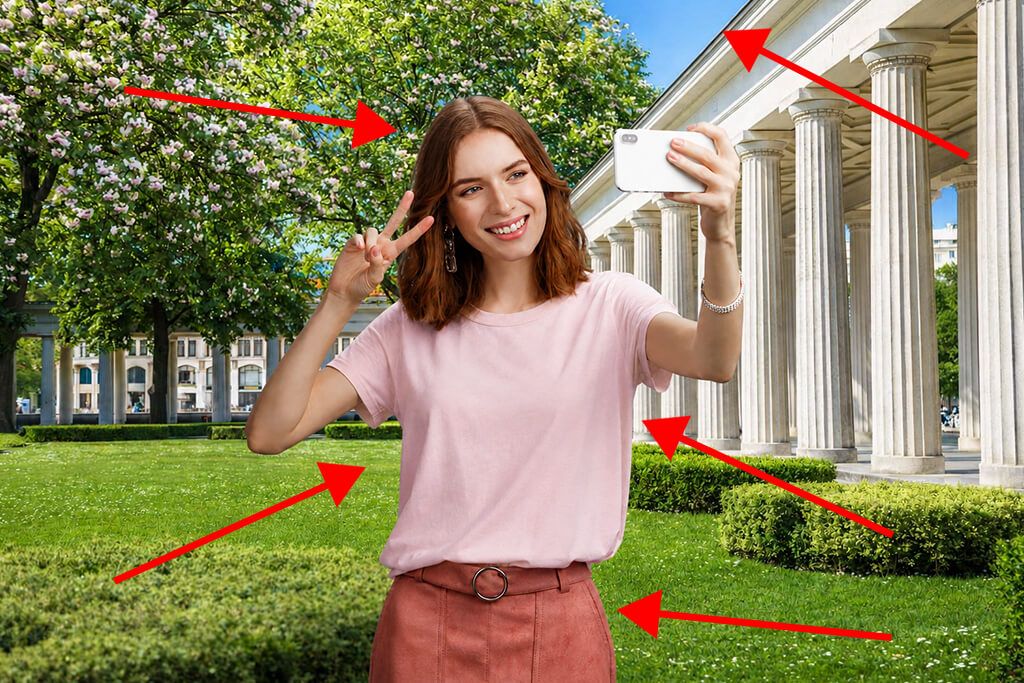
Once you begin combining photos often, you realize that the final quality depends less on the tool and more on how you use it. Even the best apps for merging pictures can’t correct problems if the original images don’t match well from the start.
The first detail I always check is lighting. When one image has warm indoor tones and another has cool daylight colors, they won’t blend naturally unless you fix the difference. That’s why I use tools like “Adjust” or “Color” to match the tones before combining the photos.
Mismatched angles can make a merged image look unnatural. Even perfect edge blending won’t help if the perspective doesn’t match. To fix this, I use tools like “Transform” to adjust size or rotation until the elements align properly.
Shadows play a huge role in making edits look realistic. Many people overlook them, but without proper shadows, objects can seem like they’re floating. When needed, I add shadows by hand using a “Brush” tool or soft dark overlays to help anchor elements into the scene.
Here are the most common mistakes to watch for:
| Problem | Why it happens | Quick fix |
|---|---|---|
| Different lighting | Photos taken in different conditions | Use Adjust / Color to match tones |
| Visible edges | Poor blending or cutout | Refine edges with Brush |
| Wrong perspective | Different camera angles | Use Transform to align |
| Flat look | No shadows or depth | Add shadows manually |
| Color mismatch | Different color temperature | Balance with color tools |
The real difference between a basic collage and a polished merge comes down to careful detail work. By paying attention to lighting, shadows, and positioning, your edits will quickly look more realistic, regardless of the app you’re using.
FAQ
- What is an app for merging pictures?
It’s a type of app designed to join multiple photos into one image. Some tools rely on grid layouts, others use layers, and more advanced ones apply AI to help align and blend pictures.
- Do merged photos look realistic?
They can look realistic, but the result depends on both the app you choose and how carefully you use it. Basic collage tools usually place images next to each other, while more advanced apps adjust lighting, colors, and edges to make the final image appear natural.
- What’s the difference between collage apps and merging apps?
Collage apps are mainly designed for arranging photos using templates and layouts. In contrast, a true photo merging app gives you more control over layers, blending, and placement. If your goal is realistic results, choose tools that offer manual editing options.
- Which app is best for beginners?
Apps like Canva, PhotoGrid, and Pic Collage are great starting points for beginners. They offer ready-made templates and automatic layouts, so you can combine photos in just a few taps without needing to learn complex editing.
- Can I merge photos without losing quality?
It’s possible, as long as the app allows high-quality exports. Apps such as Adobe Express, Pixlr, and PicsArt usually preserve detail, but more basic tools might compress images during saving.
- Can I get realistic photo merges without editing them myself?
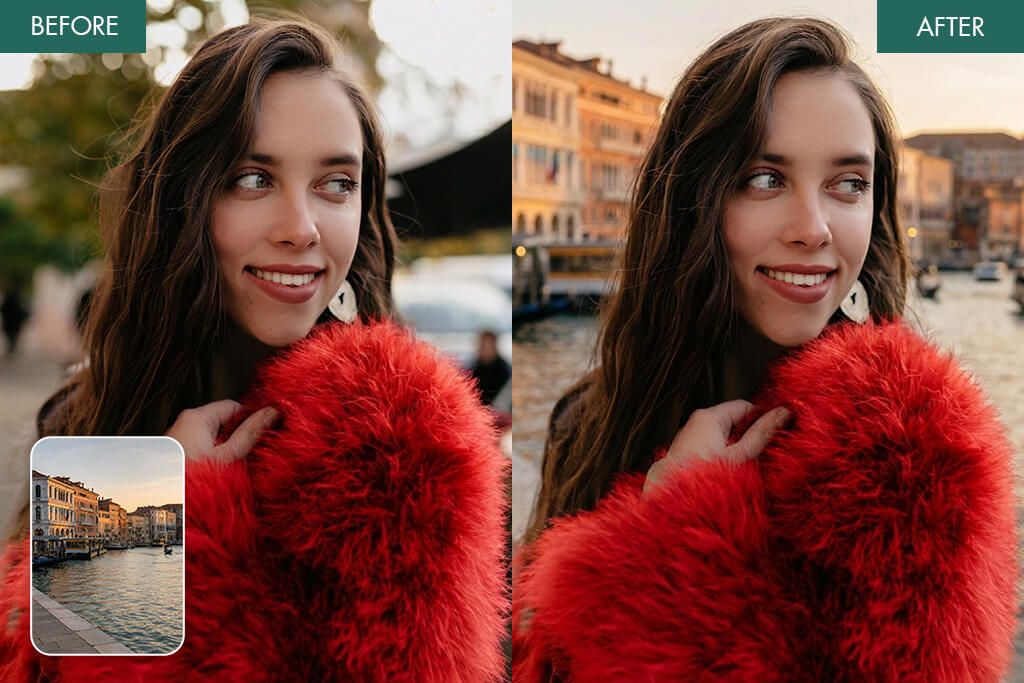
For a clean, natural result without having to adjust everything yourself, try the Weedit Retouch Service, powered by Fix The Photo Body Editor & Tune. Professional retouchers will combine your images, fix the lighting, correct the perspective, and make sure the final photo looks like it was all captured in a single shot.
- Can I use merged photos for Instagram or ads?
Yes. Merged images are widely used for Instagram posts, product pages, and marketing visuals. Clean compositions with consistent lighting usually perform much better than simple collages.
- Are free apps enough for merging photos?
Free apps work well for basic tasks, but they may include ads, limit export quality, or restrict some tools. Paid versions usually give better control, higher resolution, and more precise editing features.