7 Best Apps to Add Tattoos to Pictures for Free [iPhone & Android]
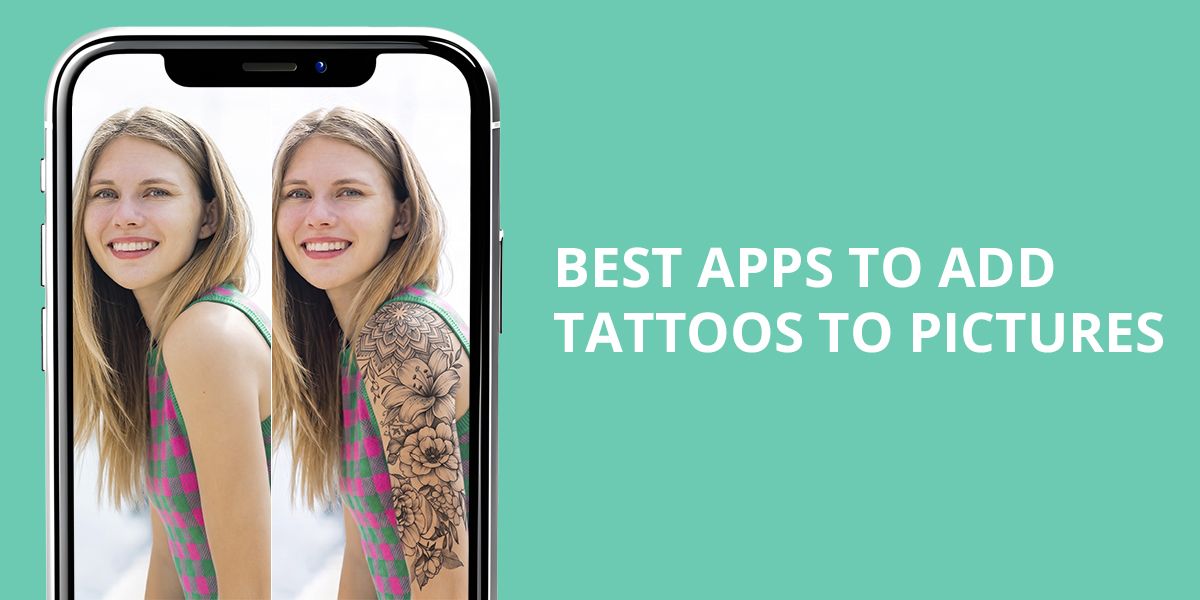
I’ve often wondered how a tattoo would look on my skin before deciding to get it. An app to add tattoos to pictures lets me try different designs, sizes, and placements without making any real changes. The problem is that some apps make tattoos look like stickers or fail to match the shape of the body. I wanted to find apps that were easy to use and gave realistic enough results to help me decide.
Tattoo Styles That Are Easiest to Preview Digitally
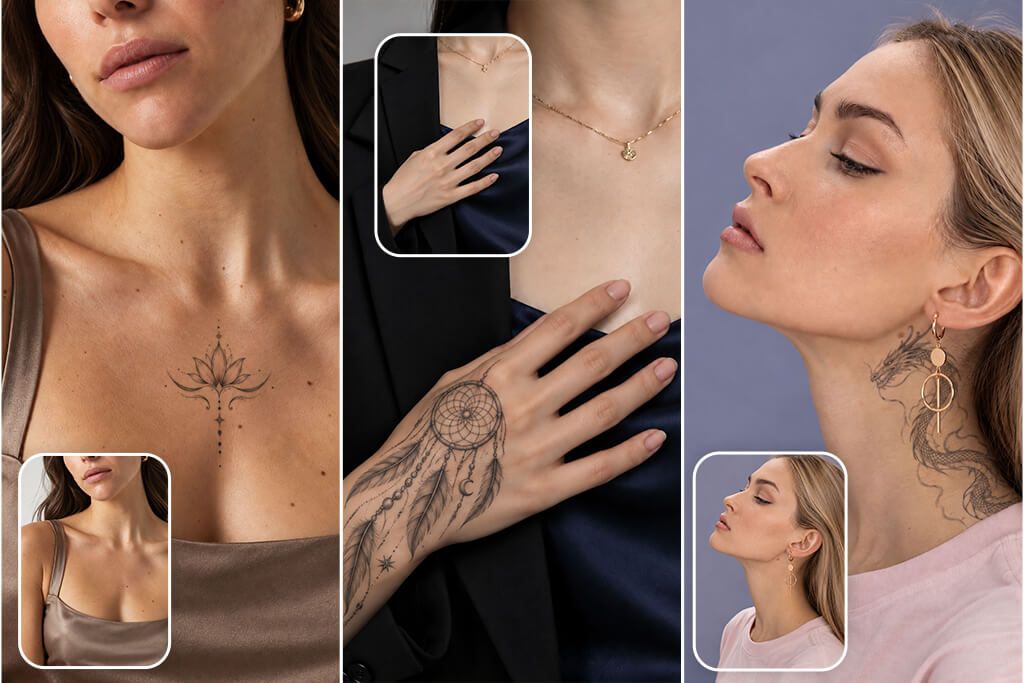
I found these designs easiest to preview because their clean lines and simple shapes still looked good after resizing or moving them around:
1. INKHUNTER – AI Tattoo Design
Realistic AR preview
- Add your own tattoo designs
- Change size and transparency
- View the tattoo from different angles
- Keeps the design aligned as the body moves
- Save and share previews
- Some tools require Pro
- Free version includes ads
Pricing: Free or from $6.99/mo.
OS: iOS
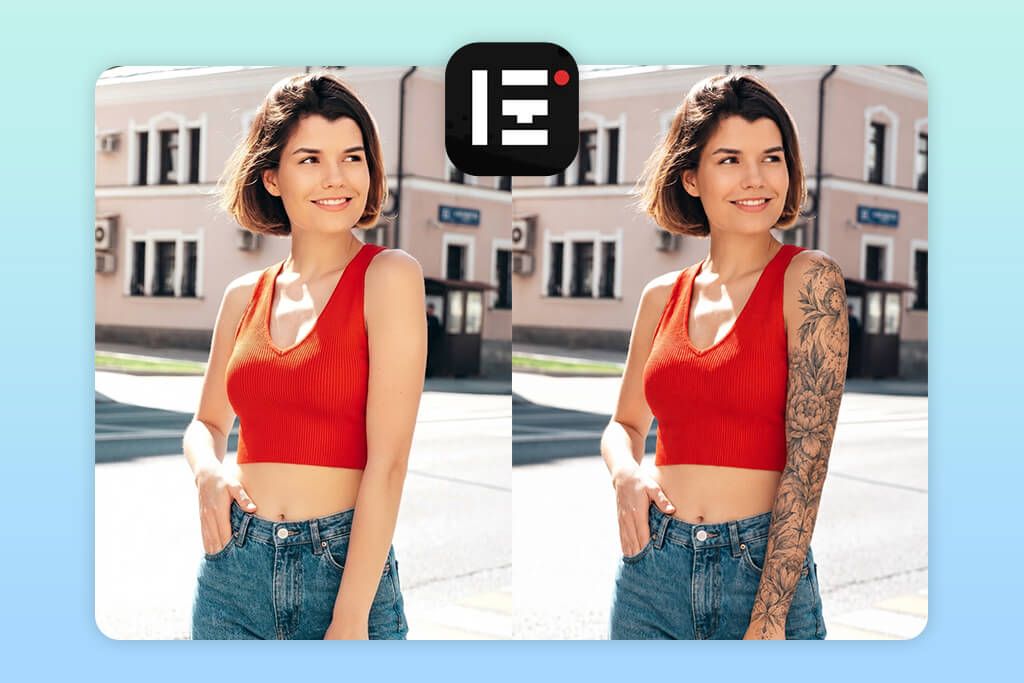
INKHUNTER is an app to add tattoos to photos using AR. It lets me place a tattoo design directly on my skin. I could browse styles such as traditional, tribal, geometric, watercolor, minimalist, blackwork, realism, and Japanese-inspired. After choosing a design, I drew the small “square smile” marker on my skin and pointed the camera at it. The app tracked the marker and kept the tattoo in place as I moved my arm or changed the camera angle.
I tried several styles and uploaded custom artwork to check whether INKHUNTER could handle my own designs. The tattoo could be made larger or smaller, moved around, and made more transparent for a better fit. The AR preview was the most helpful feature, as it let me see the result from different viewpoints before I saved it. With enough light, the design stayed with my arm quite well as I moved. I could also put a tattoo on a photo and keep the result for later comparison.
The biggest problem was keeping the tattoo steady. In low light, it could wobble or slide, so I sometimes had to move the camera around to get a better result. The free plan shows ads, and Pro is needed for some designs and tools. It’s also only available for iPhone.
2. Fix The Photo Body Editor&Tune
Professional retouchers
- Human retouchers instead of AI
- Natural-looking tattoo edits
- Support for custom designs
- Adjusted to the body’s angle
- Keeps the original photo details
- First photo is free
- 24/7 retouching team
- You need to describe the design
- Takes several minutes to get the result
Pricing: Free; edits from $0.99 per photo
OS: Android and iOS
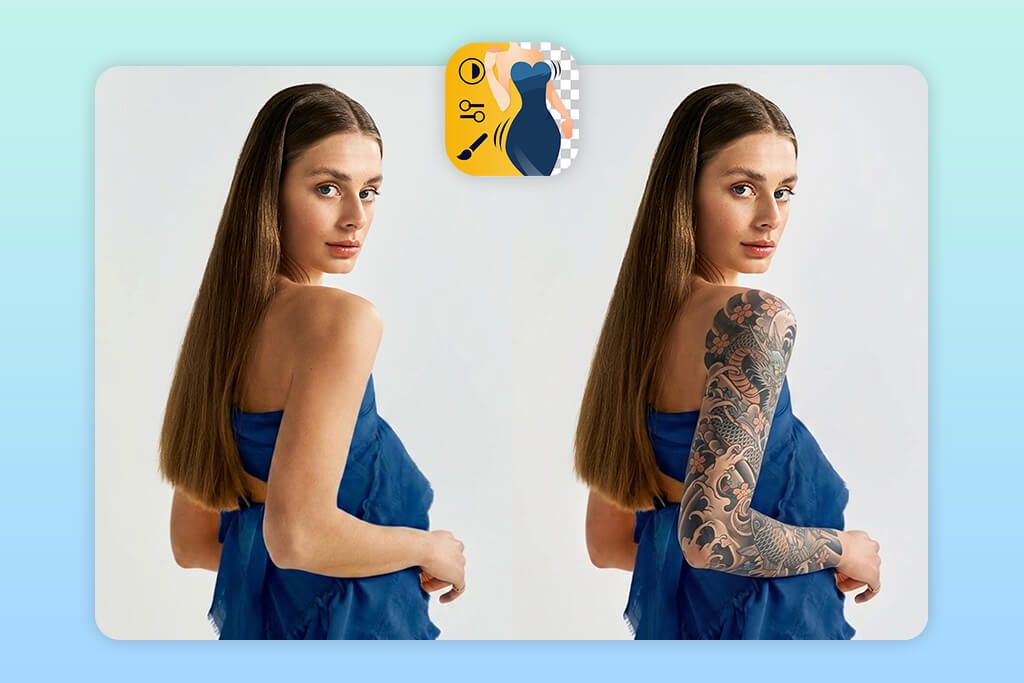
FixThePhoto Body Editor&Tune takes a personalized approach to tattoo previews. I uploaded my photo and described the look I wanted, including the style, size, color, and placement. I tested different options, from fine-line and minimalist to floral, geometric, traditional, and blackwork tattoos, and tried them on different parts of the body.
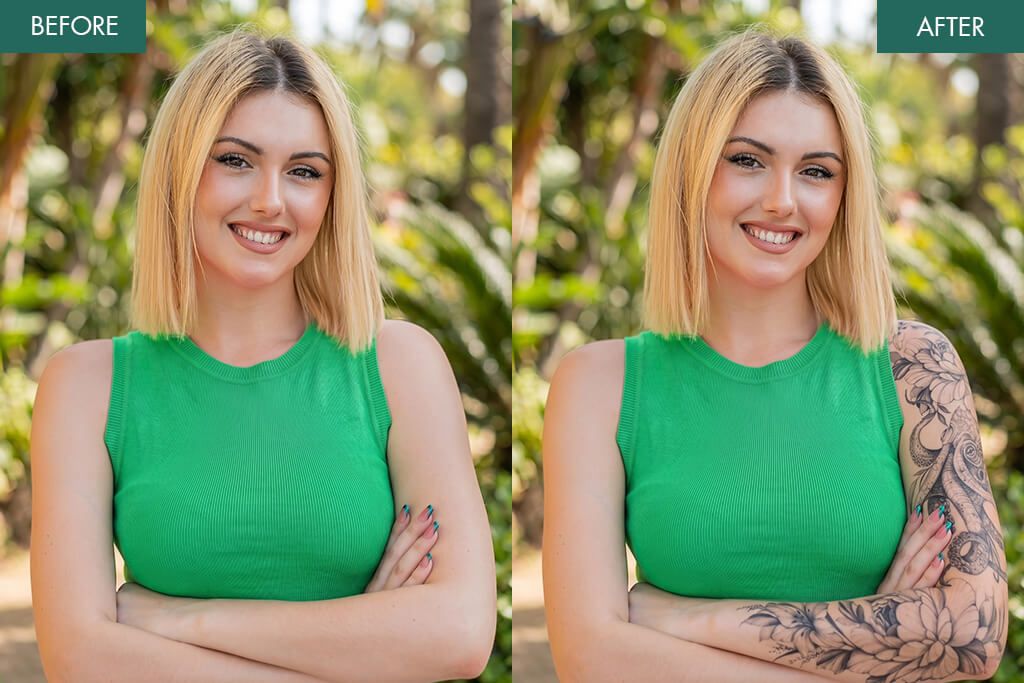
What I liked most was that professional retouchers worked on the edits instead of relying only on AI. They matched the tattoo to my body, skin, lighting, and shadows, which made it look much more natural. I could also request specific details, like thinner or thicker lines, lighter or darker ink, and an exact placement. The tattoos looked realistic in my photos, without strange edges or distorted skin.
The main downside of this tattoo editor app is the wait. Each edit takes a few minutes rather than showing up right away. The first edit is free, and then 5 credits cost $0.99, which is still affordable if I only need a tattoo preview now and then. The app to smooth skin also offers body reshaping, clothing changes, object removal, and other edits. The team works 24/7, so I can send a photo even outside normal working hours.
3. Photoshop on iPhone
Detailed manual adjustments
- Accurate tattoo placement
- Layers and blending options
- Multiply mode for more natural-looking ink
- Masks for cleaner edges
- Opacity and blur adjustments
- Cloud sync
- Takes time to learn
- Manual work can be time-consuming
Pricing: Free or from $7.99/mo.
OS: iOS
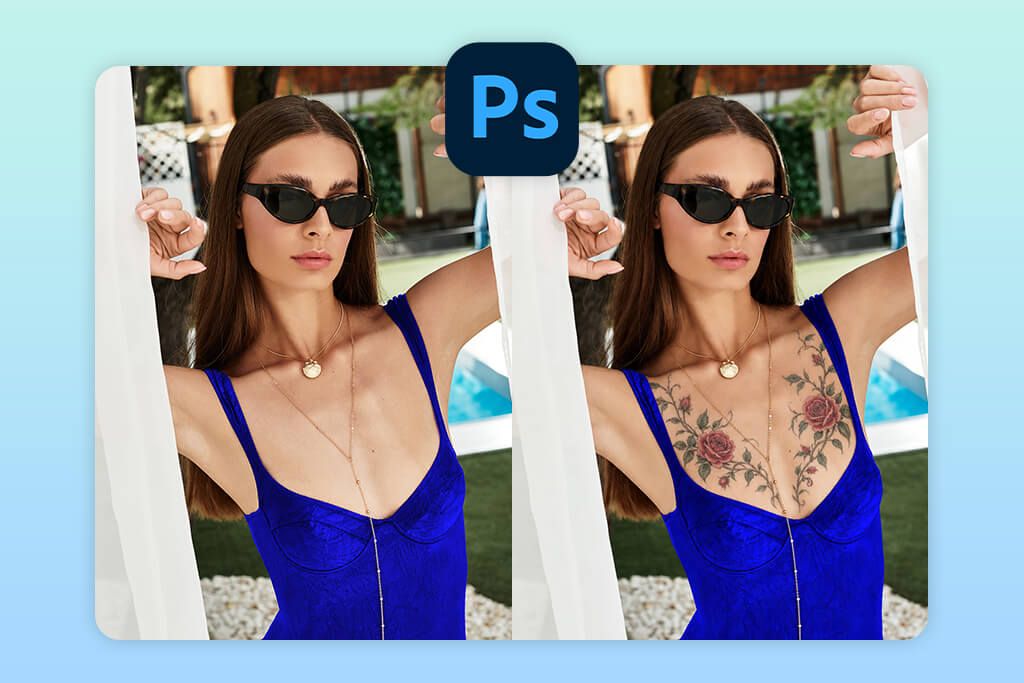
Photoshop on iPhone worked well for me when I wanted full control over the tattoo placement. It has more tools than a typical virtual tattoo app, but I found the layer system easy to follow once I got familiar with it. I added my photo, placed the tattoo on a separate layer, then resized, rotated, and warped it to match the body. I also tested minimalist, floral, tribal, geometric, and blackwork designs to see how each style looked on different skin and body shapes.
The main advantage was that I could make the tattoo blend into the photo instead of looking like a sticker. I used Multiply blending mode to keep the skin texture visible, lowered the opacity, and used a mask to tidy up the edges. Warping was helpful on curved areas because it let me match the tattoo to the body’s shape. AI Selection and Generative Fill also made it easier to work around clothing, especially near sleeves and other edges.
My final results looked quite realistic, especially after I lowered the opacity a little and added a slight blur. The process took more manual work than I expected, though. I also liked that I could continue editing using another free Adobe app, such as Photoshop on iPad or desktop, and finish the photo in Lightroom. The main downside was the learning curve. Adding a tattoo took several steps, and some advanced tools required a paid Creative Cloud plan.
4. Tattoo on My Photo
Flexible tattoo placement
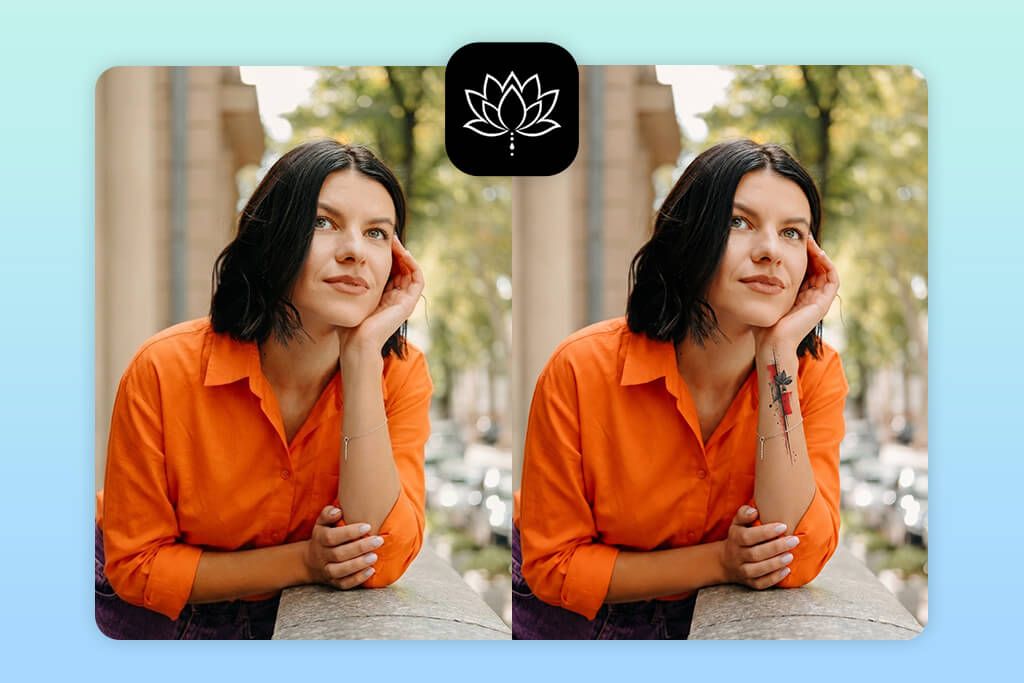
- Many tattoo styles
- Custom text prompts
- Realistic photo previews
- Easy resizing and rotation
- Save favorite tattoos
- No Android app
- Limited free plan
Pricing: Free or from $59.99/year
OS: iOS
Tattoo on My Photo combines a tattoo simulator app with an AI tool for creating designs. I could make a tattoo first and then try it on my own photo. This iPhone photo editor has a simple interface, with tools for creating designs, picking a style, and adding the tattoo to a photo.
I tested minimalist, fine line, realism, traditional, Japanese, tribal, geometric, watercolor, blackwork, floral, and lettering styles. I could then move, resize, rotate, or flip each design until I found a placement I liked.
What I liked was being able to start with my own idea instead of trying to find something similar in a gallery. I entered different prompts, created several versions, and tried them on my arm and other parts of my body. I could quickly compare sizes and placements, save the ones I liked, and share them with a tattoo artist if I was choosing between a few options.
The main issue is that the designs don’t always match my description. I sometimes had to create several versions before getting one I liked, and some needed a little adjustment to sit naturally on the photo.
5. Tattoo My Photo 2.0
Transparency adjustment
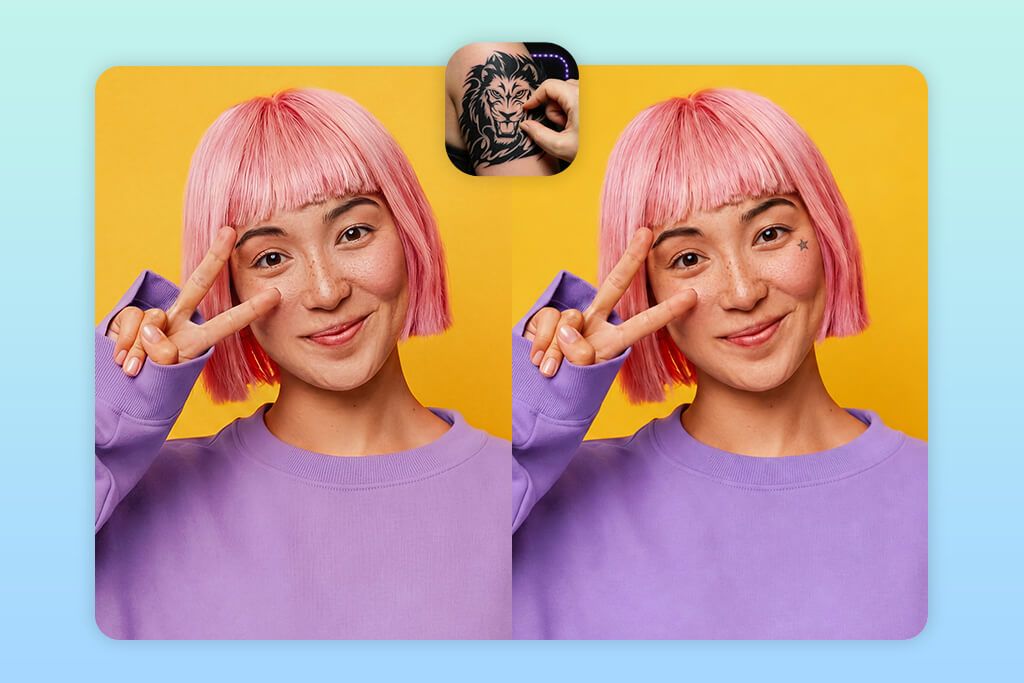
- Add your own tattoo designs
- Resize and reposition tattoos
- Rotate and skew designs
- Adjust colors and filters
- Add multiple tattoos
- No iOS app
- Extra tattoo sets are paid
Pricing: Free or from $1.99/pack
OS: Android
Tattoo My Photo 2.0 makes it easy to add tattoos to photos. I chose a picture from my gallery and opened the tattoo section, where I could browse roses, dragons, Polynesian, tribal, lettering, and other classic tattoo ideas. I could also make a text tattoo by picking a font and adding my own words. Another useful option was importing a tattoo from another photo, giving me more choices beyond the app’s own designs.
I tested the app by placing tattoos on different parts of the body and using the controls to move, resize, rotate, skew, and flip them. I could also change the transparency and color to make each design fit the photo better. The layers panel was useful when I wanted to add more than one tattoo. Overall, the tattoo filter app was easy to use for quick mockups and comparing different designs. I could save the final photo and share it straight from the app.
The biggest issue was the number of ads, which often got in the way. Most basic tools are free, but some tattoo packs need to be paid for. I also had to place and resize each design myself to make it look natural, so the final result depended on how carefully I adjusted it.
6. Tattoo AI & Tattoo Design
High-resolution saving
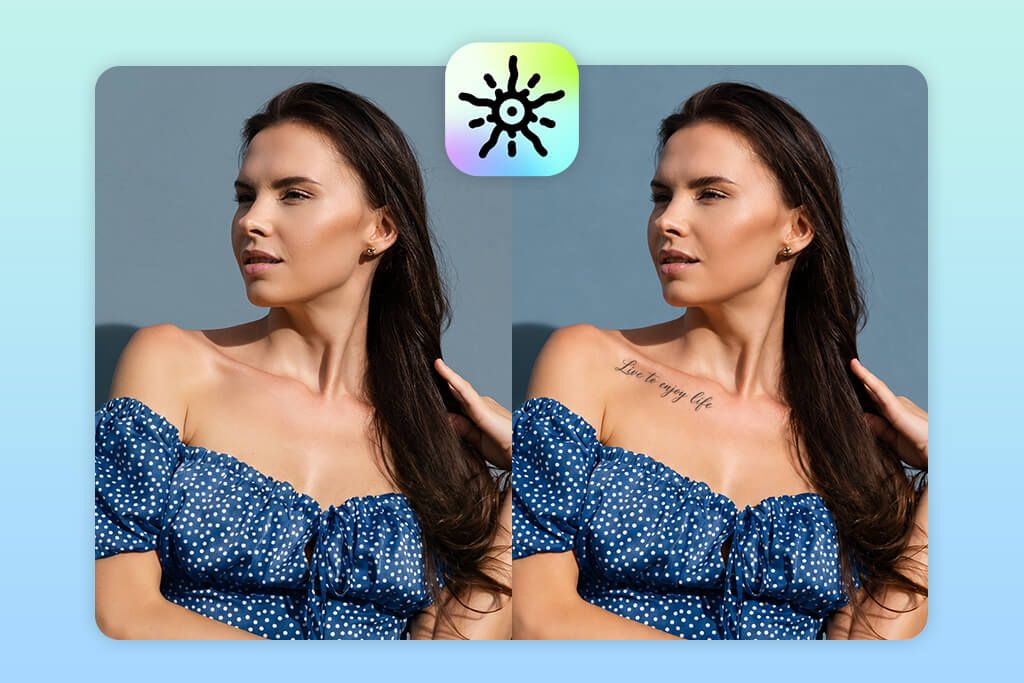
- Easy tools for placing tattoos
- Change ink color and opacity
- Custom text and font options
- Mix of classic and newer tattoo styles
- Ads can be distracting
- Results can differ from one design to another
Pricing: Free or from $1/pack
OS: Android
Tattoo AI & Tattoo Design lets me try different tattoo looks on photos or make new designs. I could pick from over 30 styles, such as Blackwork, Old School, Dotwork, Japanese, Watercolor, Minimalist, and Sketch. There were also text options in script, graffiti, and blackletter styles. The main tools were easy to find, so I could get started without much effort.
I picked a few designs and tried them on different parts of my photos. I could change their size, shape, angle, and position, while Body Fit helped them match the body’s curves. I also changed the ink opacity, lightness, and redness to make them look more natural. I tested a minimalist flower, blackwork, and Japanese-style tattoo. After a few adjustments, they looked quite realistic. The AR try-on let me check the placement on my body, and the AI generator helped me make new designs from text prompts.
The main downside is that some tools feel unnecessary if I just want to try a tattoo on a photo. The generated designs also don’t always come out right on the first try. This tattoo editor app has ads and in-app purchases, and there is no iOS version.
7. Tattoo You
Transparency control
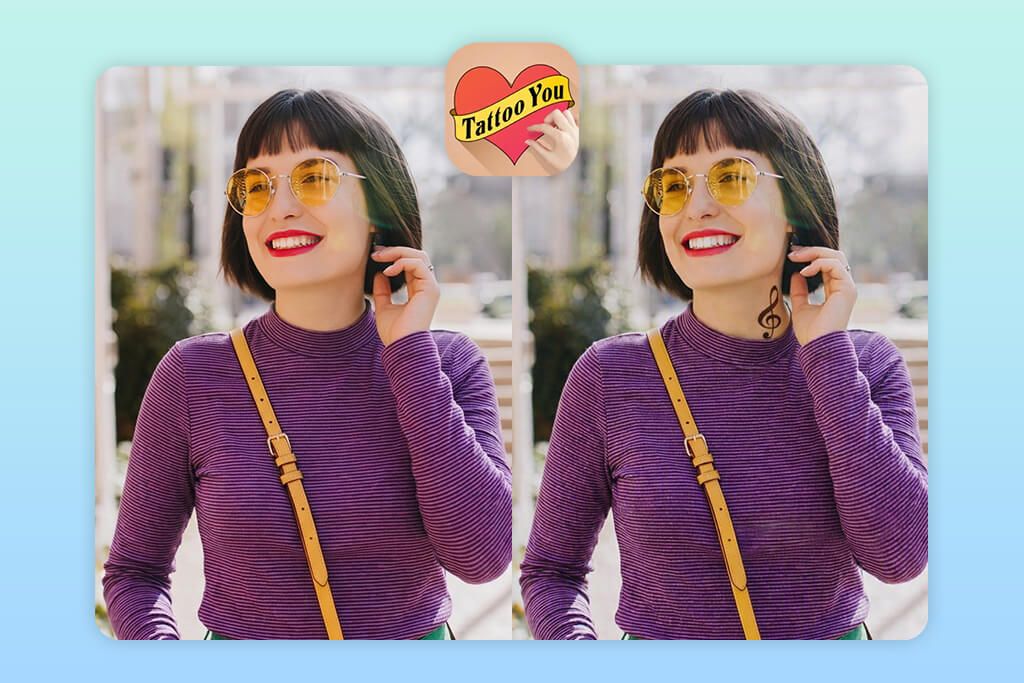
- Many tattoo styles
- Easy size and rotation tools
- Change width and height separately
- Add several tattoos with layers
- Fewer designs in the free version
- No Android app
Pricing: Free or from $0.99/pack
OS: iOS
This add tattoo to photo app keeps things simple, starting with a photo from your gallery or a new picture taken in the app. From there, you can browse its tattoo library, with sections for Birds, Butterflies, Dragons, Flowers, Hearts, Skulls, Tribal, Wings, Zodiac, and Classic designs. For text-based tattoos, there are more than 30 fonts to choose from, making it easy to add names, dates, or short phrases. Tattoo You is designed for adding tattoos to photos, and its basic layout makes the main tools easy to find.
I tested several designs on different parts of my photos and adjusted the size, rotation, width, height, and position to make them fit the body. I also changed the color and transparency and used blur when the photo was less sharp. The eraser was handy for making tattoos look partly covered by hair or clothes. I could also add several designs, use layers, or flip a tattoo when needed. After these small changes, the simpler tattoos looked quite natural.
The main downside of this Android photo editor is its limited free library, as many tattoo packs cost extra. The interface also feels a bit outdated, and getting a realistic result takes some manual work instead of simply placing a design on the photo.
FAQ
- What is the best app to add tattoos to pictures?
The best choice comes down to the type of tattoo preview you want. INKHUNTER is great for seeing how a tattoo looks on your body in AR, FixThePhoto Body Editor&Tune is better for realistic photo edits, while Photoshop for iPhone gives you more freedom to adjust layers and blending.
- What kind of photo works best for a tattoo preview?
Use a clear, bright photo where the skin is fully visible. Photos with strong shadows or anything covering the area can make the tattoo harder to place naturally.
- How can I make a tattoo look realistic in a photo?
Use a clear photo and adjust the design to follow the body’s shape. Reduce the opacity and use blending or skin-texture settings to make the tattoo look more like real ink.
- Can I create a tattoo from text?
Some apps let you add your own text, pick a font, and position it on the photo to preview a word or phrase as a tattoo.
- Do tattoo apps work better with black or colored designs?
Black ink is usually easier to blend into a photo. With colored designs, you may need to tone down the opacity and adjust the color so they don’t look too bright.
- Is it worth hiring a professional to add tattoos to photos?
WeEdit.Photos retouchers can adjust the design to match the skin, including its size, placement, perspective, lighting, and opacity. This helps the tattoo blend into the photo instead of looking pasted on.