7 Best Apps to Add Hat to Photo in 2026 [iPhone & Android]
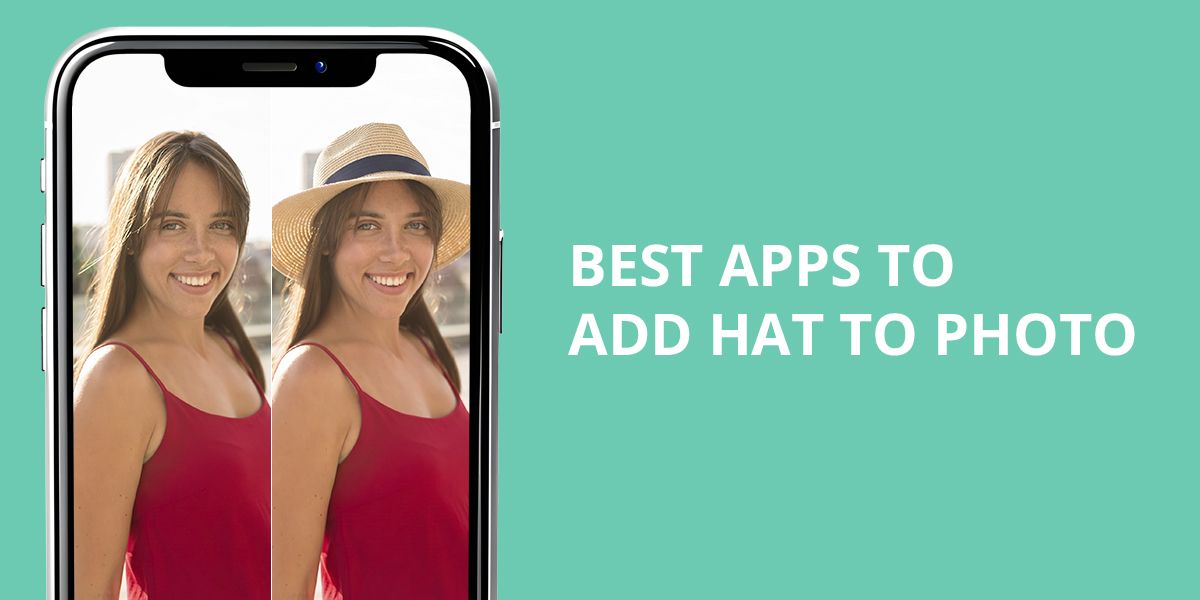
This week, after taking a nice portrait photo outdoors, I suddenly realized that the look would have benefited from a hat. I decided to find the best app to add a hat to a photo but discovered that many of them had only collections of flat stickers that did not look realistic enough.
I noticed that some apps allowed users to add hats and did not have tools for adjusting their positioning. Others made it impossible to change proportions or match lighting to the source photo. I decided to thoroughly test the available options to see which of them would be best suited for my needs.
From Cowboy Hats to Beanies: Styles You Can Try
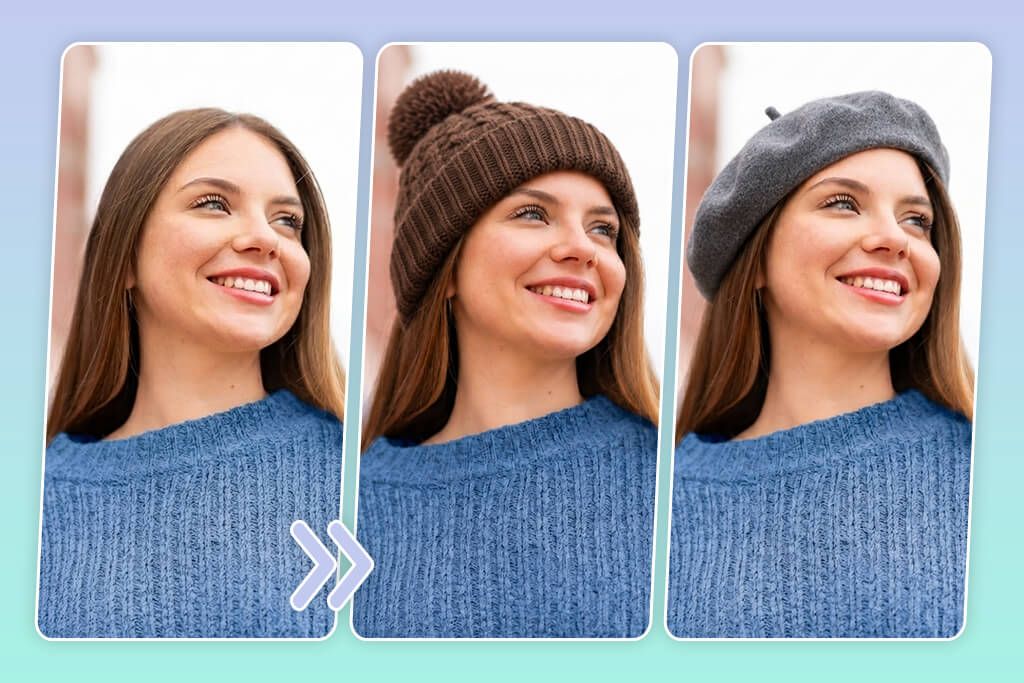
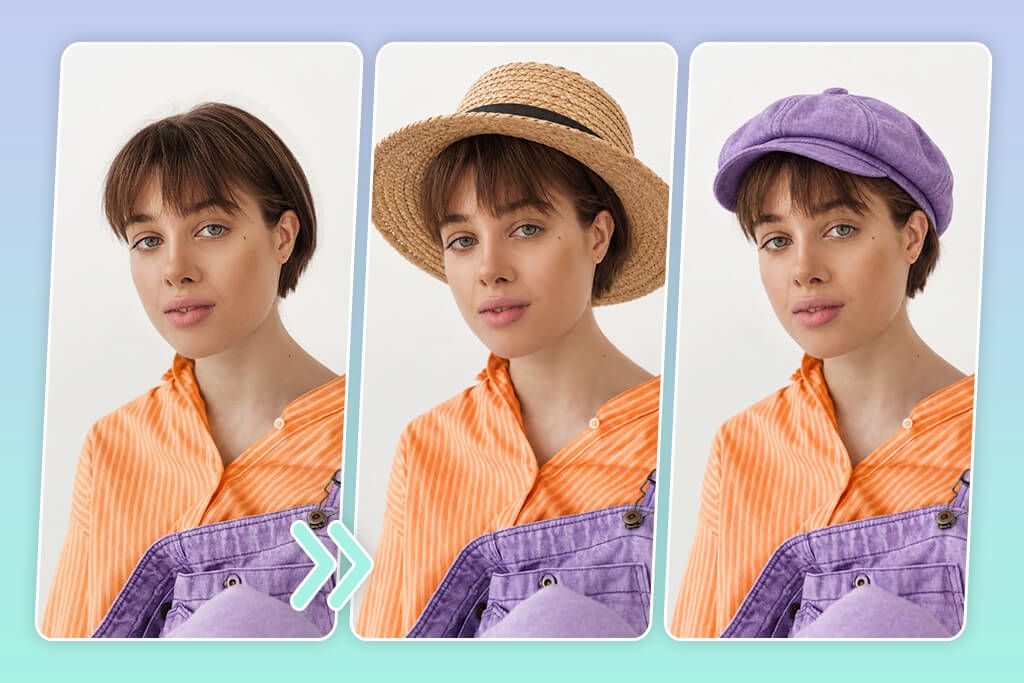
You can experiment with different hat styles to achieve the right mood. Here are some ideas that you can implement:
1. Cap Photo Editor
Simple editing process
- Colorful hat designs
- Styles for different ages
- Intuitive resizing tools
- Features for rotating elements
- Quick hat placement
- Some designs are outdated
- No version for iOS
Pricing: Free
OS: Android
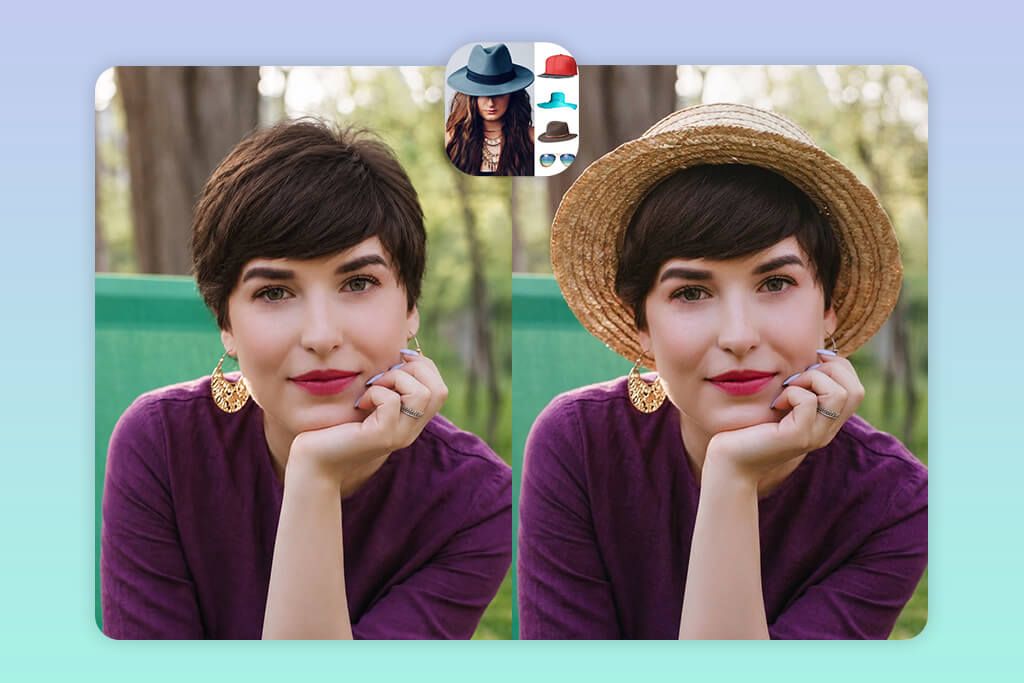
Cap Photo Editor is an intuitive hat editor app. I uploaded a picture from my gallery and explored its huge library of baseball caps, sporty caps, beanies, winter hats, and colorful caps in different styles. I could filter the results to get only hats for men, women, or children. The interface is intuitive, making it similar to a traditional sticker editor.
I figured out how to adjust its controls quickly. It was easy to zoom, rotate, resize, and move a hat to ensure that it fits the head. Besides, I could add captions with custom fonts and colors.
When I started testing this Android photo editor, I uploaded a portrait and tried out different types of headwear, including a baseball cap, a warm knitted beanie, and a stylish fashion cap with bright colors. It allowed me to choose the option that met my needs perfectly. I resized and rotated each hat to match the angle of the head.
Next, I changed its position a bit. I could use this app to add hat to photo to get the output I was looking for quickly. It’s best suited for casual fun edits. However, the hats from its collection can be used only as a flat overlay. You won’t see realistic shadows, lighting, and interaction with the hair in the outputs.
The key shortcoming of this app is that it has many distracting ads. It makes it difficult for me to edit photos. Besides, its library is a bit outdated, and there is no iOS version available.
2. Fix The Photo Body Editor&Tune
Custom hat requests
- A choice of hat styles
- Manually retouched photos
- Realistic placement
- Streamlined UI without ads
- Suitable for different poses
- Custom colors and details
- First photo is free
- Allows requesting specific edits
- Requires a detailed request
- Edits take some time
Pricing: Free; edits from $0.99 per photo
OS: Android and iOS
When I decided to use a reliable app to add hat to photo, I discovered that it might be challenging to find an app that would allow me to add hats in a specific style and achieve natural-looking outputs. However, when I started to test FixThePhoto Body Editor&Tune, I was impressed by the fact that I could request the photo editor to produce a specific result. I uploaded a portrait photo and described the output I wanted to achieve.
When writing different requests, I used words like a wide-brim fedora, cowboy hat, baseball cap, bucket hat, knitted beanie, beret, straw sun hat, Panama hat, newsboy cap, and classic winter hat.
The interface is quite streamlined. After uploading a photo, I could choose the edit I needed and describe a hat I wanted to add. There was no need to use presets or navigate through complex menus. I uploaded portraits with different head angles and asked the retouchers to add the hats that would match the clothing. I would describe the desired color, material, brim width, and style. This way, I could achieve the result I needed, which makes this solution more helpful than a regular add hat to picture app.
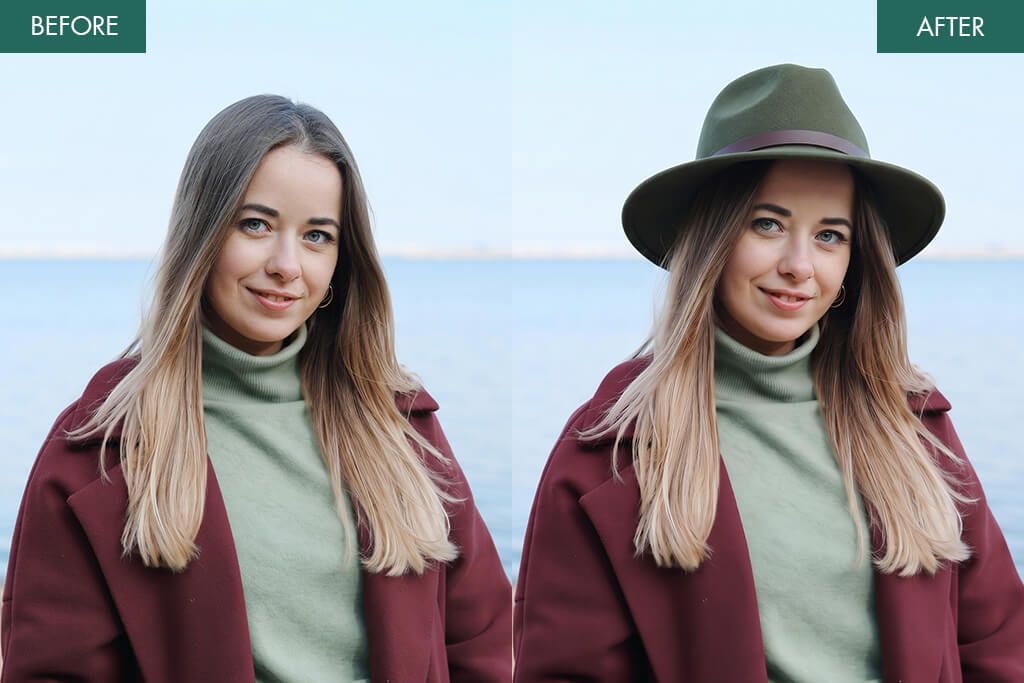
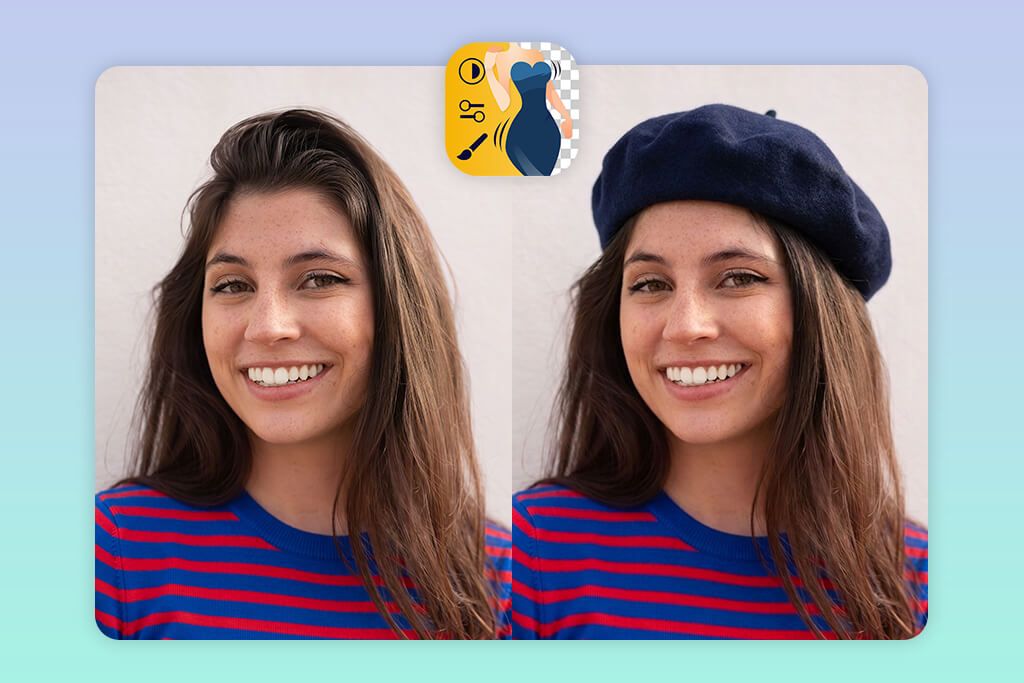
The retouchers resized the hat to ensure that it fit the head closely. Besides, they adjusted perspective, lighting, and surrounding details to ensure that the hat would not look like a flat sticker. The outputs I received looked natural and realistic. The only disadvantage is that I had to wait for several minutes to get the result I needed. It makes it different from photo apps that allow users to add a hat instantly to their photos. However, I like the fact that I could achieve a unique result.
I also used this app to change clothes in photo, delete unwanted objects, enhance lips, and perform color correction. It makes it the perfect solution for producing polished social media pics. I tried out the functionality of this service by requesting the first edit for free. Then, I purchased more credits. 5 credits cost $0.99. This service is accessible 24/7, which makes it especially convenient for situations when I need to edit my photos in the evening.
3. Photoshop on iPhone
Realistic-looking results
- A choice of hat styles
- Custom colors and materials
- Multiple generated versions
- Precise selection tools
- An extensive editing toolset
- Time-consuming selection process
- Some tools are paid
Pricing: Free or from $7.99/mo.
OS: iOS
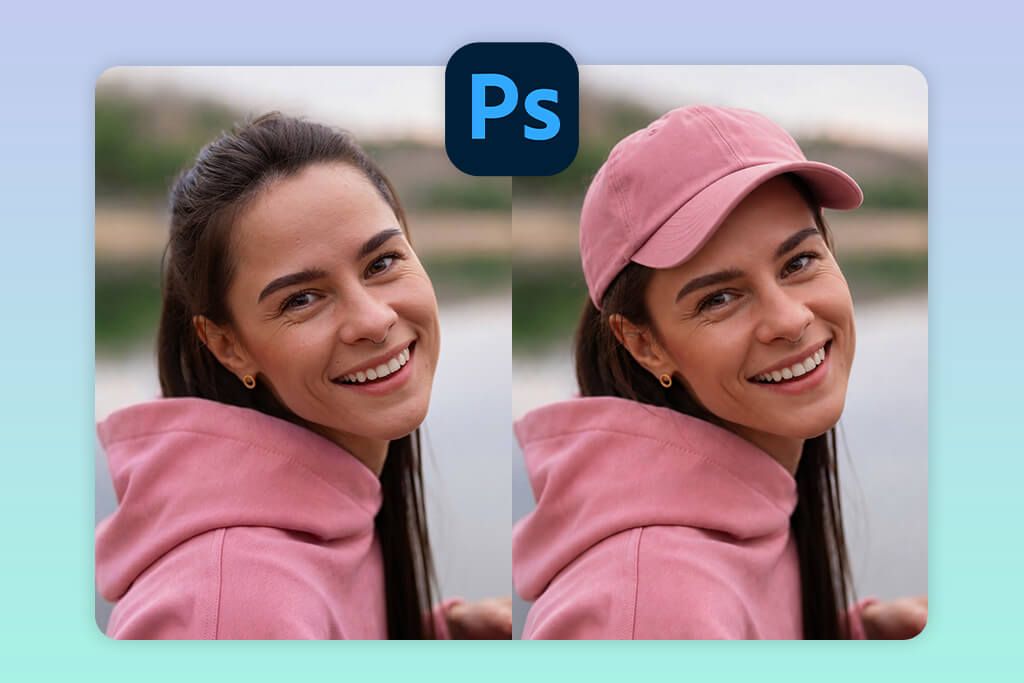
I decided to find a hat photo editor that would allow me to add a hat to a portrait photo and minimize the amount of manual editing. Photoshop on iPhone turned out to be an excellent solution for my needs, as it allows me to open my photo, select a specific area, and use the Generative Fill feature to add a hat using a text prompt. This solution has a more advanced interface than a basic hat filter app, but it’s still easy to navigate. I could find every tool I needed quickly. Besides, it allows me to select any area, use prompts, and generate multiple versions.
I used different prompts trying to add hat to image that included such phrases as a black baseball cap, beige bucket hat, brown cowboy hat, classic fedora, knitted beanie, wide-brim sun hat, beret, Panama hat, straw hat, and newsboy cap. Photoshop created several versions quickly, which allowed me to choose the option that fit my project perfectly. I realized that it might come in handy when I needed to choose a specific color or style instead of using a preset. It was easy to add generated hats to photos. Besides, I could regenerate the output if I wasn’t fully satisfied with the shape or placement.
The only significant limitation of this free Adobe app is that this hat photo editor requires me to focus on my workflow more than some automated solutions. I need to select a specific area with high precision and write a detailed text prompt.
Besides, it might be necessary to generate two versions. The iPhone version is more suitable for those who already know how to use Photoshop. However, this app is an excellent choice for making realistic edits and achieving a high degree of customization. While using it, I can fully control the way the hat looks in portrait photos.
4. Hat Color Stickers
Customizable hat colors
- Many creative styles
- Several colorable elements
- Intuitive positioning
- Resize and rotate tools
- Instant sharing
- Hats have a flat look
- Limited choice of pro-grade editing tools
Pricing: Free or from $4.99/mo.
OS: iOS
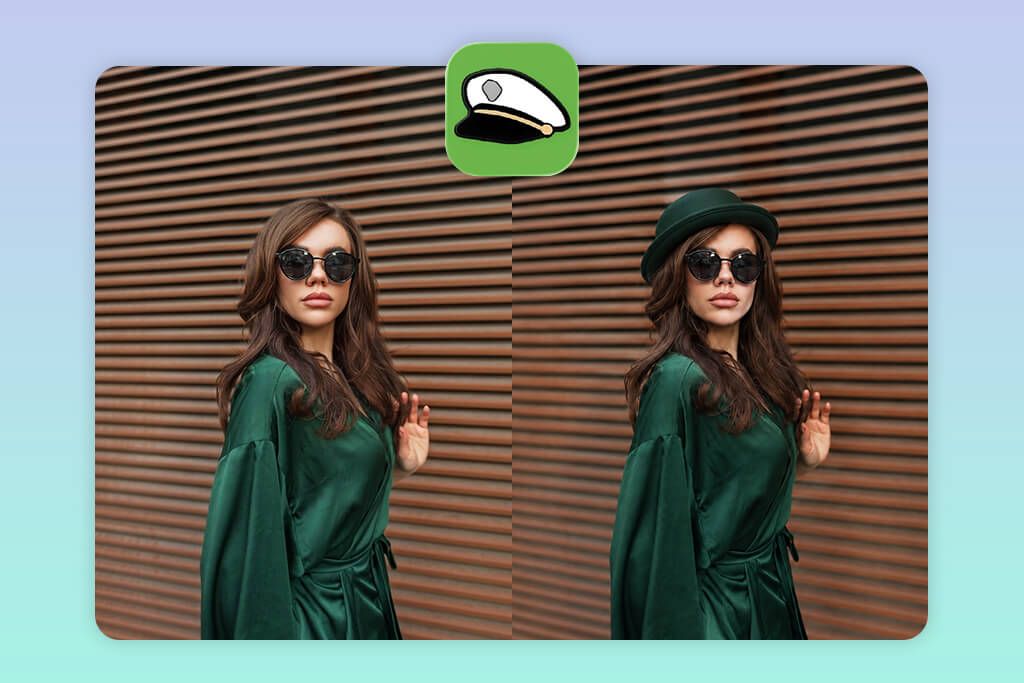
Hat Color Stickers is an excellent solution for choosing the right creative accessory. It stands out among regular photo editors with hats for its intuitive workflow. I uploaded a portrait from my library, cropped it, chose a hat I wanted to use, and dragged it to my photo. Next, I resized and rotated it.
The key advantage of this iPhone photo editor is that its library includes 46 hat designs. I could choose between all sorts of options, including chef, cowboy, baseball, beanie, beret, fedora, and Gatsby hats. Besides, its collection includes crowns, construction helmets, graduation caps, pirate hats, Santa hats, sailor hats, Viking hats, and witch hats.
I experimented with various styles and color combinations. I can recolor different elements of a hat separately, which allowed me to change the brim, crown, and other parts of each hat. This add hat to photo app is perfect for simple edits and allows me to save and share my pictures quickly after editing them. The outputs look as if I’ve applied fun stickers to them, making this app especially suitable for creating casual and themed pics.
The main shortcoming of Hat Color Stickers is that it was created for making quick, fun edits only. It’s not the best choice for complex retouching tasks. It will be difficult for you to align a hat with the head. Besides, the app lacks professional tools for adjusting shadows, lighting, or hair. Finally, the app has only an iOS version.
5. Picsart
Layer and blend control
- High degree of filter customization
- Extensive collection of stickers
- Layered effects
- Resize and rotate options
- Quick sharing to social media
- Too many ads in the free version
- Occasionally low speed
Pricing: Free or from $12.99/mo.
OS: Android, iOS
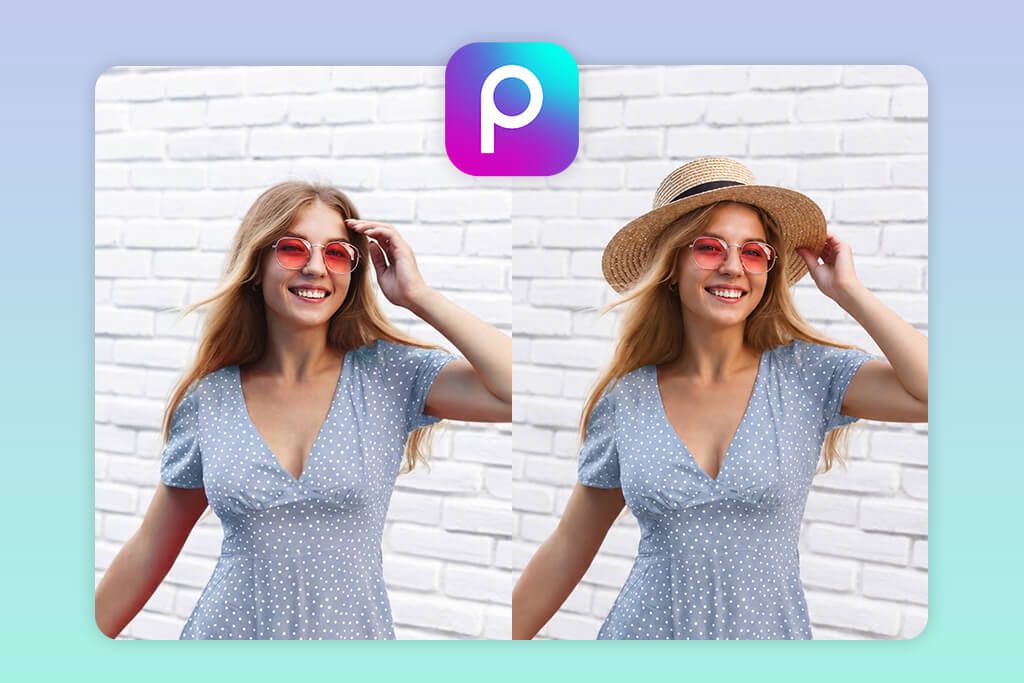
Picsart allows me to add hats to portraits using two different approaches, making it more convenient to use than a regular hat filter app. After uploading my portrait, I tried using the Stickers and AI Replace tools. I used the sticker library to find different types of headwear, such as a baseball cap, cowboy hat, beanie, fedora, top hat, witch hat, and beret.
The app has a lot of editing tools, but this app is still quite intuitive. After choosing the right hat, I put it on the head in the photo, changed its size, rotated it, and moved it a bit. When I needed to achieve higher accuracy, I used the Eraser to delete the areas that I wanted to hide behind the hair or ear.
While testing thisiPhone and Android photo editor, I tried using its AI Replace feature. I used prompts like “red baseball cap” and “black fedora” to add a hat to my portraits. This approach helped me achieve more natural results than when I used stickers. Besides, I could add the hats that weren’t available in the sticker library. While using Picsart, I can adjust opacity and other properties to achieve the result I need.
The main issue with Picsart is that its interface looks cluttered, as it has many tools. It makes it more challenging for me to achieve a higher degree of realism when adding stickers. The free version has some distracting ads and often prompts a user to upgrade. You will have to get a premium version to access some pro-grade tools and save the outputs in higher quality.
6. Leave Your Hat On
Fast hat placement
- Intuitive interface
- A choice of hat styles
- Quick sharing
- A collection of virtual accessories
- Flat graphic overlays
- Limited choice of editing controls
Pricing: Free or for $1.99 to unlock all packs
OS: iOS
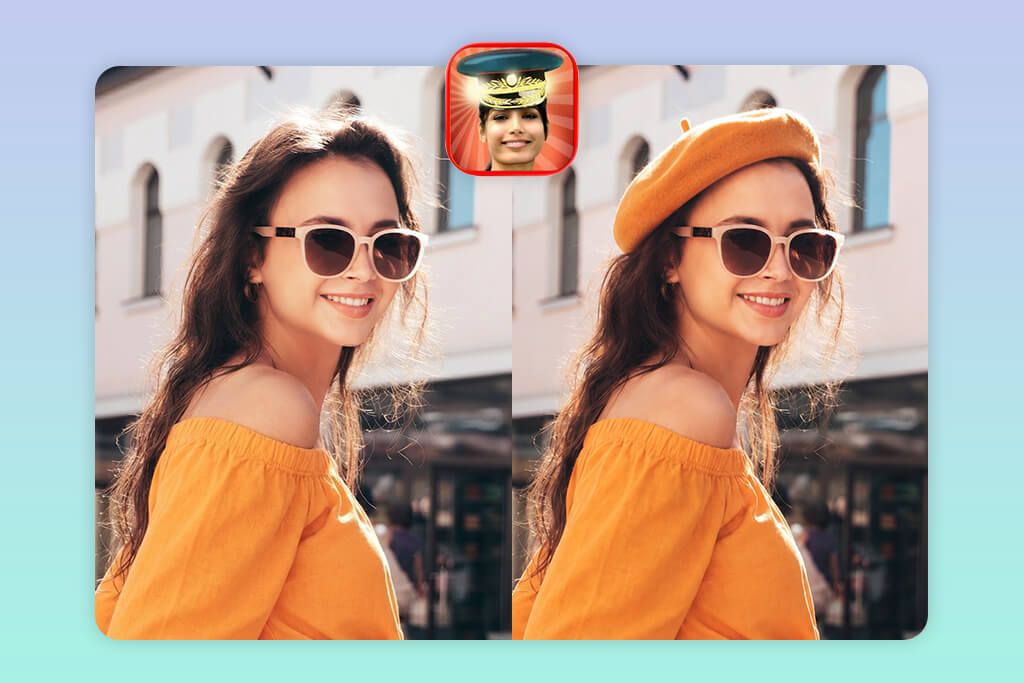
Leave Your Hat On is all about adding a hat to a photo quickly. After selecting a photo from my gallery, I added a hat to it with a few taps. This filter app has a stripped-down UI, making it easier to find the exact feature I need. However, its interface looks a bit outdated. In addition, the app has an extensive collection of berets, caps, hairstyles, mustaches, and glasses.
I could try out various accessories and combine them to my liking. This add hat to picture app was especially suitable for situations when I wanted to make my portrait fun or edit it in a casual style without making any complex edits.
I experimented with various looks and liked the fact that this app helped me expedite my workflow. However, I did not like the fact that the hats look like flat graphic overlays. I had to change their position manually to achieve the right angle. The outputs were fun to look at but lacked a high degree of realism.
The app also has a limited choice of editing tools, which made it more challenging to fix lighting and perspective issues. In addition, I was disappointed to discover that some extra options are paid. The app was built only for iOS devices and has limited compatibility with the newest iOS versions.
7. YouCam Perfect
AI integration
- Streamlined adjustment
- Hat stickers and accessories
- Resize and rotate features
- Additional retouching tools
- Some hats look flat
- Inconsistent AI outputs
Pricing: Free or from $5.99/mo.
OS: Android, iOS
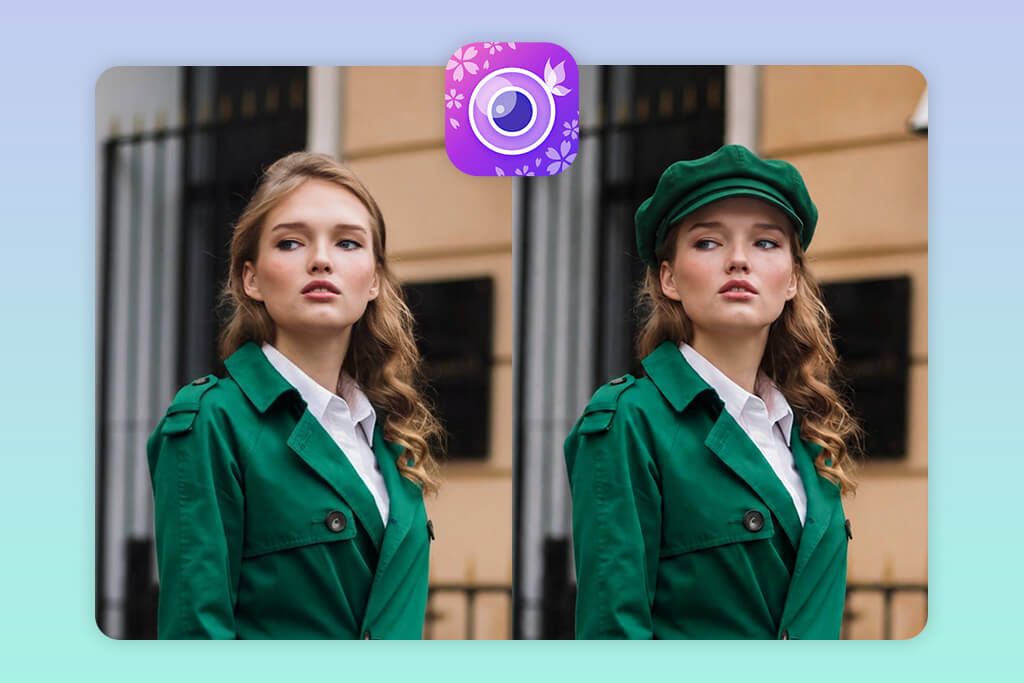
YouCam Perfect facilitates adding headwear and continuing to edit a photo without interrupting your workflow. I often use it when I need to edit portraits. I can browse the collection of stickers and accessories, experiment with different looks, and try out various types of headwear, including baseball caps, beanies, cowboy hats, berets, fedoras, bucket hats, and sun hats.
I can choose between casual and fashion styles, create various color combinations, from more reserved to brighter, resize the accessories, resize and rotate virtual hats, and change their position to ensure that they match the head. The interface is quite streamlined, so it was easy for me to find the accessory I needed.
In addition, I tried using the AI tools to see whether they would help me add a hat to a photo quickly. I experimented with prompts and specified styles and colors I was interested in when I needed to achieve a more unique effect. The outputs depended on the results I wanted to achieve. It was easy to add stickers to my photos, but they had a flat look. The AI-generated hats had the same lighting and angles as the original photos.
YouCam Perfect is a convenient photo editor with hats that is also suitable for casual Instagram photo editing. However, you need to pay for a premium subscription to access the best hats and AI tools. The free version has more limited functionality and a lot of distracting ads. Besides, you will often be prompted to upgrade while using this version.
FAQ
- What is the best app to add a hat to a photo?
Your choice will depend on the type of edit you are interested in. You can use Adobe Photoshop and YouCam Perfect to add a hat filter for photos and access AI tools. FixThePhoto Body Editor & Tune is the best choice for adding a hat to a photo in a more realistic way and retouching an image at a professional level.
- Can I add any type of hat to a photo?
Many apps support a variety of styles, including baseball caps, cowboy hats, beanies, berets, fedoras, bucket hats, sun hats, crowns, graduation caps, and other types of headwear. Besides, you may use apps with AI-powered tools that allow you to generate hats by entering concise prompts.
- Is it possible to make a virtual hat look natural?
Find a virtual hat that matches the head angle in your photo. Then change its size and position, rotate it, and adjust opacity or shadows to ensure that its lighting and perspective match the original picture.
- Why doesn’t the hat I added look natural?
A mismatch might be caused by differences in sizes, angles, lighting, or perspective. If you use a flat sticker, it will also look unnatural due to the lack of shadows and unnatural blending with hair textures.
- Is it a good idea to hire a professional to add a hat to a photo?
Experienced retouchers working at WeEdit.Photos will add a hat in the requested style to your photos, including such types of accessories as cowboy hats, baseball caps, beanies, fedoras, berets, bucket hats, Panama hats, and wide-brim sun hats. You can also describe the color, material, shape, and overall style you are interested in.