7 Best Apps for Сontouring Face for iOS & Android
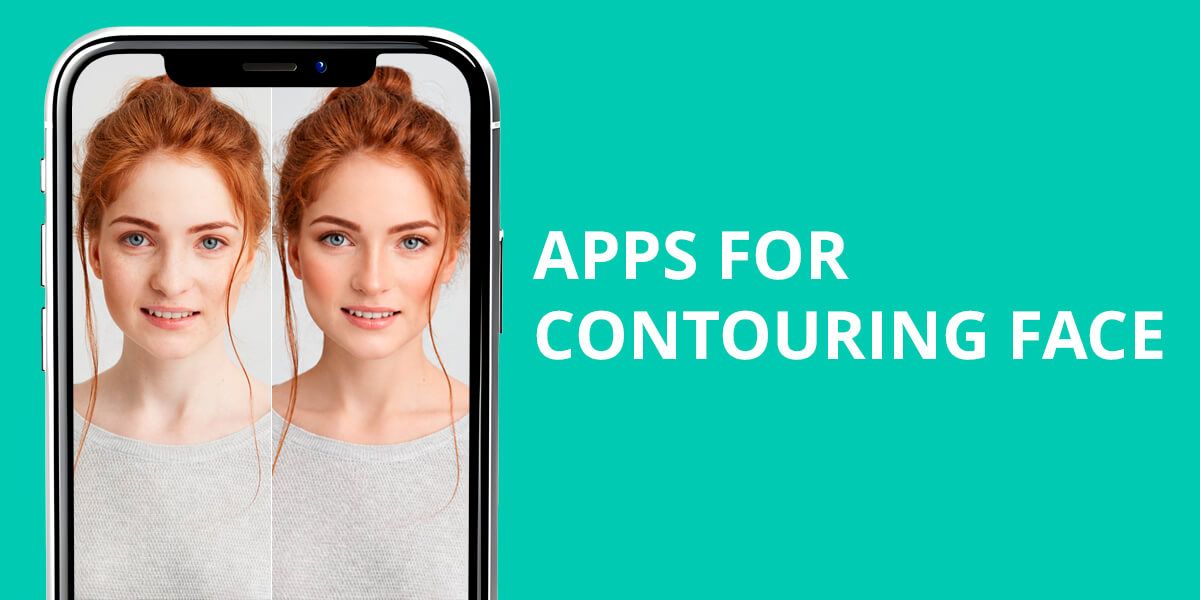
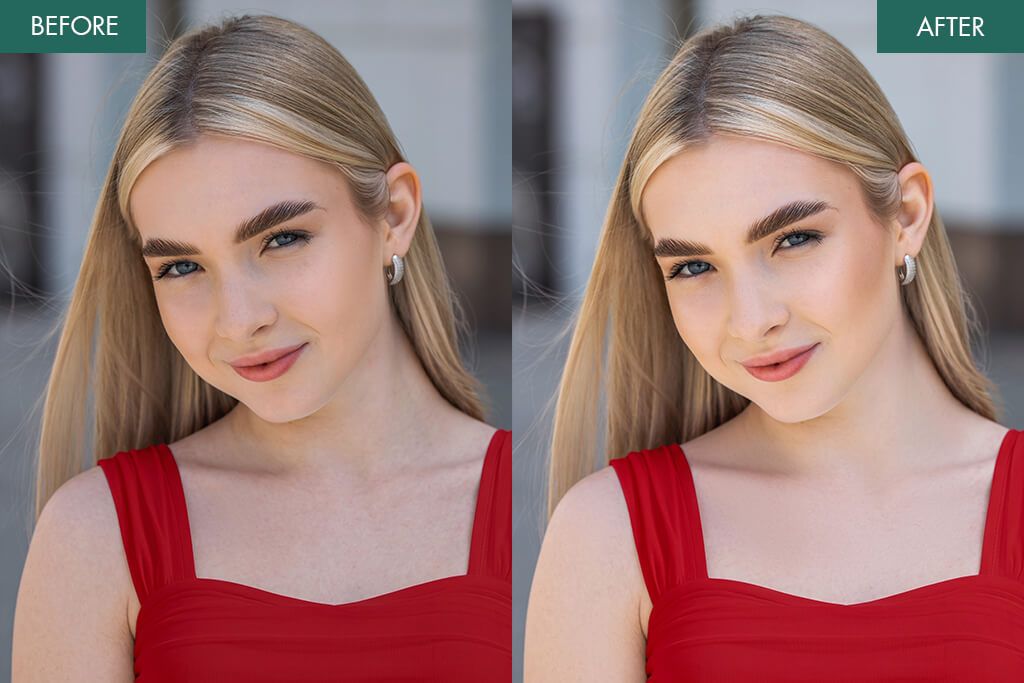
I enjoy the look I get after contouring my facial features, but getting such a result in my photos usually required a lot of additional time invested in editing. To bypass that issue, I began looking for the best apps for contouring faces. I needed a solution that would help me improve the look of my cheekbones, jawline, and nose while preserving their natural appeal.
Some options made the contour too dark, distorted facial proportions, or didn’t allow me to adjust the intensity. The better solutions helped streamline my workflow, made it easy to edit photos on my smartphone, and could deliver polished portraits without requiring a lot of time.
How to Contour Face for Different Face Shapes
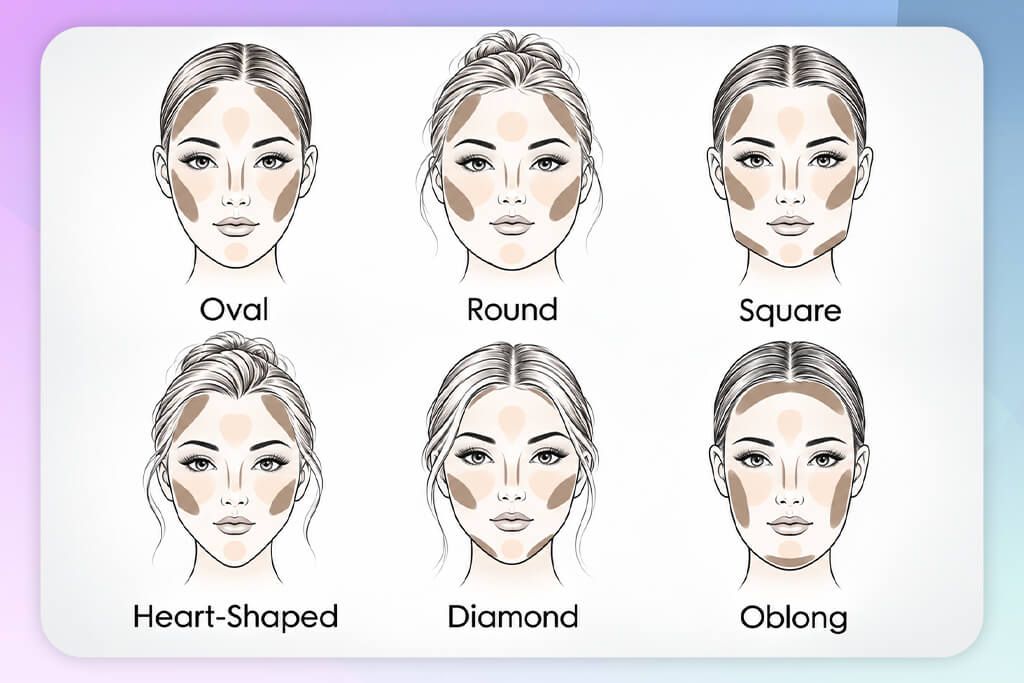
If you decide to try out a face contouring app, I recommend starting by identifying which parts of the photo have to be enhanced or softened. Rather than using a single contour preset for all your portraits, you should tweak the shadow placement and severity on a case-by-case basis.
1. YouCam Makeup
Supports different skin undertones
- Convenient contour intensity settings
- Live camera preview
- Several contour shades and tones
- Wide selection of beauty tools
- Restrictive free plan
- Lighting dependency
Pricing: Free (with watermark) or from $5.99/month
OS: iOS, Android
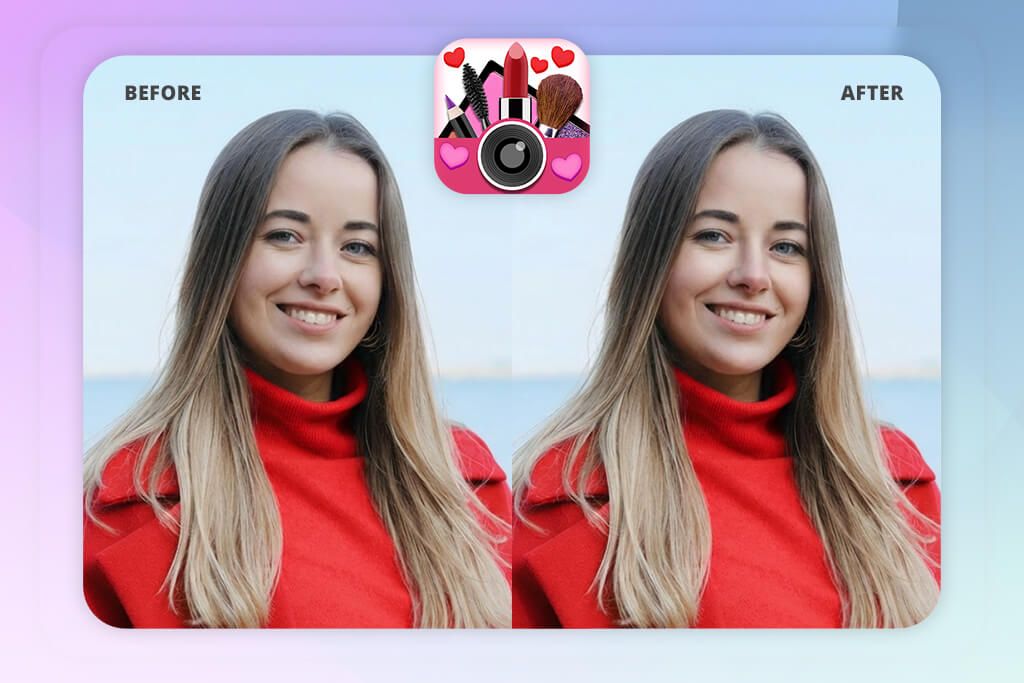
YouCam Makeup is the best face contour app if you want a solution that can essentially be used as a full-fledged digital makeup studio. This application allows me to manually apply contour, bronzer, and highlighter to individual facial areas like the cheekbones, jaw, or nose, before fine-tuning the intensity rather than being dependent on a single fixed filter. Additionally, YouCam Makeup offers an AI Face Reshape feature, enabling me to enhance the definition of specific facial features if makeup isn’t sufficient on its own. Meanwhile, the live camera mode lets me examine how the effect looks before I even snap a photo.
During my test, I applied a more pronounced contour around the cheekbones and a softer effect near the nose and jaw. The edited photo looked tastefully more defined without making me use any advanced tools, which is why I believe YouCam Makeup is a fantastic fit for working on social media posts. The wide range of shades is also very useful for quickly finding a natural match for various skin tones.
The primary downside of this iPhone photo editor is that certain premium contouring shades, reshaping tools, and finer adjustments are only available if you get the paid subscription. Additionally, the AI detection can sometimes fail to properly place the contour if the photo has unconventional lighting or angle. The ads and watermarks also dampen the free user experience.
2. Fix The Photo Body Editor&Tune
Professional quality
- Human retouchers instead of AI
- Highly realistic output
- Great results with different lighting
- Preserves natural facial features
- Clean, ad-free UI
- First image is free
- Can ask for specific edits
- Doesn’t let you search by categories
- Edits require you to wait a few minutes
Pricing: Free; edits from $0.99 per image
OS: Android and iOS
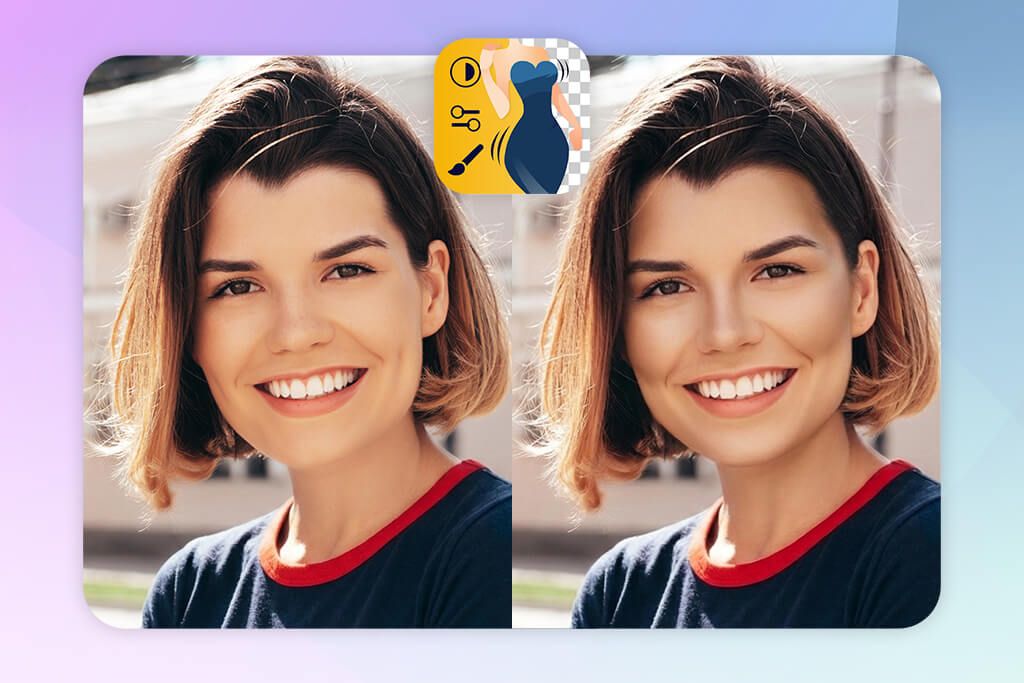
When I wanted to enhance the definition of the face in my portraits without turning to complex photo editing software for photographers, I decided to give Fix The Photo Body Editor&Tune a try, and it ended up being the best app for contouring a face if you’re interested in professional results.
Rather than making me add the shadows by hand or browse through dozens of filters, I could simply import my picture and describe my requirements. For instance, I would ask for better-defined cheekbones, a narrower-looking jawline, or softer contour near the nose. My order was completed by experienced retouchers, ensuring the entire process was fast and convenient, allowing me to focus on other tasks.
I used this app for multiple photos with different lighting and requested subtle contour makeup instead of dramatic face shape changes. I enjoyed being able to describe the exact adjustments I wanted to see and where they should be applied. The retouchers ensured the added contour matched the lighting and facial shape instead of just adding an identical effect to each photo.
The main selling point of this option is the personalized approach, but it that comes at a cost: edits aren’t instantaneous since it takes time for the professional retoucher to complete your order. Additionally, you have to be careful when describing the desired result to guarantee you get the contour you want. That said, it’s still an extremely time-efficient solution that allows you to get professional results with minimum effort.
In addition to facial contouring, this solution can be used for body shaping, color correction, and as an app to smooth skin. The first edit is free, while extra edits can be purchased with credits, as 5 credits cost $0.99. You can make requests 24/7, which ensures you’ll receive a retouched portrait on time regardless of how tight your schedule is.
3. Photoshop
AI-powered retouching
- Automated facial feature detection
- Intuitive and minimalistic UI
- Convenient slider-based adjustments
- Fast single-tap presets and filters
- Adobe ecosystem integration
- Certain features require Premium
- Output is heavily determined by the photo quality
Pricing: Free or from $7.99/month
OS: iOS, Android
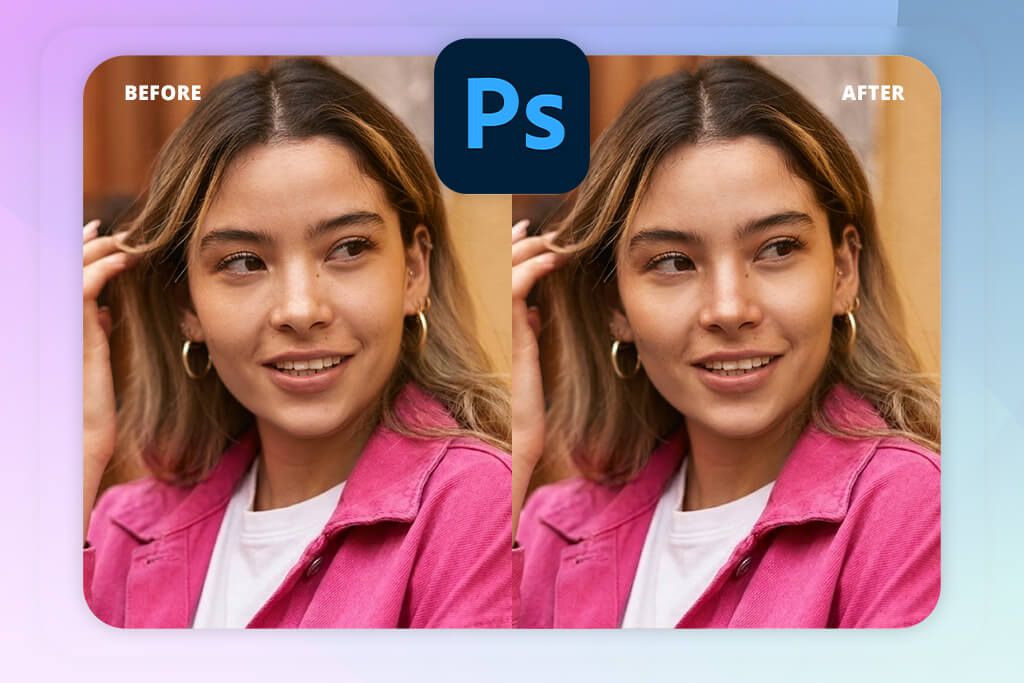
The Photoshop mobile version is a handy face contour app that allows you to adjust facial proportions and enhance individual features. I opened a selfie, applied the face and retouching tools, and leveraged the offered settings to slim down the face and add definition to the jawline and chin. The UI is minimalistic and simple to learn, while sliders and single-tap edits allow you to conveniently set the intensity of all changes.
I started by narrowing the face and then making subtle tweaks to the jaw and chin areas. Additionally, I applied skin-smoothing and retouching features to refine the portrait without making the edits look artificial. The output was highly customizable, and I could easily find a point where the face looked better defined without appearing aggressively reshaped. That’s why Photoshop is a great choice for contouring your face for social media content that only requires a couple of targeted edits.
The biggest drawback of this free Adobe app is that contouring is performed primarily via facial reshaping, rather than applying digital bronzer or contour makeup.
That said, the provided features for reshaping, skin smoothing, makeup, and blemish removal allow you to make a wide range of portrait edits that are impossible to replicate in most alternatives. For more robust manual contouring, consider using Adobe Photoshop or Lightroom since they offer more in-depth masking and localized adjustment tools.
4. Perfect365
Granular intensity controls
- AI selects facial features automatically
- Customizable contour placement
- Convenient makeup preview
- Integrated beauty camera
- Manual edits might be required
- Lower precision at unconventional angles
Pricing: Free or from $9.98/month
OS: iOS, Android
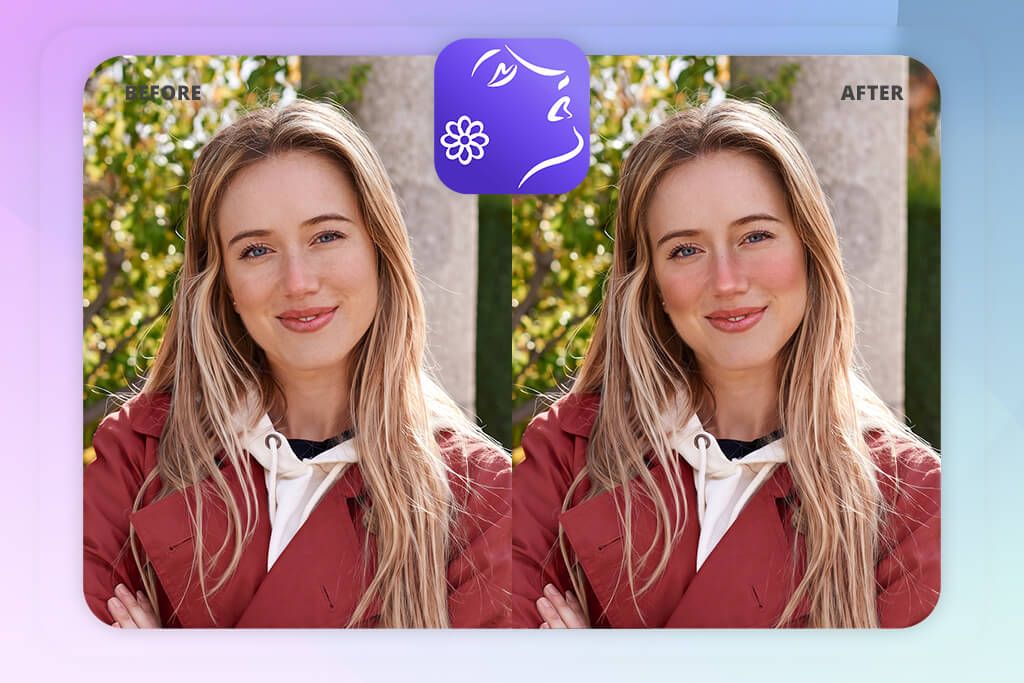
You can use this app to contour your face while leveraging Perfect365’s makeup-oriented UI that lets you access contour, blush, and highlights tools in the same workspace. Once you import a selfie, the AI will identify key facial areas and apply makeup accordingly.
I could pick the contour hue, adjust its intensity, and tweak the placement around the cheekbones, jawline, and nose. This iPhone and Android photo editor lets you pick from over 150 preset looks, but I preferred using manual controls to secure realistic results.
During the test, I began with a light contour around the cheeks and jawline, then applied a smaller amount near the nose. Perfect365 allowed me to adjust the facial points, which is useful when the AI makes a mistake. Additionally, I tried applying presets, but multiple of them overdid the shadows. After making some manual tweaks, I managed to receive a better-defined portrait without making the facial features look over-edited.
The main drawback of this option is the overly aggressive presets that often cross the line of realism. If you apply a high-intensity filter to make the face or nose seem slimmer, the result often loses its natural appeal. The AI usually does a great job, but photos taken at unusual angles tend to require some manual adjustments. Lastly, the free version has you dealing with ads.
5. FaceApp
Single-tap adjustments
- Quick automatic edits
- Clean, minimalistic UI
- Fast selfie editing
- Multiple face-enhancing effects
- Restrictive manual contour control
- Can distort facial proportions
Pricing: Free or from $10/mo.
OS: iOS, Android
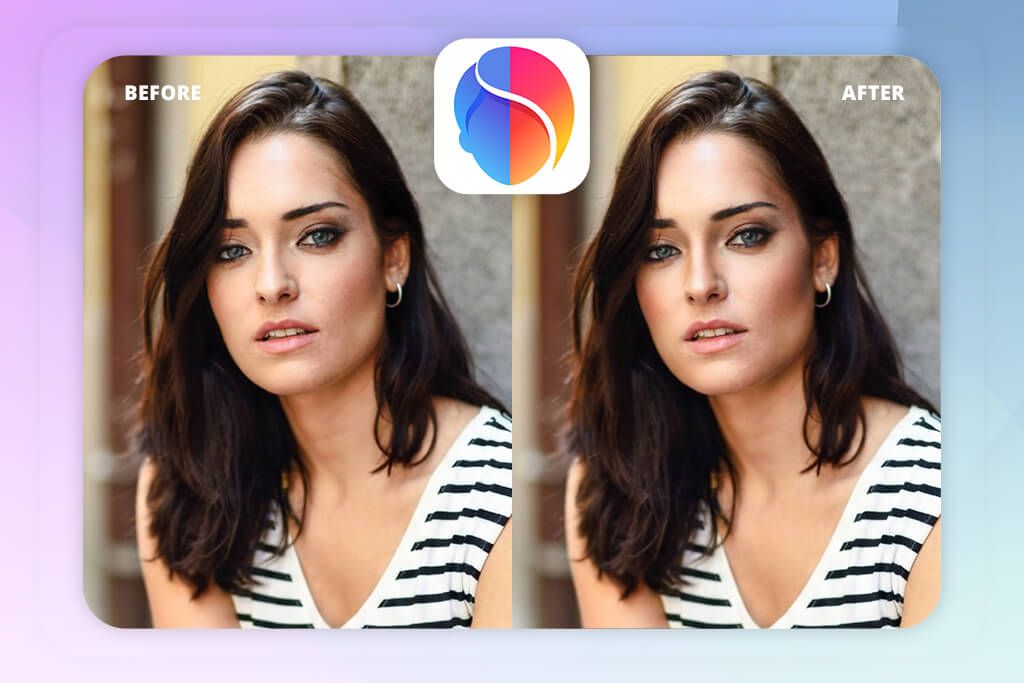
FaceApp adopts a more automated method compared to most contour makeup apps. It has an intuitive UI that makes it easy to import a photo and experiment with a variety of preset makeup looks that apply digital shading, highlights, and definition based on the subject’s facial structure. I employed the contour-style effects to emphasize the cheekbones and jawline, then tweaked the intensity using the sliders.
Additionally, I checked out the face reshaping tools to narrow my nose a bit and make the jawline look sharper, achieving a more sculpted appearance. This app makes all these changes instantly, minimizing the need for manual input.
At lower intensity values, the shading added the necessary sharpness to my cheekbones and jaw, while the nose looked better defined after I applied both makeup and reshaping effects. While the provided functionality is impressive, FaceApp falls short compared to dedicated apps when it comes to precision. Additionally, stronger presets tend to make the face look visibly edited, which isn’t ideal.
6. Facetune
Easy undo and corrections
- Highly accurate jawline controls
- Customizable cheekbone width
- Nose and chin refinement
- Custom shadow and highlight features
- Reshape requires a steady hand
- Prone to over-editing facial features
Pricing: Free or from $7.99/month
OS: iOS, Android
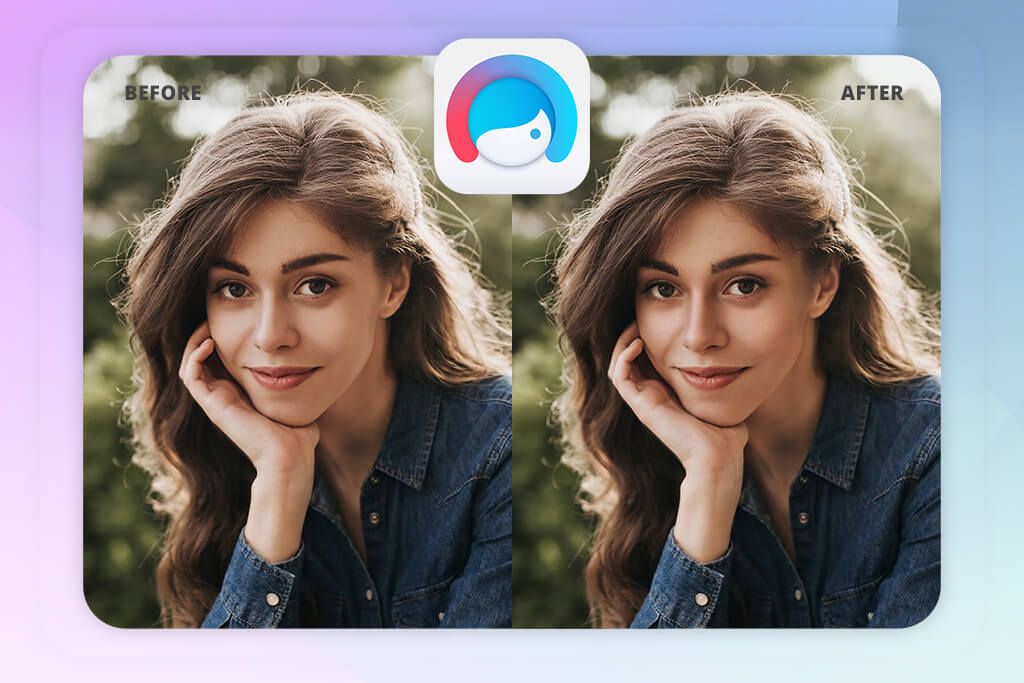
Facetune is a great choice if you’re looking for an app to contour your face and nose while enjoying a more hands-on approach to the process. I uploaded my photo, selected the Face tab, and tinkered with the Jaw and Face sliders to fine-tune my jawline, cheekbones, and general face width.
For more intricate adjustments, I picked Reshape and subtly refined the chin, cheeks, and nose using my finger. Additionally, I leveraged the Makeup and Retouch features to apply subtle shadows and highlights, which was perfect for Instagram photo editing in situations that require polished but realistic-looking portraits.
I began with minute jawline tweaks before making the cheekbones more defined and the nose appear slimmer. Next, I applied the lighting and shadow features to make the contour more intense where the original portrait felt too flat. The before-and-after comparison allowed me to evaluate the result and avoid over-editing.
The final version was a lot more sculpted while preserving my natural features. That said, more aggressive Reshape edits can dramatically change the facial proportions or warp the background, and some premium reshaping features are locked behind a subscription.
7. AirBrush
Soft contour blending
- Multiple face-sculpting features
- Convenient intensity settings
- Realistic-looking shadows
- Contour and makeup presets
- Restrictive preset customization
- Limited free version
Pricing: Free or from $7.99/month
OS: iOS, Android
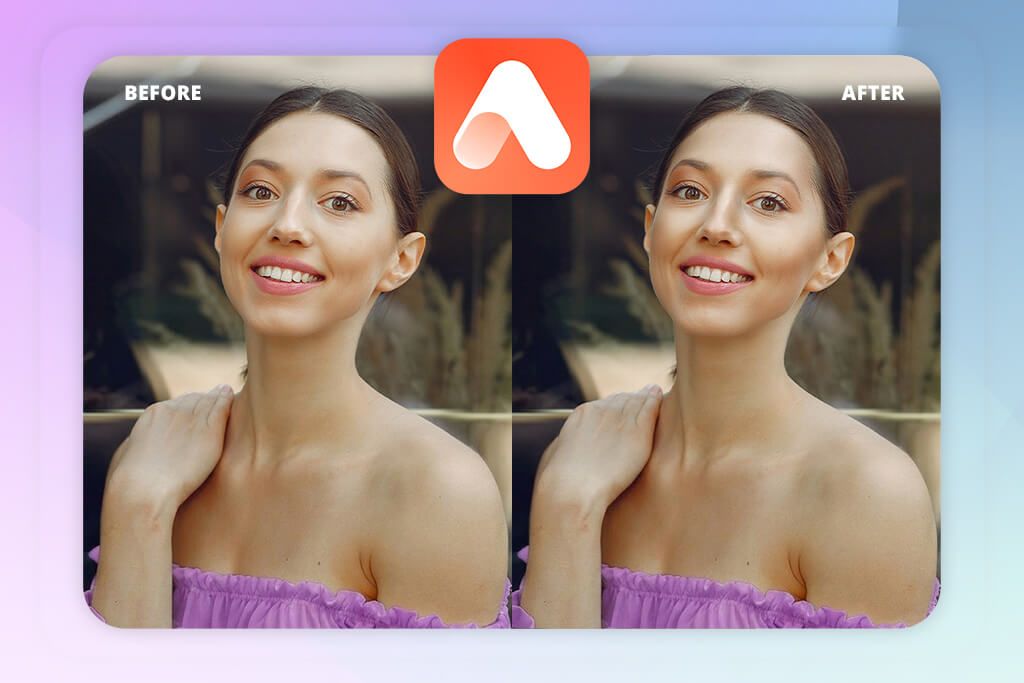
AirBrush is an appealing option if you’re looking for an intuitive app to contour faces, as it allows you to leverage contour, bronzer, highlight, and reshaping features. It has a user-friendly UI, making it easy to find any necessary tool without dealing with messy menus. I applied the contour to my cheekbones, jaw, and temples, then added subtle highlights around the nose and cheeks. The Reshape, Pucker, and Bloat features helped me make tasteful structural edits, while the Makeup toolkit made it easy to apply premade looks with contour, blush, and other effects.
I began with a subtle contour and gradually boosted the intensity until the shadows became noticeable but not rough. The applied effect looked realistic, particularly near the cheekbones, and I also added some highlights to make the face even more defined.
I enjoyed making manual tweaks since some premade looks combine contour with blush and eyeshadow. I can confidently recommend AirBrush for on-the-go portrait edits, but many of its advanced features are locked behind Pro, and some presets have very restrictive customization.
FAQ
- How is face contouring different from face reshaping?
Contouring relies on shadows and highlights to add definition, while reshaping transforms the actual proportions of different features like the jawline, nose, or forehead.
- What is the best contour makeup app for natural results?
Apps that let you set the contour intensity and manually place the effect are typically better-suited for realistic results. Fix The Photo Body Editor&Tune is a great app for personalized, pro-grade contouring, while Photoshop Express lets you adjust the facial proportions with more precision.
- How to ensure a digital contour looks realistic?
Begin with a low intensity setting, match the existing lighting in the picture, and blend the edges with care. Don’t set the same strength for all facial areas.
- Can I set how noticeable the contour looks?
Yes. Most contouring apps let you tinker with sliders, brush opacity, or intensity settings to make the effect more subtle or more pronounced.
- Why does digital contour sometimes look unnatural?
The contour can look unrealistic if the shadows are too harsh, the edges aren’t blended properly, or you went overboard with the facial reshaping.
- Is paying a professional for face contouring worth it?
Yes, particularly for beauty campaigns, portfolios, e-commerce, or important photos. Professional retouchers at WeEdit.Photos can enhance cheekbones, jawlines, and facial features while maintaining the natural skin texture and structure. Apps are a good choice for fast edits, but professional retouching delivers more refined and consistent results.