11 Best Polaroid Filter Apps for Retro Aesthetic
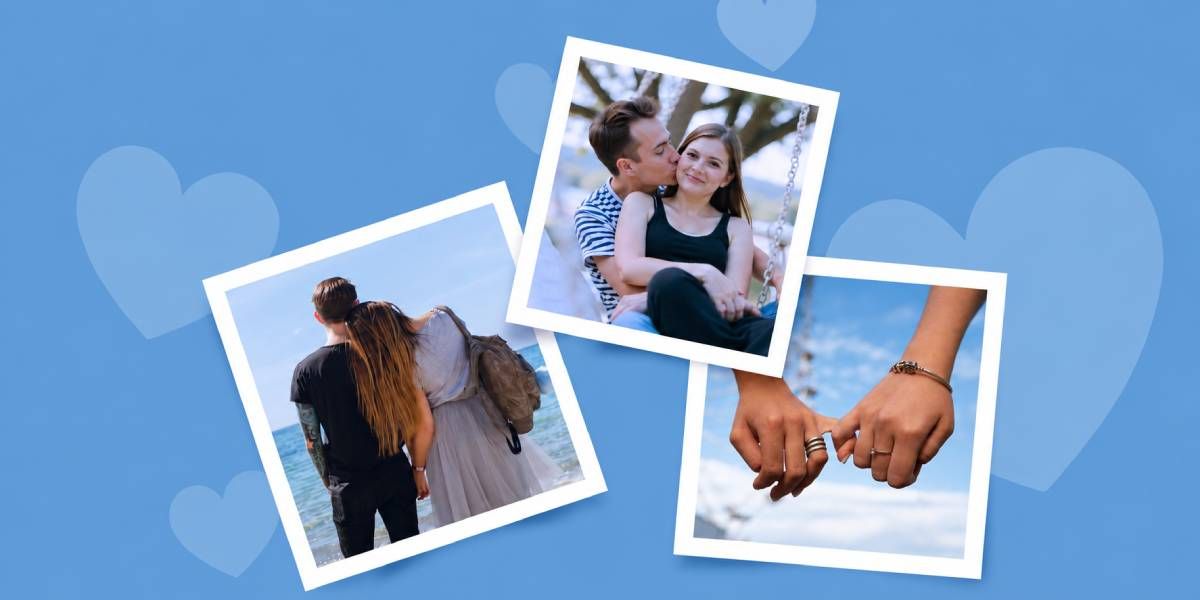
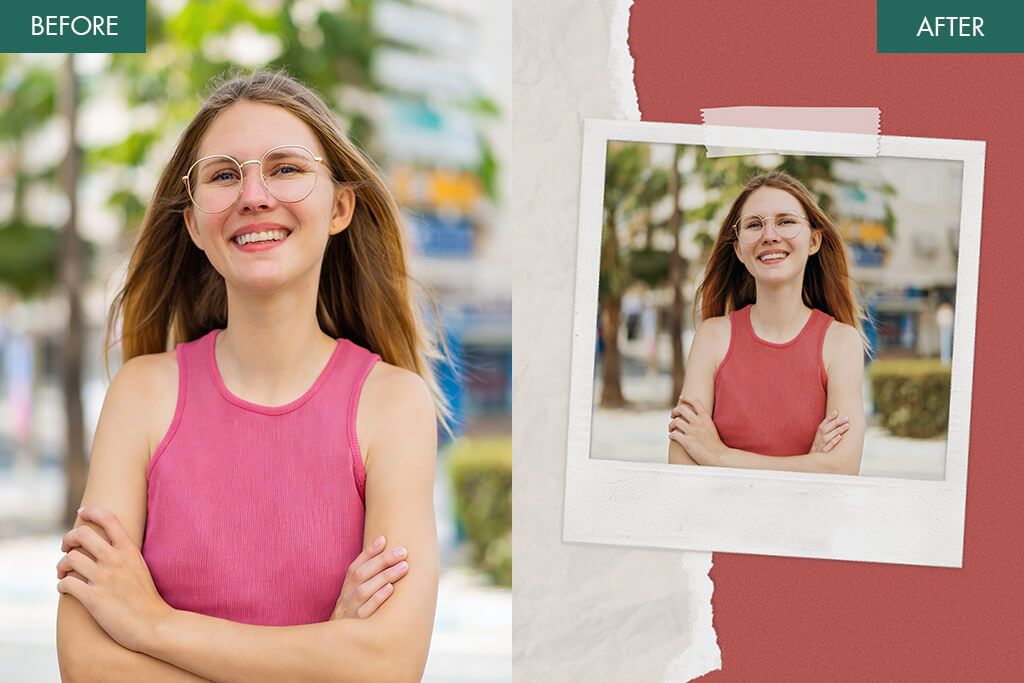
The Polaroid effect has become popular again recently. Previously, one had to use an instant film camera to achieve this effect. However, nowadays, people can capture photos with their phones, use the Polaroid filter app, and instantly share them on social media.
But there are also many apps that fail to recreate soft tones or add subtle imperfections that make the instant-photo effect more believable. Some apply a random grain effect that does not look natural, and others make colors bleak. Only the best Polaroid filter apps produce a realistic effect instead of making photos look overly edited.
When I decided to discover the apps capable of recreating the analog feel, I started to test a variety of photo editors with Polaroid-style filters. I uploaded the same set of pictures to compare the outputs in terms of color, texture, fading, and frames.
After thorough testing, I narrowed down the list to a few practical apps that allowed me to achieve a perfectly balanced Polaroid effect. Below, I have reviewed the best options available today.
Why Not Use a Polaroid Camera Instead?
While it can bring one a lot of joy to use a real Polaroid camera, it can hardly be considered a practical solution for most people who want to take pictures daily. Here are the main reasons why many people prefer to use Polaroid frame apps instead of a camera:
High usage costs. Polaroid cameras are pricey, and it’s even more expensive to buy the film. Each shot is expensive, and when you take many photos, you will have to pay a lot. When using an app, you can take an unlimited number of photos and edit them without spending money on film.
Limited control over outputs. It is impossible to fix them quickly unless you use a dedicated app that turns Polaroids into pictures. Apps allow you to adjust brightness, contrast, warmth, and grain, as well as add frames to your photos. Their extensive functionality opens a lot of creative possibilities.
Hardly suitable for social media. Physical Polaroid photos are impossible to share online unless you digitize them. If you scan them, their quality may degrade. Polaroid filter apps allow users to produce photos that are perfectly optimized for Instagram, stories, and posts.
Difficulties with capturing the perfect moment. A person has only one attempt at taking a real Polaroid shot, so one is always under pressure to get it right from the first attempt. Apps simplify the shooting process and allow you to experiment with various ideas to achieve the outcome you are pleased with.
1. Fix The Photo Body Editor&Tune
Manual photo editing by experts
- Advanced editing tools
- High-accuracy retouching tools
- For portraits and film-inspired edits
- Intuitive cropping and aligning
- Does not support instant processing
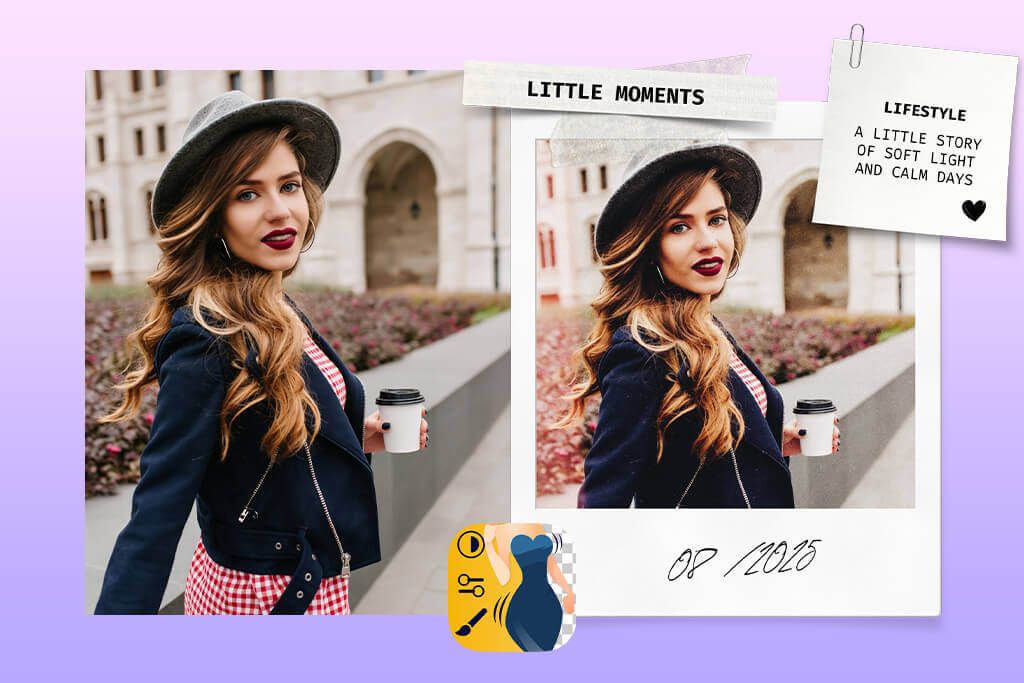
To test this Polaroid editing app, I exported a portrait taken in soft daylight. Then, I went to the “Filters” section and chose a subtle vintage preset. After applying it, I used “Adjust” features to customize Brightness, Warmth, and Contrast. It helped me make highlights softer and avoid harsh shadows to achieve an instant-film effect.
I was pleased with the results I managed to achieve with the help of the “Grain” slider. What makes this app different from the rest is that it blends the grain with the image in a natural way. I also applied the “Vignette” effect at a low intensity to give my photo a more analog feel.
Even though the app has Retouch tools, I did not use them much, as I wanted to achieve more realistic results. I liked that I could use the Undo button and zoom controls. Besides, the app allows users to reapply their edits without quality loss. The interface is streamlined and intuitive, so you will quickly find the option you need to use.
What makes this app different from the rest is that it supports manual editing. You just need to send your pictures and describe the result you want to achieve. In a few moments, you will get your pictures back. They will be edited manually by the team of professionals.
2. PoPo Frame
Multiple Polaroid frame shapes
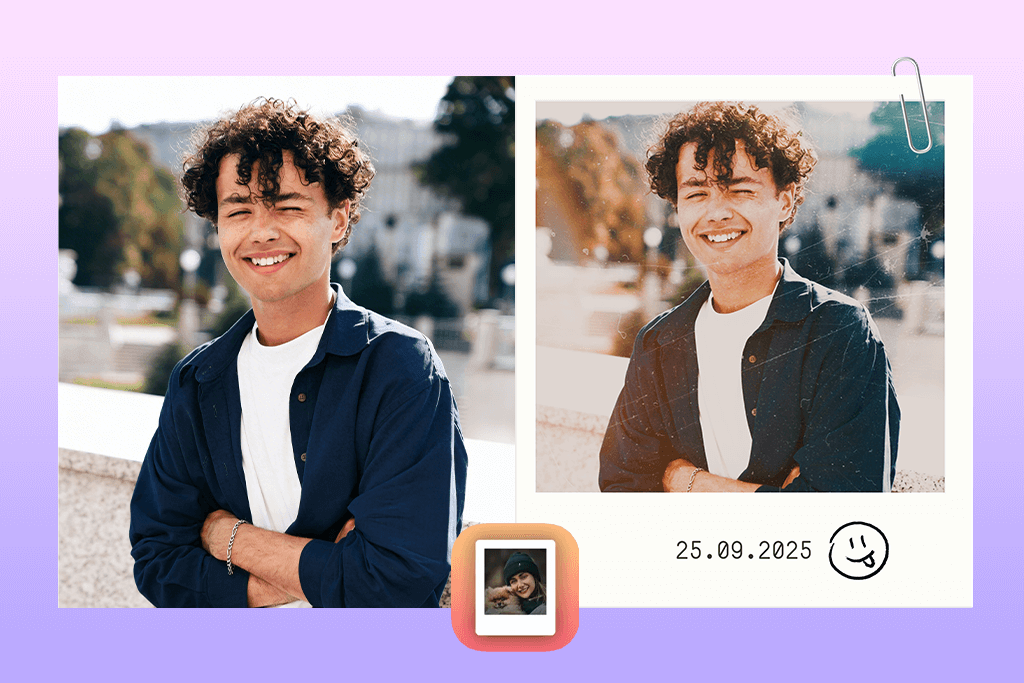
- Vintage film grain effect
- It takes one tap to apply filters
- Square photo formats
- Classic Polaroid-style frames
- Limited pro-grade editing tools
- The free version with watermarks
I decided to test this app after enhancing my photo using another service. You can click the “Add Photo” option and choose a suitable Polaroid-style frame from the built-in library. After choosing the border, you can adjust the position of the image in the frame using Pinch to Zoom and Drag controls.
What I liked the most was that this Polaroid application allowed me to use frames with aged borders, yellowish edges, and text areas. Some frames allow users to add handwritten-style captions to achieve an even more nostalgic effect. You can rotate your picture a bit to make the output more realistic.
This iPhone photo editor has a limited choice of tools, so you won’t find color or grain adjustment features here. However, while it was built for editing, it allows users to choose the right framing and adjust presentation. You can export clean files in high resolution, which makes such outputs suitable for sharing and printing.
The only issue that I noticed when using this app is that it does not have custom frames or texture overlays. Despite this, it’s a great Polaroid frame app that allows you to achieve the desired effect with ease.
3. Photoshop on iPhone
Wide selection of creative tools
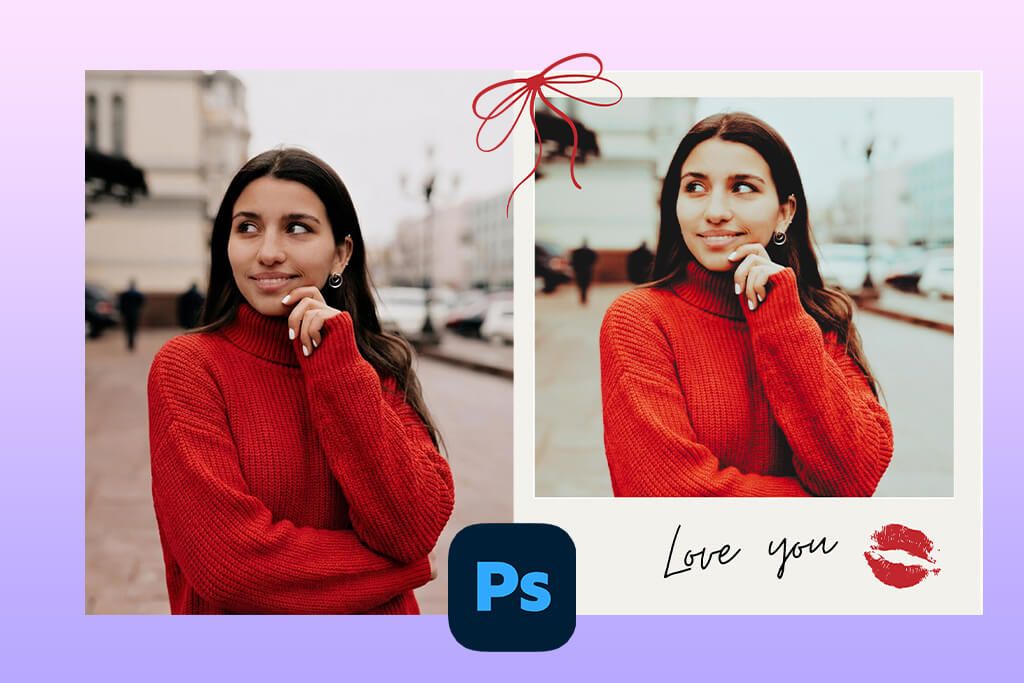
- Advanced tools
- Integrates with desktop Photoshop
- Supports RAW format
- Color, exposure, and layer controls
- Difficult to master for beginners
- Not a dedicated Polaroid-style app
I decided to use Photoshop on iPhone when I needed to achieve a Polaroid effect manually. After uploading a picture, I adjusted Layers, Curves, and Exposure to make highlights less prominent and increase shadows. I created a separate layer with lower opacity and used the Noise feature to add a realistic “Grain” effect.
As I wanted to recreate the soft look of film, I lowered Clarity and made my image a bit blurry using Gaussian Blur masked to highlights. Next, I added a Polaroid-style border to a newly created layer and customized spacing manually. It helped me adjust proportions and texture.
You can use this app to blur background and save your edits as Presets. It makes it especially convenient for those who want to apply the Polaroid effect to multiple photos and maintain consistency. You can cancel your edits in the History panel if you don’t like them.
The only disadvantage is that this Polaroid app is rather difficult to use. It has advanced functionality, making it hardly the best choice for novices. However, advanced users will enjoy using it, as this app will allow them to implement creative projects and focus on details.
4. Dazz Cam
Multiple vintage camera presets
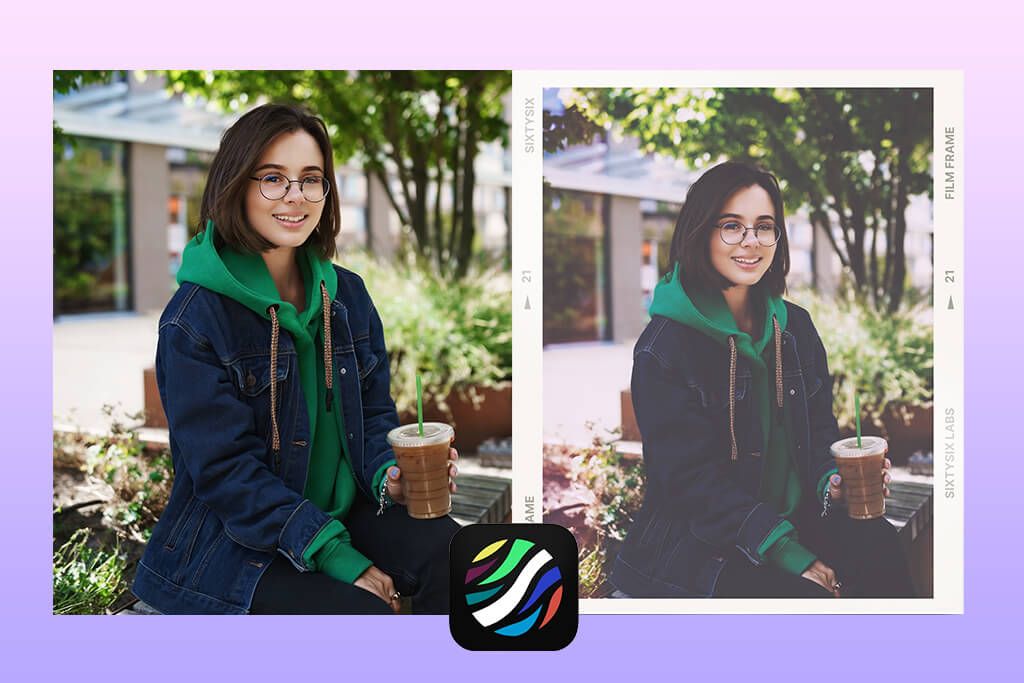
- Authentic light leaks and grain
- Streamlined styling
- Tools for adding timestamps
- A variety of retro color variations
- Filters are fixed
- Might feel repetitive
Dazz Cam recreates the effect of using a real camera. After installing this app, I chose a Polaroid-inspired camera from the Camera List and snapped pictures using the built-in tools. The app added color shifts and light leaks to my photos automatically and adjusted softness instantly.
You can turn on such options as “Random Light Leak”, “Date Stamp”, and “Dust.” The effects will change a bit with every photo. It will make it easier for you to capture realistic and unpredictable photos that will look as if they were captured with a real Polaroid camera.
The only shortcoming of this iOS and Android photo editor is that it supports limited adjustments after shooting. You will need to pay more attention to composition instead of experimenting with sliders.
5. OldRoll
Good export quality for printing
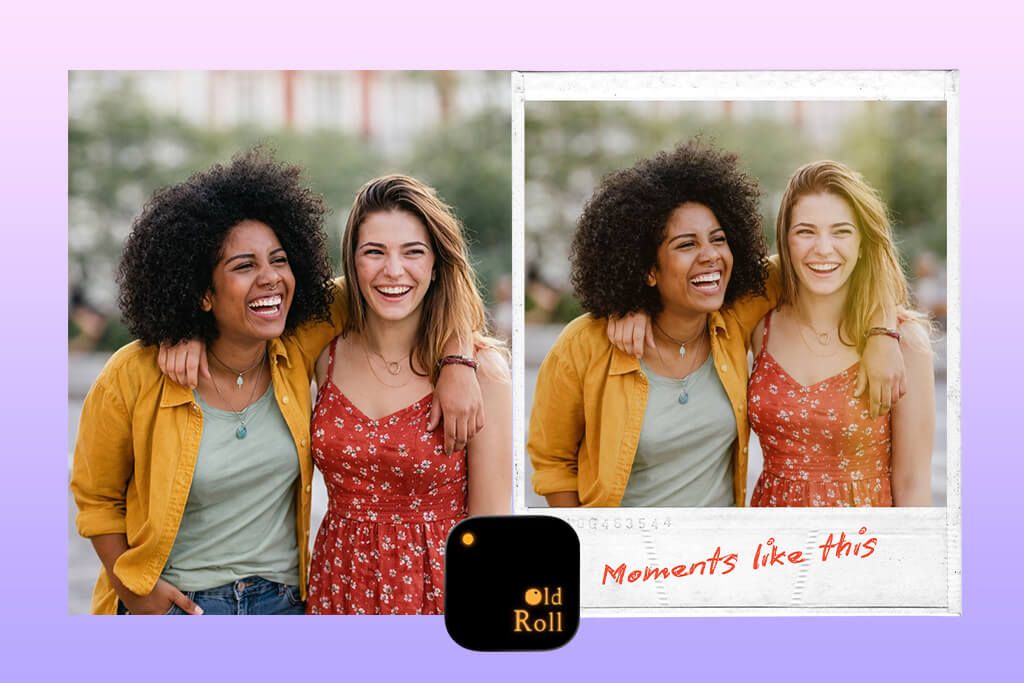
- Adjustable grain & fade effects
- Instant preview
- For portrait and landscape photos
- Retro effect of various decades
- The interface is a bit outdated
- No pro-grade retouching features
When I started to use OldRoll, I chose one of the instant-film camera effects available in its Camera Store. There are many filters that recreate the effect that can be achieved with the help of vintage Polaroid and other instant cameras.
As I did not want to apply the filter to the imported photos, I took pictures with the help of the app using Live Camera Mode, which helped me get a photo with a soft feel, color shifts, and a grain effect. This option saved me a lot of time. You focus more on the composition and press the shutter button, leaving the rest to the automated tools.
The key advantage of this Polaroid app is that it has the Roll Limitation feature. Each camera allows a user to take a fixed number of shots. When the roll is complete, you need to reload it, which makes the process more realistic.
I was also pleased by that the app adds some textures that cannot be adjusted. Dust, scratches, and inconsistent exposure contribute to a more realistic film simulation and are perfectly suited for Instagram photo editing. OldRoll permits users to adjust Exposure, Focus, and Flash settings, but does not have any advanced editing tools.
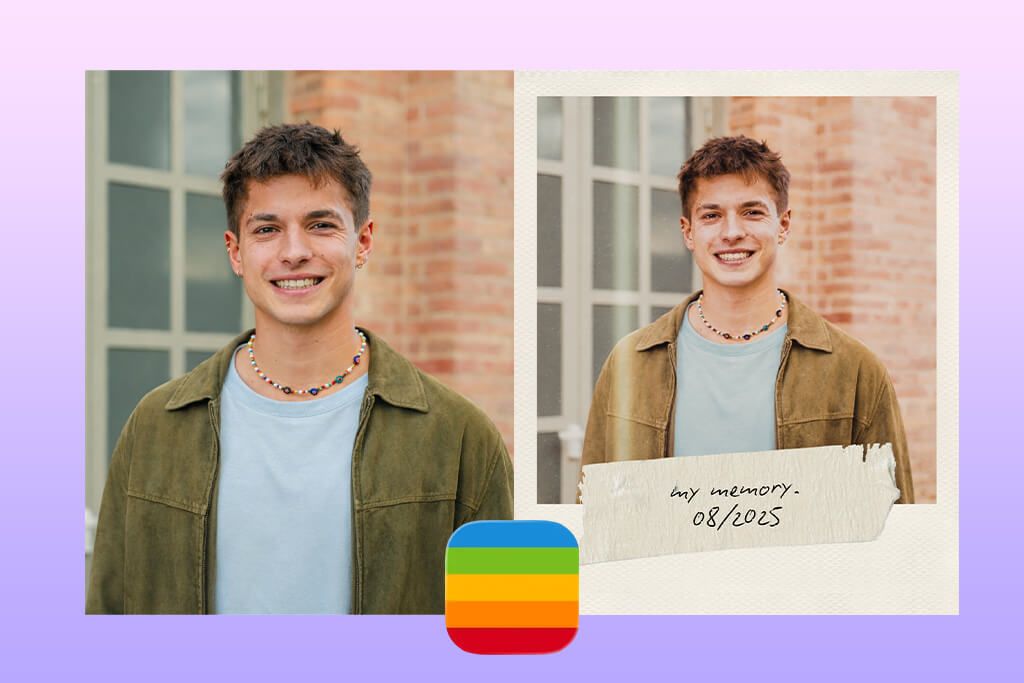
6. Polaroid
Easy to replicate classic instant-film looks
- Realistic Polaroid borders and colors
- For square format photos
- Intuitive tools
- For prints and social media content
- Only basic filters
- Limited customization
When I started to use this Polaroid app, I imported a daylight portrait photo and applied one of the Classic Film Presets. The app exceeded my expectations, as it quickly makes highlights softer and diminishes contrast. As a result, I was able to achieve a soft effect that is common for instant film.
Next, I added a white border available in the catalog of Frame Options. The output looked nice and clean. The app has a limited choice of editing features. You can adjust Brightness, Warmth, Fade, and Contrast using the sliders. Due to this, it will be difficult for any casual user to make a photo overly edited.
In addition, I was pleased that the Polaroid app allows users to share the outputs quickly. Pictures look great when you upload them to Instagram. There is no need to spend a lot of time trying to resize them or make them sharper. The only shortcoming of this app is that it supports a limited degree of customization.
7. RNI Films
True analog film color science simulation
- A variety of film-inspired presets
- Handy manual controls
- Minimalist UI
- Customizable exposure and contrast
- ●Full preset packs are paid
- Might be a bit difficult to master
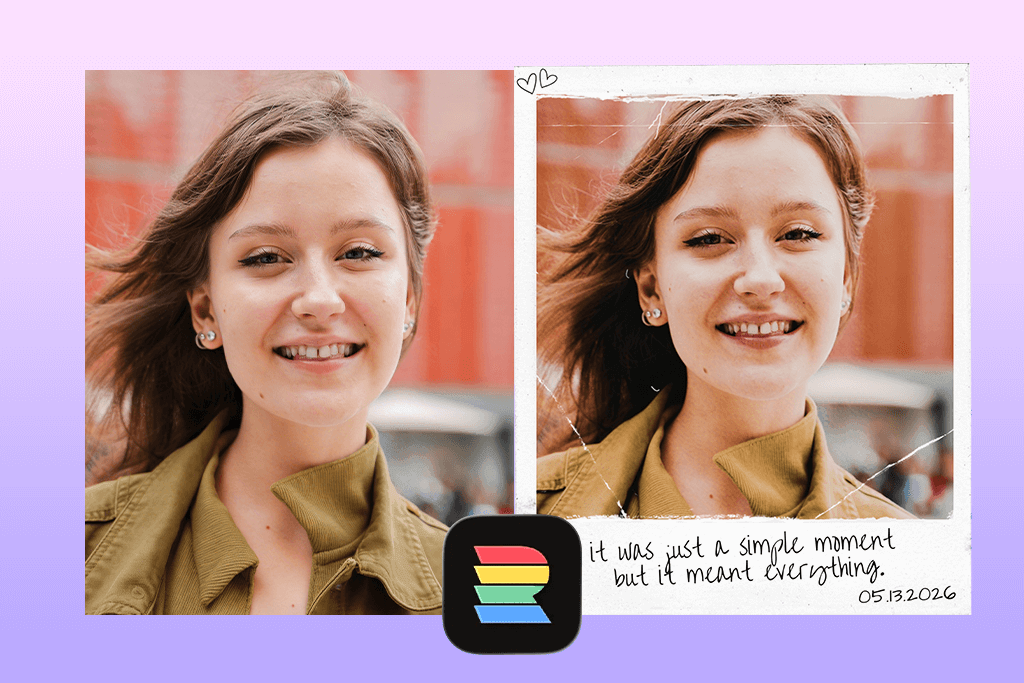
When I started to use RNI Films, I uploaded Instant Film Presets to a neutral portrait photo. I was pleased with the natural colors and accurate skin tones. The highlights faded in a realistic way. It’s challenging to achieve a similar result using simple filters.
The app allows users to adjust Grain Amount, Grain Size, Fade, Temperature, and Tint. You can also customize other settings, which are common for many apps that photographers often use. I focused on adjusting the grain effect, as I wanted the filter to blend with shadows perfectly. The output photo looked as if it were scanned from real film.
The key advantage of this Polaroid filter app is that it allows users to save Custom Presets. I was able to create a realistic Polaroid effect and then apply it to several photos at once using the Batch Editing feature. The only shortcoming of this app is that it does not have frames or fun effects.
8. Huji Cam
Excellent for social stories and reels
- Disposable-camera effect
- Retro light leak effect
- Very realistic vintage feel
- Intuitive functionality
- Not for printed Polaroid-style cards
- Effects look a bit the same
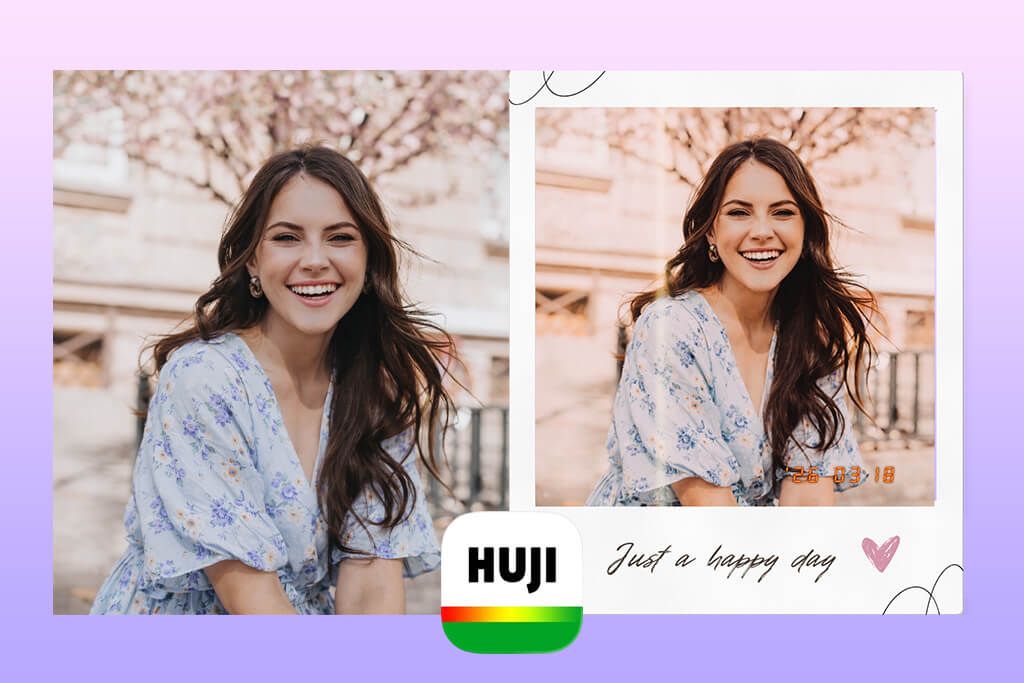
Huji Cam functions like a digital disposable camera. I took pictures using the built-in feature available in the Camera Mode. Each photo I took had the Date Stamp. The app also added the grain effect automatically and adjusted colors, so that I did not have to edit my pictures manually.
It was difficult to achieve consistent results when using this Polaroid app. Some pictures were overexposed, others had bleak colors, and some of them had noticeable light leaks. However, this unpredictability has its advantages. It allows you to achieve the effect that was common for budget film cameras.
The number of settings is very limited. It’s hardly the best solution for those who want to achieve consistent outputs in the Polaroid style, use a variety of editing controls, or access retouching tools available in a blemish remover app.
9. Afterlight
Lots of frame and border options
- Powerful manual editing tools
- Adjustable grain and fade
- Manual editing tools and presets
- High-resolution outputs
- Full access requires a subscription
- Limited Polaroid frame presets
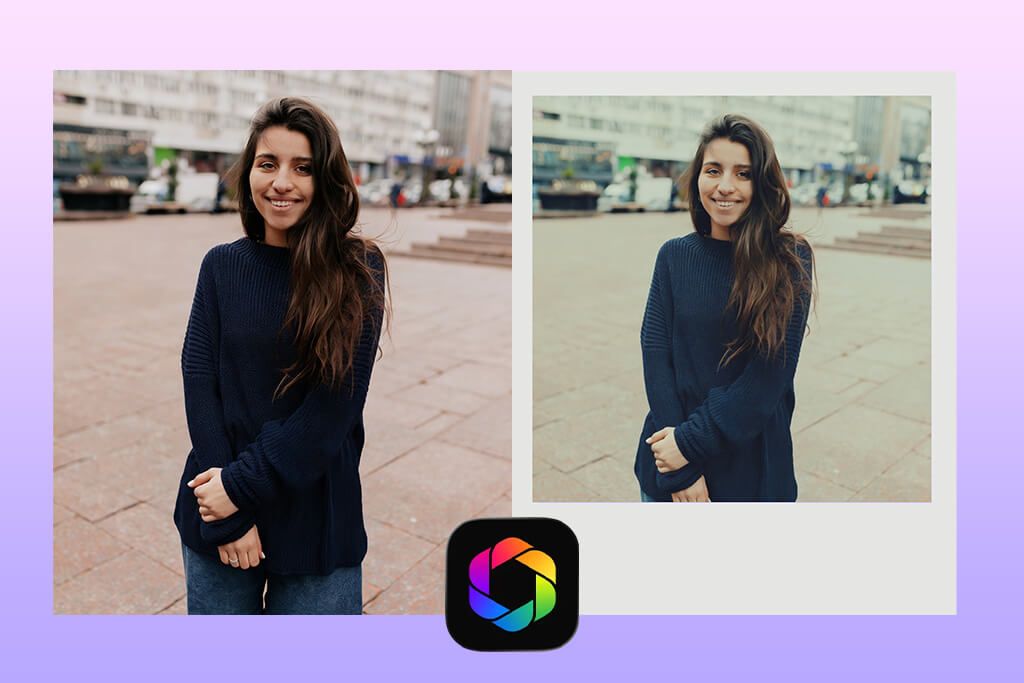
I decided to thoroughly test Afterlight when I needed to create a Polaroid-style effect gradually. I started by applying a subtle vintage filter that I found in the Filters section. Next, I added a suitable texture by adjusting Dust Overlay, Light Leak, and Grain settings with the help of sliders.
The key advantage of Afterlight is that it supports Layer-Based Editing. I can adjust the intensity of each effect separately, which saves me a lot of time and makes it easier to reset the changes if I am not fully satisfied with them. I decided to diminish Clarity and make highlights bleak to make the photo softer.
You can also use the Frames feature. However, the available options are more creative than real Polaroid borders. Despite this, you can add them and apply a subtle grain effect to achieve a more realistic effect. Avoid applying too many filters. The app allows users to achieve realistic results only if they add subtle effects.
10. VHS Cam
Realistic analog distortions
- Realistic VHS lo-fi look
- One-tap capture
- Trendy content for social media
- For Polaroid-style clips
- Hardly suitable for still photos
- Effects have narrow uses
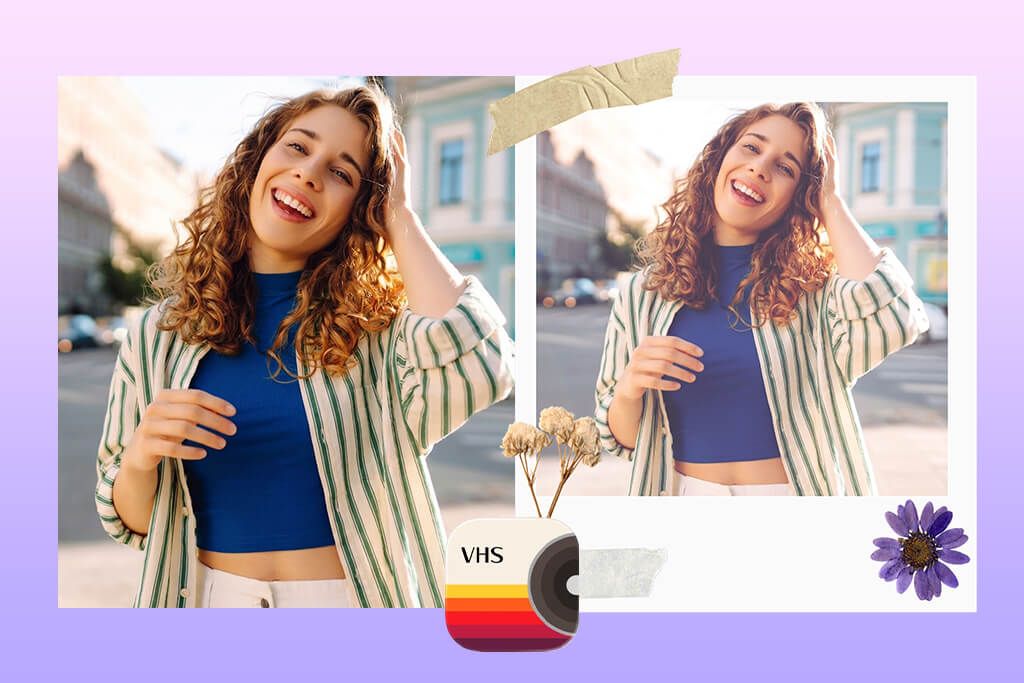
I decided to test this AI photo enhancer app when I needed to create a more complex effect, instead of just trying to recreate Polaroid grain or bleak hues. The app does not recreate a traditional film look. Instead, it focuses on reproducing a VHS aesthetic. It becomes possible due to the analog distortion effect, color bleed, and tracking noise.
First, I uploaded the photos I wanted to enhance. Next, I opened the Edit panel and tested the features like “Distortion Intensity”, “Scan Lines”, and “Color Unbalance.” I made the scan lines more noticeable to add an authentic retro feel to my footage. When customizing the distortion settings, I added horizontal “wobbles” that are common for VHS tapes.
In addition, I decided to test the “Light Leak” feature. While it’s typically associated with an instant film effect, it helped me to add some creative glow to my footage. It looked really nice, especially when I added some grain and noise.
11. 1998 Cam
Fun date-stamp & retro effects
- Realistic film grain and color tone
- A choice of nostalgic presets
- Quick sharing to social media
- For casual portraits and street photos
- Not a dedicated Polaroid frame app
- Some advanced filters are paid
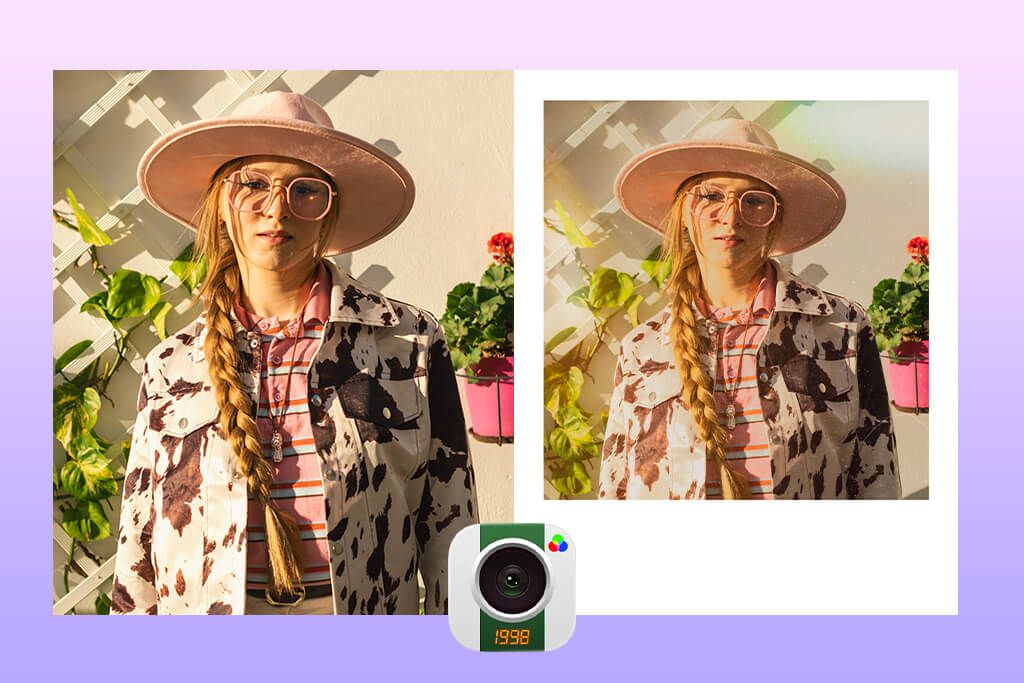
I decided to test this app when I needed to edit my photos quickly without mastering complex tools. After opening it, I saw a viewfinder. It makes it look like a retro point‑and‑shoot camera. You can quickly take a photo inside the app or upload a picture from your library.
After taking a photo, I decided to experiment with other settings as well, including Date Stamp, Filter Strength, and Light Leak. The date stamp sets today’s date by default, but you can change it to any earlier date to achieve a more realistic effect.
By adding such subtle details, I managed to make my picture look even more realistic. Then, I used the Filter Strength slider to adjust the intensity of the effect. It helped me avoid making the colors too bleak or vivid.
FAQ
- What is a Polaroid filter app?
A Polaroid filter app allows users to apply a variety of effects to their photos to make them look as if they were captured with the help of an instant Polaroid camera.
- Can I use a Polaroid filter app on photos I already took?
Yes, there are many Polaroid apps that allow users to import pictures from a camera roll or gallery. After adding your pics, you can apply Polaroid-style filters, add frames, customize grain and fade, or use textures. It will enable you to give your digital pics a distinct retro feel.
- Are Polaroid filter apps free?
You can download many of them for free, but most have in-app purchases or require users to pay for a subscription to use premium filters and frames or save their photos in high resolution. Prices typically range from $0.99 for a filter pack to $2–$15/month for a premium subscription.
- Can I use Polaroid filter apps to enhance photos before publishing them on social media?
Yes, these apps are designed for enhancing social media content, as these filters look nice when you apply them to photos for your followers to see them online. Many apps allow you to export the outputs to Instagram, TikTok, or Facebook.
- How do I make my photos look more like real Polaroids?
Take the following steps if you want to achieve a more realistic effect:
Lower contrast a bit and add warm highlights
- Add some grain or texture
- Apply light leaks carefully
- Add Polaroid frames with worn or faded edges
- Do not make filters or colors too intense
Your main task is to recreate the retro effect of instant film. If you don’t want to spend a lot of time trying to choose the right settings, outsource this task to the WeEdit.Photos team. They will apply the vintage effect to your photos and add Polaroid frames to them to give them a creative feel.