7 Best Apps that Turns Photo into Sketch with Realistic Results
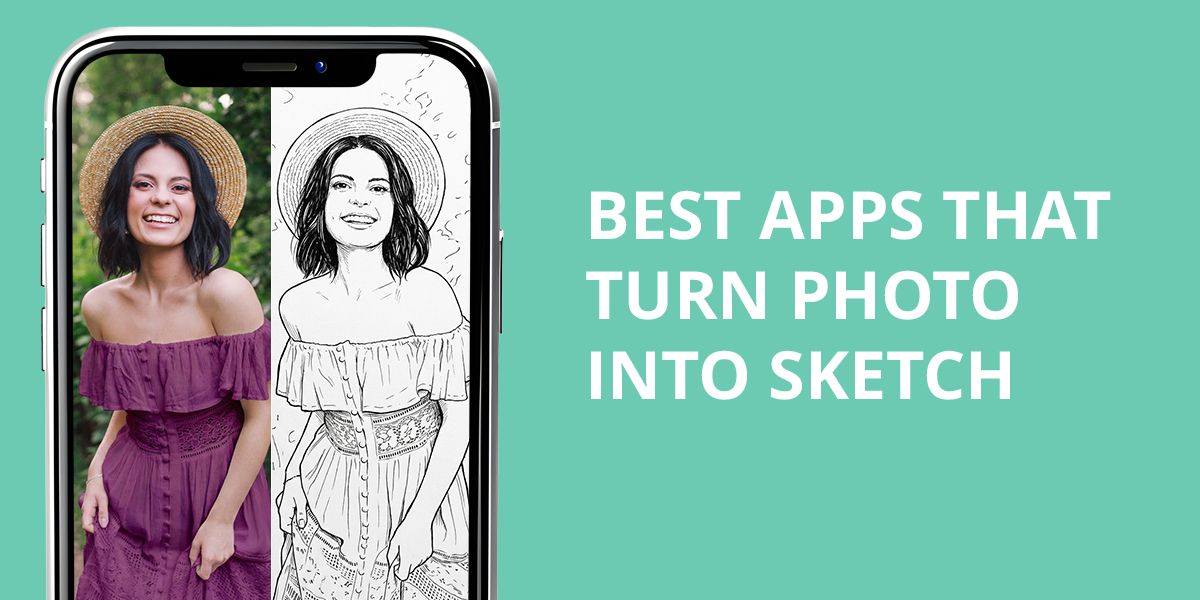
Over the past few months, I’ve noticed a steady stream of questions from readers about transforming photos into sketches and getting natural and bespoke. As someone who works with images professionally, I typically build sketch effects from scratch, carefully fine-tuning edges, contrast, and shading until everything looks authentic. Replicating that quality on a smartphone, however, is a different challenge entirely. So, I decided to test different tools.
I spent time evaluating every popular app that turns photo into sketch to see which ones are efficient in practice, not just in promotional screenshots. My focus was on variety: AI-driven tools, filter-based options, and apps offering hands-on manual controls. During testing, I looked at how well each app preserves fine detail, how reliably it performs across different image types, and how much creative control it gives you. Some tools are built for speed and ease, which is great for casual use. Others let you go deeper and refine the output so the final result looks intentional rather than generic. Here’s what I found.
Getting Better Sketch Results
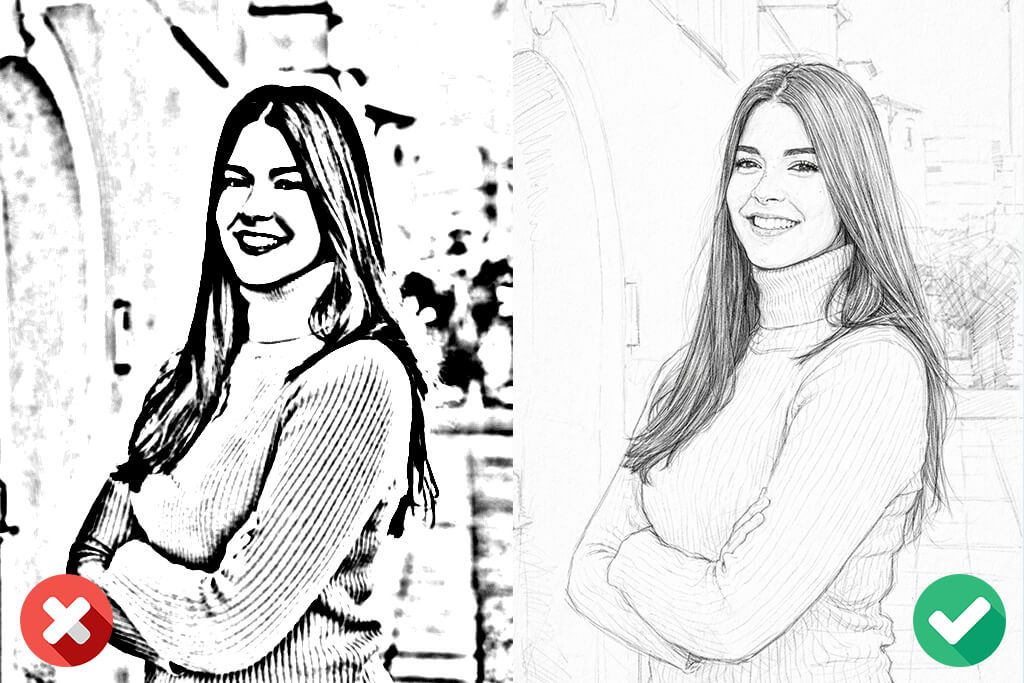
The photo you choose matters just as much as the photo to sketch app you’re using. Images with good subject separation tend to produce the strongest results, e.g., a well-defined face, an uncluttered background, and natural lighting. Soft shadows are particularly valuable since they give the algorithm more tonal depth to work with when generating shading. Flat lighting, screenshots, or heavily filtered images often go the other way. The results in sketches that look flat and unconvincing.
Keep in mind that apps don’t actually “see” your photo the way a human editor does. They read contrast, edges, and depth. That’s why busy backgrounds, bold patterns, or overlapping elements can throw off the result entirely. My practical fix is either to start with a cleaner image or spend a few seconds cropping before you upload. That one small step consistently improves the output, working better than switching between different apps altogether.
AI gives you an edge here, but not in the way most people assume. A good AI sketch generator app works smart. Rather than mechanically tracing every line, it decides which edges deserve emphasis and which areas should stay soft. Thus, the final sketch acquires a deliberate feel. Still, the outputs of AI tools depend on what you feed them. A flat, low-detail photo won’t become a masterpiece. It’ll simply become a cleaner version of a weak starting point.
During testing, I frequently notice that over-editing is a real problem. Most apps load you up with sliders for intensity, sharpness, texture, and detail, and the temptation to crank everything up is understandable. But that’s usually where things fall apart. Push too many settings too far and the sketch turns harsh, noisy, and unconvincing. The results I was happiest with came from restraint. Adjust one or two parameters, keep changes moderate, and let the app do its job without interference.
The most common pitfall is handing everything over to the app and hoping for the best. Even top-tier tools perform better with a little human input. For instance, you can pick the right preset, tweak contrast ahead of time, or explore a few variations before committing. You should treat these apps as smart assistants and be ready to adjust sketches manually for top-quality results.
1. PhotoDirector
- Clean & understandable UI
- 10 sketch styles
- Top AI enhancement tools
- Handles complex images
- Desktop-level features
- Takes time to master
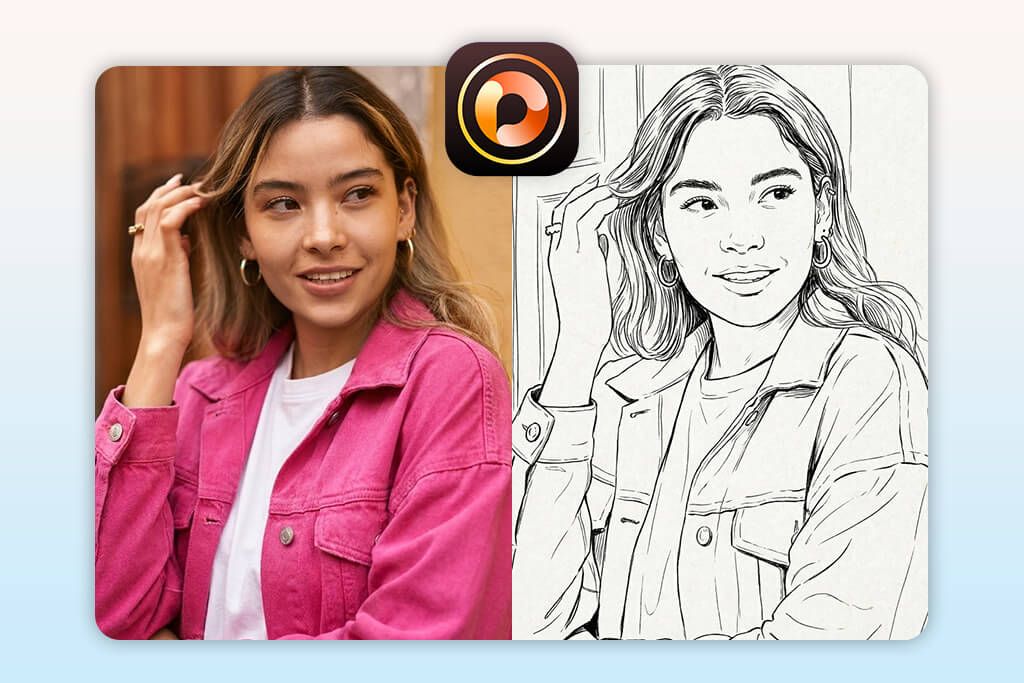
Having used PhotoDirector on desktop for years, I came into the mobile version with fairly high expectations. Rather than working as a stripped-down alternative to the app that photographers use daily, it held its ground surprisingly well. The interface is neat and intuitive, with key features easy to find rather than buried in layered menus. When I wanted to turn a photo into a drawing, the app pointed me straight to the “Scenery” category. All sketch-style effects are neatly organized here.
I ran tests on a couple of portraits and a street shot. The workflow is simple. You upload your image, pick a style, then fine-tune the intensity. I liked that this isn’t just a filter slapped on top. PhotoDirector actually analyzes edges and shading to reinterpret the image, so it is a great turn photo into drawing app for anyone who wants artistic depth, not just a quick effect. Styles range from delicate pencil sketches to bold ink-like renderings, and even slight intensity adjustments can dramatically shift the mood.
Beyond sketching, PhotoDirector’s AI tools, namely, object removal and background replacement, are worth exploring before you even apply an effect. Cleaning up a busy background beforehand can noticeably sharpen your final sketch output. The only caveat is the sheer number of features. They can be a little daunting when all you want is a quick result. But that initial overwhelm fades fast. Once you learn where things live, navigating the app becomes second nature.
2. Fotor
- Quick processing
- Clean and natural results
- Top-notch AI sketch filters
- Processes all photo types
- Fully automated workflow
- Poor control over details
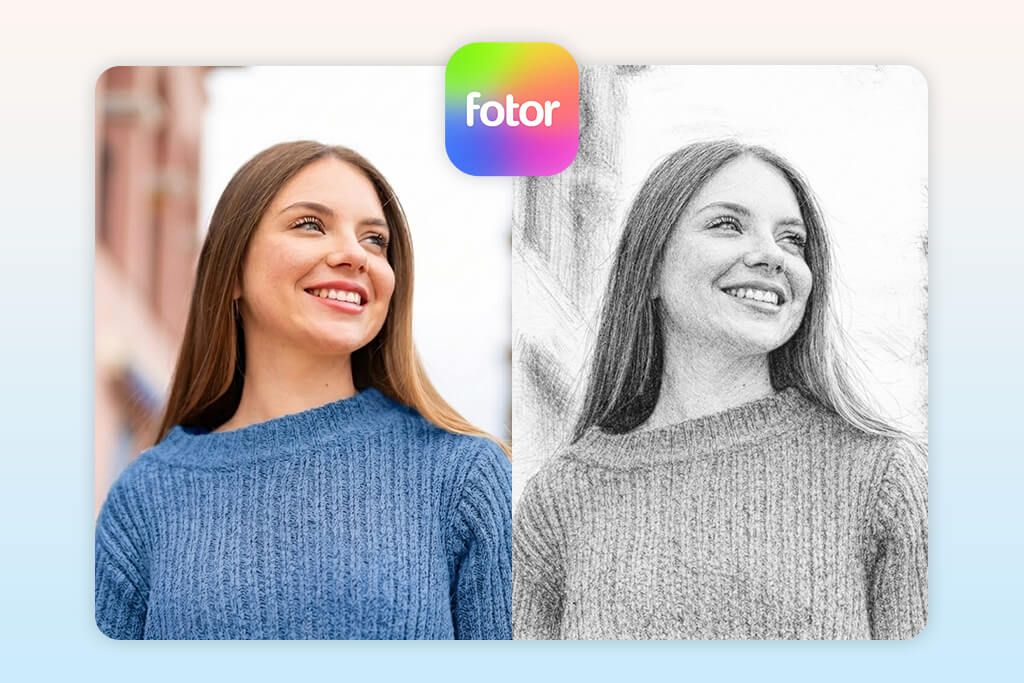
I first tried Fotor when it was little more than a basic online editor offering simple filters and brightness tweaks. Most users treated it as a quick-fix tool at the time. Returning to it recently, I was less curious about the familiar features and more about how its AI capabilities had matured. That curiosity led me to analyze the sketch conversion tools properly.
Speed is the bragging point of Fotor. I dropped in a portrait, navigated to the “Sketch” section, and had an impressive result in seconds. As a photo to pencil sketch app, it handles the most complicated part entirely through AI, which means you pick a style and let it do the rest. I experimented with both pencil and ink variations and was genuinely surprised by the visual balance of each output. Edges weren’t over-sharpened, contrast stayed controlled, and the highlights appeared naturally placed. Every sketch had an organic quality rather than a processed look.
I also ran tests on a pet photo and a landscape shot, and the quality held up well across both. The experience is intentionally streamlined thanks to AI, which is a strength and a limitation at once. For users who want granular control over line weight or shading depth, the options are a bit thin. But for anyone who simply needs a clean, high-quality sketch without wrestling with settings, Fotor delivers exactly what it advertises.
3. Fix The Photo Body Editor & Tune
- Real manual editing
- Top-quality sketch look
- Handles difficult images
- Custom result requests
- No filter-like artifacts
- Not instant one-tap results
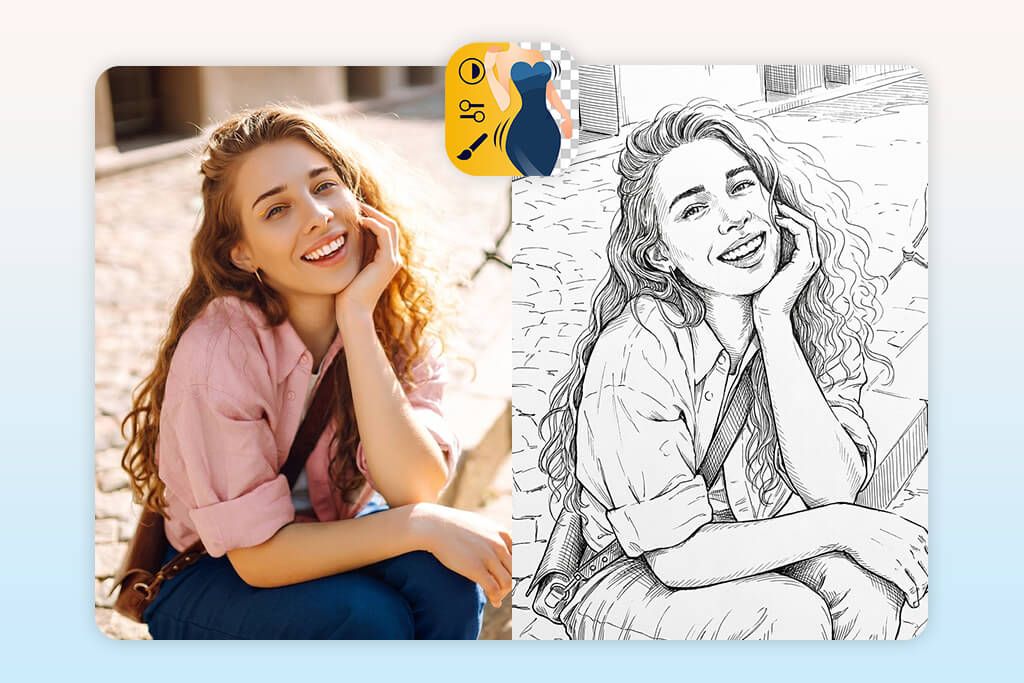
Fix The Photo Body Editor & Tune is a service I genuinely recommend. That confidence comes from firsthand experience. Unlike any typical sketch filter app, this platform puts human retouchers at the center of the process rather than relying on automated AI. Having seen their workflow up close, I had a solid sense of what to expect before I even submitted my first image.
The editing is intentional and well-understood. I uploaded a portrait and requested a soft pencil-sketch effect with clean lines, natural shading, and nothing overdone. A retoucher manually fine-tuned the result rather than applying a blanket preset. The difference was obvious. Facial features stayed accurate and the shadows fell in the right places. Moreover, the overall look was just what I requested. Compare that to most AI tools, where you often deal with inconsistent line breaks or weirdly sharpened details, and the gap in quality becomes hard to ignore.
To push things further, I submitted a trickier photo with uneven lighting and a cluttered background. Rather than jumping straight to the sketch conversion, the editor first cleaned up the image itself. That foundational step matters more than people realize. The final result looked like a deliberate piece of artwork, not a filter awkwardly layered over a problematic photo.
One thing worth noting: this isn’t a free service. But the pricing is genuinely accessible. It is just $0.99 for three photos, with your first edit completely free. That’s a pretty fair deal considering how meticulously they work with your images.
4. CapCut
- Lots of filers
- Creative adjustments
- Huge variety of templates
- Intuitive navigation
- Rich device compatibility
- Lacks a dedicated sketch tool
- Background removal could be better
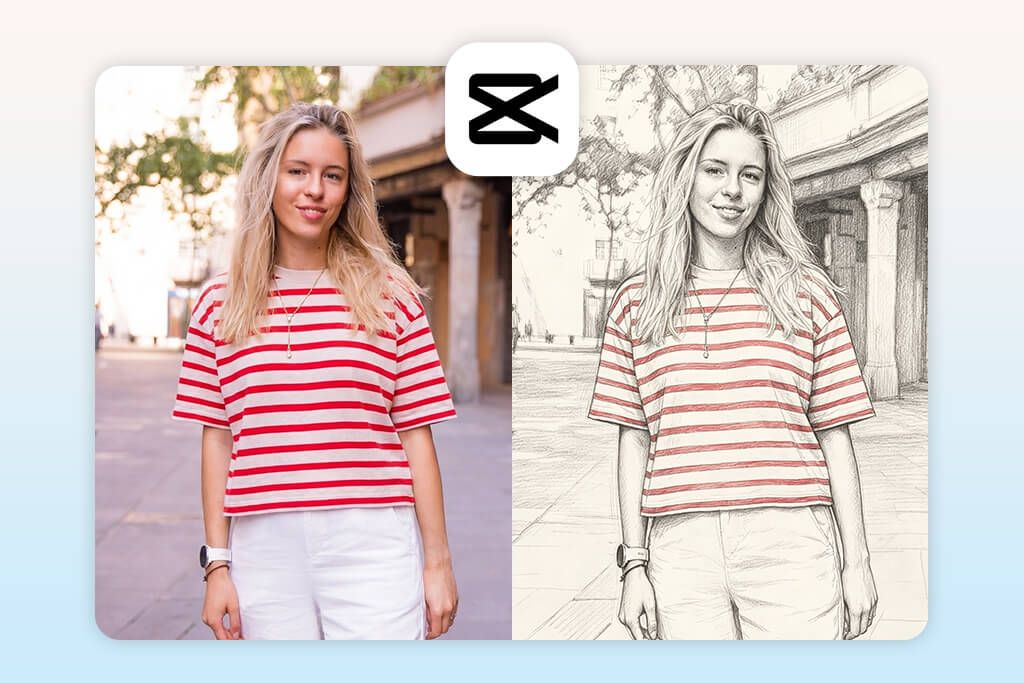
CapCut surprised me in a pleasant way. It’s widely recognized as a video editing platform and AI video generator, so testing it as a convert photo to sketch app was like an experiment. Turns out, it holds up remarkably well.
There’s no dedicated sketch button. Instead, there are handy filters. Comic, retro, and stylized categories are your playground. I ran tests on portraits and an urban shot, layering effects and tweaking intensity until something clicked. A comic filter paired with lowered saturation gave unexpectedly sharp sketch-like results.
CapCut truly stands out with its flexibility. You can control how artistic or minimal the output looks. Built-in templates are a great shortcut when you’d rather skip manual adjustments, and if you’ve already edited videos there, you can easily master the rest of the tools.
Still, since CapCut wasn’t built specifically for sketch conversion, results can vary. Complex backgrounds are the biggest culprit. The background removal tool occasionally struggles with accuracy, which affects the final look. All in all, it’s not a one-tap solution, but experiment with the available features, and you’ll walk away with something genuinely usable. For a tool not designed for this purpose, that’s impressive.
5. Canva
- Great for design workflows
- Quick sketch conversion
- Simple content customization
- Works in one workspace
- Suitable for social media content
- Requires some experimentation
- Not sketch-focused tool
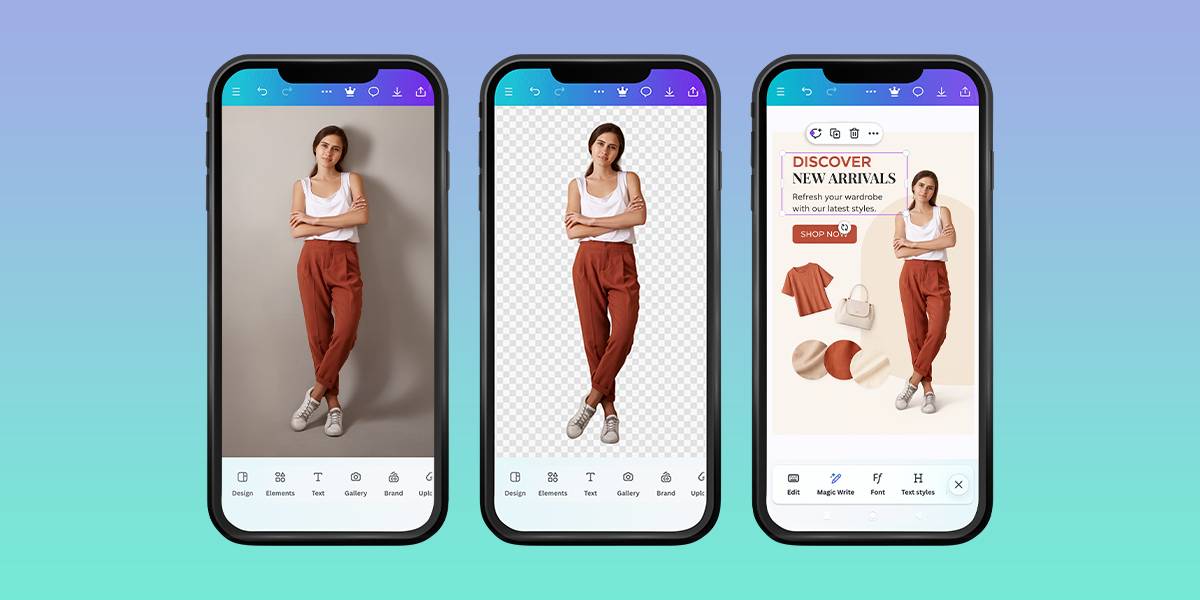
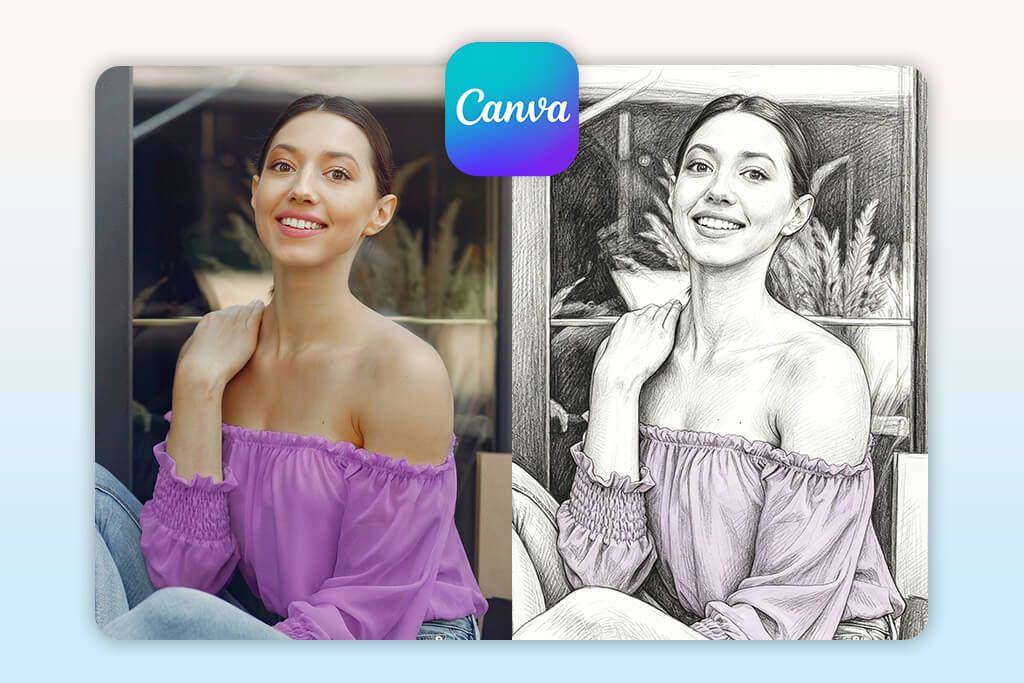
Canva has earned its place in my daily workflow as a reliable design and collaboration tool. Testing it for sketch-style conversions, however, revealed something I didn’t initially expect. It approaches the whole process differently from a dedicated AI photo to sketch app. Rather than simply transforming a photo, Canva invites you to build an entire visual around the effect. After uploading a portrait and applying one of its built-in sketch tools, the results appeared within seconds. The output was clean, though slightly softer than what specialized converters typically deliver.
What genuinely sets Canva apart is what happens after the conversion. Instead of evaluating the sketch in isolation, you immediately drop it into a real design context, adjusting composition, layering text, and previewing how it fits a layout. For social media graphics, branded content, or presentations, that integrated experience is genuinely valuable. One thing worth noting is that sketch results can vary noticeably depending on which style preset you choose. Some render with fine detail, while others lean more minimal and stylized. There’s no single default that works universally. A bit of experimentation is part of the process.
Generally, the variability isn’t really a drawback. For projects where the sketch feeds into a larger creative piece, having multiple style directions to explore becomes a practical advantage rather than an inconvenience. Surely, Canva won’t replace a standalone converter, but it fills a distinct and useful role in design-focused workflows.
6. Picsart
- Customizable sketch intensity
- Terrific AI-based effects
- Lots of artistic styles
- Good detail handling
- A bit crammed design
- Requires manual tweaking
Picsart’s reputation precedes it. With millions of users turning to this cartoon photo app daily for filters, artistic edits, and social media content, it has clearly earned its place. But popularity alone doesn’t guarantee quality. I wanted to find out specifically how it performs as a sketch app for photos, beyond its general creative toolkit.
Starting with a portrait, I applied one of its AI sketch effects and was immediately impressed by the detailed output. Moreover, adjustment sliders let you fine-tune effect intensity, contrast, and color tone independently, which is far more nuanced than simply tapping a preset and accepting whatever comes out. I experimented with a classic monochrome pencil look, then shifted toward a lightly tinted version to test the range. The difference between the two was significant.
Switching between artistic modes (sketch, cartoon, and oil painting) also helped me understand how Picsart interprets edges and texture. It consistently leans toward preserving detail, which produces rich, layered results for portraits. The challenge appears with busier images. Complex backgrounds can make the sketch look visually cluttered, and you’ll need to manually dial back the intensity to restore balance.
That’s a minor trade-off, though. For anyone who wants genuine creative input rather than a passive one-tap transformation, Picsart is a solid image to sketch converter app. The control it puts in your hands makes it feel less like a proper creative tool.
7. Prisma
- Adjustable sketch intensity
- Strong AI-based effects
- Wide artistic styles range
- Good detail preservation
- Can look too busy
- Requires manual tweaking
Prisma doesn’t market itself as the best sketch app for photos, and that distinction made testing it more rewarding. Rather than hunting for one reliable sketch filter, I shifted my focus toward understanding how its broad range of artistic styles reinterpret the same image, and whether any of them genuinely read as sketch-like.
I ran two deliberately challenging inputs: a group photo and a landscape. Both are scenarios where many apps stumble, yet Prisma handled them with surprising composure. Sketch-adjacent filters rendered edges and shading thoughtfully, and while the results don’t always land as traditional pencil drawings, the program frequently achieves stylized illustrations with real visual character.
The Portrait Segmentation feature deserves a specific mention. It isolates subjects cleanly, preventing the artistic effect from bleeding awkwardly into the background. For group shots, this is especially important. There is one practical consideration worth flagging upfront. Full HD export requires a paid subscription. Previews look excellent, but if you intend to use the image for anything beyond casual sharing, the resolution limitation becomes relevant fairly quickly.
All in all, Prisma stands out with a creative range rather than sketch-specific precision. For anyone working with complex compositions, it offers a depth of variety that most narrowly focused tools simply can’t match. It’s a worthwhile option when artistic exploration matters as much as the end result.
FAQ
- Do sketch apps work well with low-resolution or compressed images?
Most of the time, they struggle. A drawing effect photo editor depends heavily on clear contrast and fine detail to do its job properly. When you feed it a blurry or heavily compressed photo, the output often looks flat, muddy, or just plain off. Some AI-based tools try to fix the result by sharpening edges automatically, but this usually backfires. You end up with outlines that look stiff and unnatural. Simply put, the sketch can only be as good as the photo you start with.
- Why does the sketch sometimes look overly fake or “too processed”?
This is a really common frustration, and the problem is almost always aggressive settings. When an app cranks up edge detection and contrast too high, it starts erasing the soft, subtle shading that makes a sketch look lifelike, and replaces it with bold, exaggerated lines that scream “computer-generated.” I’ve run into this a lot, especially with high-intensity presets. The fix is simpler than you’d think. Dial the settings back.
- Are AI-powered apps better than traditional filters?
Yes and no, as it depends on what you’re trying to achieve. A good sketch maker app free of clunky controls impresses when it comes to separating the subject from the background and deciding which details deserve attention. This generally leads to cleaner results. In fact, AI isn’t a magic fix. The source image still matters a lot, and you don’t get much control. For simpler photos, an old-school filter with the right balance can honestly hold its own just fine.
- Should I edit your photo before applying a sketch effect?
Absolutely. Unfortunately, many people skip this step. You don’t need to go overboard, but small tweaks can make a surprisingly big difference. Bumping up the contrast a little, cleaning up any distracting elements in the background, or giving the image a gentle sharpening boost can completely change how the final sketch turns out. I’ve tried this plenty of times, and the difference is hard to ignore.
- Is it worth paying a professional to turn a photo into a sketch?
It comes down to what you need it for. If you just want something fun or casual, a good app will get the job done without problems. But when the stakes are higher, e.g., branding materials, a heartfelt gift, or anything meant to impress, having a real person behind the work is worth the money. A professional can neatly fine-tune details, iron out imperfections, and deliver something unique.
- Which is the best app for golden hour photos for beginners?
For inexperienced users, apps like VSCO or YouCam Perfect are a great choice. They provide premade presets that apply a golden hour filter without requiring any manual involvement.
- Can I share my golden hour edits on social media or for marketing materials?
Definitely. Golden hour effects are always a great fit for Instagram, lifestyle branding, travel photography, and personal portfolios since they ensure your images look warm, cinematic, and cozy.
- Do free golden hour apps apply watermarks?
Most free solutions don’t apply watermarks, but some of them can impose limits on the export parameters or show ads. Meanwhile, more advanced apps tend to require subscriptions to let you save photos in higher resolutions.