9 Best AI Replace Apps for Easy Object Swap

Editing photos to change backgrounds, swap faces, or replace objects can be harder than it seems, especially if you want the results to look natural. With this in mind, I decided to look for the best AI replace app.
If you often use Photoshop to replace parts of images, you know how easy it is to make mistakes – like rough edges, lighting that doesn’t match, or textures that look strange. But if you want a fast and easy way to swap parts of your photos in just a few clicks, AI apps offer a much simpler solution.
The real question is whether most apps are still unreliable, or if recent AI improvements have finally made them useful for realistic edits. To find out, I tested several AI object swap apps and created a shortlist of apps that can swap elements smoothly without producing obvious or fake-looking results.
How AI Replaces Objects in Photos?
AI swaps elements in images by combining computer vision, deep learning, and image generation techniques. Below is a step-by-step overview explaining how the process operates.
Object Detection and Segmentation. The AI begins by detecting the object that you plan to replace.
- It applies computer vision algorithms to recognize outlines, borders, and key details of items within the picture.
- Segmentation then isolates the selected object from its surroundings by forming an accurate mask. This helps the AI clearly determine the exact area that should be erased or substituted.
Context Analysis. Once the object is detected, the AI examines the nearby surroundings:
- Lighting: Direction, intensity, and shadows.
- Perspective and depth: How the object aligns with the space and distance within the scene.
- Color and texture: So, the new element blends naturally with the nearby areas.
This helps the new element appear natural and well-matched, instead of looking like it’s hovering or not fitting into the scene.
Replacement Generation. After the object is separated and the surroundings are studied:
- The AI uses inpainting or generative fill models to create a new object, background, or other part of the image.
- It uses style and texture matching to help the new element blend smoothly into the original image.
- More advanced AI tools, such as Adobe Firefly or PhotAI, can use text prompts to decide how the new object or background will appear.
Refinement. The AI then refines the edges, fixes shadows, and adjusts the lighting and reflections, so they match the rest of the scene.
- Some apps automatically add shadows beneath the new object.
- Others allow you to manually adjust masks or edges if the AI result is not fully accurate.
Output. The finished image is created as a smooth, natural-looking edit:
- The new object or background appears fully blended into the scene.
- The colors, lighting, and perspective match the rest of the photo.
1. Photoshop on iPhone
Real Photoshop tools available in a mobile app
- Effective AI object removal
- Precise masking
- Adjustment layers included
- RAW files supported
- Paid plan needed for full access
- Resource-heavy on mobile devices
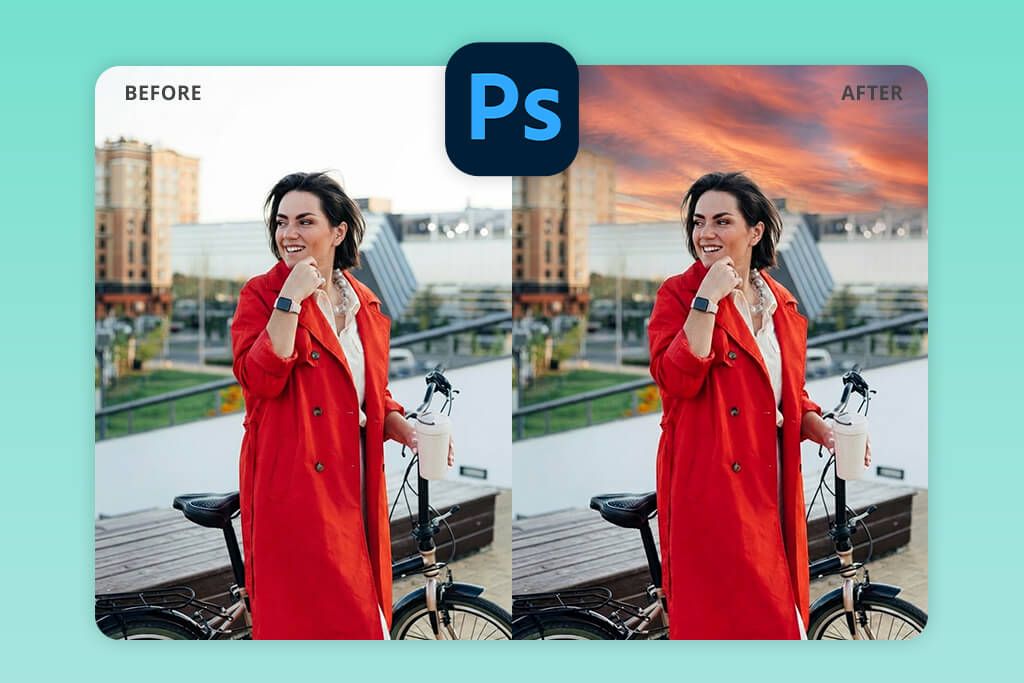
Unlike many mobile apps, Photoshop on iPhone gives control that feels very close to the desktop version. I uploaded a product photo and used the Object Selection tool to pick out the product. After that, I used “Content-Aware Fill” to swap the background smoothly.
What really makes this free Adobe app stand out are the “Sky Replacement” and “Neural Filters” features. I tried Sky Replacement on a product photo, changing a plain indoor background into a bright outdoor scene. This AI photo replace tool automatically adjusted the lighting to fit the new sky. Neural Filters, such as “Smart Replace” and “Pattern Fill”, allowed me to switch objects or textures while keeping shadows and reflections looking natural.
I also used “Layer Masks”, which gave me very precise control to fine-tune the edges of replaced objects. This is especially important when handling complex shapes or shiny surfaces. Although Photoshop on iPhone takes some time to learn, the mix of manual tools and AI automation delivers professional-quality results that most mobile apps cannot match.
The app can be downloaded for free, but using all features requires an Adobe Creative Cloud plan starting at $9.99 per month.
2. Fix The Photo Body Editor & Tune
Manual editing by experts

- Automatic AI fixes
- Good for portraits
- Fast results, no manual masking
- Smooth skin and detail tuning
- Not suited for complex replacements
Unlike fully AI-driven apps, Fix The Photo Body Editor & Tune connects users with professional human retouchers. I uploaded a portrait and requested a background replacement, asking them to create a modern city scene while keeping the shadows and reflections natural.
Being able to give clear instructions was very helpful, and the retouchers followed them exactly. The final image arrived within hours and looked natural, with textures and lighting preserved. Whether the change was subtle or dramatic, the results were consistently strong.
This Android and iPhone photo editor allows a high level of personalization. For instance, I requested small brightness tweaks to achieve a studio-quality appearance, and the specialist carried them out flawlessly. The finished file was provided in full quality, suitable for professional projects.
The cost is charged per image, beginning at about $6 each, which is a bit higher than AI-only tools, but the strong results and human review make it worthwhile. It’s also worth noting that the first image is provided at no charge.
3. Adobe Firefly
Replace backgrounds using smart selection tools

- High-quality results
- Allows creative variations
- Useful prompt-based editing
- Professional-grade AI generation
- Many tools require payment
- Needs an internet connection
Adobe Firefly stands out as a powerful AI tool for swapping objects and backgrounds. I uploaded a product image with a crowded indoor scene and aimed to turn it into a simple studio environment. With the Inpainting tool, I highlighted the section to edit and typed the prompt: “replace background with sunlit studio with soft shadows.”
In just a few seconds, Firefly produced a highly realistic result. It didn’t simply replace the background – the tool also refined the lighting and reflections on the product, so they matched the new environment. Many otherAI photo enhancer apps have trouble with this, often leaving rough edges or mismatched shadows, but Firefly handled it with impressive accuracy.
After that, I tested the “Generative Fill” tool. I used it to place extra items near the product, such as folded cloth and a glossy base, to check how well it handled depth and alignment. The AI added natural-looking shadows and balanced lighting on its own, and it kept the surface details on reflective materials without making them appear artificial.
Another strong advantage is how flexible the prompts can be. I was able to enter very specific directions, such as asking to swap the chair behind the product for a soft, modern stool while keeping the light source from the left. Firefly delivered a well-balanced and realistic result. I also observed that this AI edit and replace photo app preserved depth of field – background elements remained gently out of focus when the original image included bokeh.
Adobe Firefly is included in the Adobe Creative Cloud suite, with plans beginning at $20.99 per month. This subscription provides access to Firefly along with other Adobe tools, making it a worthwhile choice for those focused on high-quality image editing.
4. CapCut
Works well for video clip edits
- Simple keying and masking tools
- Quick export for social media
- Free with many features
- AI video background removal
- Few tools for photo replacement
- Some effects add a watermark
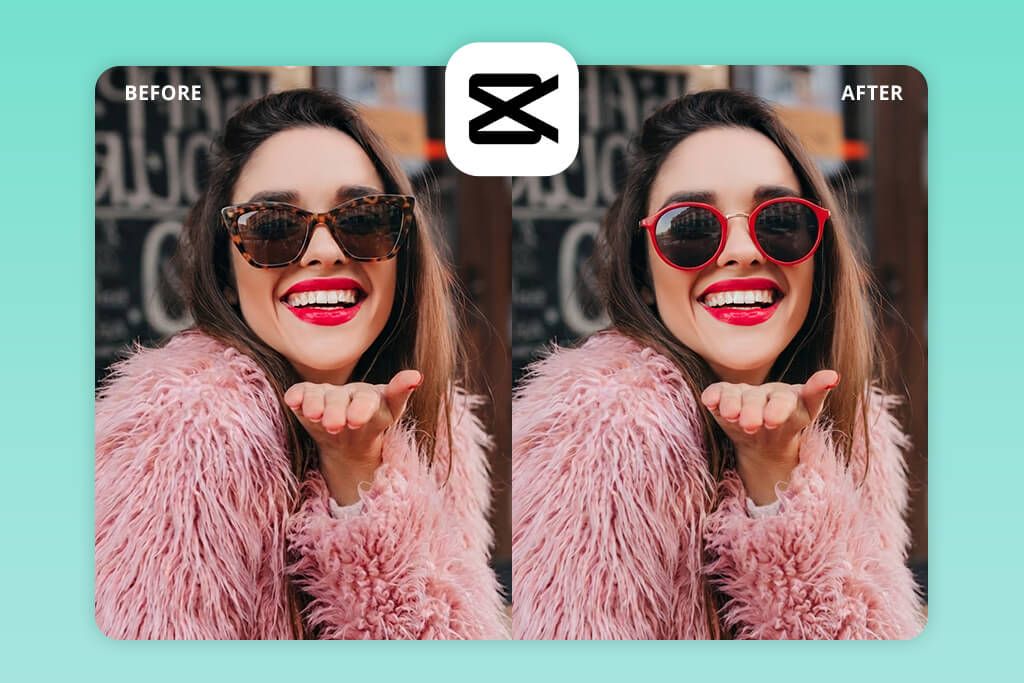
CapCut is mainly recognized as a video editor, yet its AI Replace and Background Removal tools also work well with still photos. I tried it on a product shot with a messy setting and used the “AI Background” feature to clear the entire scene. Right after that, I used “Magic Replace” to add a neat studio-style background.
What stood out most was how the AI automatically recognized the product boundaries and kept the shadows and reflections intact, helping the object blend smoothly into the scene. The AI Object Removal feature worked just as well – I erased a small stand behind the product, and CapCut rebuilt the background cleanly without noticeable flaws.
CapCut also provides various of filters, lighting adjustments, and blending modes. I tested contrast boosting and highlight correction to help the product stand out from the updated background. Although it doesn’t provide ultra-fine manual masking like Photoshop, its fast performance and simple workflow make it ideal for quick swaps.
This AI generative replace app can be used at no cost, with extra tools available through in-app purchases. For users who need to create visuals quickly – such as for social platforms, online stores, or marketing materials – CapCut offers a very practical solution.
5. Fotor
Intelligent tools for object replacement
- Ready-made templates for banners and posts
- Available in browser and app
- Quick editing workflow
- Easy for beginners
- Lower resolution on free plan
- Not suited for fine-detail edits
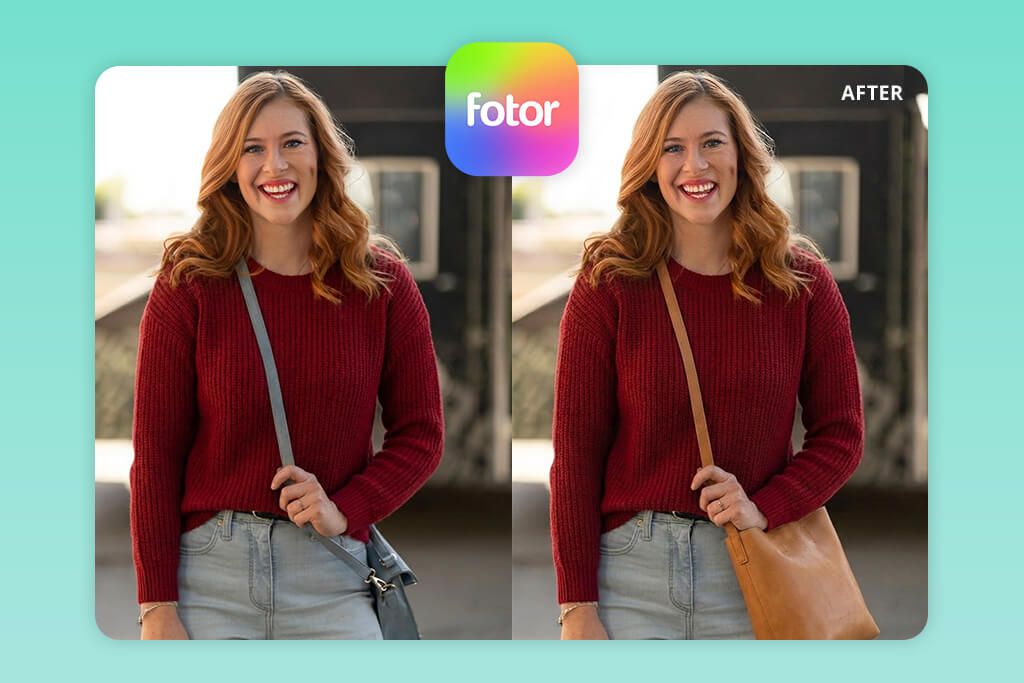
Fotor’s AI Replace features make changing backgrounds and objects simple, even in detailed scenes. I uploaded a product shot with glossy glass elements and tested the “Magic Background” tool. In just a few seconds, this AI replace objects in photo app switched the setting to a clean white studio, and automatically balanced the light and shadows to suit the product.
Next, I applied “AI Retouch” to clean up the borders and remove small imperfections. This step is especially helpful when working with glossy or reflective objects, where faint outlines can sometimes appear. Fotor also includes batch processing, letting me use the same background change and refinement settings on several images at once, which helps keep a uniform style across a product collection.
This bulk photo editor is quick to use and easy for beginners, but it can have trouble with strong angle shifts or objects that overlap. In such situations, some hands-on adjustments may be required. The app can be used at no cost with ads, while the premium option costs $8.99 per month and unlocks full AI replacement tools, high-quality exports, and batch processing.
6. Wand
Good for everyday edits
- Accurate edge detection
- Quick background swaps
- Fast visual output
- Offline support for basic tools
- Limited editing options
- Fewer export formats
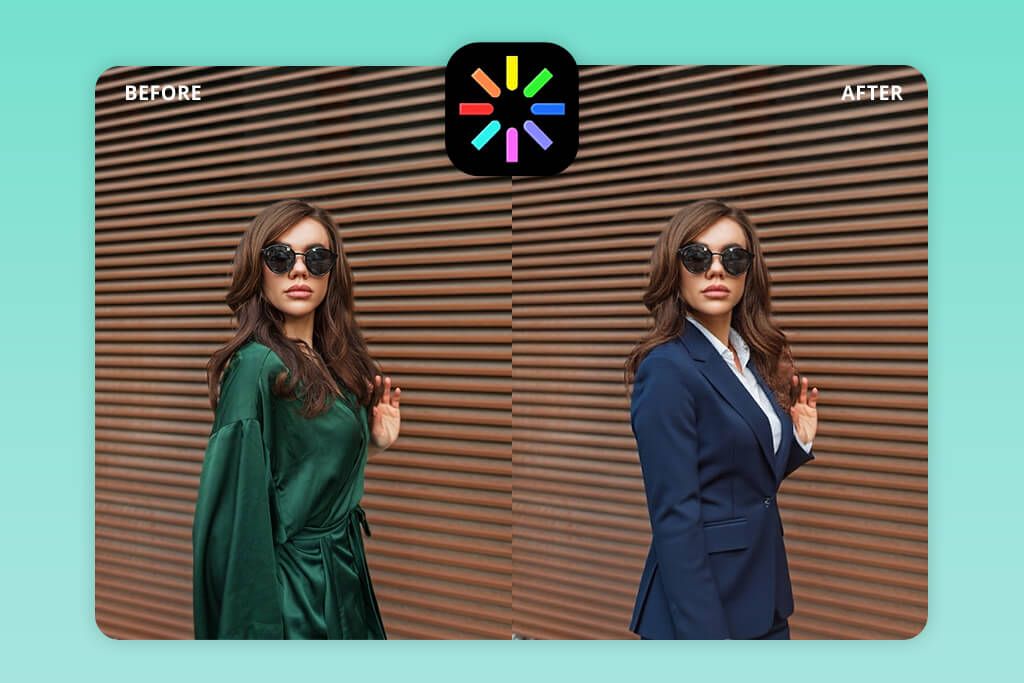
Wand is an AI-based editor designed for replacing objects and backgrounds. To test it, I selected an area of my image with “Object Replacement” and typed the prompt: “replace the background with a neon-lit street at night.”
One feature I especially appreciated about this AI replace background app was iteration mode, which let me refine my prompt or settings several times and create multiple versions to choose from. This made it easy to experiment and produce different visuals for marketing needs. The AI delivered the results almost instantly, keeping the lighting, reflections, and shadows on my product realistic.
The simplicity of Wand is one of its biggest advantages, though very complex changes may still need support from another editor. It also performs well with small refinements, similar to targeted auto photo enhancers. For instance, I added a soft glow behind the product to suit the neon-style setting, and the AI kept the borders clean and well-defined. Basic features are available at no cost, while the Pro plan costs $9.99 per month and unlocks unlimited AI edits along with high-resolution downloads.
7. Picsart
Supports layers and blending options
- Available on mobile and web
- Shared templates and styles
- Wide range of effects and filters
- Suitable for creative edits
- Interface may feel crowded
- Ads shown in the free version
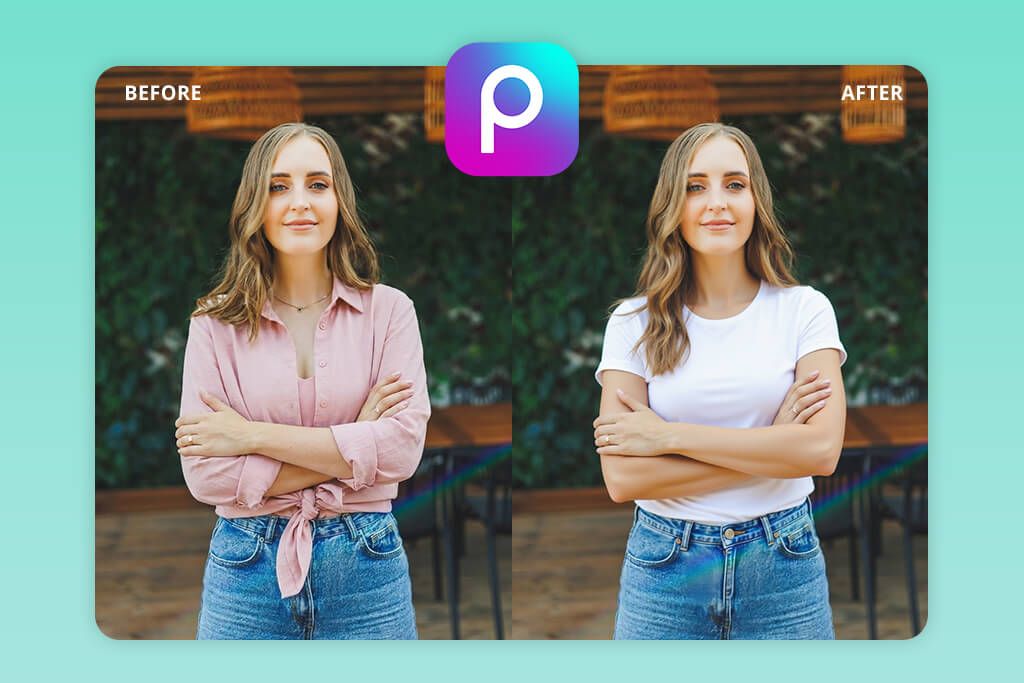
In Picsart, I removed the background from a product shot and then used Replace Object with prompts like “replace background with marble countertop” and “change product color to silver matte.”
What made Picsart stand out was the balance between AI tools and manual refinement brushes. The AI preserved reflections, shadows, and textures, helping the product blend naturally into the updated scene. When small imperfections appeared, the manual refinement brushes allowed me to fix those areas with precision.
This iOS and Android photo editor also offers brightness controls, visual effects, and blend settings that help place the product naturally into different scenes. The speed is impressive – most edits finished in seconds, letting me generate multiple variations quickly.
This AI generative replace app can be used at no cost with ads, while the Gold plan costs $11.99 per month and provides unlimited AI tools, high-definition downloads, and extra templates.
8. LightX
Accurate tools for cutouts and masking
- Color and exposure controls
- Supports layer blending
- Simple background swaps
- Suitable for portrait edits
- Some users find the interface outdated
- Learning layers takes time
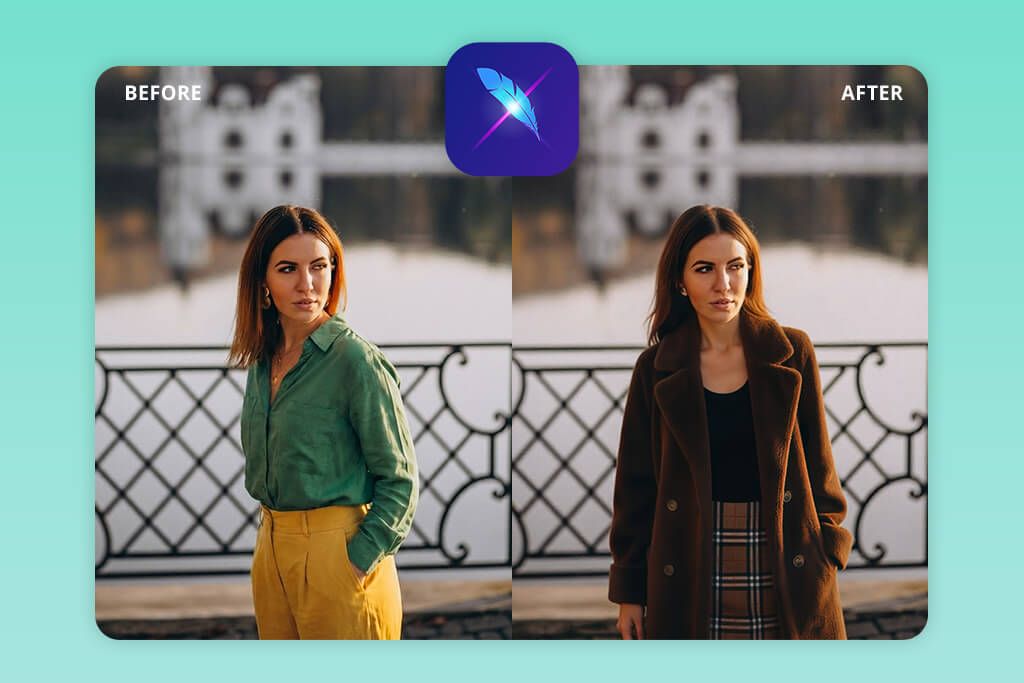
In LightX, I first used Cutout & Replace to change the background of a product image. After that, I tested AI Object Removal to erase a small distracting item from the scene. The app combines AI-based replacements with classic editing tools, making the workflow flexible.
What makes this AI replace image content app stand out is its mix of manual tools and AI features. After the automatic replacement, I refined the edges using brush masking, adjusted the shadows, and aligned the lighting and perspective. This approach produced a result that looked more natural than relying on fully automatic tools alone.
To improve the overall look, I experimented with color grading and brightness controls, helping the product stand out more clearly against the updated scene. LightX handled these adjustments smoothly. It is considered one of the more budget-friendly apps that photographers use, widely used by photographers, offering advanced AI replacement features. The app offers a free version with basic options, while the Pro plan costs $4.99 per month and unlocks unlimited AI edits along with high-quality downloads.
9. PhotAI
Highly effective for auto object removal

- Fast background changes
- Easy-to-use interface
- Intelligent auto-adjust tools
- AI editing suggestions
- Limited manual controls
- Some edits need touch-ups
PhotAI focuses on AI-based replacements, delivering very fast results for both background and object changes. I used AI Replace to switch the background while keeping shadows and reflections realistic.
I tested Object Fill to modify parts of the product itself, such as switching a bottle’s color from red to matte black. The AI kept the surface details intact and maintained natural-looking lighting across the image.
A standout feature is iteration mode, which lets me tweak prompts and quickly create several versions to compare until I find the one that matches my style. PhotAI also allows high-resolution downloads, which is important for e-commerce listings and professional marketing materials.
PhotAI offers a free version with basic tools, while the premium plan starts at $9.99 per month and includes unlimited AI replacements along with high-resolution exports.
FAQ
- What are AI replace apps meant for?
For product photos, social media content, and creative work, AI photo replace tools offer a quick way to improve visuals. They can automatically remove distractions, swap backgrounds, enhance portraits, or even generate new elements without requiring professional editing experience.
- Do these apps require professional skills?
Most AI replace apps are beginner-friendly thanks to tools like one-tap background removal and automatic object replacement. Templates and smart suggestions guide users through the process, making it simple to use even for those new to photo editing.
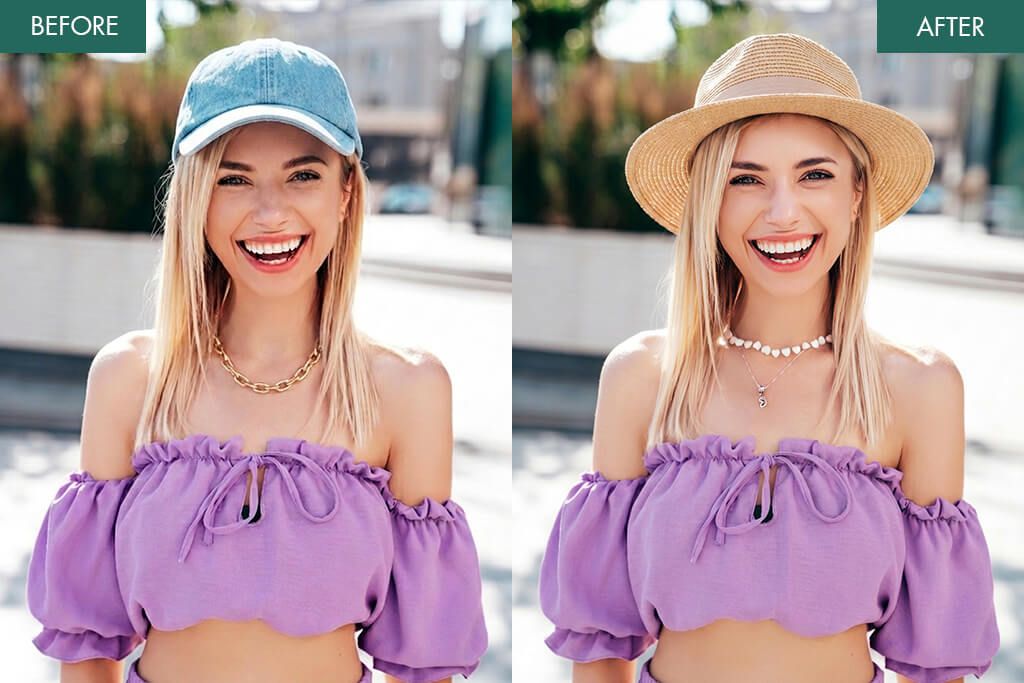
For more advanced edits, you can rely on the expert team at WeEdit Photos. They handle not only object replacements but also complex tasks such as recoloring, detailed retouching, and creative enhancements.
- Are AI replace apps free to use?
Free versions of many apps offer basic functions like simple background removal and limited export quality. To access advanced options such as HD output, enhanced AI tools, or batch editing, a subscription is typically needed. While free tiers are helpful for trying the app, paid plans are better suited for professional work.
- Can AI replace apps preserve picture quality?
If you need professional-quality images, always check the export settings. Many modern AI apps preserve strong image quality and support HD or RAW formats, but free versions may have lower resolution compared to paid plans.
- What devices support AI replace apps best?
These tools typically support both mobile and desktop platforms. Mobile versions are useful for fast, simple edits, while desktop tools provide greater precision and more advanced options. In addition, web-based open source image editors are convenient because they run in a browser and don’t require downloads.