5 Best Apps for Skeleton Photo Edit & Spooky Look
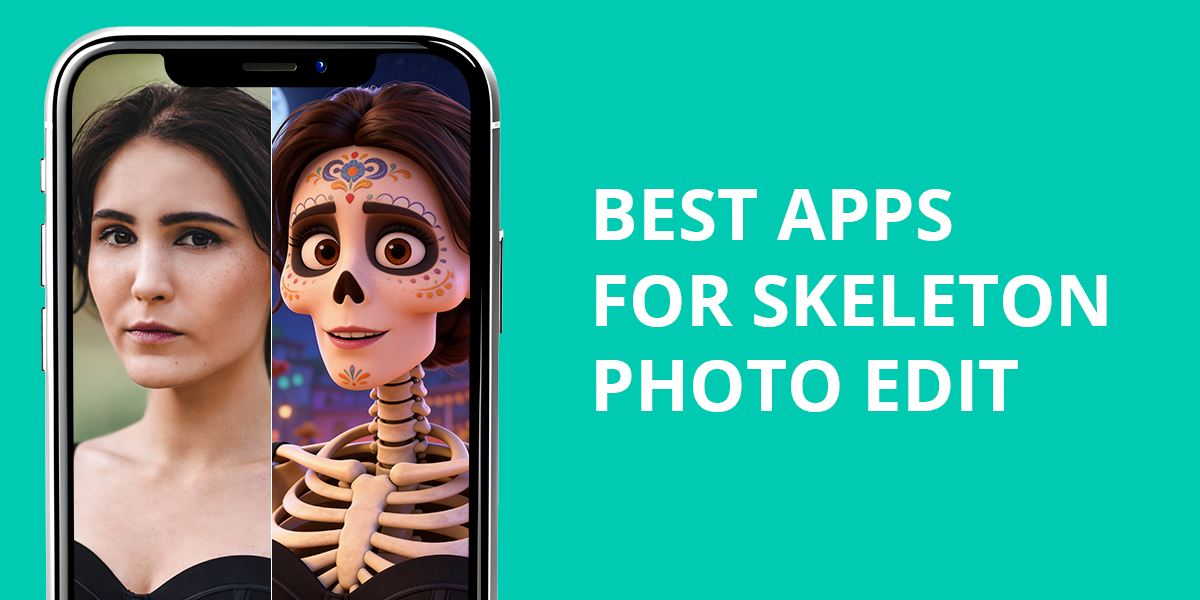
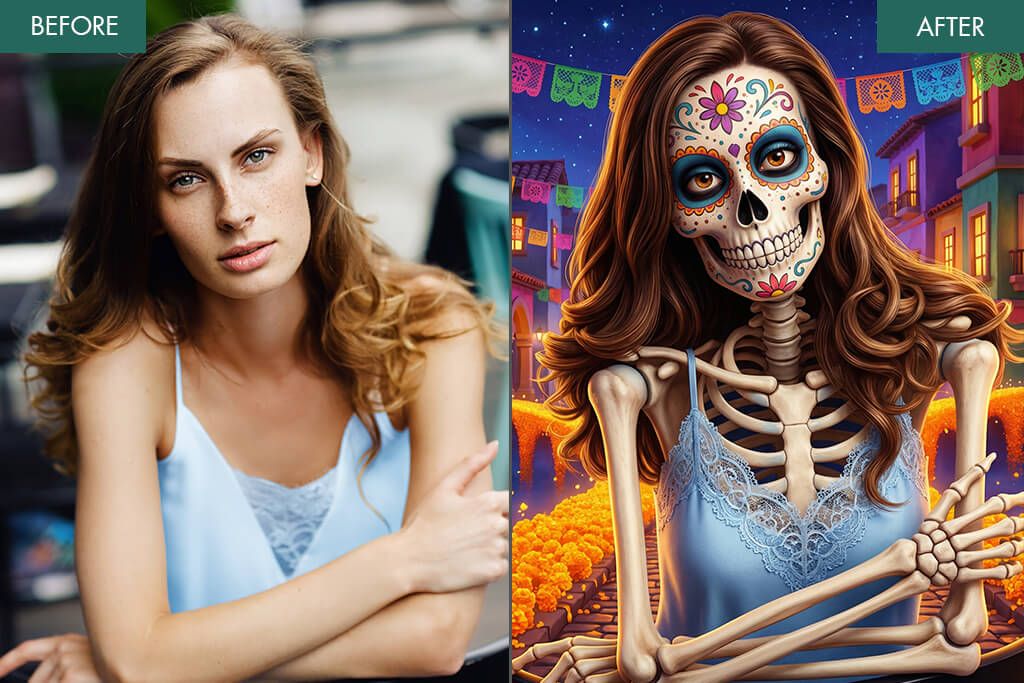
The demand for finding the best app for skeleton photo edits is steady all year long, but is particularly noticeable around Halloween. Such applications usually employ AI filters and blending effects to apply natural-looking skull and bone textures, hide facial textures, and perform an array of other adjustments without requiring in-depth manual involvement. Certain tools even let you tweak the intensity, apply makeup filters, and mix half-face transformations to get a more creative result. They allow you to transform any portrait picture into a skeleton within a couple of taps.
As a retoucher who works for Weedit.Photos, I tend to use advanced image editing software like Photoshop and Affinity Photo to achieve such effects. However, a large part of our audience kept asking how they can get a similar “skeleton” look if they don’t have the necessary editing skills or access to premium solutions. Wanting to help them, I decided to explore a variety of skeleton photo editing apps to check which of them provides high-quality results. I focused on the realism of the applied effects, available customization options, user-friendliness, export resolution, and ensuring the output looks natural instead of cartoony.
AI Filters vs. Manual Skeleton Editing
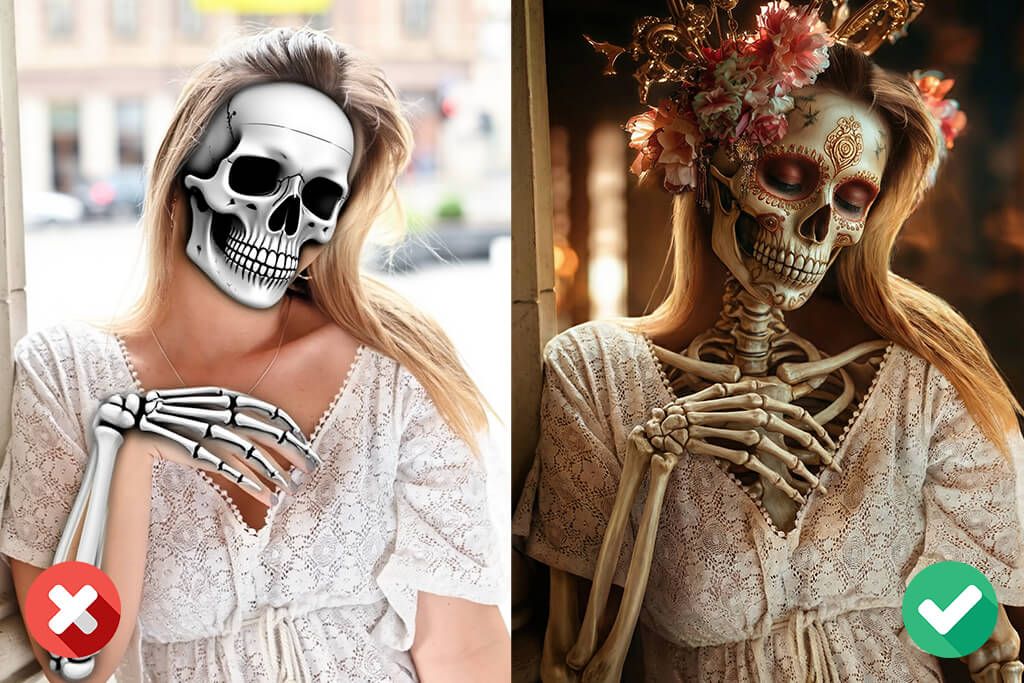
During my initial experiments, I wanted to juxtapose the results I got from these applications with what I previously created in Photoshop. When editing photos manually, I can fine-tune each bone contour, shadow, and transparency layer, even if it’s a time-consuming process that requires a lot of precision. Meanwhile, AI filters are supposed to deliver a comparable output within seconds. The concept is alluring: no complicated layer masks or blending modes – you simply import a photo and the app takes care of everything else.
After trying out a couple of options, I soon understood that AI-made effects have improved a lot over the last few years. Some solutions employ cutting-edge facial mapping to match the skeleton overlay with the actual facial structure, creating an illusion of depth. The output can look incredible, delivering sharp outlines, precise symmetry, and appropriate skin translucency that imitates X-ray lighting. That said, many applications still fail to meet modern requirements. Some filters misread lighting or facial angles, resulting in awkward distortions and unrealistic bone placements.
However, the sheer convenience of an app for skeleton photo effects can’t be ignored. As I personally know the amount of effort it takes to create such an effect by hand, I was honestly surprised by how efficient some of these tools can be. They allow even complete beginners to achieve drastic transformations. Even though they can’t reach the quality bar set by human retouchers, they still offer a terrific and easily accessible method for creating a wide range of effects.
Personally, I don’t think it’s a question of whether AI photo enhancer apps can replace manual editing, but rather how close these solutions can get to professional quality without looking cartoonish. That’s why my test focused on precision, convenience, and believability.
1. YouCam Perfect
- Wide selection of skeleton effects
- AI Mix provides natural blending
- Intuitive interface
- Artistic Avatar styles look eye-catching
- Provides animated skeleton filters
- AI Replace can be time-consuming
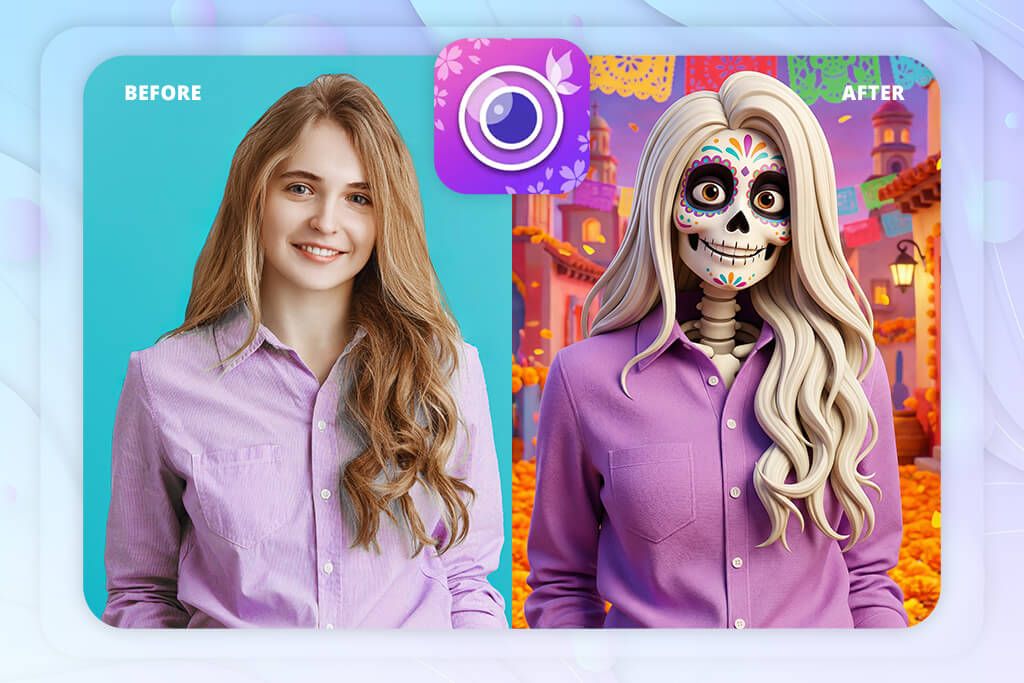
YouCam Perfect is arguably the best app for skeleton photo edits I tried due to the wide range of options it offers. All of its filters and AI features are easy to access and use, meaning I didn’t have to trudge through countless menus to locate a specific tool. I began by trying out the AI Mix feature. Rather than merely applying a skull mask to the face, it re-renders the entire photo, examining the facial structure, hair, and clothes, and blending them into a new artistic image.
Next, I chose the Catrina template, inspired by La Calavera Catrina – the famous skeleton lady from Mexico’s Día de Muertos. After picking it, the AI processed my photo, and I was blown away by the output. My face remained recognizable, but the applied design sported an eye-catching, decorative skull makeup. Afterward, I tested the AI Selfie option to receive a more fun, Halloween-themed look, and it instantly transformed me into a joyful skeleton, along with spooky eyes and glowing bones.
I was particularly impressed by the Artistic Avatar feature. I used it to make multiple avatars by choosing Calavera Art and browsing through a variety of styles, including Gothic, Specter Queen, and Eerie Craze. Lastly, I stumbled upon the AI replace feature, which allowed me to replace my face with an actual skull face. However, this specific tool takes more time to deliver the result, even if everything is still completed within a matter of seconds.
2. FlexClip
- In-depth AI prompt control
- Eight generation models
- Convenient animation functionality
- Wide range of creative features
- Convenient import and export
- Lacks a dedicated Android version
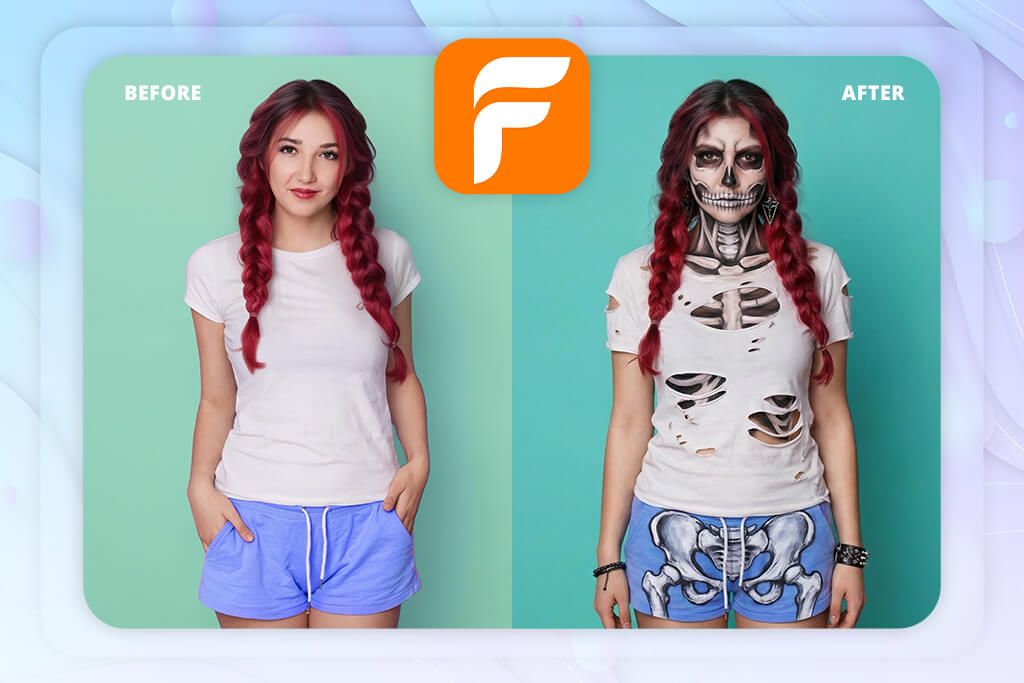
FlexClip was installed on my iPhone for a long while, so I was interested to see how it performs as a skeleton effect photo app. After importing my photo, I was asked to pick from eight available AI generation models. I tried out a couple of them. Flux provided sharper detail, while Seedream offered a softer mood. It was fascinating to check how different models interpreted the same concept in different ways.
I particularly enjoyed using the prompt box. Rather than simply choosing a preset, I described what I wanted using words: “her face painted like a sugar skull, with dark eye sockets, a stitched mouth, a small black heart on her forehead, long wavy pink and purple hair, and a crown of roses and butterflies.” FlexClip processed that description and re-rendered the image while following my instructions. The result was very impressive: the colors offered a nice balance, while the contrast between the makeup and the atmospheric backdrop made the photo look more cinematic.
Next, I checked the Image-to-Video tool to evaluate what I can achieve. I asked the app to add a subtle, spooky smile to the skeleton character, and this AI video generator followed my requirements perfectly. The motion felt a bit unnatural, but I still appreciated the eerie mood. The biggest downside of this app is the lack of an Android version. Thankfully, you can use the web browser version, which offers solid performance and all the same features you can find in the iPhone edition.
3. Fix The Photo Body Editor & Tune
- Actual human retouchers
- Highly realistic results
- Allows personalizing your request
- Option to import references
- Quick delivery
- Doesn’t offer an instant single-tap effect application option
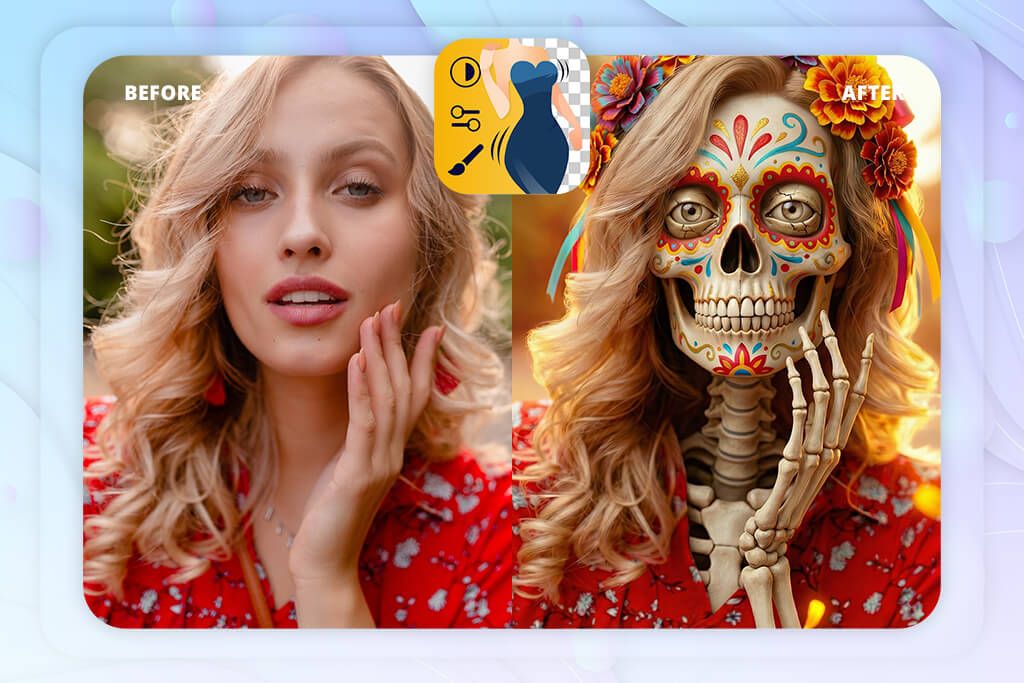
This is the top skeleton photo editor on my list, and also an app that photographers use when they want to get professional results. This solution stands out from the rest because it’s backed by real experienced retouchers rather than automatic filters. Whenever I turned to this app in the past, I was amazed by how realistic the edits looked. I began by importing a picture from my phone and tapping “Face & Body Retouch.” Next, I provided a description of what I needed. I requested a skeleton transformation with a subtle sugar-skull makeup effect, not too rough, and with dark eyeshadow details.
I could also ask for extra edits – skin smoothing, contrast adjustments, glare removal, and I took advantage of several of those options to see how FixThePhoto would handle them. Additionally, I could provide reference images, ensuring the retouchers know the result I’m hoping for. When I received the enhanced image, I was happy with the applied edits. The bone outlines were blended naturally without ruining the skin texture by over-smoothing it, which is a common issue with AI-based applications.
Using Fix The Photo Body Editor & Tune felt like approaching a professional service, but with all the convenience of a mobile app. This isn’t a free solution, but considering that you get the first photo for free and you can have three images edited for only $0.99 – the price you pay is more than justified.
4. Pokecut
- Streamlined workflow
- Minimalist, intuitive UI
- Convenient prompt control
- High-quality skeleton effects
- Style switching without re-uploading
- Web only, no mobile version
- Small range of manual adjustments
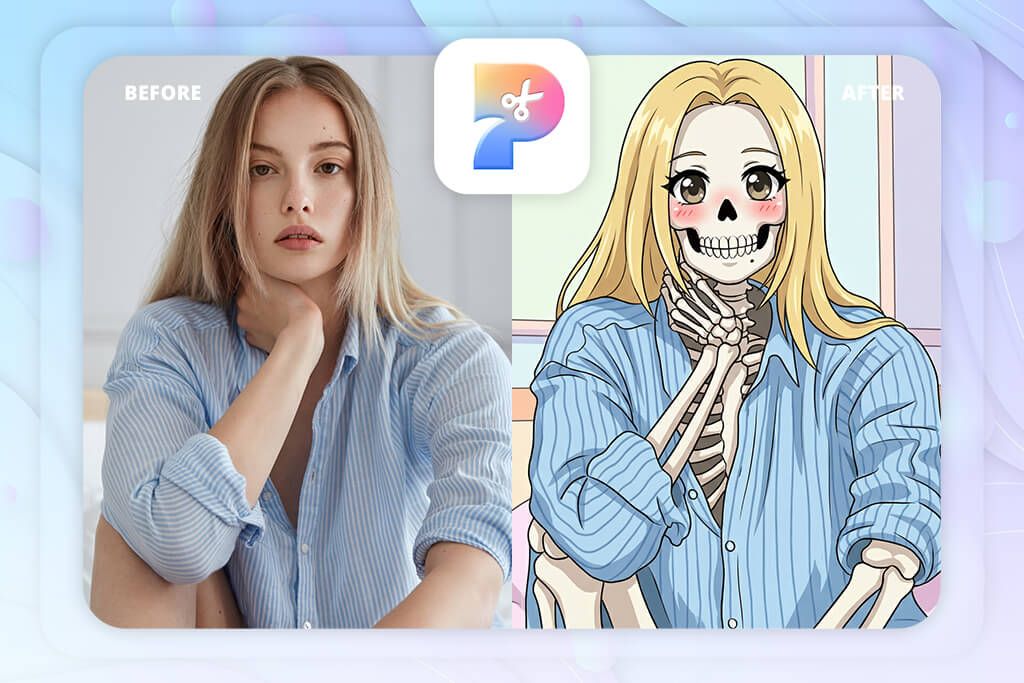
Pokecut was recommended to me as a fast and efficient skeleton photo editor. It offers an intuitive UI that is very easy to navigate. I merely clicked on “Upload,” chose the desired photo, and went to the prompt section, where I wrote “realistic skeleton face, visible cheekbones, hollow eyes, detailed skull texture, dark background with soft light.” The entire process only took me a couple of seconds.
After providing the prompts, I personalized the style parameters. In the “Anything” section, I chose General since it’s suggested for skeleton filters. I picked a 1:1 aspect ratio, primarily to check how it would fit Instagram. After I pressed “Generate,” I got the edited photo in about 15 seconds. I was impressed by the result. The skeleton looked detailed without coming across as cartoonish, and the lighting matched the original scene well.
Additionally, I appreciated the ability to choose from different styles, including anime and 3D, without having to re-upload the photo, which made using Pokecut a lot more convenient. The download button allows you to save the image in high resolution and ready for sharing. Sadly, this solution doesn’t have a dedicated app version, meaning everything needs to be done in a browser. It offers smooth performance, but a separate mobile option would still be greatly appreciated.
5. Photoshop for iPhone
- Firefly AI streamlines the editing process
- Quickly applies realistic skeleton effects
- Offers Photoshop tools
- Convenient desktop integration
- Modern, user-friendly interface
- Restricted offline functionality
- AI can over-smooth the image
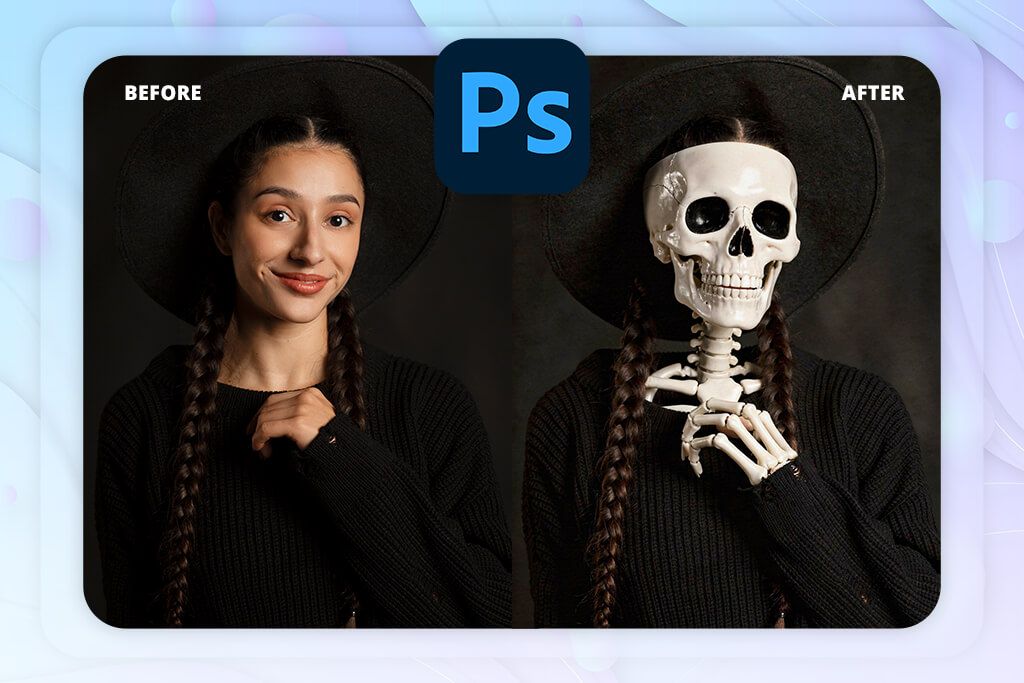
Photoshop has been an industry-leading professional solution for decades, known for its impressive functionality and relatively steep learning curve. Thankfully, the iPhone version is a lot more intuitive, particularly now that it comes with Firefly AI. This addition drastically shifted the overall workflow. Rather than wasting time on manual layering or blend modes, you can now write a brief prompt like “create a half-skeleton portrait with realistic bone texture”, and Firefly will automatically make the edits you want.
I imported a photo and selected “Generative Fill,” which relies entirely on Firefly. I picked the right side of my face and wrote the skeleton prompt. It took this skeleton face edit app less than ten seconds to produce a realistic result that was a perfect fit for my facial structure. Next, I employed Blend Modes to adjust the edges, but the bulk of the work was already done by Firefly. I was impressed by both the lighting transitions and the realistic bone definition.
I particularly like how Photoshop on iPhone manages to combine the versatility that Photoshop is famous for with the intuitive nature of AI-based apps. You can adjust the mask and colors as you see fit without having to mess around with layers and complex blending formulas. The AI functionality needs internet to work, so it’s not a solution you can consistently use offline, but that’s a small compromise to make compared to all the benefits of this free Adobe app.
FAQ
- Do skeleton photo editing apps provide better results with specific types of images?
Yes. If you import a clear portrait photo with even lighting, you’re more likely to get a high-quality result. I recommend pictures taken straight-on to ensure the applied bone structure fits the subject’s face better. Busy backdrops and harsh shadows can throw the app off and hurt the realism.
- Can edited skeleton images look realistic, or are they always stylized?
Some apps provide highly realistic results as long as you get the proportions and lighting right. It’s important to practice restraint – subtle bone textures and gradual transitions tend to look more natural than rough outlines. Mindful blending provides more realism than an extreme contrast clash.
- Is skeleton image editing only relevant for Halloween?
Not necessarily. While Halloween is the most popular season for these types of photos, you can also add skeleton effects for artistic portraits, themed events, digital art, movie posters, album covers, etc.
- Can you control the quality of the final result in skeleton editing apps?
The answer depends on the specific app you’re using. Some solutions deliver quick, automatic results without leaving much room for customization, while others allow you to tweak parameters like the opacity, alignment, and background. I suggest dedicating a couple of minutes of your time to tweaking these settings, as they can do wonders for improving the final output.
- Is approaching an expert for skeleton photo editing worth it?
It can be, particularly if you need to get a professional, realistic result that goes beyond what you can achieve by applying a simple filter. Experienced retouchers can manually adjust the bone structure, lighting, and textures more intricately than automated apps. If you need a skeleton photo for a professional project, approaching actual editors is a good idea.