7 Best Apps to Add a Leprechaun to Your Photo [iOS & Android]
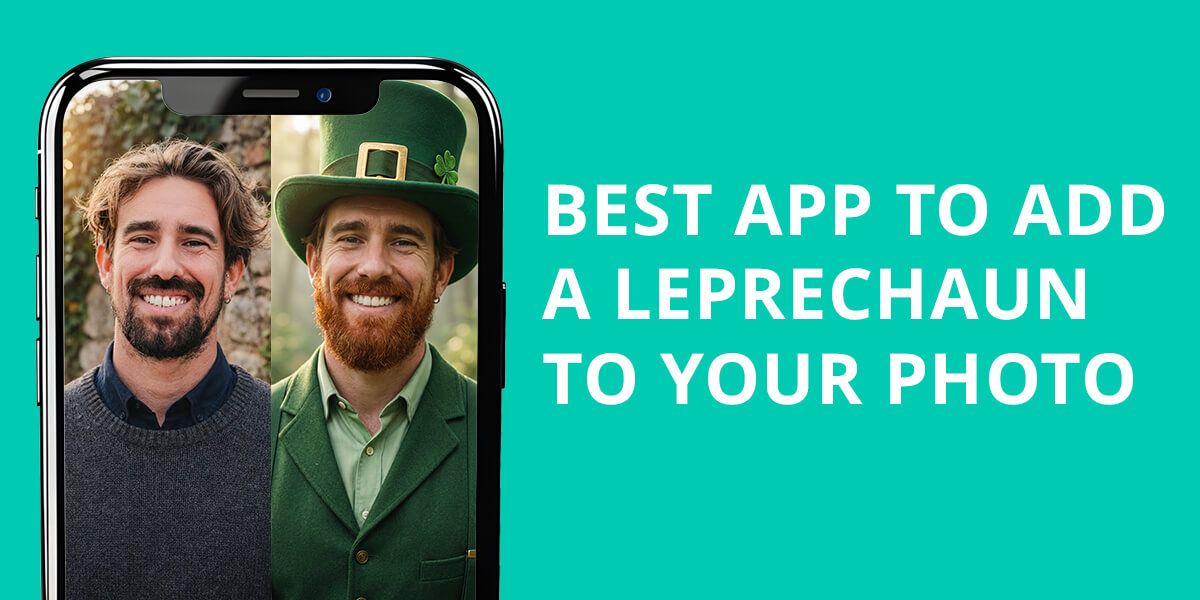
Every March, the Weedit.Photos team experiments with festive photo ideas for St. Patrick’s Day. This year, we tried out apps that let you add leprechaun to photo, turn yourself into one, or make it look like you actually managed to catch one on camera. We captured quick casual selfies as well as detailed portrait shots to see how they’d hold up.
Some apps offer fast AR filters you can throw on and share in seconds, others give you AI stickers you can place wherever you want with barely any effort, and then there are a few that actually surprised us with very realistic results.
Here’s a roundup of the best leprechaun photo apps we analyzed. You will find fun, no-effort one-tap options and seriously impressive programs that deliver lifelike results. You will get images worth keeping or showing off way past the holiday.
Make Leprechaun Photos Look Real
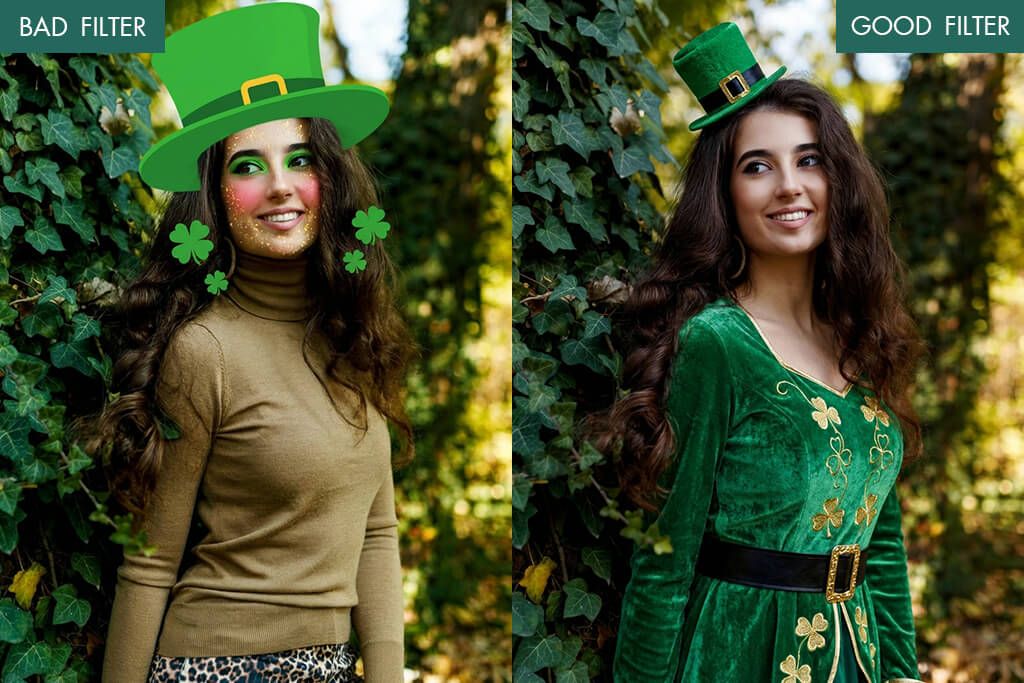
We tried multiple leprechaun filter apps, and it became obvious that the app matters less than you’d think. What really makes or breaks the result is the photo you start with. Even the fanciest leprechaun selfie AI filter will look off if your original shot is dark, blurry, or taken at a weird angle.
Good lighting, a decent camera angle, and a clear image are the most important aspects. Get those right first, and almost any leprechaun effect will look like it actually belongs in the photo.
When all the little details line up, you get a very natural image with a leprechaun. That’s what takes it from a goofy holiday meme to something that genuinely looks good. People won’t be fixating on the edit. They’ll just vibe with the photo. Clean, fun, and good enough to save forever, not just post once and forget.
1. Leprecam
St. Patrick’s Day-themed fun
- Perfect for leprechaun photos
- User-friendly
- Quick 1-click results
- Great for seasonal thematic content
- iOS-compatible only
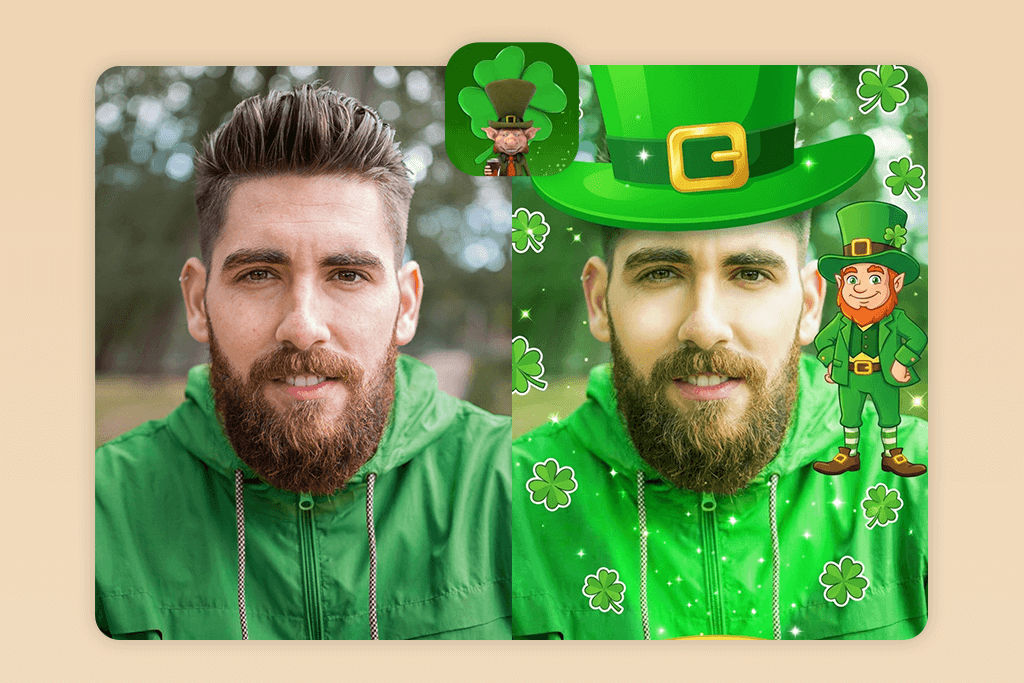
Leprecam is a St. Patrick’s Day app that gets straight to the point. Everything is right there in front of you the moment you open it. You don’t need to dig through menus or hunt for the right tool. There is leprechaun-themed content ready to go. If you want to make something fun and festive without touching a single editing setting, this leprechaun app is a terrific option.
Adding a leprechaun is easy. You just need to upload your photo, drop in the sticker, and the character lands right into the frame. You can nudge it around or resize it, which is handy, but don’t expect anything beyond that. There’s no shadow adjustment or lighting match. You get the features typically available in a basic auto photo enhancer.
That’s where it shows its limits. Because these are sticker-based overlays, they sit on top of the photo rather than blending into it. If you add a complex background or tricky lighting into the mix, the result will look pretty cut-and-paste.
But if you’re making a quick story, a playful post, or snapping something fun with kids, none of that really matters. It lets you add a leprechaun to your photo and get a festive vibe without overcomplicating things.
Pricing: Free; in-app purchases available
2. Fix The Photo Body Editor&Tune
Most realistic edits
- Real manual retouching
- Natural shadows and lighting
- Custom edits
- First edit is free
- Not instant results
- No built-in stickers
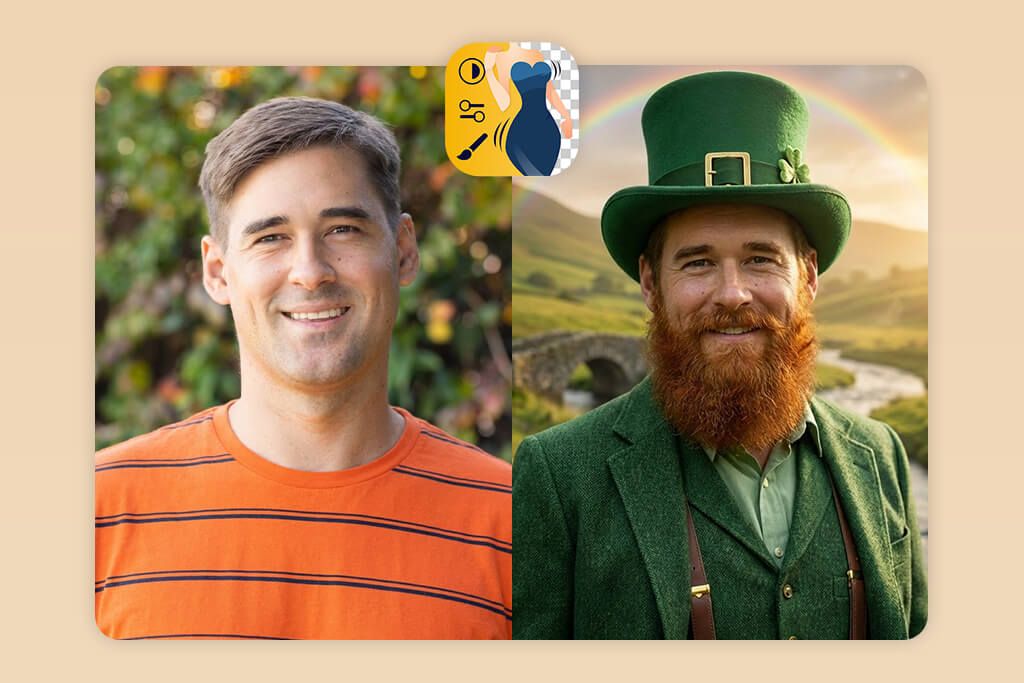
I like that Fix The Photo Body Editor&Tune doesn’t use filters or auto-overlays for photo transformations. You’re not just tapping a button and hoping for the best. You actually upload your photo and tell the editors exactly what you want. Where should the leprechaun sit? How much should it stand out? Should it be a part of the background or interact with the scene? You decide.
From there, real human editors handle object placement, shadow matching, color correction, and other tweaks. Unlike other leprechaun camera apps, here everything is all done manually, so the leprechaun genuinely looks like it belongs in the shot. Thanks to such an approach, you won’t end up with a flat, copy-paste sticker look.
The whole process takes about 10-15 minutes. But once you see the result, you won’t care. If you want a St. Patrick’s Day photo that actually amazes people, this app is worth trying.
Pricing: Free first edit; credit-based system from $0.99
3. Snapchat
Instant AR effects
- Real-time camera effects
- Great for photo and video experiments
- Quick sharing
- Newbie-friendly
- Not very realistic results
- Effects depend on lighting
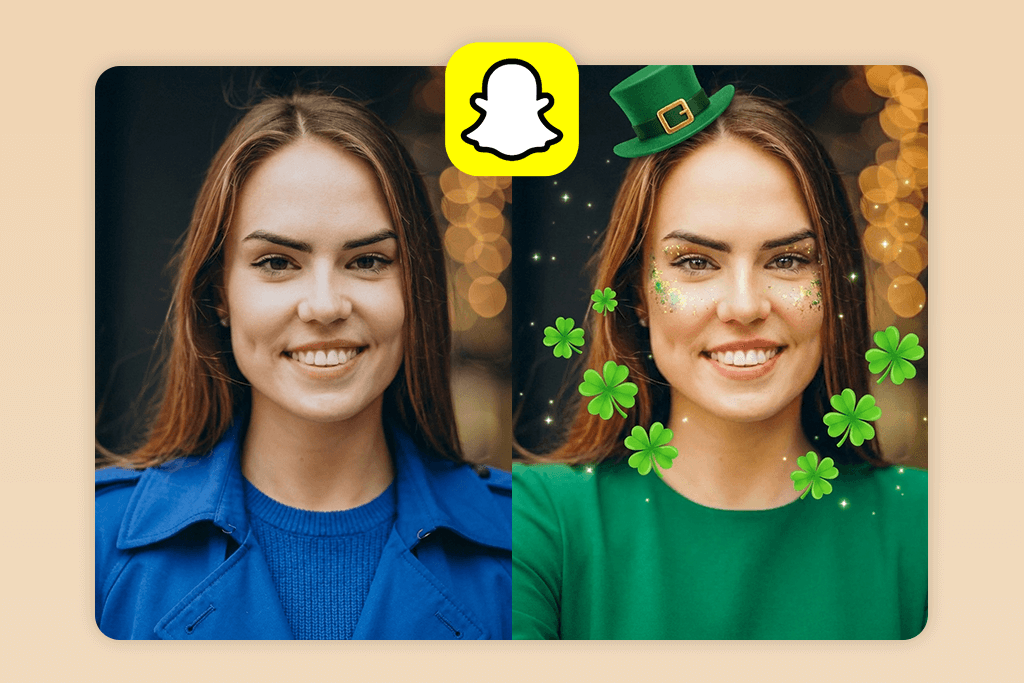
Snapchat doesn’t have a dedicated leprechaun filter, but you can take advantage of seasonal St. Patrick’s Day lenses that pop up around the holiday. There are themed hats, ginger beards, and little green characters. The way it works is straightforward. The lens latches onto your face in real time using AR tracking, so everything moves with you as you turn or talk.
Unfortunately, there’s a real consistency problem I kept running into. Shift your angle slightly, walk into bad lighting, or move too fast and the effect starts slipping. It resets, glitches, or just looks off for a second. It’s not a dealbreaker, but it does mean you can’t always get a perfect shot on the first try.
From my experience, Snapchat is a good catch a leprechaun app for quick, throwaway St. Patrick’s Day content. If you’re hoping to get a clean and top-quality leprechaun photo you can actually save and reuse, you’ll probably want to look elsewhere.
Pricing: Free; from $4.99/month for premium features
4. Photoshop for iPhone
Maximum creative control
- Layer-based photo editing
- Top-notch masking tools
- AI-powered selections
- Professional-grade results
- Requires editing skills
- Subscription-based pricing model
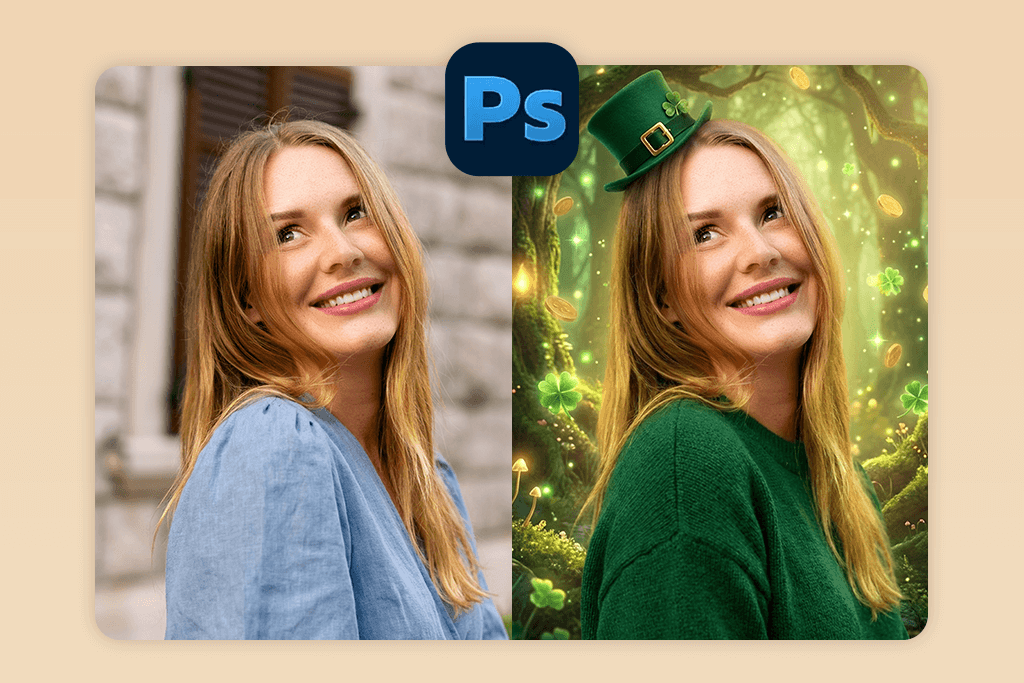
If you want real control over how a leprechaun lands in your photo, Photoshop for iPhone surpasses many quick sticker apps. I brought in my own leprechaun PNG, dropped it into the scene manually, and handled every single adjustment myself, tweaking placement, scale, angle, all of it.
It takes longer, but that’s kind of the point. Select subject, masking, and layer blending tools let you do professional-grade background removal, so you can match the lighting, fix the perspective, and make the character feel like it genuinely belongs in the shot rather than just sitting on top of it.
I won’t sugarcoat it. You need to know what you’re doing here. It’s not something you pick up in five minutes. But the results are worth it. The realism you get is amazing. From my experience, this app with background removal tools is extremely popular among designers, photographers, and creators who want control the outcome.
If you’re just chasing a fun St. Patrick’s Day post to throw up quickly, there are easier ways. But if the final result actually matters to you, this is the leprechaun picture app to reach for.
Pricing: Free; from $12.99/month
5. YouCam Perfect
Fun stickers
- Easy sticker arrangement
- Easy-to-use tools
- Precise face detection
- Quick exporting to social networks
- Stickers look flat
- Free version with ads
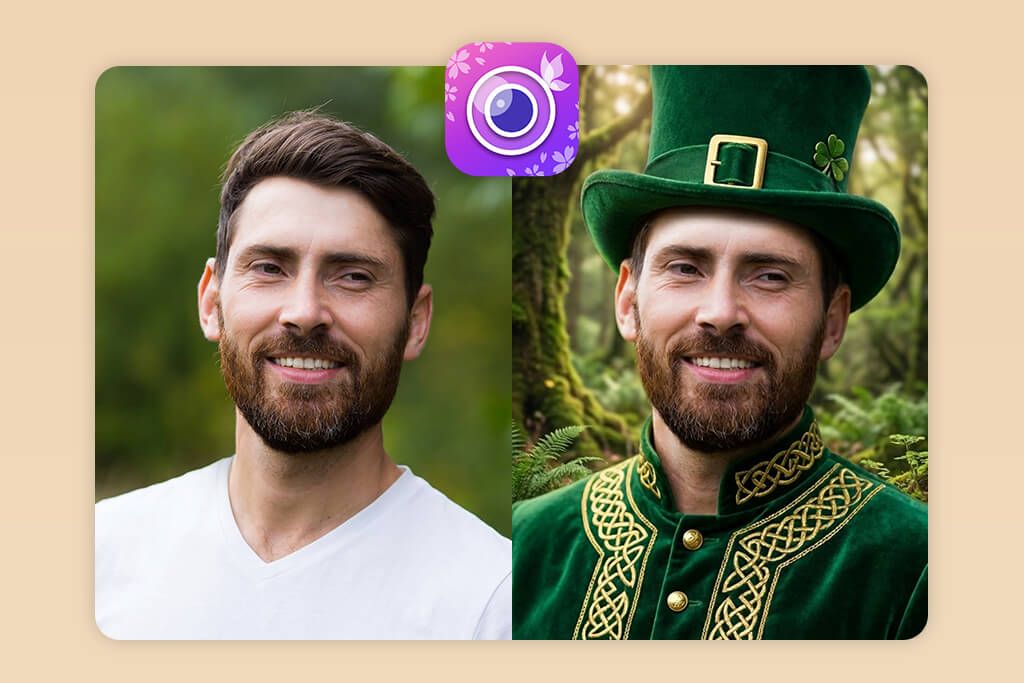
I’ve spent time working with YouCam Perfect, and I know its strong and weak points. If you want to put leprechaun in photo without touching a single complex setting, this app gets the job done fast.
Face detection is very helpful. I ran it through both solo portraits and group shots, and it picked up faces consistently every time without manual adjustments. You drop in the sticker, resize it, reposition it, and you’re basically done. YouCam Perfect is also one of the apps to smooth skin, so your final shot comes out looking neat.
However, realism leaves much to be desired. The stickers sit flat on the image. They don’t respond to lighting, they don’t pick up shadows, and in certain shots, the leprechaun looks like something pasted on top rather than naturally part of the scene.
This app works best for quick, casual content like Instagram stories, fun group posts, or holiday edits you need done in two minutes. But if you’re going for something carefully composed or trying to make the edit look believable, this tool will hit its ceiling pretty quickly.
Pricing: Free; from $5.99/month
6. OpenArt
AI-generated leprechaun visuals
- AI-generated characters
- High-resolution outcomes
- Creative freedom
- One-of-a-kind visual styles
- Lacks classic photo editing features
- Requires prompt input
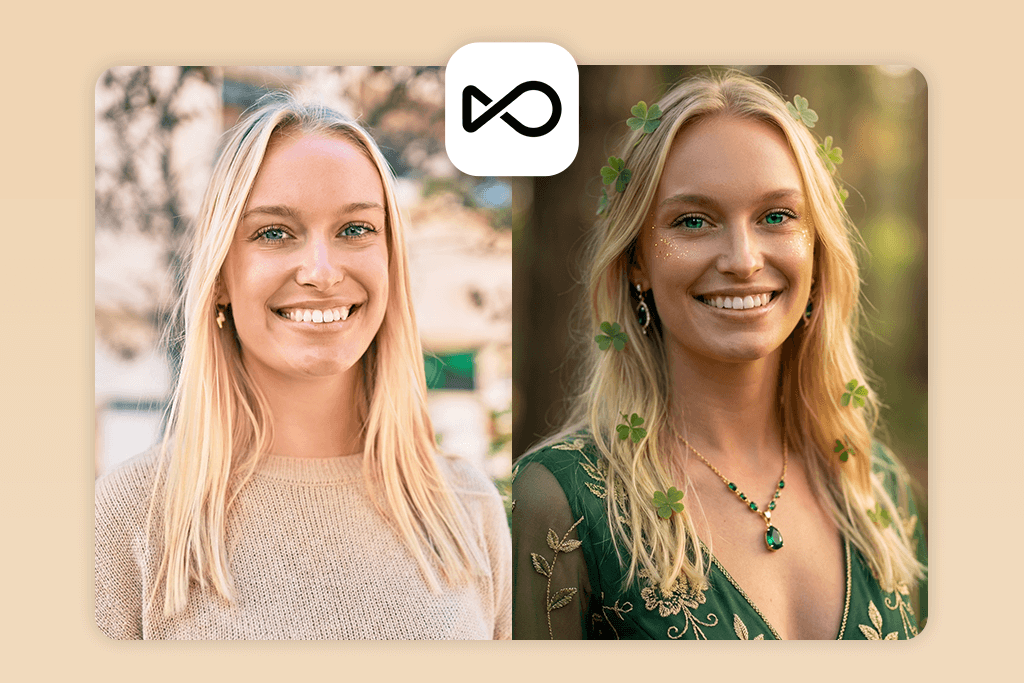
OpenArt differs from typical leprechaun photo apps. Those apps just slap a pre-made character onto your existing image. OpenArt doesn’t touch your photo at all. It builds leprechaun visuals from the ground up using AI and whatever text prompt you enter.
When I was testing it, I generated several characters just by describing what I wanted – a goofy cartoon-style leprechaun, a dark fantasy version, and a detailed illustrated one. The results were genuinely unique every single time.
Still, you won’t get a finished “me with a leprechaun” photo straight out of OpenArt. You’ll need to take that generated image into separate Android photo editors to blend it with your actual photo.
Generally, OpenArt is a wonderful catch a leprechaun photo app for creators and people who care about originality over convenience. If you want a quick selfie filter, this isn’t your tool. But if you want a leprechaun character that actually looks like something you imagined, OpenArt delivers fantastic images.
Pricing: Free plan available; paid plans from $10/month
7. FaceApp
Face-based transformations
- Cutting-edge face AI
- Lifelike facial edits
- Quick photo processing
- User-friendly app
- No leprechaun characters
- Watermarked free content
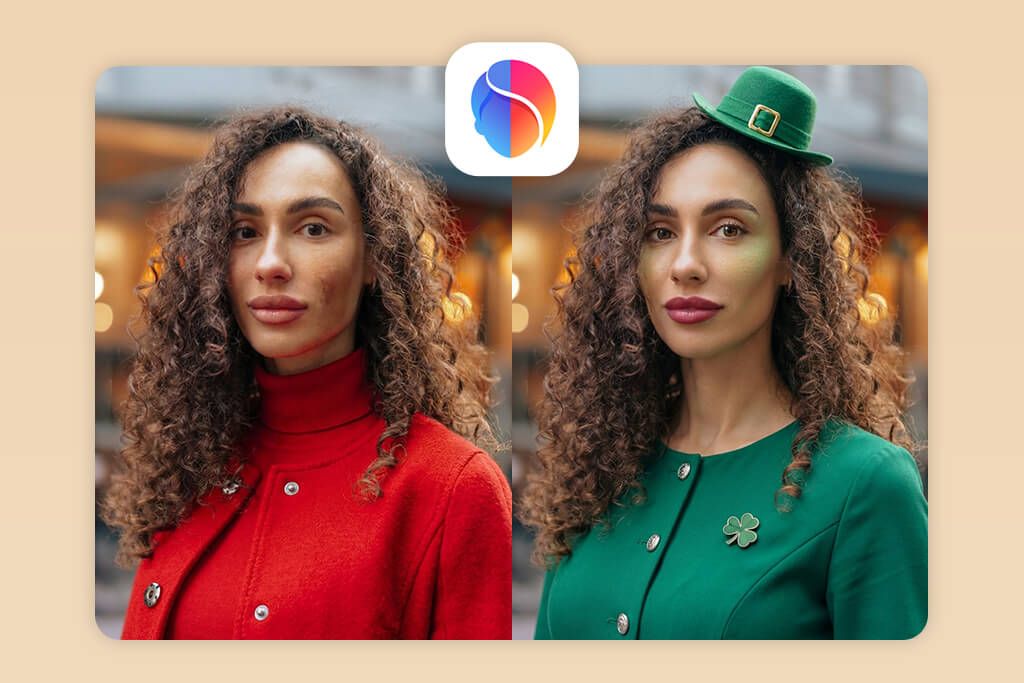
FaceApp won’t slap a leprechaun on your photo, but it can help you prepare the basis for a future St. Patrick’s leprechaun photo. Before I even open a sticker or themed editor, I run the photo through FaceApp to smooth out the skin, balance the features, fix the lighting, and tweak the expression a little.
It copes well with face enhancement, beard adjustments, and expression tweaks. Though you won’t get a festive vibe straight away, you receive a solid, polished base to build on.
Once the photo is cleaned up, I resort to a leprechaun filter app or a manual editor to add the actual leprechaun elements. Every single time, the final edit looks more natural and put-together compared to skipping the FaceApp step. The themed overlays just blend better when the base photo isn’t fighting against bad lighting or uneven skin tones.
Pricing: Free; from $9.99/month
From Quiet Ritual to Global Party
St. Patrick’s Day was originally a religious event tied to Saint Patrick, a real historical figure from the 5th century who played a big role in shaping Irish culture. For a long time, it was pretty low-key with no big parties or green-dyed rivers.
Things got louder once Irish immigrants carried the tradition overseas. In America especially, it grew into a full-blown street celebration with parades, live music, and festivals. Here’s something most people don’t know. The very first St. Patrick’s Day parade actually took place in New York, not Ireland.
As for leprechauns, they have a different backstory than you may expect. In old Irish folklore, they were lone, quiet fairy creatures who happened to be really good at making shoes and supposedly kept treasure hidden away.
They weren’t the goofy, grinning mascots we picture today. Somewhere along the way, pop culture got a hold of them and gave them a makeover, turning them into cheery symbols of luck, which fits the vibe of the holiday pretty well now.
These days, the celebration goes way beyond parades and pub gatherings. A lot of people express their love for the holiday through creative stuff like themed photos, digital artwork, fun edits that put a fresh spin on classic symbols. Leprechauns and shamrocks aren’t just folklore anymore. They’ve found a new home online, getting reimagined in countless ways every single year.
That’s probably why the holiday keeps feeling fresh. It’s this interesting blend of really old traditions and modern creativity, and that combination has a way of connecting with each new generation without the holiday ever feeling stuck in the past.
FAQ
- What is a leprechaun photo app?
It’s an app that lets you drop a leprechaun into your photos through stickers, AI, or manual editing. Some apps like Leprecam and Snapchat keep it fun and fast, while others like Adobe Photoshop for iPhone give you more control for realistic results.
- How does the leprechaun photo filter work?
Most apps use ready-made stickers or AR effects that snap onto your photo instantly. Snapchat and YouCam Perfect work this way. If you want something more custom, AI tools like OpenArt can generate a leprechaun from scratch, while Photoshop lets you place and blend everything by hand.
- Can I make it look like I caught a leprechaun while taking images?
For a convincing shot, pay special attention to lighting and perspective. They need to match. Quick apps like Leprecam work great for fun edits, but if you want it to look real, manual blending in Adobe Photoshop for iPhone ensures much better results.
- Are these apps free?
A lot of them, including Snapchat, FaceApp, and YouCam Perfect, have free versions, but expect watermarks, ads, or limited exports. Premium features are usually paid.
- Can I get realistic results without manual input?
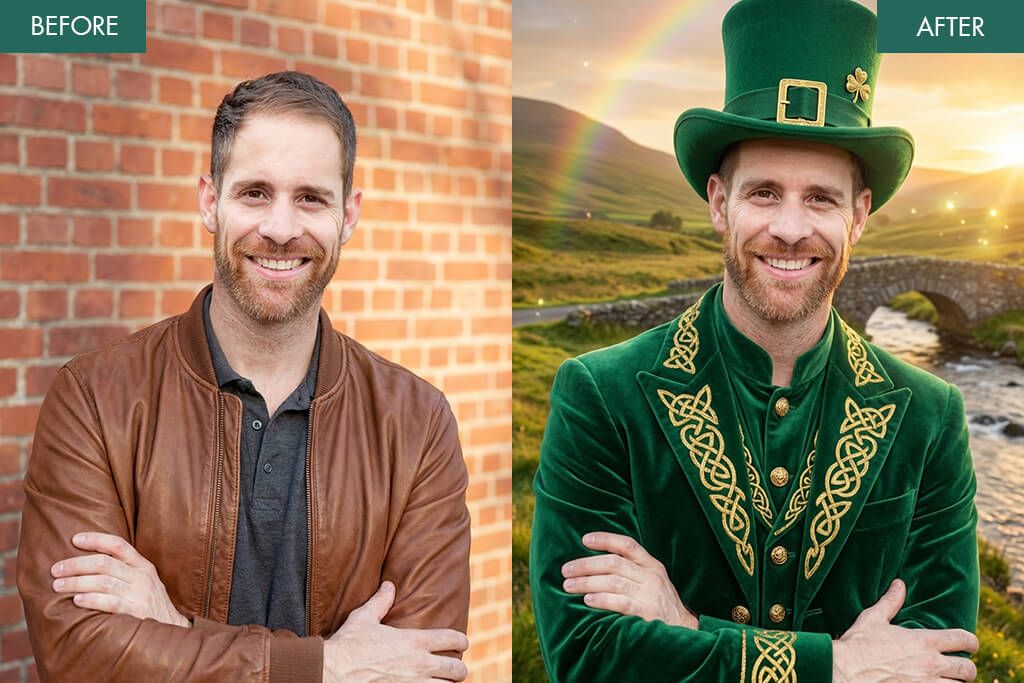
Yes, you can. Reach out to Weedit Retouch Service via Fix The Photo Body Editor&Tune. Real editors manually put your face on a leprechaun or make other changes, handling lighting, shadows, and scale. So, the results look lifelike.
- Do leprechaun edits look believable?
It depends on the leprechaun photo editor and your source image. Snapchat filters and sticker apps are fun but tend to deliver artificial results. If you want something more convincing, go for manual editing in Photoshop or a service like Fix The Photo Body Editor & Tune.
- Are edited photos suitable for social media or marketing?
Totally. Creators often use Snapchat, YouCam Perfect, or Leprecam for creating St. Patrick’s Day content. But if you need something more sophisticated, Photoshop or professional retouching will give you much cleaner results.