7 Best Apps that Change Color of Object in Photo [100% Free]
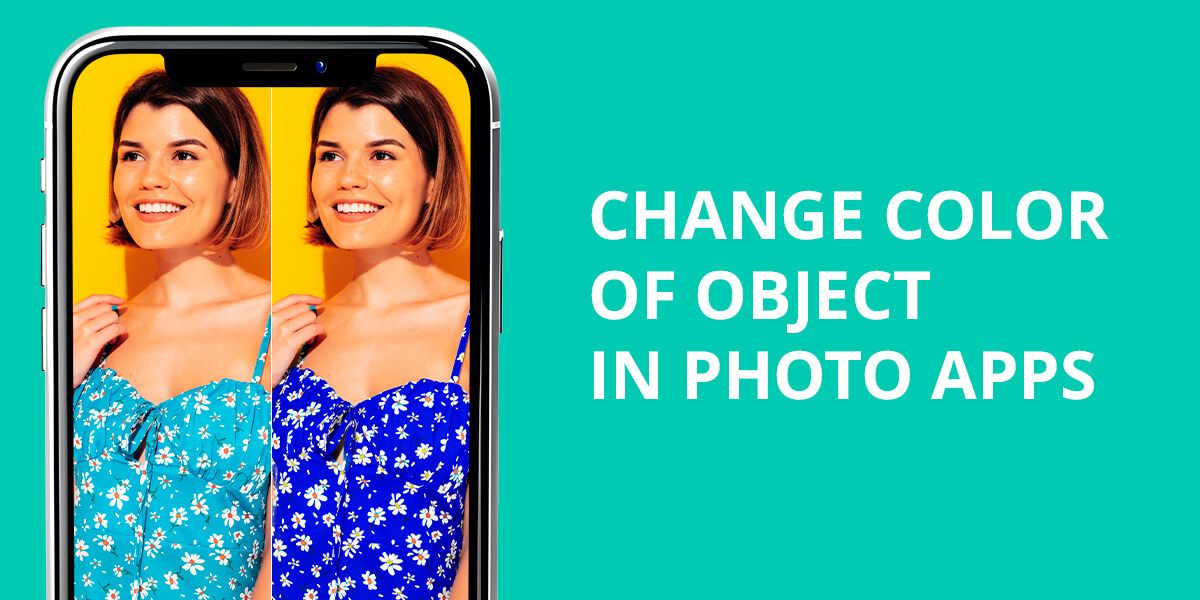
I often need to change the color of an object in a photo – like clothes, bags, or cars – but doing it in Photoshop takes too much time and work. Some AI tools say they can do it quickly, but they often distort the shape or texture. So I decided to try different apps that can change colors fast while still looking real. I wanted to find out which ones keep the details, work well with difficult lighting, and make the edits look natural without hours of editing.
Common Mistakes to Avoid When Changing Photo Colors
Changing the color of objects in your photos can really change the overall look, but it’s also easy to make them look fake or messy. Even small errors can make the image seem overedited. To get more natural, professional results, here are some common mistakes to watch out for:
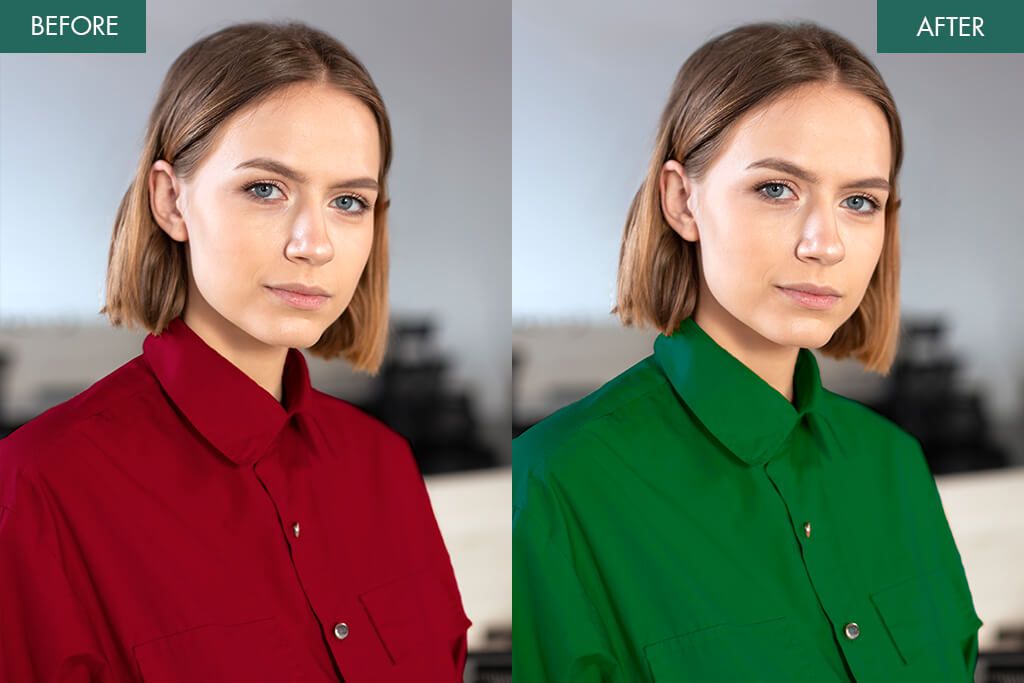
- Overdoing Saturation or Brightness: One common mistake is using colors that are too bright or bold. For example, changing a red car to neon pink might look fun, but it often appears flat or fake on surfaces like fabric or metal. Making smaller, softer color changes usually gives a more natural look.
- Ignoring Edges and Details: Color spilling outside the area you want to edit is a common mistake, especially with objects that have detailed edges like hair, leaves, or patterned clothes. Using options like a smaller brush, zooming in, or edge detection tools can help you stay within the lines and avoid messy-looking edits.
- Neglecting Lighting and Shadows: If you change a color without thinking about the lighting in the photo, the object might not match the rest of the scene. Things like shadows, highlights, and light temperature all affect how colors look. Adjusting brightness, contrast, tint, and warmth, along with the color, helps the new shade blend naturally into the photo.
- Relying Only on AI Tools: App to change color of object in photo can save a lot of time, but they’re not always accurate. Automatic recoloring might miss tiny details or look uneven on complex patterns, textures, or layered objects. It’s a good idea to check the results and fix any parts that look unnatural.
- Forgetting Object Context: When you change the color of one object, think about how it fits with everything around it. For example, turning a blue cup on a blue table into another shade of blue might make it blend in too much or look flat. Picking a color that contrasts or complements the background – while keeping the lighting and reflections in mind – helps the edit look more realistic.
1. Picsart
AI-fueled features
- Simple, beginner-friendly interface
- Accurate tools for detailed edits
- Can change the color of several objects at once
- Works on different devices
- Free version includes ads and fewer features
- May slow down or crash when working with big images
Platform: iOS, Android
Price: Free or from $11.99/mo.
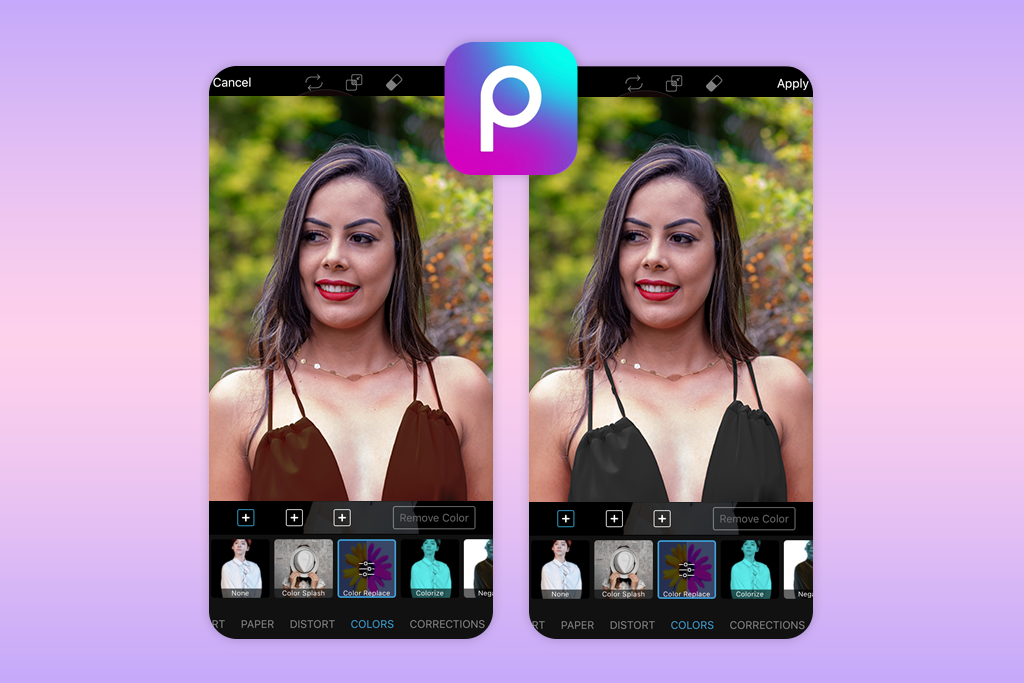
Picsart is an easy-to-use app that lets you change the color of anything in a picture. It’s great for both new and experienced users. To test it, I used a photo of a red hoodie. I opened the Effects menu and chose Color Replace. Then, I just selected the red color of the jacket and moved simple sliders to change it to blue, green, and even a light pink.
The Eraser tool lets me clean up the new color if it spills onto my skin or the background. I also tried changing sunglasses from black to gold and a coffee mug from white to a blue-green color. Every time, the new colors looked bright and very natural. Picsart also has many other filters and tools, like Selective Color Tool, Hue & Saturation Sliders, Masking, so you can do much more than just change colors.
The biggest drawback of this app to change color of objects is that many of the stronger tools are locked behind a Picsart Gold subscription, which can be pricey. The free version has ads and fewer features, which can limit what you can do creatively. Some effects may not work perfectly on very detailed items, and the app can sometimes slow down or crash when handling large, high-quality photos.
2. YouCam Perfect
Quick results
- Makes accurate color adjustments
- Uses AI for smarter edits
- Can recolor clothes, objects, hair, eyes, and even backgrounds
- Supports multi-layer editing
- Some powerful tools are only available with a paid plan
- Certain effects or add-ons may look a bit unrealistic
Platform: iOS, Android
Price: Free or from $5.99/mo.
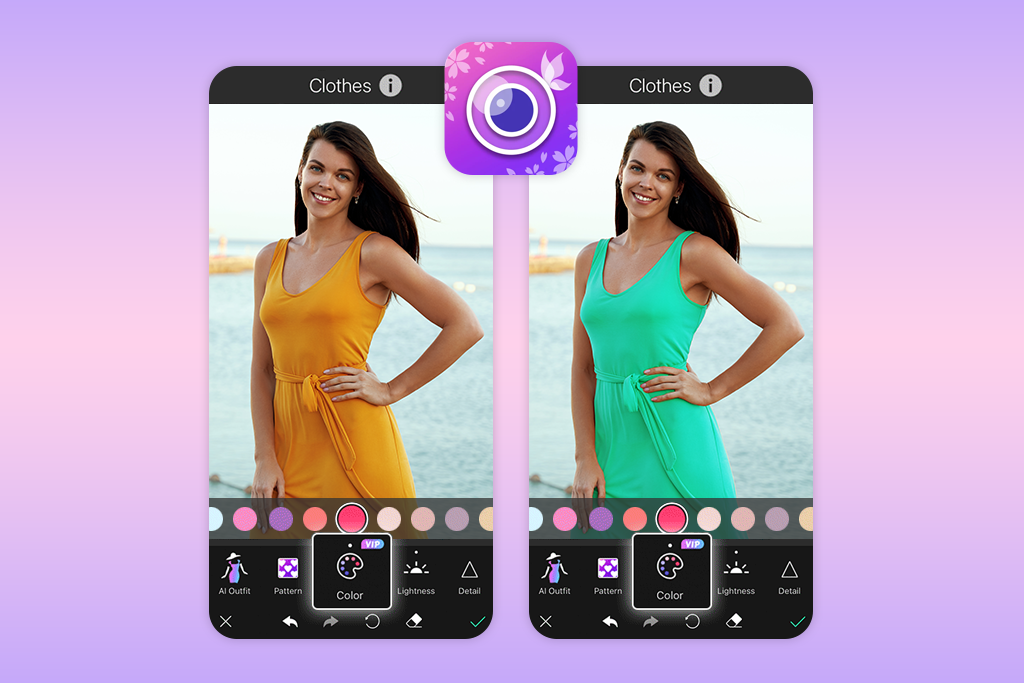
YouCam Perfect gives you a simple and user-friendly way to change the color of different objects in your photos. You can easily adjust the color of clothes, accessories, hair, eyes, or even the background, making quick and creative edits. With the Editing Agent, you can follow clear prompts to make accurate color changes step by step. The Color Editor also lets you adjust hue, saturation, and brightness so the final result looks natural and realistic.
I tried this auto photo enhancer by recoloring a blue sweater to pastel pink, turning a silver car bright red, and even changing background shades. The AI handled all the edits smoothly and made them look clean and professional. The AI Fashion Outfit tool also lets you try different clothing styles, not just colors. You can save your edited photos to your gallery or share them on social media with one quick tap.
Although this color palette app for iPhone is free and works well, some of the more advanced AI tools and extra features are only available with a paid plan. Very detailed items or complex patterns may not always recolor perfectly, and the free version has a few small limits in its prompts and editing options.
3. Fix The Photo Body Editor&Tune
Highly accurate results
- Hand-done editing by real experts
- Natural-looking color changes for clothing, objects, and backgrounds
- Many high-quality retouching services available
- Team works around the clock with quick delivery
- First edit is free, and the credit system is budget-friendly
- No ads
- Edits are not instant; they take 10-15 minutes.
- You need the internet to upload and your work.
Platform: iOS, Android
Price: First photo free or 5 credits for $0.99
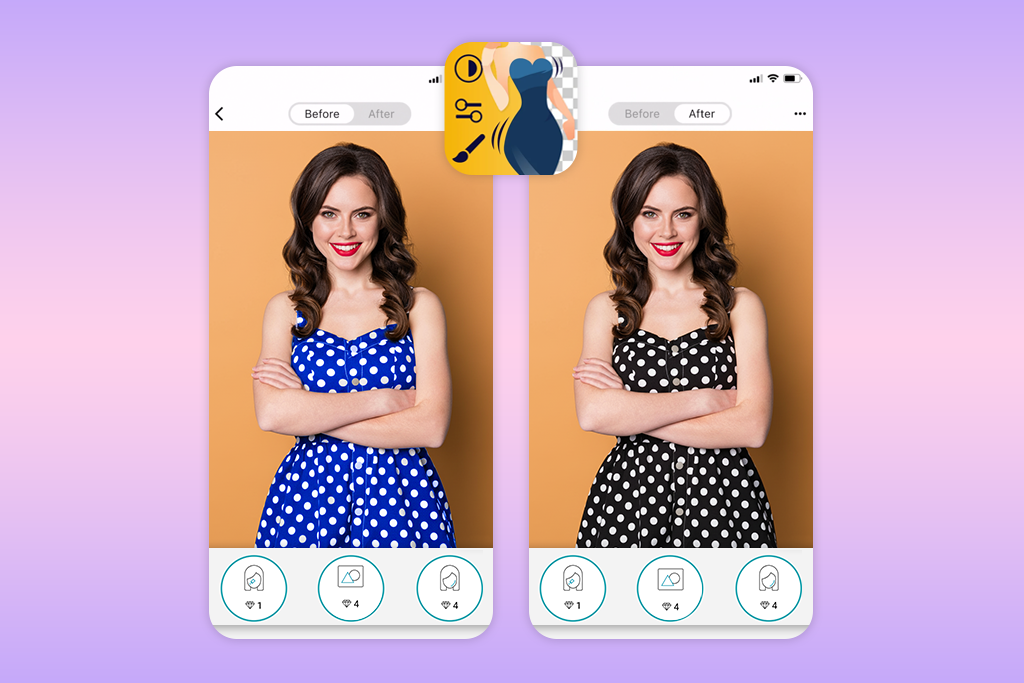
Photo Body Editor & Tune is a high-quality editing app that uses both AI and real people to edit your photos. First, the AI does the basic work. Then, a human editor fixes the details to make everything look natural. What’s great is that you can ask for any color change you want – for clothes, objects, or backgrounds. The editors make sure the new colors look real and fit perfectly with the photo’s lighting and shadows.
I tried it by changing the color of a green jacket in my photo, turning it into a beige one to match a softer look. All I had to do was upload my picture and write a short note: “Please make my jacket beige and keep the texture, shadows, and lighting natural.” Around 15 minutes later, the edited photo arrived, and it looked completely real. The new color fit the lighting perfectly, the fabric still looked the same, and there were none of those flat or fake-looking areas you often see with fully automatic AI edits.
Besides changing colors, the app includes many other professional editing features: body adjustments, smoother skin, removing unwanted objects, fixing lighting, hide bald spots, boosting a tan, and more. It’s a great choice for photographers, influencers, or anyone who wants polished, natural-looking edits instead of obvious filters.
Your first edit doesn’t cost anything, so it’s easy to test the service. After that, you can buy low-cost credits (like 5 credits for $0.99), and the team is available 24/7, which is great when you need quick results. The only drawback is that the edits aren’t instant because each photo is done by hand, but the high quality makes the short wait worth it.
4. Color Effects
Quick sharing
- Simple, beginner-friendly design
- Works well for both color splash effects and full recoloring
- Lets you undo changes multiple times
- Free version has many distracting ads
- Some filters and color effects may appear unnatural
Platform: iOS
Price: Free or from $0.99/mo.
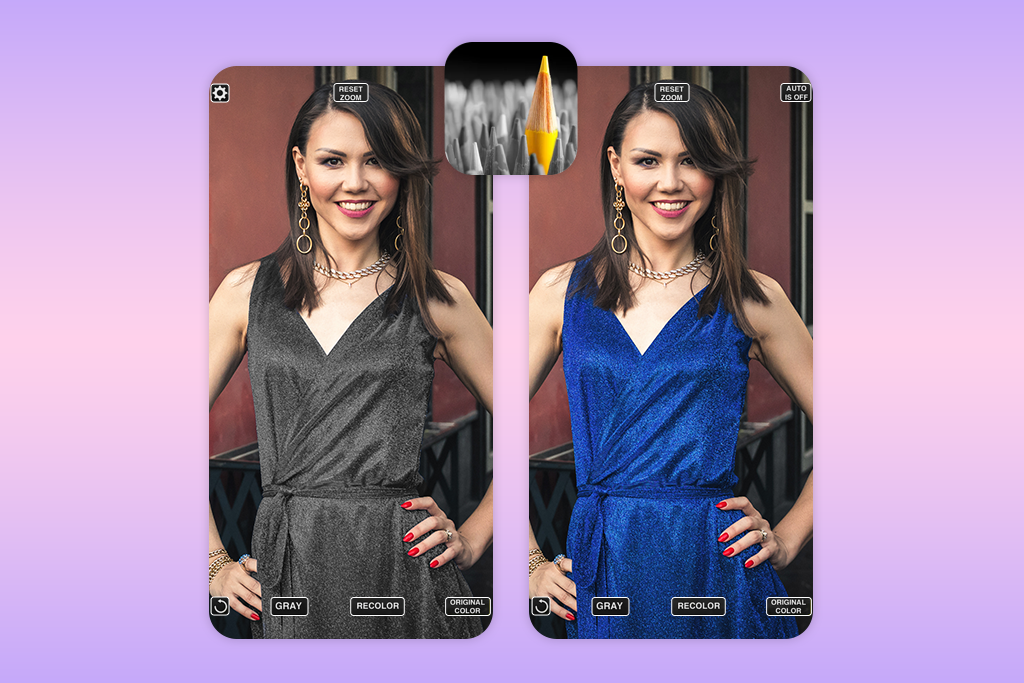
Color Effects is a playful and easy-to-use iPhone app that lets you change or remove colors in your photos. The layout of this iPhone photo editor is clean and simple, so it’s easy to learn. I tried it on a picture where the background looked boring, and I used the app to remove the color from everything except my outfit. With just a few steps, I turned the whole image gray while keeping my red dress bright and fully colored.
Next, I used the Recolor tool to turn the dress a teal color. The Automatic Edge Correction was very precise and kept the color inside the lines, even on tricky parts like hair and fabric folds. The new color looked smooth, and putting the color against the black and white background made the person stand out.
You can get photos from your camera or your photo album. To work on small areas, you can pinch to zoom and change the brush size. It was helpful that you could undo mistakes easily when trying out colors. The app is free, but it shows a lot of ads that get in the way. Some colors, like gray or hair colors, can look faint or unrealistic. Finally, it only works on iPhones, not Android phones.
5. Change Color in Photos
Eraser tool for greater control
- Easy to use, even for beginners
- You can control color strength, zoom, and edges
- Share your edits to social media quickly
- Not available for iPhone
- Some color changes can look patchy or fake
Platform: Android
Price: Free with ads
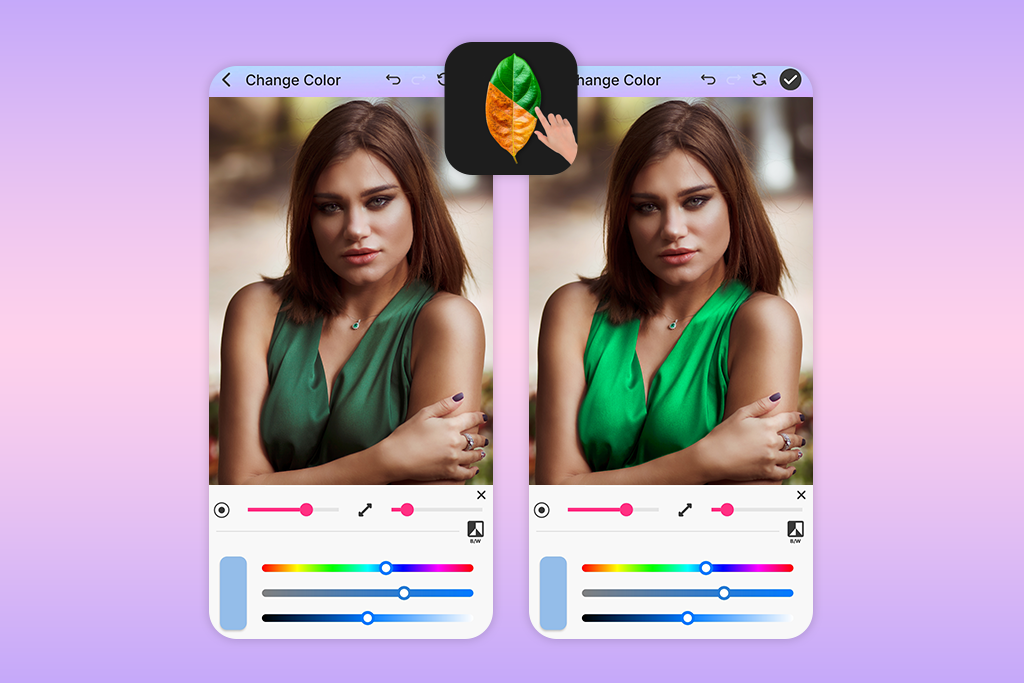
Change Color in Photos is a simple but surprisingly powerful app that adds color to black and white photos or changes the shade of any object you choose. I tried it on a few casual photos – for example, turning a red car blue and giving a white flower a soft lavender tone – and the edits came out bright, smooth, and easy to create with almost no effort.
I started by selecting a photo from my gallery and using the Single Color mode to choose the new shade I wanted. The Gradient Color feature was even more fun – it let me pick two colors and apply them in different gradient styles, which made the pictures look more polished and artistic. The zoom and lock tools helped me stay accurate around tiny edges, and the Undo/Redo buttons made fixing mistakes quick and simple.
This Android photo editor goes far beyond simple color changes – you can place stickers, write text, and frame your pictures with decorative edges. It also lets you soften the look by rounding the frame’s corners or reducing its opacity.
That said, the outcomes aren’t always flawless. On some images, the recoloring can appear patchy or somewhat unnatural, particularly on detailed textures or busy backgrounds. The frequent advertisements can also interrupt your editing flow, and the absence of an iOS version makes it inaccessible for iPhone users.
6. Canva
Adjustable parameters
- Wide range of editing tools
- Quick, intuitive interface
- Great for teamwork and shared projects
- Comes with a high price tag
- Lacks the fine-tuned control offered by specialized color-changing apps
Platform: iOS, Android
Price: Free or from $14.99/mo.
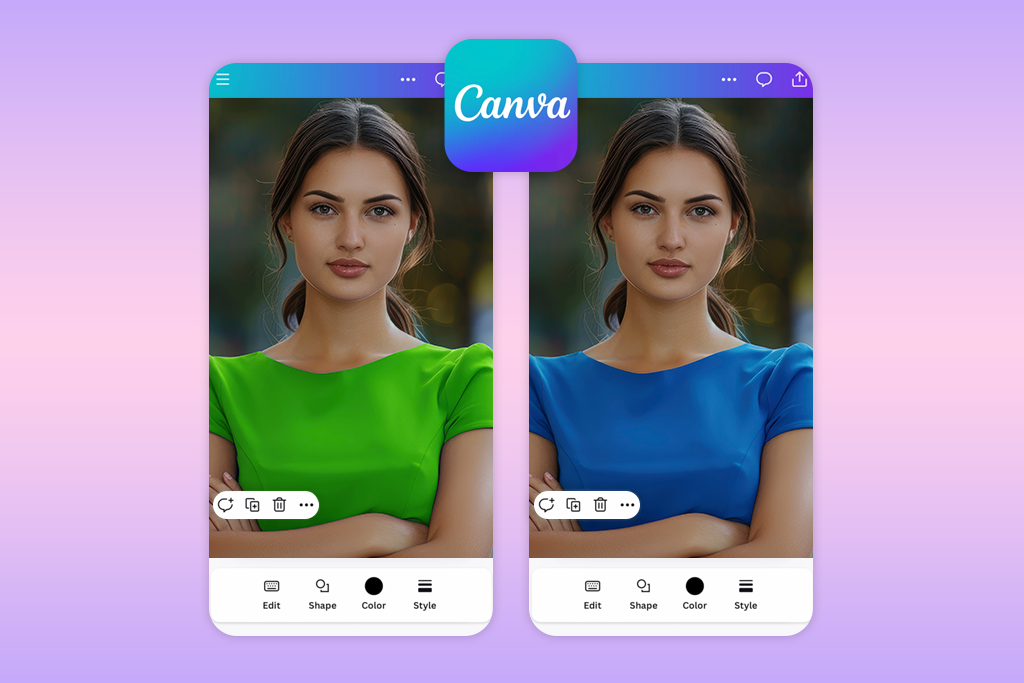
Canva isn’t just a graphic design tool – it also works surprisingly well for altering the colors of objects in photos. I recently tested this photo editing software for photographers to modify the shade of a product image for a social media update, and even though it isn’t built specifically for color swapping, its editing tools still produced polished, imaginative results.
You may think of Canva mainly for creating designs, but it’s also handy for changing colors in photos. I used it to adjust the color of a product picture for a social media post, and even though it isn’t made specifically for color editing, it still did a nice job and gave me fun, good-looking results.
First, I added my picture and went to the Edit Photo menu. In the Adjust section, I played around with the temperature, tint, and brightness to change the color of the object. The Color Replace tool made it simple to pick specific parts and switch their colors. When I needed more accurate control, the Magic Edit feature let me brush over the object and ask for a new color – for example, I changed a beige bag to a dark green and warmed up the background to match it.
The final images came out smooth and realistic, especially when I made gentle tweaks instead of big color shifts. Canva also gives you plenty of creative freedom – you can include text, graphics, and other design pieces, which makes it useful for posts, ads, or other visual projects. Still, even though everything worked well, the platform can seem a bit confusing at the beginning because there are so many options to sort through. Plus, some of the more powerful tools are only available with the Pro subscription, which can feel costly if you only edit once in a while.
7. PhotoDirector
Intuitive sliders
- Smart AI-driven features
- Lots of effects and editing options
- Edits blend together nicely
- May slow down on older phones
- Free plan doesn’t offer many features
Platform: iOS, Android
Price: Free or from $6.99/mo.
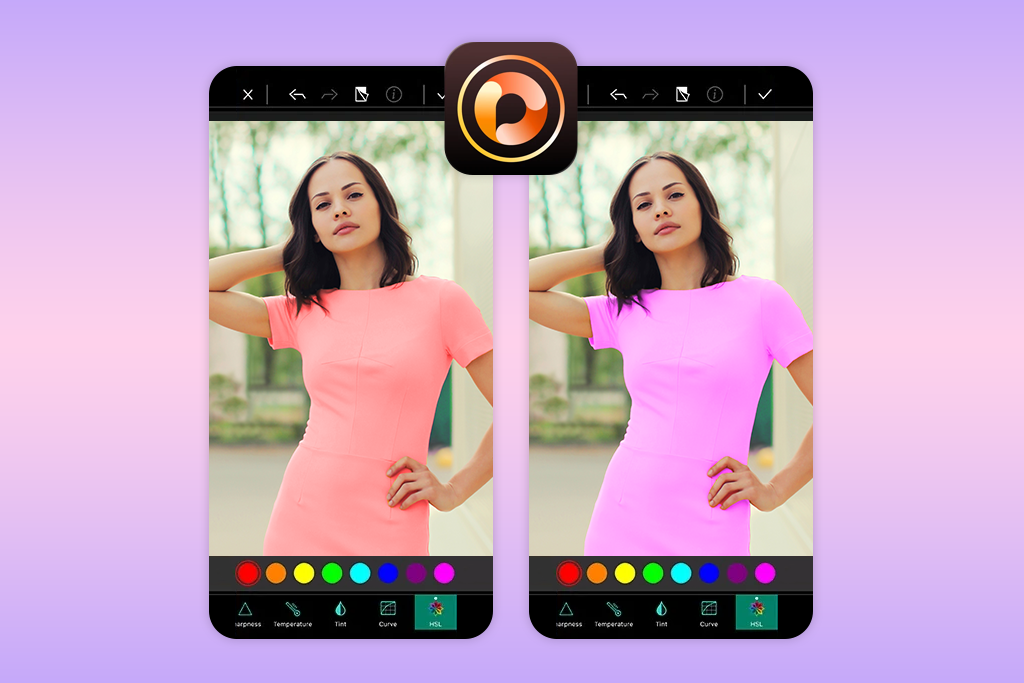
PhotoDirector is a powerful but intuitive app that photographers use to improve and recolor their pictures. I tried it to change the color of a few items – I made a red mug turquoise and turned a gray scarf into a light pastel shade – and the results looked natural and nicely done.
I opened this picture app for iPhone, selected Edit, and chose my picture. Under the Adjustments menu, I found advanced tools for color, brightness, and strength, like Curve and HSL. These let me change one specific color in the picture without changing the others, which is hard to do in simpler apps. I also used Temperature and Tint sliders to fix the overall color and lighting to get the look I wanted.
I really liked how PhotoDirector adds color to black and white photos. Its AI colorization tool makes old pictures look naturally colorful, not fake. However, the app’s layout feels a bit cluttered, and you have to pay for some of the best features.
FAQ
- What’s the best app to change the color of objects in photos?
The best app for you really depends on what you’re trying to do. If you just want to make fun edits quickly, Picsart is a great option. If you need professional control to adjust the exact colors in your photo, then PhotoDirector is the best choice.
For fast and simple color changes using AI, you should try YouCam Perfect. But if you want the most realistic results that look like a person expertly edited them, then Fix The Photo Body Editor & Tune is the one to use, because it combines AI with a real person checking the work.
- Can I recolor clothes, hair, or accessories?
Yes, many apps let you change the color of things like clothes and hair. They use simple color sliders and smart tools that follow edges, so the new color looks natural and keeps the original texture.
- Which app to change color of object in photo gives the most lifelike output?
For the most natural-looking color changes, Fix The Photo is the best choice. It uses AI and then has a real person check the work to make sure it looks perfect. Another great option is PhotoDirector, which gives you powerful tools to adjust colors exactly how you want them.
- Can I add color to black-and-white photos?
Yes. Apps such as PhotoDirector, YouCam Perfect, and Change Color in Photos can bring color into black-and-white pictures. Their AI tools recognize the objects in the photo and add natural-looking colors, making old or grayscale images appear bright and realistic.
- Can I black out parts of a picture on iPhone?
Yes. Apps like Canva and Color Effects let you make certain parts of a photo darker or use effects that keep only one area in color. You can turn the rest of the picture black-and-white, which is a popular style for portraits and social media images.
- Are gradient colors supported?
Yes. Some apps, like Change Color in Photos or Fix The Photo Body Editor & Tune, let you add gradient colors to objects. This means you can blend two or more colors together on one item for a creative, artistic look.
- How do I get more realistic results?
Apps can improve your photos, but getting very natural-looking edits often depends on skill and practice. If you want realistic results without doing all the work yourself, you can use Weedit Retouch Service – their professional editors adjust colors by hand while keeping the lighting, shadows, and textures looking real.