7 Best Apps To Remove Double Chin [Fast & Free]
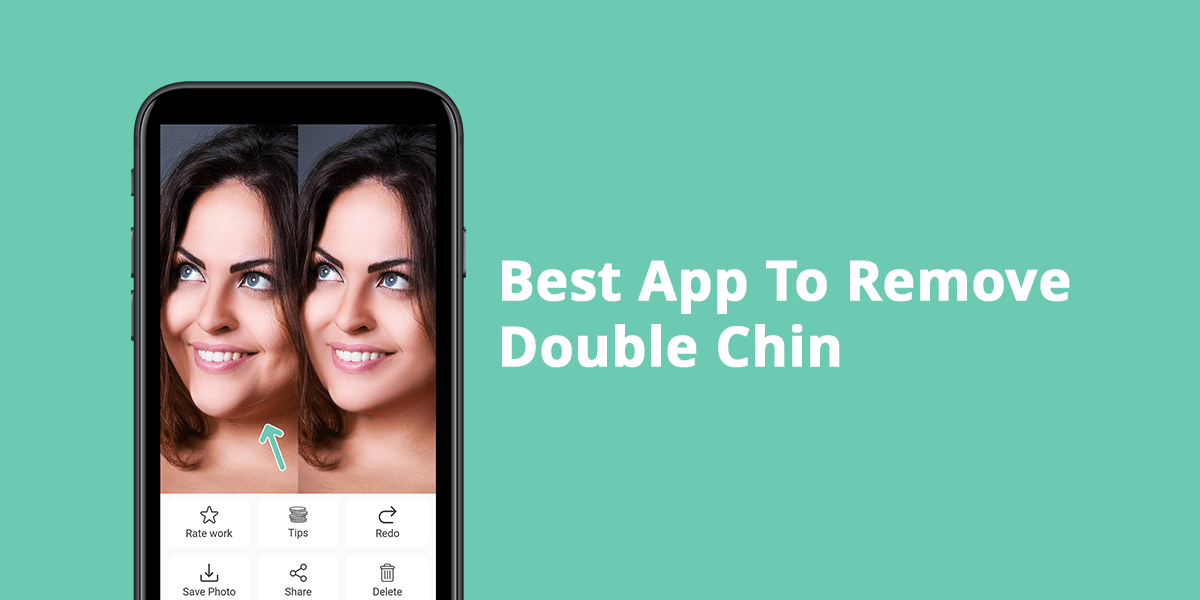
Have you ever snapped a picture only to later see that it has a double chin that makes you look worse than you actually do? We’ve all been there and there’s nothing wrong with wanting to find the best app to remove a double chin to present yourself in a more flattering way.
There’s no need to perform dramatic transformations or pay for premium software to deal with this problem. The apps featured below will make the necessary adjustments in just a few taps without making your face look artificial. Some options provide AI-based tools, while others let you edit the photo manually to achieve a natural, eye-pleasing look that you can be happy with.
Double Chins In Photos: How To Fix Them IRL
Happen to notice a double chin in a picture even though you don’t have one in real life? Several factors can create this illusion even for people with slim faces:
- Poor posture (slouching or leaning backward)
- Unflattering camera angle (particularly photos taken from below)
- Rough lighting that casts shadows below the chin
- Relaxed jaw or tucked-in chin
- Holding the phone too close
Stick to these simple posing photoshoot tips to have a better-pronounced jawline and prevent the appearance of a double chin in your pictures:
1. YouCam Makeup
AI-based for beginners
Platforms: iOS, Android
- Intuitive UI
- AI-based tools
- Face Shaper for double chin deletion
- HD image saving with paid plan
- Certain tools demand a paid subscription
- Double chin effect may not be removed properly in the free version
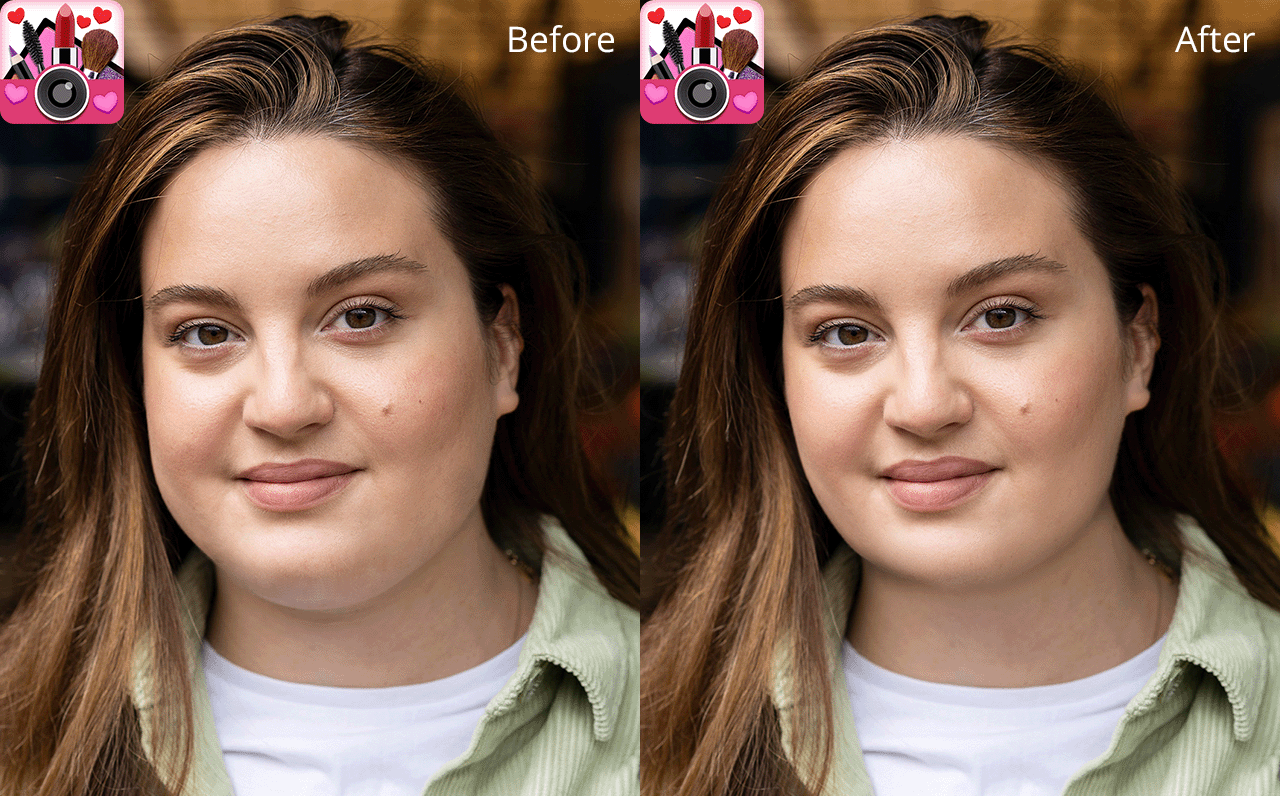
YouCam Makeup is arguably the best app to remove a double chin in a photo, particularly if you want to perform highly precise full-face beautification. I greatly appreciate how straightforward it is, as even an inexperienced user can quickly slim down the face and eliminate a double chin in a single swipe. The Face Reshape and Jawline features are especially useful, allowing you to fine-tune how pronounced or subtle the edits are.
Even though it’s primarily used for its makeup tools and as a blemish remover app, YouCam Makeup is also great at improving the facial structure in portrait photos. The applied chin sculpting looks very natural and doesn’t make the photo look over-edited. Moreover, since the edits can be applied in real-time via the live camera, it also lets you get the perfect angle before you even snap a selfie.
Pricing: Free with in-app purchases; from $5.99/mo
2. Fix The Photo Body Editor&Tune
Best for professional retouchers
Platforms: iOS, Android

- Pro-grade retouching by experienced pros
- Dedicated “Remove Double Chin” feature
- Natural, undistorted results
- Quick delivery time
- Requires a bit of waiting for the results
- Additional edits might have a separate price
Fix The Photo Body Editor&Tune is unlike any other app for removing a double chin you’ve seen before, as it relies on actual human retouchers to do the editing for you. When handling such an intricate task as chin reduction, the manual involvement of an experienced professional is incredibly valuable. You just have to import your photo and provide your requirements (like “reduce double chin”), and in just a couple of hours, you’ll receive a perfectly edited picture that looks natural and professional.
This app doesn’t provide the instant results AI-based options are known for, but the quality level is also on a completely different level. That’s why it’s a very popular app that photographers use for their professional work. The retouchers ensure natural anatomy is preserved and your face is still as expressive and emotional as in the original photo. If you don’t like the results you got from AI-based apps in the past, this is the option for you.
Pricing: Free to download; Individual edits priced per request
3. Photoshop Express
Best for experienced users
Platforms: iOS, Android
- Highly accurate double chin removal
- Convenient filters and templates
- Saves images in high-resolution
- Free basic plan with a broad toolset
- Lacks a specialized double chin removal feature
- Demands manual involvement to get a natural result
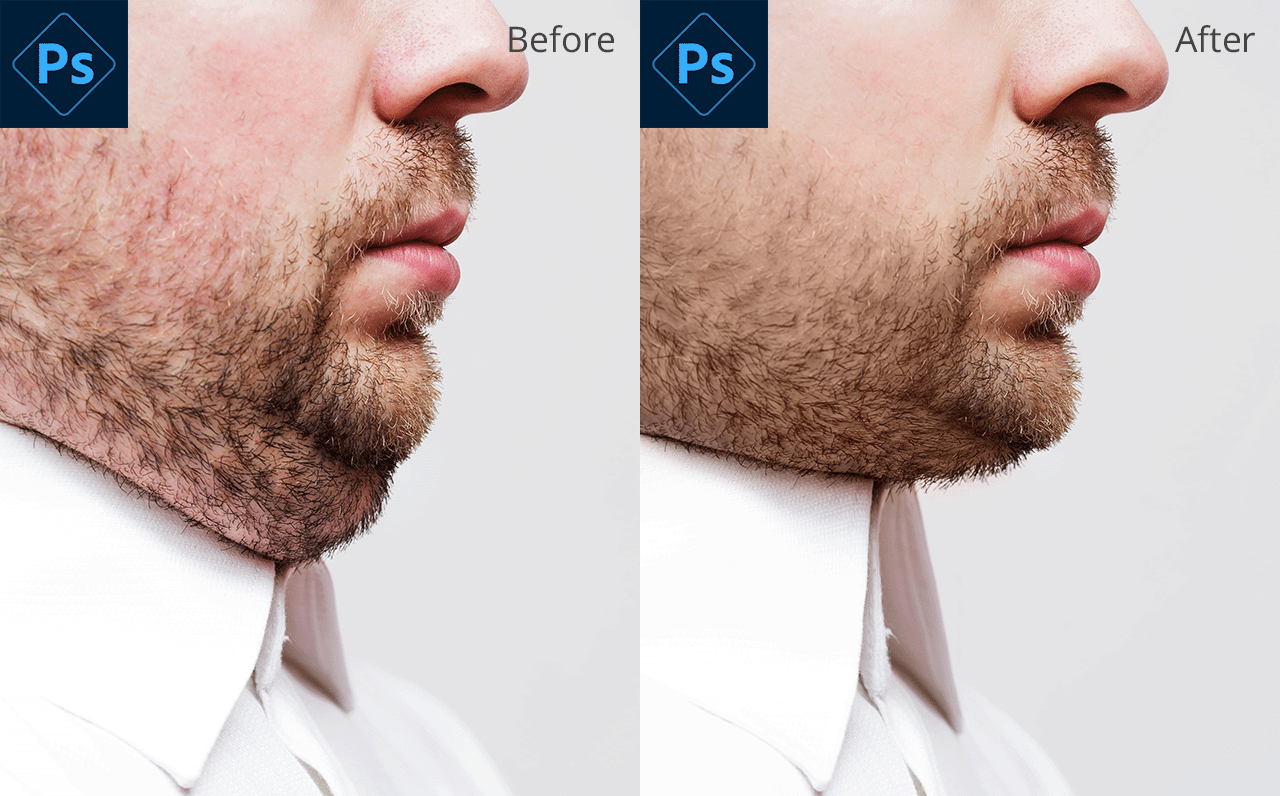
Photoshop Express might be the best photo editor app to remove a double chin if you’re interested in advanced tools but don’t want to invest in the full version of Photoshop. You can achieve your goal by picking the Face tool in the Retouch menu. It allows you to slim the jaw and lift your chin to make it more pronounced without creating harsh lines.
This free Adobe app offers a great degree of control, enabling you to tweak specific areas of the image instead of affecting your entire face. Simply zoom in and enhance the chin area without touching the rest of the photo. It’s a great app if you’re interested in enjoying unparalleled precision even if you don’t have a lot of graphic design experience.
Pricing: Free version; from $4.99/mo
4. Facetune
Intuitive with a robust feature set
Platforms: iOS, Android

- User-friendly UI
- Real-time retouching
- AI-based jawline and sculpting feature
- Non-intrusive double chin removal
- Certain tools are locked behind a paywall
- Aggressive editing can make the photo look unnatural
Facetune is widely known for its facial retouching features, so it’s no surprise that the provided chin-tweaking functionality is perfectly suited for getting a fast, satisfying result. You can tap on Refine and Reshape options, and then select and smooth the chin area with maximum precision. The app also has a slider that lets you adjust the intensity of the applied edit as you see fit.
One of the most appealing features of Facetune is its real-time before/after preview, which is great for guiding your workflow. You’ll instantly see if your photo is starting to look over-edited and can revert the change back. This app to make you look skinny is particularly widely used among influencers and content creators due to its speed, versatility, and ease of use.
Pricing: Free version; from $5.99/mo
5. AirBrush
Best free app to remove a double chin
Platforms: iOS, Android
- Easy-to-navigate UI
- Real-time editing functionality
- Dedicated features for reshaping
- Free plan with basic chin slimming
- Some effects tend to over-smooth the skin
- Doesn’t have certain advanced editing features
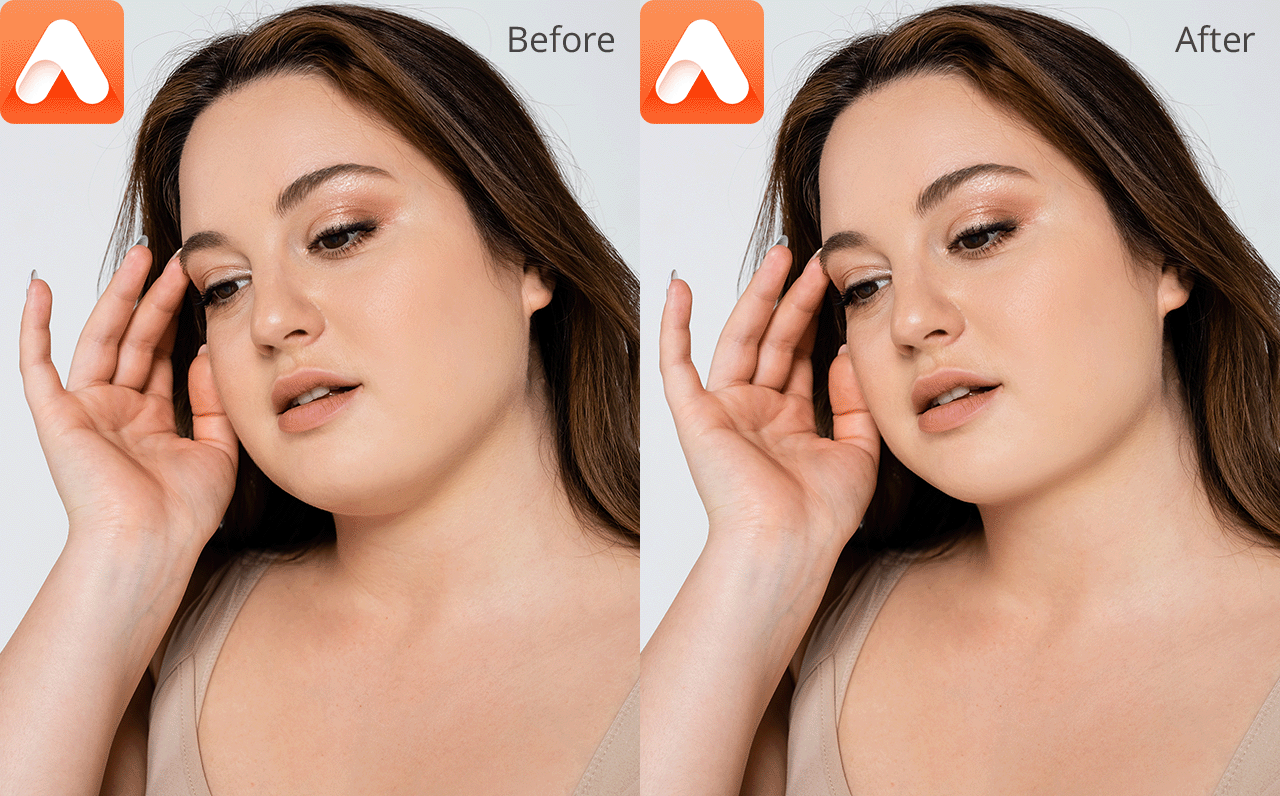
AirBrush combines AI functionality with manual editing, as its face-slimming tools are great at getting rid of a double chin without distorting the rest of the subject’s face. The provided Sculpt tool allows you to select the lower part of the jaw to fine-tune and lift it. Moreover, AirBrush can automatically localize facial areas, ensuring you won’t warp nearby elements like the neck or mouth.
Another point in favor of this iPhone photo editor is how intuitive it is. It doesn’t require any technical knowledge, allowing even beginners to achieve a satisfying result within seconds. Moreover, the provided filters and lighting tweaks help ensure the edit looks natural, even if the photo was taken at an unflattering angle.
Pricing: Free version; from $3.99/mo
6. PhotoDirector
Best for creative AI-based edits
Platforms: iOS, Android
- AI-based double chin removal
- Wide range of features
- Intuitive controls with guided edits
- Allows HD exports
- AI can generate unnatural looks
- Might be difficult to learn for complete beginners
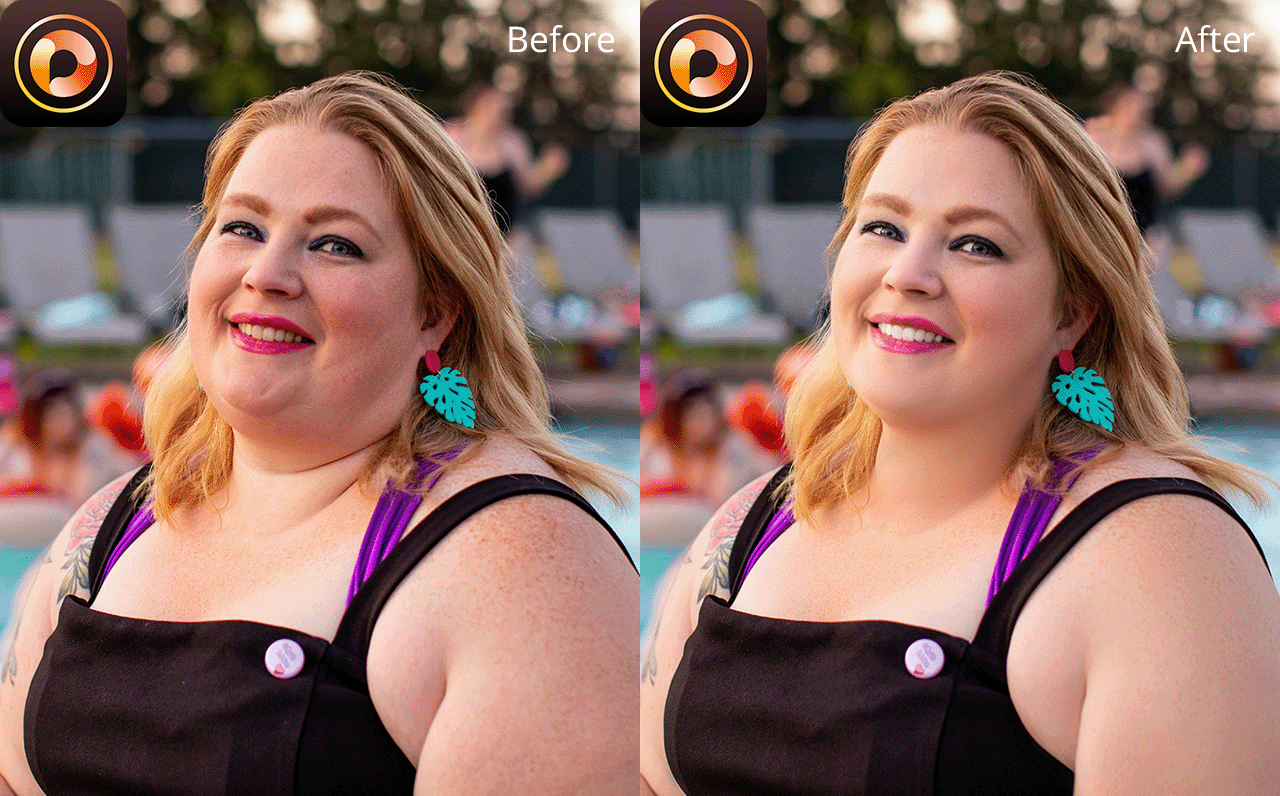
PhotoDirector might be the best app to remove a double chin if you’re interested in a feature-rich AI-based solution. The Face Reshape and Body Shaper features allow users to manually tweak the jaw and chin while navigating a convenient, brush-based UI. In contrast to most applications that tend to slim the face too much, PhotoDirector provides complete control over the proportions of individual facial elements, which is perfect for Instagram photo editing.
I particularly enjoy the highly precise AI face detection. This feature automatically selects facial zones, simplifying the task of isolating the chin area without affecting the cheeks or mouth. Moreover, PhotoDirector has a wide array of animation and background tools, allowing you to create dynamic selfies or engaging content animations for reels or stories.
Pricing: Free version; from $4.99/mo
7. BeautyPlus
Best for fast AI-based beautification
Platforms: iOS, Android

- AI-powered beautification features
- Real-time camera with chin-slimming
- Intuitive navigation
- Free plan with a lot of tools
- Free with ads
- Limited selection of advanced editing features
As BeautyPlus is often used for enhancing selfies, it’s no wonder that it’s a very popular app for removing a double chin in photos, thanks to its facial slimming and jawline-sculpting features. The provided Smooth, Reshape, and Slim tools allow you to select and adjust your chin in the photo while preserving the rest of the facial structure. The AI subtly lifts and redefines the jawline without creating an overly edited look.
The key distinguishing feature of BeautyPlus is how it excels at combining enhancement with beautification. You can both get rid of a double chin while also smoothing the skin and adjusting the lighting – all in just a couple of seconds. Additionally, you can use it for batch processing photos as well as a free video editing app for iPhone and Android, which is why it’s commonly used by content creators and regular users interested in getting fast, visually appealing results.
Pricing: Free version; from $5.99/mo