7 Add a Person to a Photo Apps for Group Portraits
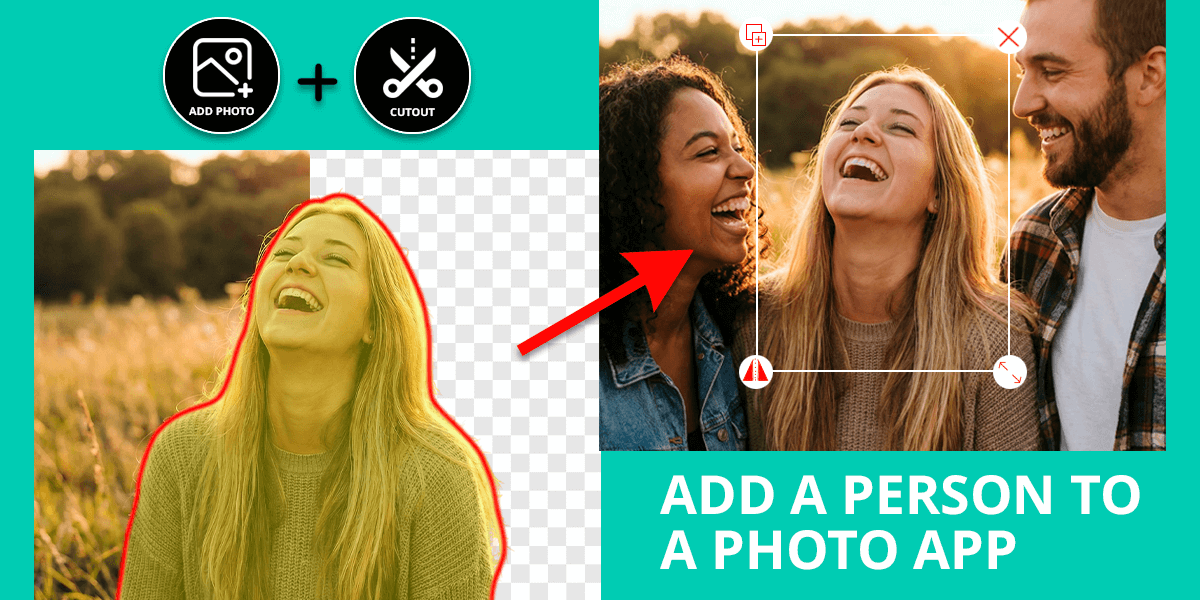
Group photos are great until you realize someone’s missing. Maybe they were sick that day, or you just want to recreate a memory with someone new in it. No matter your reasoning, it is important to know how to add a person to a photo without ending up with a fake look.
As someone who edits photos professionally, Photoshop is my regular tool for blending people into images. But many people want to do the same quickly on their phones. The problem is that most apps that promise easy results give you mismatched lighting and awkward edges.
So, I decided to test the most popular options myself. I wondered whether those apps could deliver realistic results or if I would receive creepy and fake pictures.
1. Photoleap
Non-destructive adding people to photos
- Layer-based image editing
- Realistic lighting blending
- Embedded filters
- High-resolution export
- Slow with large photos
- May require manual touch-ups
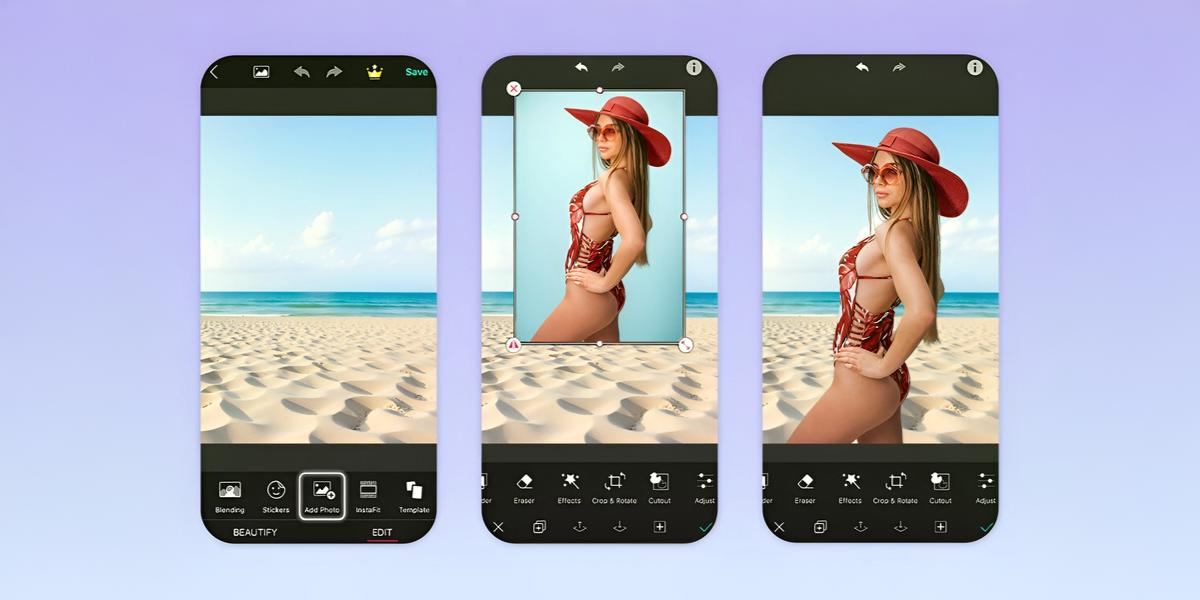
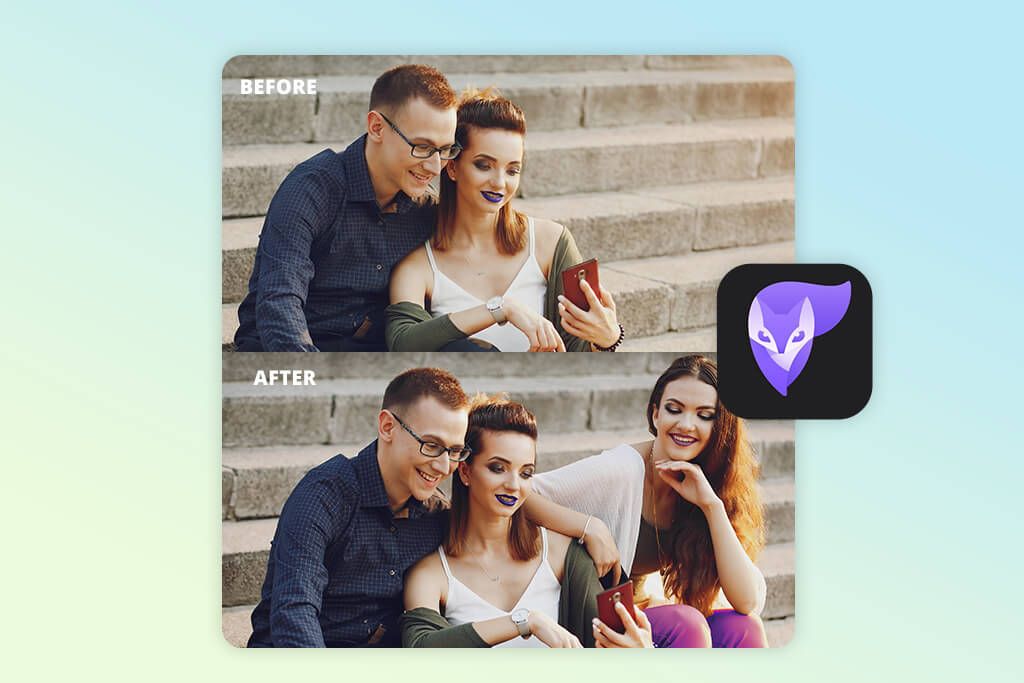
Testing out Photoleap was a pleasant surprise. I wanted to blend a girl into a couple photo, so I used the Layers feature to place one photo over another. The quality was very impressive, resembling what you get with advanced apps photographers use.
The AI Cutout tool handled everything automatically, detecting the subject and cleanly removing the background without me having to lift a finger.
I loved that the Blending Modes and Shadow Adjustments made everything look natural in the photo. The result looked like the person was really there. Using this app, it is even possible to tweak the lighting to match the background. This is very important if you want to achieve a fully realistic look.
Export times can drag with larger projects, but if you wonder how to add someone to a photo on a mobile, it’s seriously a top-tier solution.
Pricing: Free with in-app purchases; from $7.99/mo
2. Fix The Photo Body Editor&Tune
First photo edited for free
- Great color and lighting matching
- Custom edits
- Quick turnaround
- Results with natural proportions
- No way to preview results
- Requires waiting time
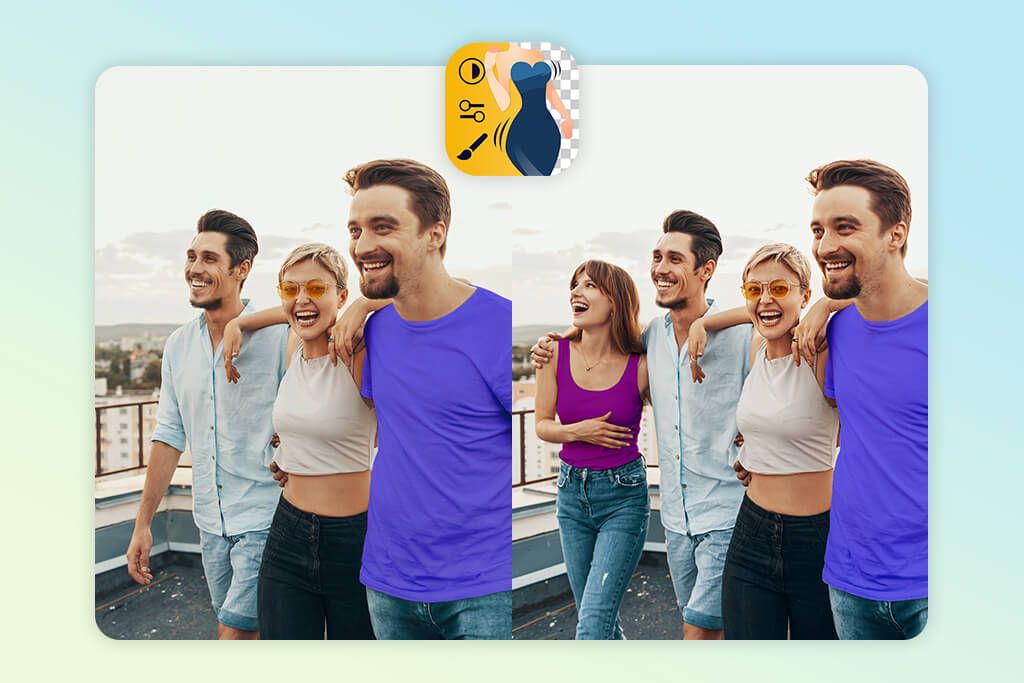
I’m impressed by how realistic the edits look. I uploaded photos of my friends’ vacation to add one of them who was taking pictures, and the retouching blended them perfectly.
The highlight of this app is that skillful editors do a lot of the editing work, instead of fully relying on AI solutions. That’s why the lighting, shadows, and proportions always match up. Plus, you can request custom changes like adjusting skin tones to match the background or adding reflections. It makes the final result look completely believable.
It takes a bit longer than an instant bulk image editor because real experts do the retouching. But the realistic results make up for it. This is a wonderful choice for people who want to learn how to add a person to a photo and get professional-quality edits without mastering complex software themselves.
Pricing: Starts from $0.99 per image
3. CapCut
Adding people on a photo & video
- Quick AI background removal
- Simple layer stacking system
- Blur and vignette tools in the kit
- Cross-platform sync
- Few export formats for still photos
- Compression reduces fine detail
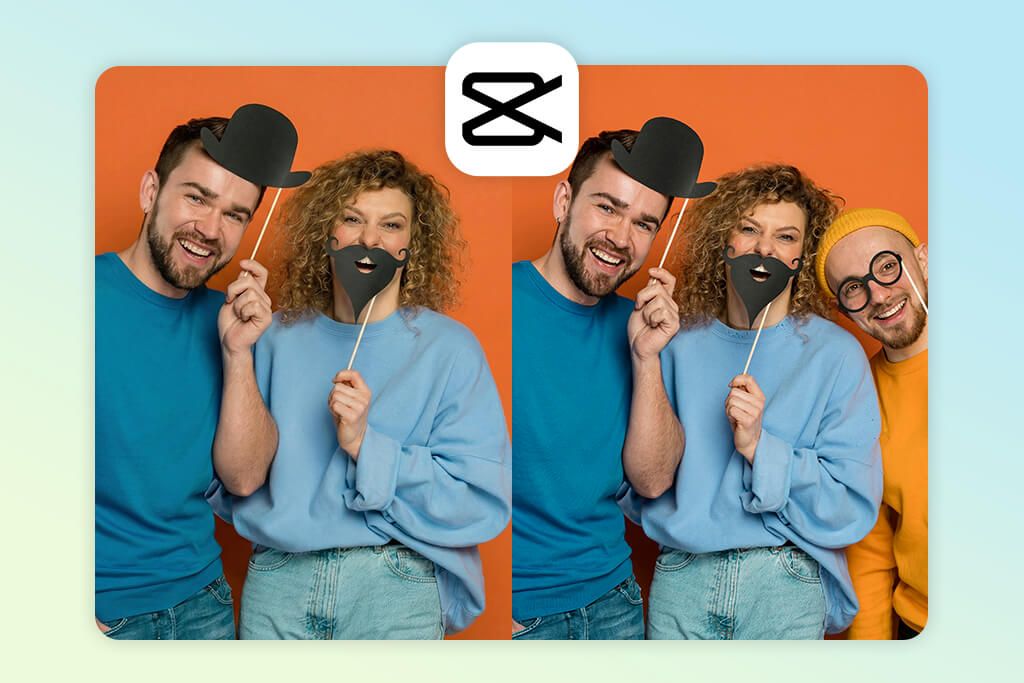
I didn’t expect much from CapCut since it’s a video app, but the photo editing is actually really good. The Remove Background tool cuts people out cleanly, and you can easily put them in new photos. I was really amazed by the Auto Lighting Match. It adjusts everything so the person blends in naturally instead of looking copy-pasted.
CapCut also contains AI Shadows and Blur Edges features. So, you can be sure that everything will look more realistic and three-dimensional. This is a terrific app for users asking how to add people in photos for sharing on social networks. It always delivers lifelike edits, and you don’t need to deal with Photoshop or other photo editing software.
Pricing: Free with optional Pro features; from $9.99/mo
4. Pokecut
Supports multiple photos
- Blending tools
- One-click background removal
- Browser and mobile versions
- High-resolution outputs
- Some advanced controls are limited
- Quality depends on the source photo
When evaluating the apps to add person to photo, I tested this open source image editor without any special expectations. It turned out rather user-friendly.
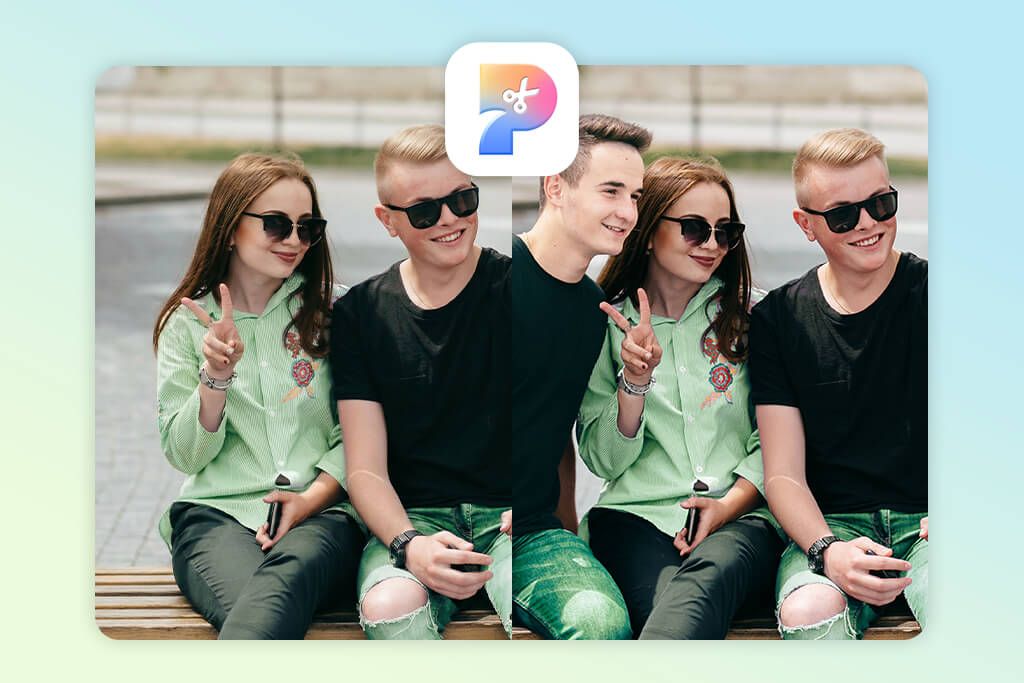
I started with a basic portrait, and the AI Cutout tool removed the background in seconds. I received nice clean edges without applying any manual tweaks. After that, I placed the person on a background using the Blend and Lighting Match tools. It automatically adjusted the tones so that everything looked natural.
Pokecut is very beginner-friendly. You don’t need to figure out complex layers or master fancy techniques. You may need to clean up some hair strands or transparent areas here and there, but if you’re editing on mobile and want professional-looking results, this is one of the top choices out there.
Pricing: Free with premium features from $5.99/mo
5. Fotor
AI features adapt added person to the scene
- Built-in photo enhancer
- Understandable and neat UI
- Lots of filters
- One-click background removal
- Free plan with watermarks
- Hard to control shadow direction
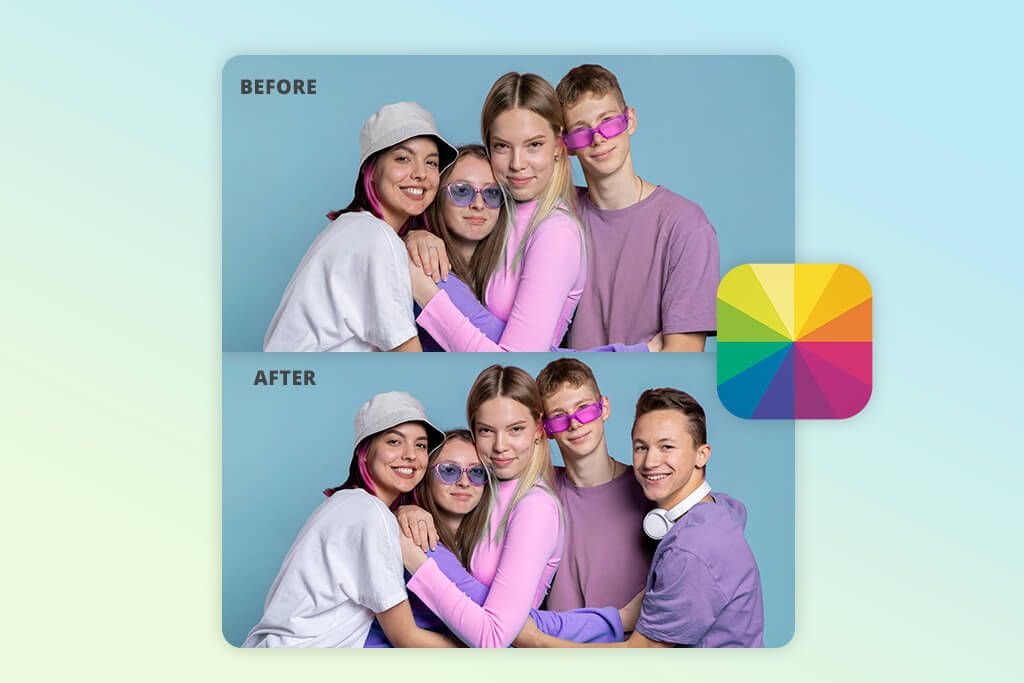
Fotor’s AI Background Remover is probably the best I’ve used for dropping people into new settings. Upload your portrait, click the button, and you’re done. The coolest part is the AI Scene Match feature. It automatically tweaks the colors and lighting so your person actually looks like they belong in the new scene.
Two other features I like are the Photo Enhancer, which sharpens up blurry cutouts, and the One-Tap Retouch that cleans up faces after you’ve added a person. The whole process is convenient and fast, no matter whether you use the Android and iPhone photo editor version. Everything looks pretty natural, even if you barely tweak anything.
6. PhotoDirector
Blending presets for cinematic looks
- Precise AI object detection
- Shadow auto-generation
- High-resolution export
- Photo and video editing tools
- Interface may confuse beginners
- Long export for heavy pics
When searching for how to add someone in a picture, people rarely choose PowerDirector. In fact, it is best known for video editing, but its photo compositing features deserve more attention.
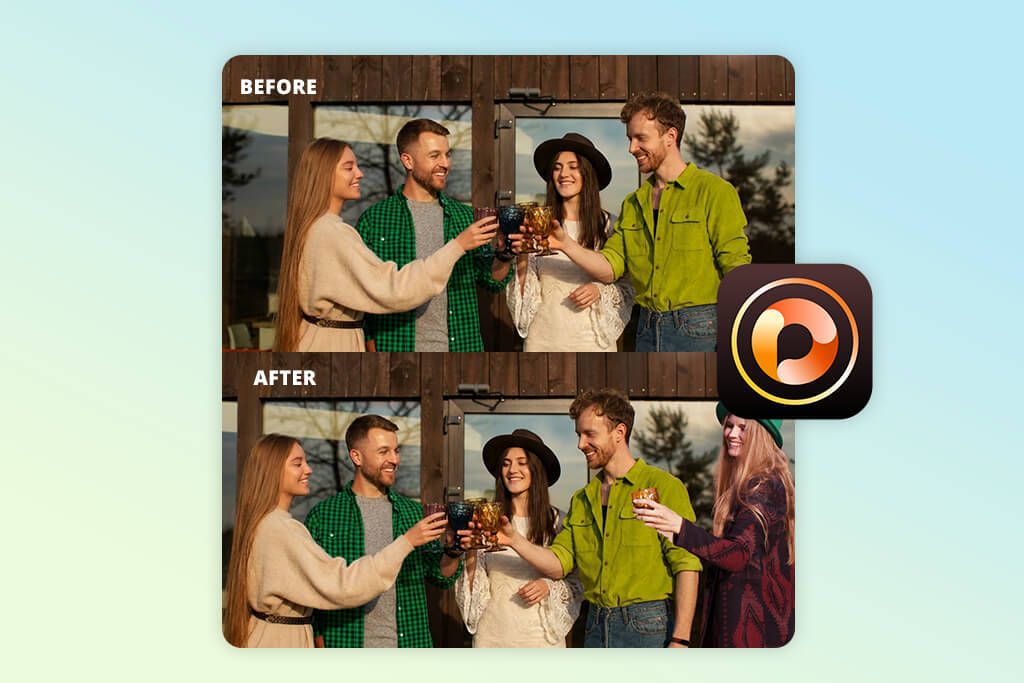
I tested the AI Object Detection tool by pulling a person out of one image and placing it in a group shot. The app added natural-looking shadows automatically, and let me tweak the perspective and lighting afterward. That’s pretty rare for iPhone and Android photo editors.
I really like the Blending Presets for creating movie-quality looks. They work especially well when you’re combining portraits with textured scenes like street art or urban landscapes. It takes a minute to figure out how everything works, but the results make up for it.
Pricing: Free version available; Premium from $6.67/mo
7. PhotoWorks
Accurate person isolation
- Non-destructive editing
- Built-in Face Retouch tool
- Good processing of tricky elements
- Fast Auto Select Tool
- Takes time to figure out
- Creative effects are limited
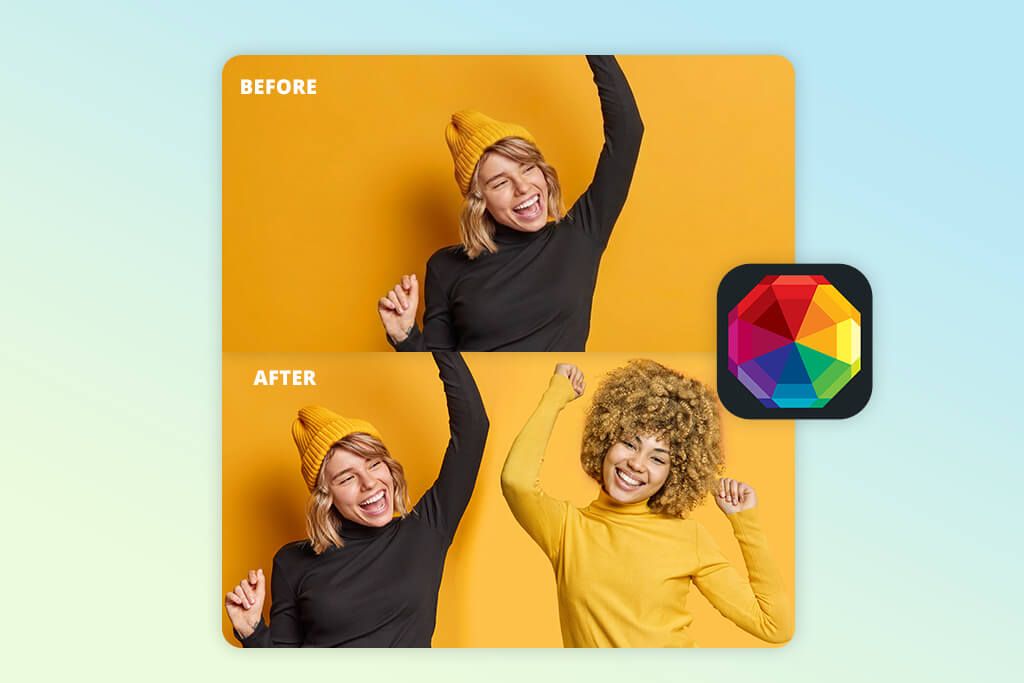
I had a very positive experience, testing PhotoWorks with a full-body portrait against a yellow studio backdrop. The Auto Select Tool helped me with subject separation, and the Edge Refinement Slider made the hair and clothes look natural. The app offers a simple method for how to add person in photo, while giving you sufficient control over the result.
I think the Tone Mapping tool deserves special praise. It’s perfect for moments when your background is blazing bright but your subject looks dim. This tool balances everything out beautifully. The Face Retouch Tool adds a subtle glow and contrast that makes photos look professionally polished. The whole process is very intuitive, and you’re done before you know it.
Pricing: From $19.25 (one-time license)
FAQ
- How can I add a person to a photo without using Photoshop?
You can do this with AI apps on your phone. Check out Pokecut, Photoleap, or Fotor. They all have easy background removal and blending features. All you do is upload a portrait, let the app cut out the person for you, and then plop them into your new background. These apps are smart enough to automatically match the lighting and colors so everything looks natural.
- Will the added person look realistic in the photo?
It depends on whether the lighting, shadows, and perspective match between both images. But most apps today have built-in AI tools that correct the lighting and simulate shadows for you, so the person can blend into the scene naturally. Plus, you can always play around with the brightness and contrast settings to fine-tune them and get very realistic results.
Looking for professional photo touch-ups?WeEdit.Photos retouchers can help you out quickly.
- Are these apps suitable for editing group photos or family pictures?
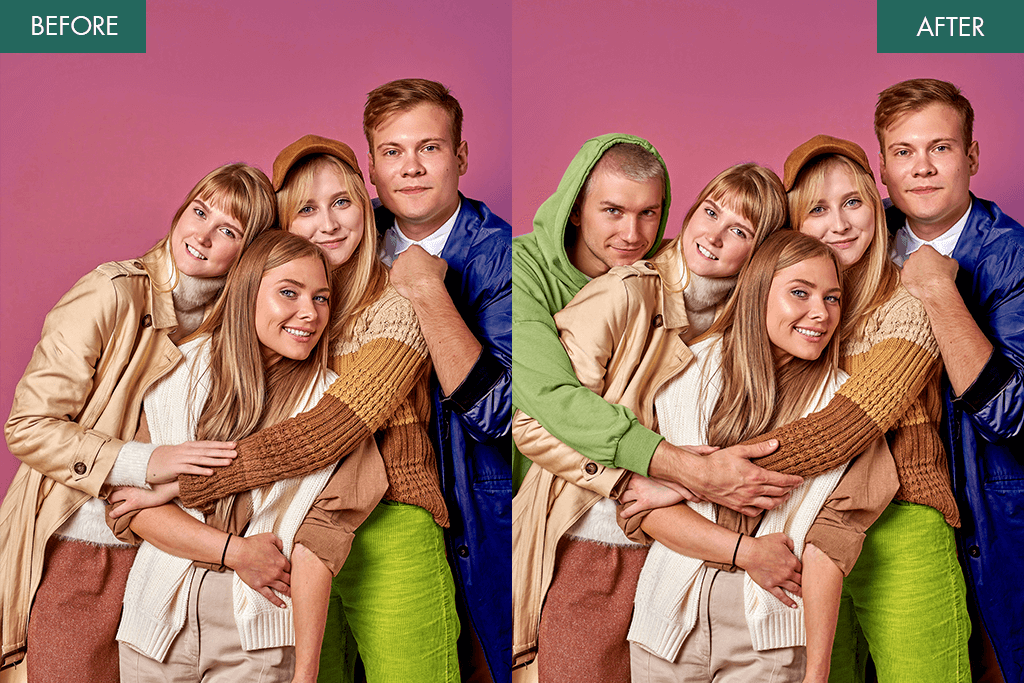
Yes, these tools are perfect for that. People use them all the time to slip missing relatives or friends into group pictures. It is no problem if someone couldn’t be there for the photo. Just grab a clear image of that person, and the AI will cut them out nice and clean. Then, use the blending features to make everything look natural together.
- Can I add person to photo online free?
Most apps give you a free version to start with. You can do the basic stuff like cutouts and simple layering without paying anything. To access premium features like exporting in high resolution, AI lighting effects, or advanced shadow blending, you need a paid subscription. The cost is typically $5 to $10 monthly, though it varies by app.
- Do I need to know how to edit photos?
Not at all. These apps are very beginner-friendly. The AI takes care of the tricky processes like cutting out backgrounds and making everything blend naturally. You just drop in your photos and make small adjustments. The entire process is very straightforward.
- Can I use these edits commercially?
Yes, most apps export high-quality images you can use for marketing, e-commerce, portfolios, you name it. Just peek at the licensing terms because some free versions may slap on a watermark or restrict commercial rights.
- What should I look for in the best app to add a person to a photo?
Realistic blending is paramount. The best apps handle lighting, shadows, and color matching automatically so nobody looks fake or out of place. Edge refinement and shadow controls help sell the illusion that everyone was actually in the same photo.