7 Apps to Add a Photo to a Photo for Creative Images
Lots of people like blending photos together to create something new and interesting. I wanted to find the easiest app to add photo to photo on a phone. As someone who blends images professionally using Photoshop, I know what good blending results looks like. Most phone apps don’t work very well though. They leave visible lines, weird lighting, or colors that don’t match.
I decided to test newer AI apps to see if they can add photo to photo naturally. I tried different tools to find the ones that blend images well and don’t make them look fake or obviously edited.
Can I Add a Person to Another Photo Using Only My Phone’s Built-in Editor?
It’s not simple, but there are some tricks you can use. iPhone and Android both have built-in tools that help, especially with the newest versions. I’ll show you what’s possible, what won’t work, and how to do it for free.
On iPhone (iOS 17 and newer)
Apple’s Photos app comes with some handy editing tools. You can crop your pictures, fix the lighting, change the colors, and clean up background noise. However, you can’t put one image on top of another, like moving a person to a different background.
The good news is that Apple just added a new AI tool called Visual Look Up that can help you do more with your photos.
You can use it in the following way:
- Go to your Photos app and open any image
- Hold your finger on the person, item, or animal you want to highlight. iOS will automatically pull it out from the background
- When the subject glows a bit, you can copy it, share it, or make it a sticker
Once you cut out the image, you can put it right into Messages, Notes, Pages, or Freeform.
That means: If you want, you can place that person or object on top of another photo in Freeform. The app comes built into your iPhone and iPad.
Freeform is basically a blank workspace where you can put photos, stickers, or text and arrange them however you want. You can drop in the subject you lifted from one picture, add another photo as the background, and position both freely.
The Photos app alone can’t add photo to photo, but Apple still makes it possible at no cost. You just switch back and forth between Photos and Freeform.
On Android Devices
Different brands (Samsung, Pixel, Xiaomi) handle this a little differently, but the idea is mostly the same. The default gallery apps usually let you do only basic edits such as crop, adjust light and color, add filters, or draw on the photo.
However, newer Samsung Galaxy and Google Pixel phones come with smart AI features that can do more.
Samsung phones have the Object Eraser tool that lets you remove unwanted objects or people from a photo. Some newer Samsung models also allow you to cut out a subject and paste it somewhere else.
On Google Pixel phones, Magic Editor uses AI to let you move someone, make them bigger or smaller, or change the whole background. It’s built into Google Photos, and parts of it are free depending on the phone.
Even if your phone doesn’t support these tools, there are still methods how to add a picture to a picture:
- Google Photos has a Collage feature that puts multiple pictures together
- You can also install free apps, e.g., PhotoRoom, Canva, or Picsart to combine photos or swap backgrounds
Most of them provide free plans. Just double-check that your final image is saved without a watermark and that you’re not using paid features.
How Can I Add Photo to Photo in Photoshop?
If you prefer using Photoshop, here are several ways to layer one photo over another:
1. TouchRetouch
Offers various blending options
- Layer support
- Opacity adjustments
- Background eraser
- Shadow effects
- Advanced editing is restricted
- Some ads
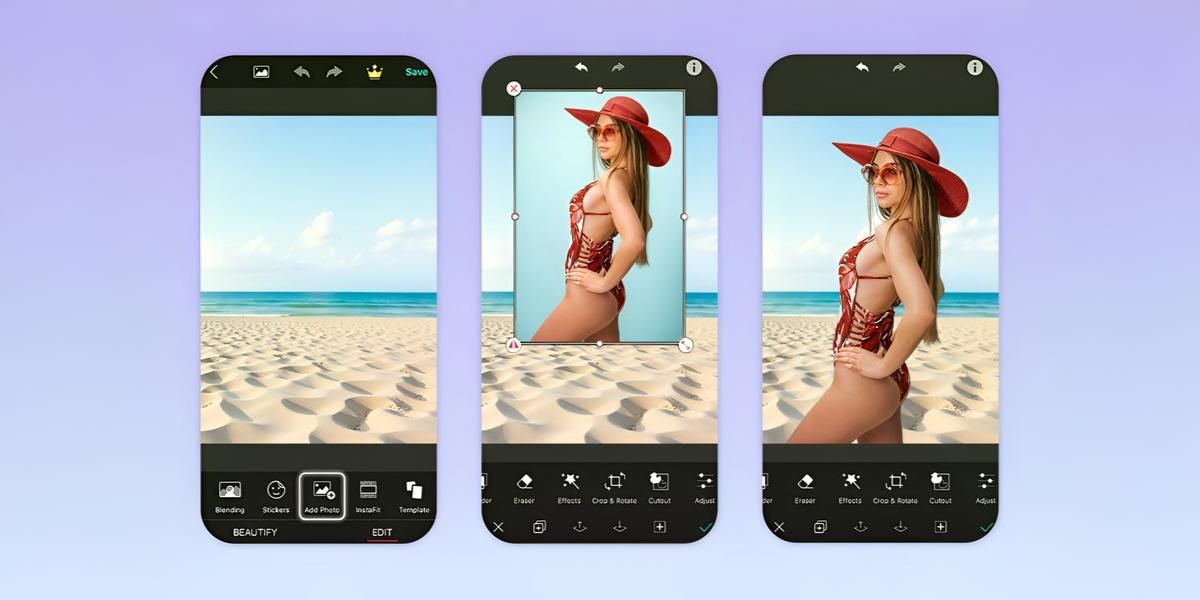
While testing the app, I noticed it was very easy to work with image layers and add a photo to another photo. I pressed “Add Photo,” placed another picture on top, and quickly adjusted the size, rotation, and opacity.
I also used the “Blend” option. It softened the edges and made both images look like one. The “Background Eraser” helped me remove unwanted parts from the top layer.
I liked that I can add many layers and edit them how I want. The Android photo editor even lets you apply filters or shadows so the added image matches the original photo. It was very easy to output the result. The app allows for sharing in high resolution.
Pricing: Free with ads; in-app purchases available
2. Fix The Photo Body Editor&Tune
First photo edited for free
- Pro-grade photo retouching
- Full set of editing tools
- 24/7 retoucher availability
- High-resolution exports
- Free first photo
- You can’t edit yourself
- Lacks text search options
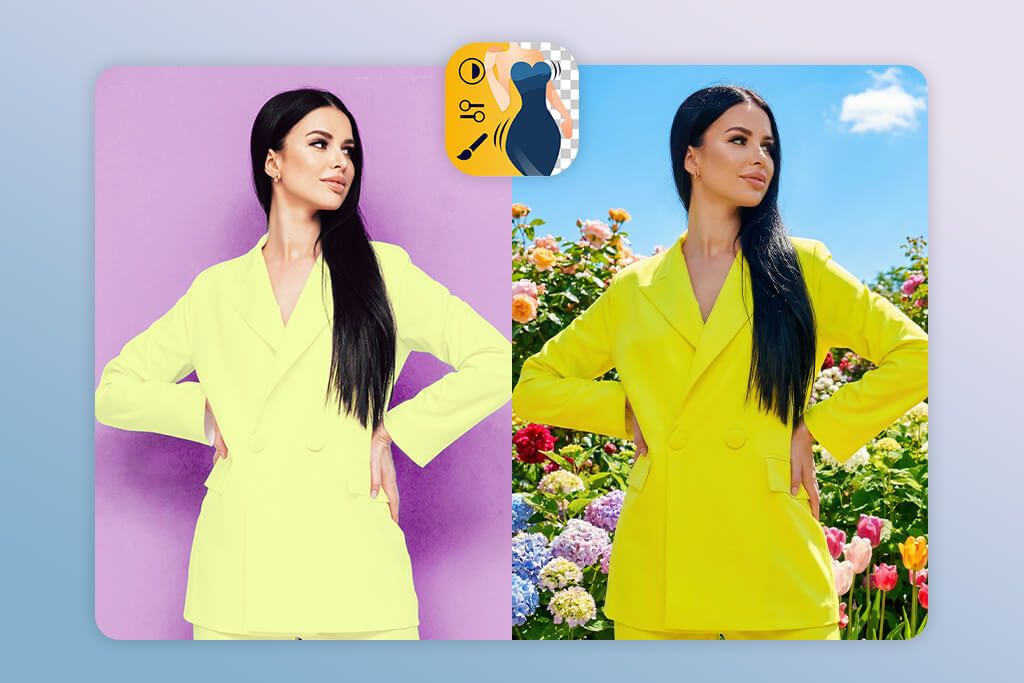
This app turned out to be really good when it came to adding a photo to another photo. I chose a base picture, then added another element through “Add Sticker/Photo.” The AI auto-alignment helped place it in the right perspective, so that the result edit looked realistic. The “Smooth” and “Blend” tools helped me merge the edges so it didn’t look pasted on.
I especially liked that the app adjusts tones and shadows automatically to match the original image. The design is simple and easy to use, so it doesn’t take long to experiment and get the result you want. Even professional photographers use this app for fixes that other apps struggle with.
Pricing: Free; in-app purchases for advanced features
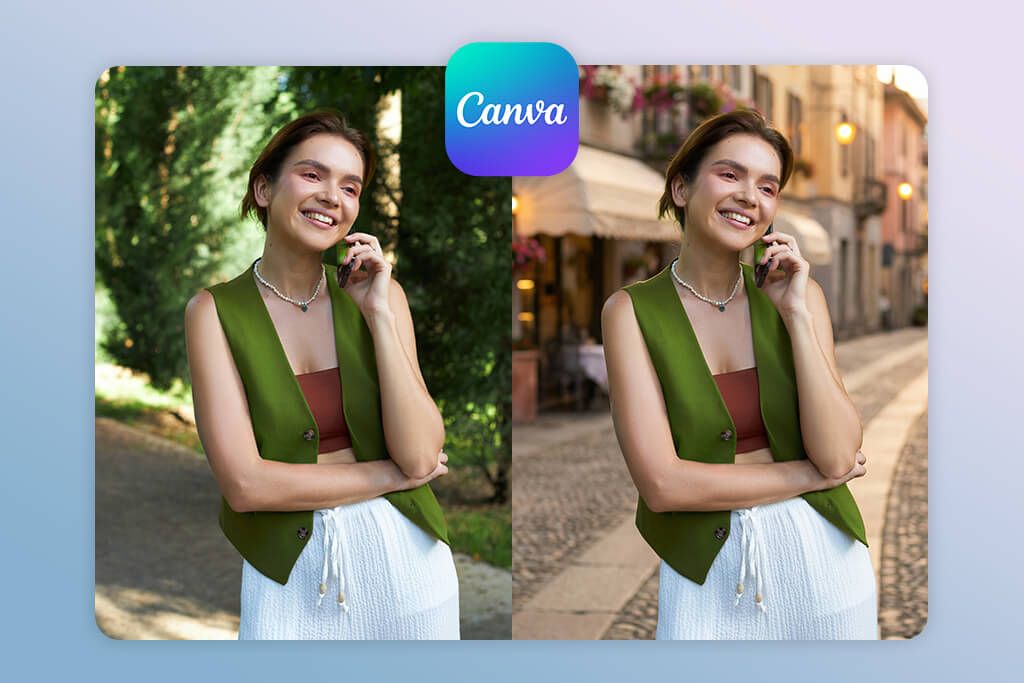
3. Canva
Ready-made templates for combining several photos
- Drag-and-drop UI
- Many templates
- Advanced editing tools
- Features for teamwork
- Advanced tools take time to master
- Free features are limited
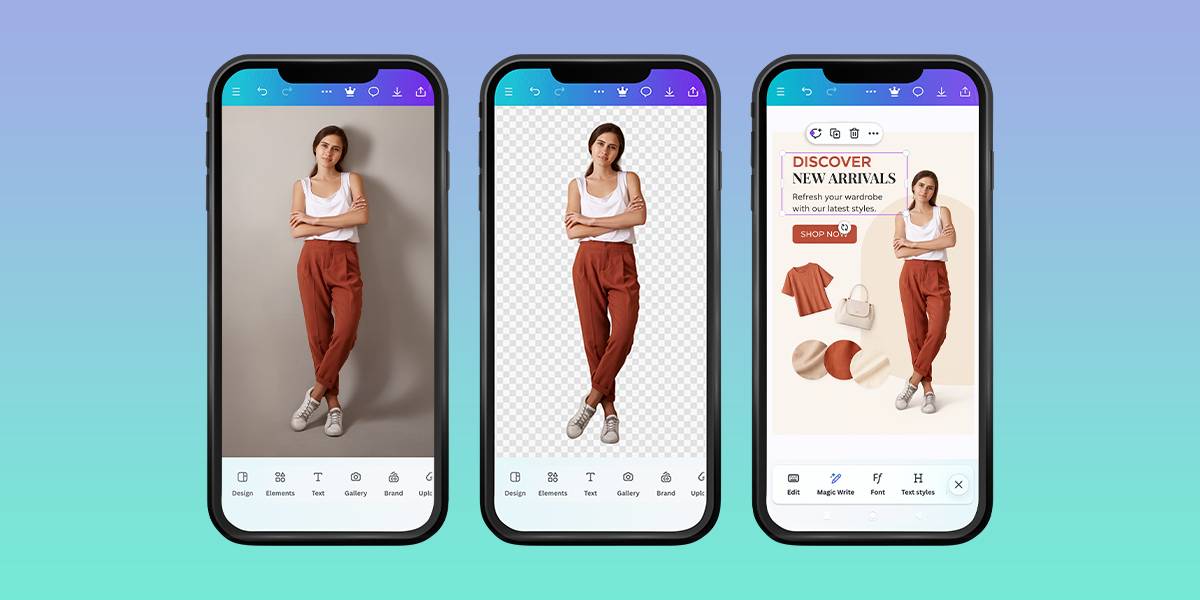
Trying to figure out how to add a photo in a photo, I tested Canva. First of all, it is very flexible. I started with a base photo and added other images, adjusting opacity, size, and rotation. The app has the “Transparency” slider and masks that help blend elements or make creative overlays in seconds.
The best part is the big collection of templates and design elements. You can combine photos, text, and graphics in one project, using this open source image editor. Plus, you can save everything in high resolution, so it looks great for social media posts or marketing materials.
Pricing: Free with limited elements; Pro version is $12.99/mo
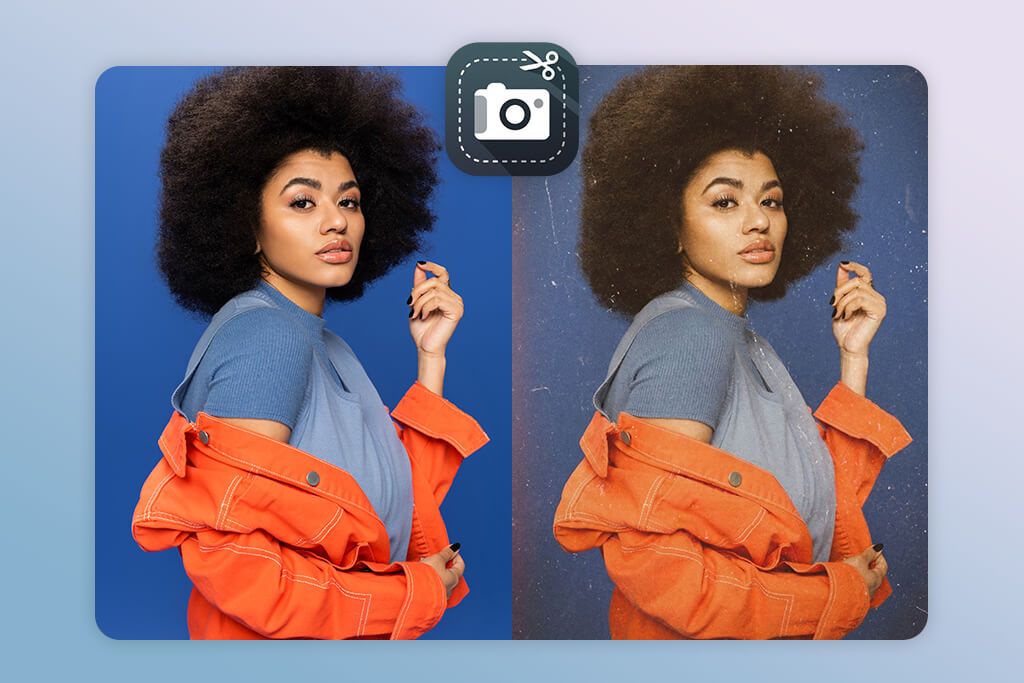
4. Cut Paste Photos Pro Edit Chop
Photo overlay through precise cutting
- Multiple photo integration
- Background replacement
- Top-quality exports
- Regular updates
- Basic export options
- iOS-compatible only
With this iPhone photo editor, you can easily cut out parts of a photo and paste them somewhere else. I tried the “Smart Cut” tool to select a subject and move it to a different background. The “Edge Smooth” ensures the added photo and the background look naturally together.
I also liked the “Shadow” and “Perspective” options. They make the added object look like it really belongs there. It’s perfect for playful edits or creating memes, and the layout is simple enough to use multiple layers easily. However, you can put picture on another picture only on iOS devices.
Pricing: Free with ads; Pro $3.99
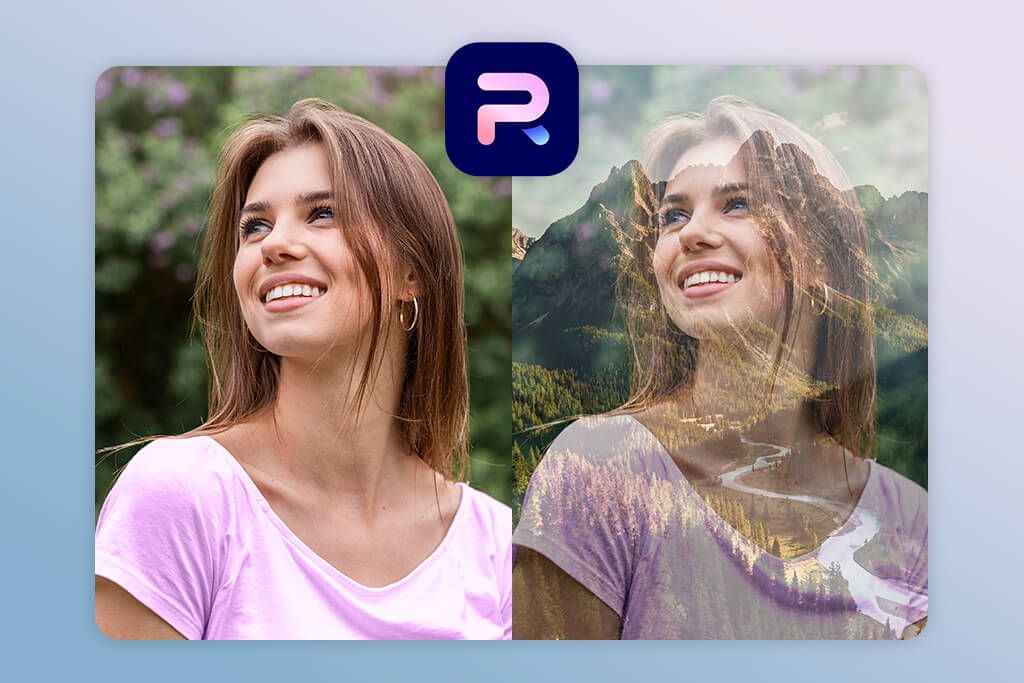
5. PhotoRoom
Dedicated collage features
- Auto background removal
- Batch photo processing
- Top-notch templates
- Understandable interface
- Poor customization
- Watermarked exports in free version
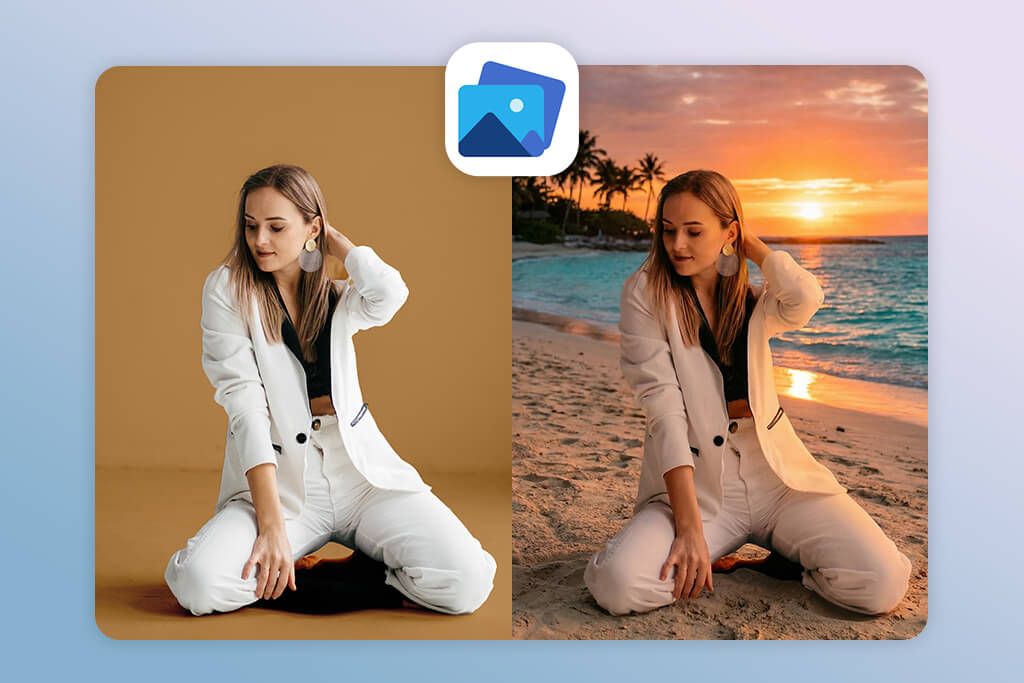
I liked PhotoRoom for its automatic background removal. It’s great if you need to insert a picture into another picture quickly. I uploaded a subject, and the AI cleared the background in seconds, letting me drop it into a new photo.
Thanks to the built-in shadow and reflection tools, the 2 images blended naturally. Batch processing deserves special praise. You can make multiple composites in one go. Whether for marketing, product photos, or social media posts, this bulk image editor is fast and helpful.
Pricing: Free with limited features; Pro is $9.99/mo
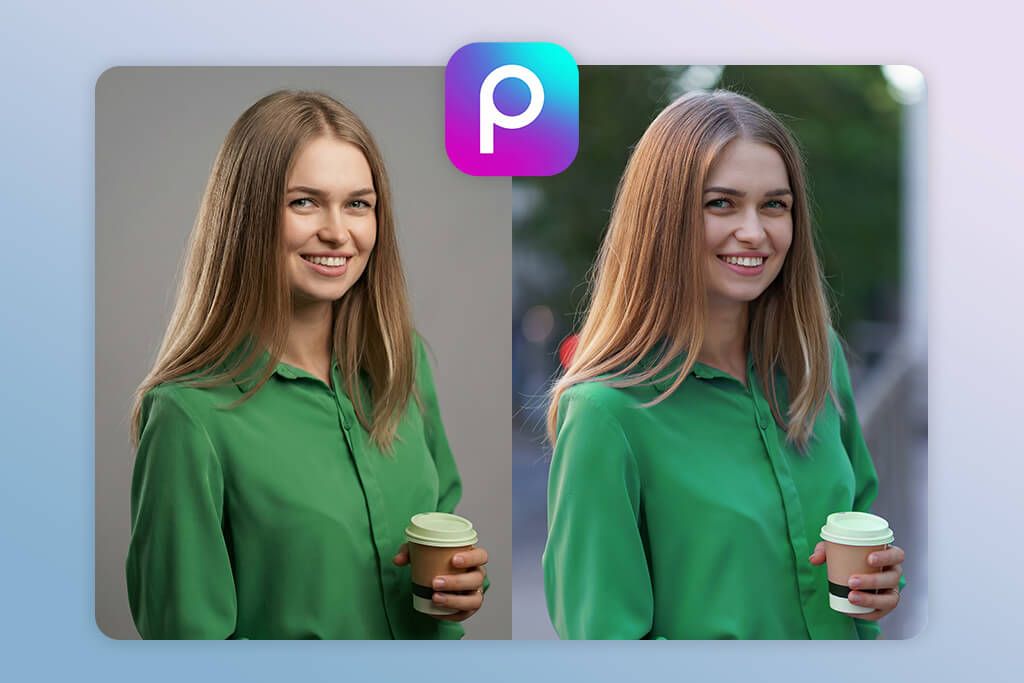
6. PicsArt
AI-powered adding photo on photo
- Feature-rich app
- Creative filters and effects
- Collage maker
- Drawing tools
- May be slow with large files
- Limited export options
PicsArt is a user-friendly app for editing photos. I used the “Add Photo” feature to stack multiple images on top of each other. Then I played around with how the layers blend together, made some parts see-through, and added filters to make everything look neat and realistic. The app also has stickers and masks built in, which is great for artistic touches.
The AI background removal tool is particularly helpful. You can instantly cut out a person or object from one photo and move it into a completely different picture. So, you can not only integrate picture into another one, but also create fun edits, make collages, or try out wild designs. Plus, you can share what you make directly to social media in just a couple of clicks.
Pricing: Free; Gold subscription $8.99/mo
7. CyberLink PowerDirector
Layer-based editing
- Pro-grade photo editing tools
- AI-powered edits
- Creative filters and effects
- Face swap feature
- High system requirements
- Subscription-based pricing
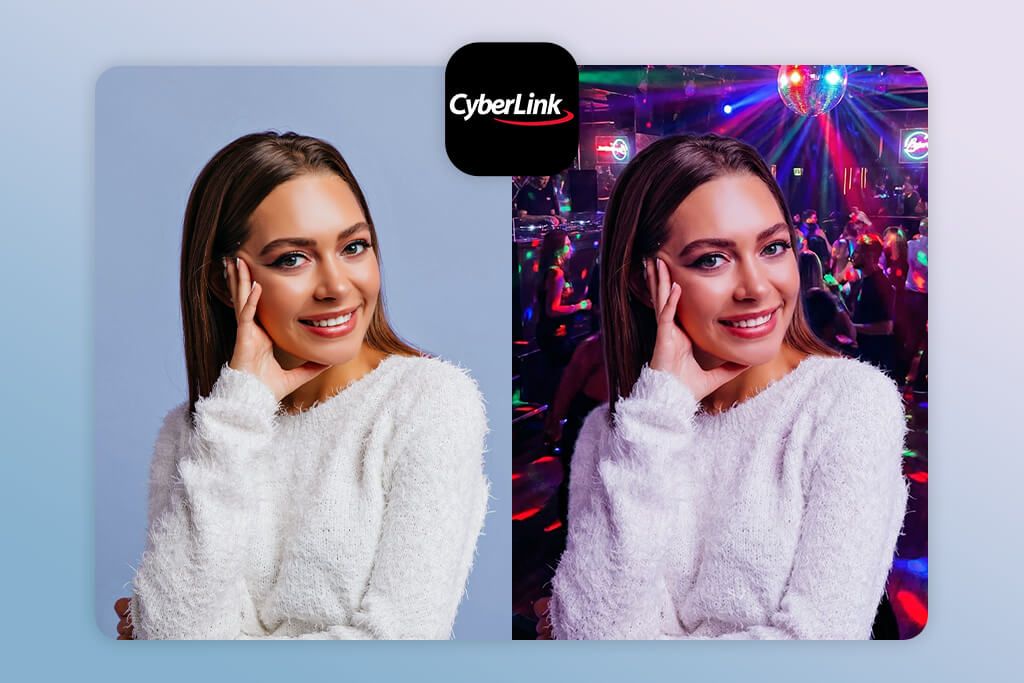
PowerDirector, with its professional photo editing tools, is a perfect solution if you wonder how to add a photo to a photo. I tried the “Layer Photo” feature and stacked multiple pictures. Besides, it let me control how they blend together, adjust how see-through they are, and tweak the colors.
The best feature for me is the AI cutout tool. It automatically removes parts of photos you don’t want while keeping important details sharp and clear. The app also neatly matches lighting and tones between photos. When you add a new image, it automatically adjusts to look natural with your main photo.
The controls take a little time to learn, but the final result looks really professional. If you’re serious about Instagram photo editing, this app delivers the desired quality.
Pricing: Free trial; Premium is $4.99/mo
FAQ
- What is an “add photo on photo” app?
An “add photo on photo” app is a tool that lets you take two pictures and put one on top of the other. You can use it to add fun stickers to your photos, change backgrounds, create funny pictures with text, put your logo on images, or just make creative combinations of your favorite pictures.
- What are the best apps to add a photo to another photo?
If you want to combine photos in an easy way, you should use Canva, PhotoRoom, PicsArt, or Photo on Photo Editor & Maker. All of these are beginner-friendly and let you drag pictures around, mix them together, and remove backgrounds without needing special skills.
- Can you make one photo transparent so it blends with another?
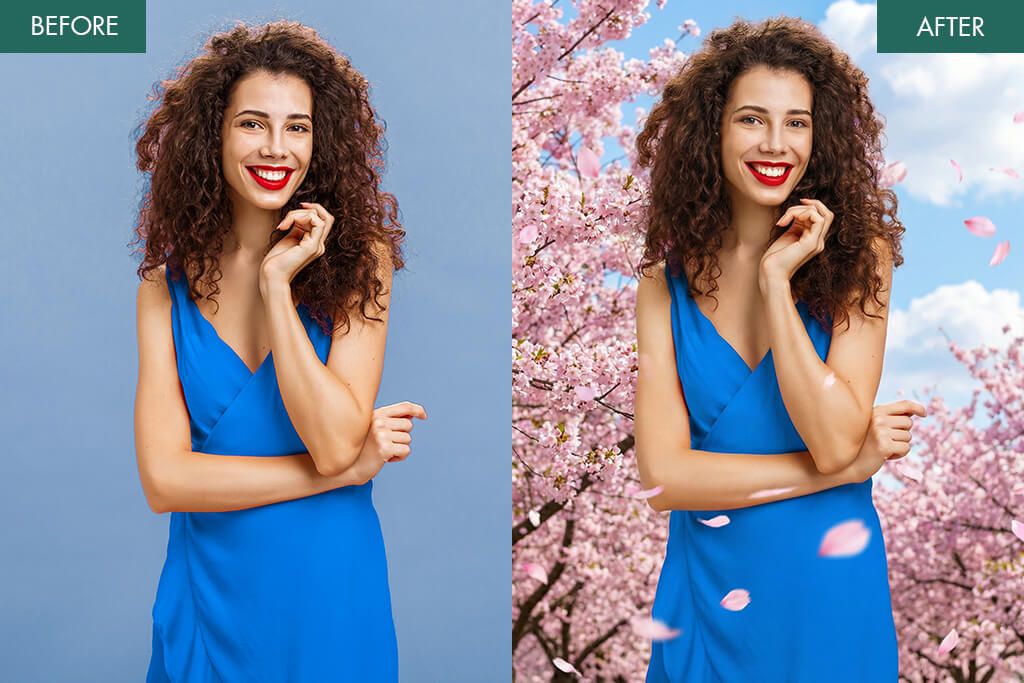
Yes, you can. Most apps let you control the transparency of each photo. You can also choose different ways to blend them together, like “Overlay” or “Multiply,” to create cool effects. This is great if you want to make dreamy pictures or spooky ghost-like images.
If you need extra touch-ups to achieve professional results, you can reach out to WeEdit.Photos retouchers. They will blend two photos, adjust colors, temperature, and brightness, making the final image look like it was captured in a single shot.
- How to add a picture on a picture and preserve clarity?
You should use apps designed for high-resolution work, such as CyberLink PhotoDirector or Canva Pro. When you’re done editing, save your picture in the highest quality option the app offers. Don’t save the same photo over and over, because each time you do that, it can lose some clarity and detail.
- Can you use these apps on iPhones and Android phones?
Yes. Most of these apps work on both types of OS. Some apps, namely, Canva and PhotoRoom even let you use them on your computer too. So, you can start making something on your phone and then finish it on your laptop.
- Are these apps free?
Yes, there are free versions available, but they come with limitations. The free option may include watermarks and offer fewer templates to choose from. To unlock advanced features such as layers, AI editing, and high-quality exports, you need to subscribe to a paid plan. The cost ranges from $4 to $10 monthly.
- Are these apps suitable for professional needs like marketing and product photography?
Absolutely. PhotoRoom and FixThePhoto are specifically designed for business use, including e-commerce. You can put a picture on a picture, add logos, change backgrounds, and combine multiple product images in a single frame. Just remember to save your final picture in high quality and keep your lighting the same throughout.