9 Best Software for Color Grading to Enhance Shades Like a Pro
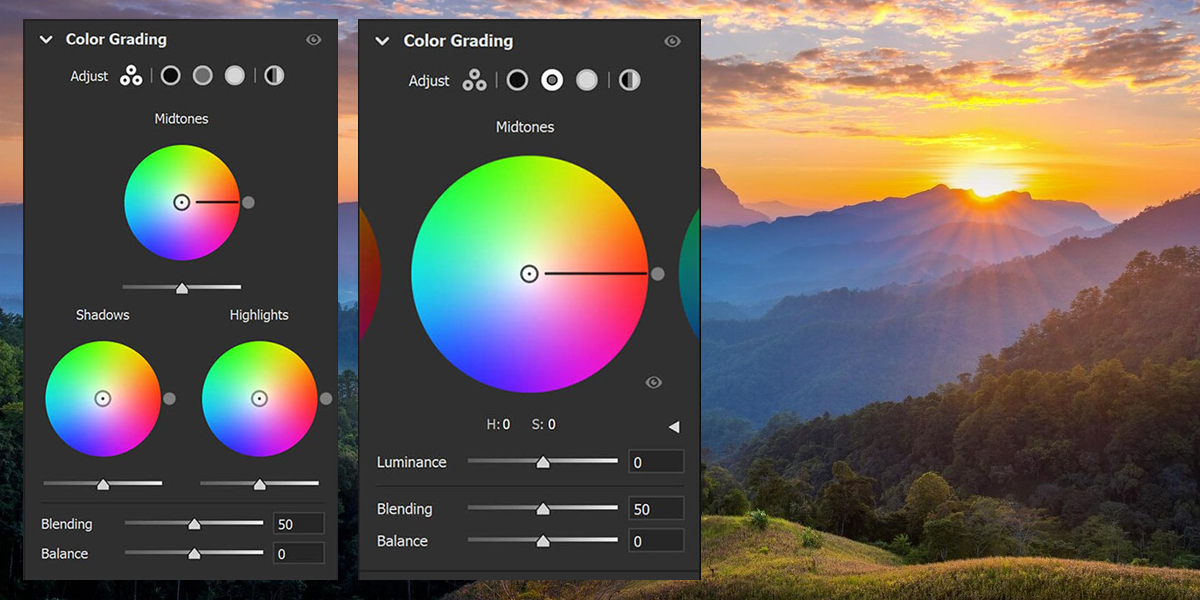
Finding the best software for color grading is crucial for filmmakers, photographers, and digital artists interested in fine-tuning the color palette, atmosphere, and saturation of their creations. In contrast to more simplistic solutions, a proper tool comes with elaborate color wheels, curves, LUT support, and AI-based features that make it easier to receive a cinematic and professional result.
Taking care of all premium WeEdit.Photos projects that require video enhancing and color grading I frequently encounter challenging lighting and strict client requirements. As the complexity of my work increased, I concluded that the tools I use weren’t advanced enough, prompting me to look for the best software for video color grading that would provide the precision, versatility, and efficiency I wanted.
The best color grading software for PC or Mac needs to provide accurate color controls, convenient integration with other tools in your creative workflow, efficient performance, and flexible LUT support to streamline the editing process as much as possible.
1. DaVinci Resolve
Key features:
- Split-screen and thumbnail viewing modes for convenient comparisons
- AI-powered Magic Mask
- Motion tracking for precise color adjustments
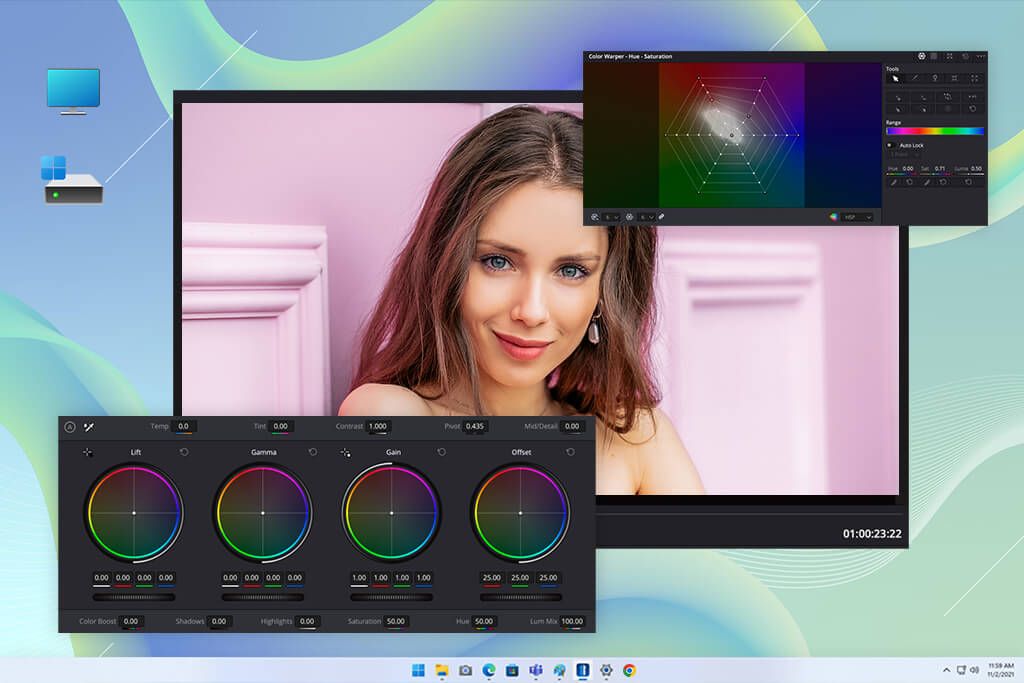
- Cutting-edge Color Warping feature
- Robust color matching and balancing functionality
- 32-bit image processing for pro-grade results
DaVinci Resolve has been a part of my toolkit for years now, and it’s still the best software for color grading if you’re interested in accurate, professional results. I appreciate its node-based functionality that enables me to layer and fine-tune edits without affecting the original file.
A few months ago, I was assigned to a commercial project that featured clips recorded over several days in somewhat different lighting conditions. I leveraged DaVinci Resolve’s Color Match tool to achieve a consistent color scheme across the entire video. Meanwhile, the Magic Mask feature makes it easy to isolate the subject from the backdrop, enabling me to tweak skin tones separately.
However, my favorite aspect about this video editor is the deep level of control it provides, allowing you to receive any result you want as long as you put in the necessary time. Sadly, this ties into the main drawback of this option, namely its notable learning curve.
Price: free edition or $295 single-time payment.
2. Adobe Premiere Pro
Key features:
- Lumetri Looks templates for instant color grading
- 8K resolution support
- Automated reframing for various aspect ratios
- Integrated stock asset collection
- Intricate color matching and adjustment functionality
- Supports third-party color grading plugins
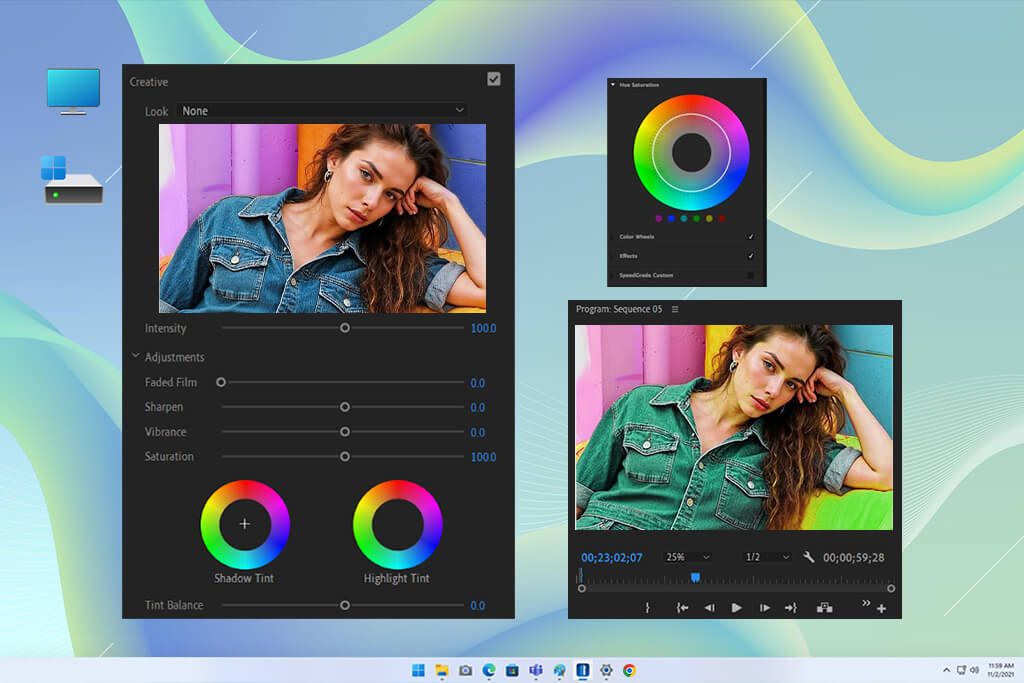
If you live and breathe the Adobe ecosystem, Premiere Pro is the best video editing software for color grading you can find. It has a robust Lumetri Color menu for tweaking tones, highlights, and shadows, enabling you to get the desired look straight in the editing timeline.
When I was in a rush to deliver a project that required me to match videos from several cameras, I leveraged its color-matching feature to produce a consistent look in just a couple of minutes.
Premiere Pro also offers Lumetri Looks presets that allow you to experiment with a variety of artistic and cinematic color grading styles. The recently added Auto Reframe feature deserves a separate mention, as it lets me preserve consistent color correction results when optimizing footage for multiple aspect ratios for social media.
The integrated asset library is also a huge benefit, as it makes it a lot easier to improve the quality of your projects with pro-grade visual elements. The main drawback of Premiere Pro is its cost. If you’re only interested in its color-grading functionality, you should probably look for a different option.
Price: from $22.99/mo, free trial option.
3. ColorDirector
Key features:
- Sparkle effect for artistic highlights
- Selection masks and keyframing for localized edits
- Import and save LUTs to preserve a cohesive color-grading style
- Color splash effect for isolating individual tones
- AI motion tracking for dynamic environments
- Instant color matching for quick, good-looking results
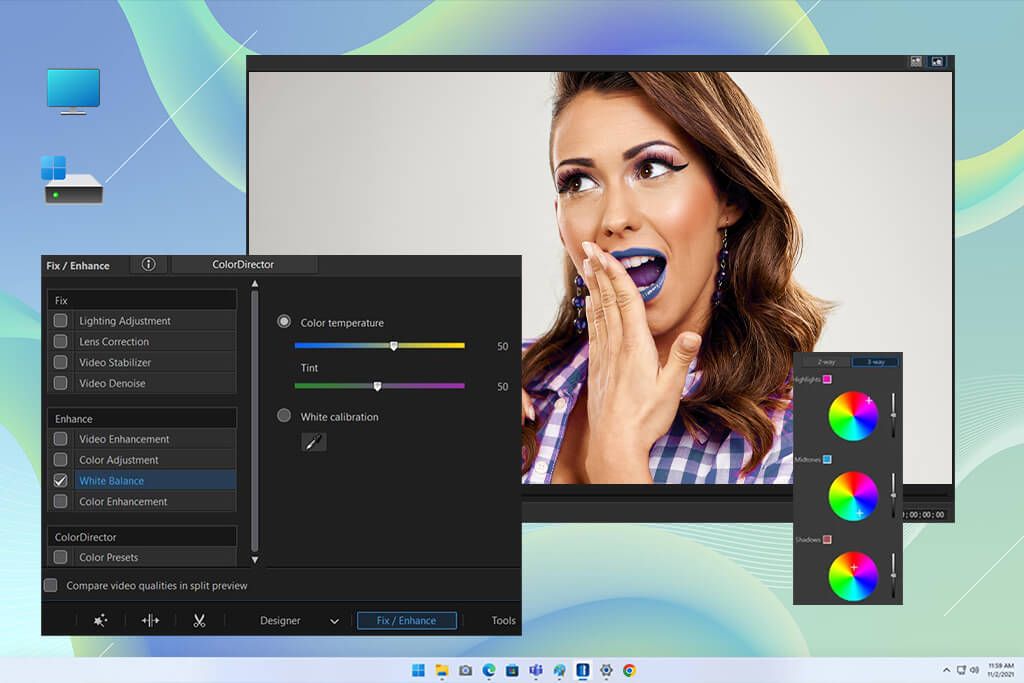
ColorDirector might be the best software for color grading video footage if you’re completely new to this type of tools. I used it several years ago for one of my first orders, a brief fashion promotional video that required a vibrant color splash effect across B&W footage.
This software made it pleasantly simple to isolate the colors using a selection mask and keyframes, while the AI-powered motion tracking ensured the effect followed the moving elements. While I was still new to video editing back then, ColorDirector helped me produce a polished, professional result without having to mess around with dozens of confusing parameters.
For this overview, I tried to replicate a specific cinematic style with the help of a reference video and it only took me a couple of clicks to achieve a nearly perfect result. The main limitation of ColorDirector is that it’s only available on Windows.
Price: from $19.99/mo.
4. VEGAS Pro
Key features:
- HDR video scopes for accurate edits
- More than 800 VFX and presets
- White and black point correction for convenient balancing
- Color grade and correct several tracks at the same time
- Intricate Bézier masks for selective adjustments
- LUT support for fast and efficient color grading
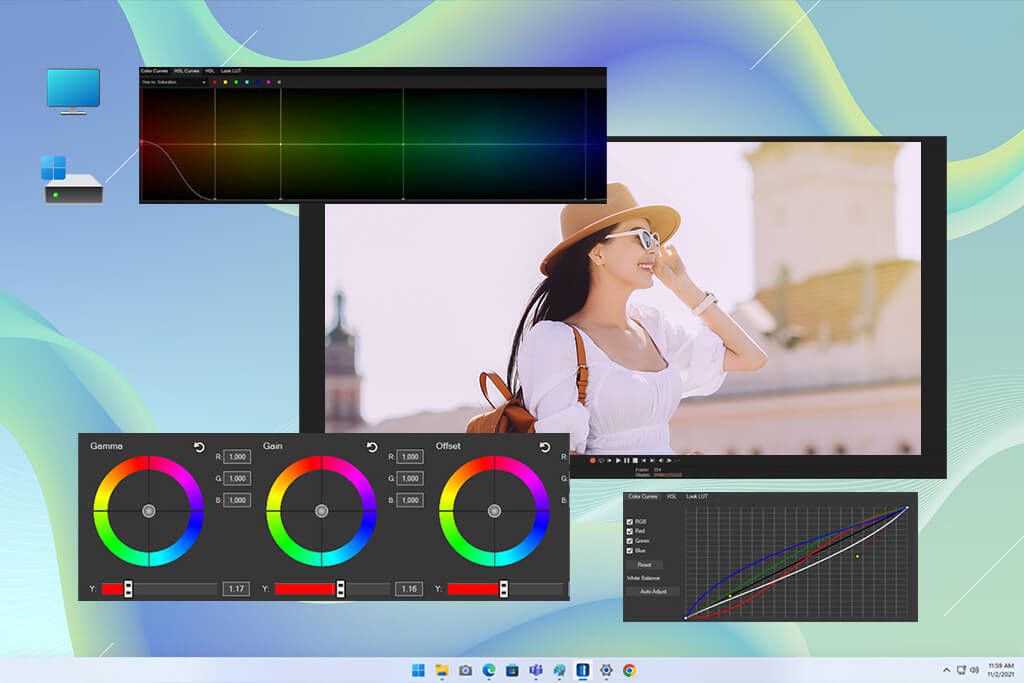
One of my coworkers strongly believes that VEGAS Pro is the best color grading software for video editors, so I wanted to try it out. I appreciated its intricate Color Panel which is divided into three parts, enabling me to make highly accurate edits during each stage of the editing process.
I employed VEGAS Pro when working on a video that required me to grade several clips simultaneously, so the provided support for multitrack correction has proven to be very useful.
I loved the HDR video scopes that allow me to make precise exposure and saturation adjustments without any guesswork. Even though I’m used to other software, I could still see why many professional editors choose VEGAS Pro. I also like the white and black point correction feature that simplifies the process of balancing colors even when dealing with challenging lighting conditions.
This software comes with more than 800 VFXs and presets that make it easy to try out a variety of visual styles. The biggest drawback is that VEGAS Pro isn’t as user-friendly as some other options so learning its layout and tools takes a bit of time.
Price: from $19.99/mo.
5. Movavi
Key features:
- Compatible with all popular video formats
- Premade intros for fast project creation
- Color Splash effect for more artistic grading
- Direct sharing to YouTube and different social media platforms
- Auto contrast for simple edits
- More than 160 creative filters and LUTs
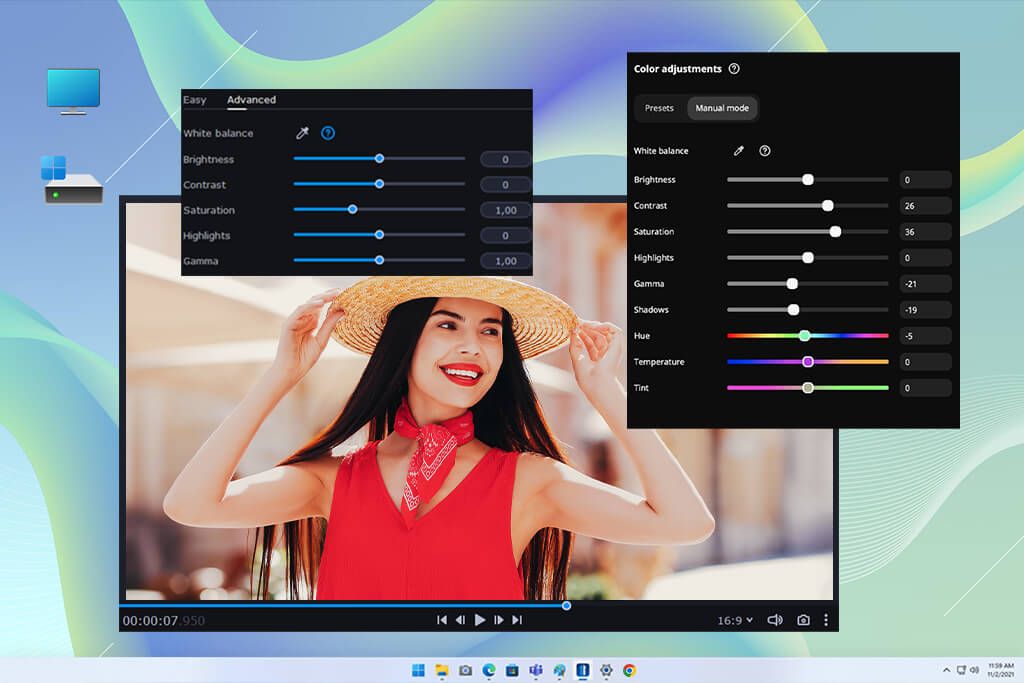
The Movavi Video Editor might be considered the best color grading software for film, as it comes with a wide range of creative visual effects. When creating a brief social media ad, I used the Color Splash effect to emphasize a specific tone while decolorizing the rest of the shot. It only took me a couple of clicks and the result looked fantastic.
The integrated auto-contrast feature is a fantastic addition that instantly adjusted the exposure in several of my underexposed clips without requiring any manual input. Movavi isn’t designed for premium-grade color adjustments, but it’s perfect at performing quick and simple tweaks.
Its library includes more than 160 artistic filters, and even though it doesn’t let you import third-party LUTs, the Movavi Effects Store offers a wide range of packages for achieving all kinds of looks. The small selection of pro-grade features might be a drawback to professional videographers, but for fast edits, creating social media content, and enhancing older videos – Movavi is a fantastic option.
Price: from $8.95/mo, free trial option.
6. Final Cut Pro
Key features:
- Cinematic Mode for in-depth editing
- LUT support for instant color grading
- Ultrafine level edits with control points
- Object Tracker for selective color isolation
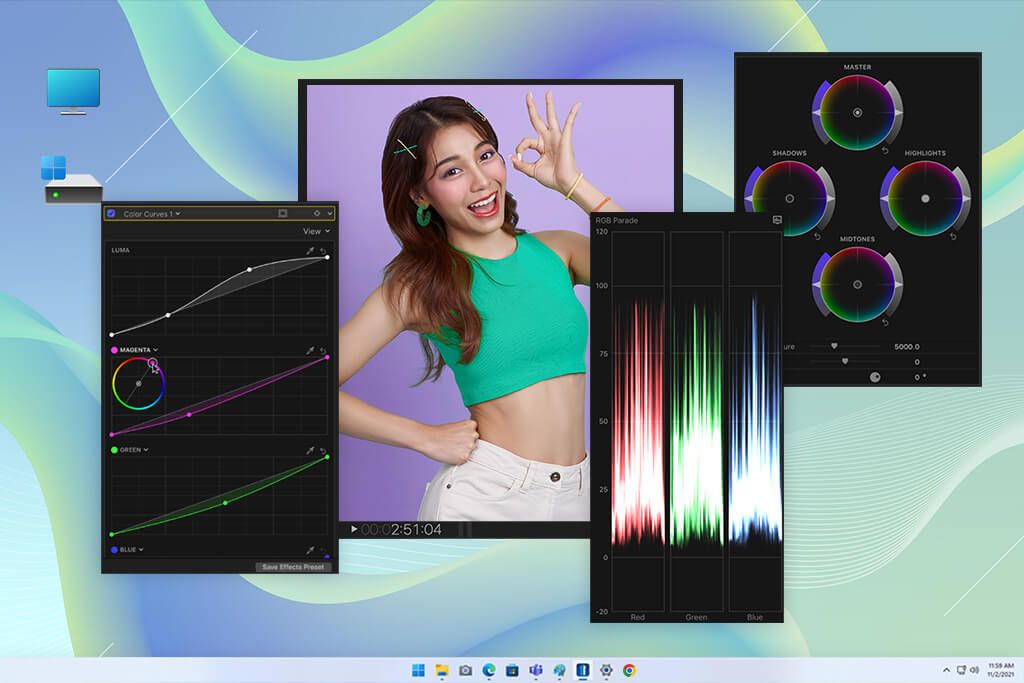
- Color board, curves, and hue/saturation functionality
- High rendering speeds for a streamlined workflow
Being one of the industry leaders, Final Cut Pro definitely deserves to be one of the best color grading software for pictures and videos. I used it to improve the colors of a sunset for a travel vlog while preserving the depth of the shadows to add a cinematic quality to the footage. The color board, curves, and hue/saturation settings are all highly precise and I enjoyed tweaking all the different settings.
The Object Tracker was also very impressive, allowing me to isolate and adjust the subject’s skin color without influencing the backdrop. The editing process is user-friendly and the applied changes look natural without any rough edges. Additionally, I used several LUTs to test their quality and leveraged the Cinematic Mode to adjust the depth and focus of the footage.
Even though Final Cut Pro comes with an entire set of pro-grade features, it still lacks multiple advanced color grading tools that I found in other options reviewed above. However, if you’re looking for a solution for Mac computers, Final Cat Pro should be near the top of your list.
Price: $299.99 single-time payment, free trial option.
7. Lightworks

Key features:
- HD, 4K, and 8K support
- Automatic autosave to avoid data loss
- Background processing for a smooth workflow
- HSL color wheels and RGB graphs for more accurate tweaks
- Instant LUTs for convenient color grading
- Personalized metadata for improved project management
Lightworks is arguably the best free software for color grading available today and I used it for some simpler tasks in the past. However, I also wanted to test the Pro edition, which is why I tried it out when editing a short documentary that involved matching footage recorded in different lighting conditions. The provided HSL color wheels and RGB graphs allowed me to tackle this without issue.
The Quick LUTs feature is very useful, as it allows me to add high-quality LUTs to several clips simultaneously in just a couple of clicks, achieving a consistent visual style. The implemented background processing is also very convenient, enabling me to edit the video without disrupting my workflow. Additionally, Lightworks comes with a background removal tool.
However, the interface felt a bit overwhelming at first, and considering its high price, Lightworks Pro is probably best for those who need a full post-production suite, not just color grading. That said, if you’re working on high-end projects, the precision and flexibility make it a solid choice.
Price: free version or from $13.99/mo.
8. Filmora
Key features:
- Standard color correction features
- Color Match for quick grading across clips
- User-friendly and convenient UI
- Real-time preview of applied edits
- LUT compatibility for applying presets
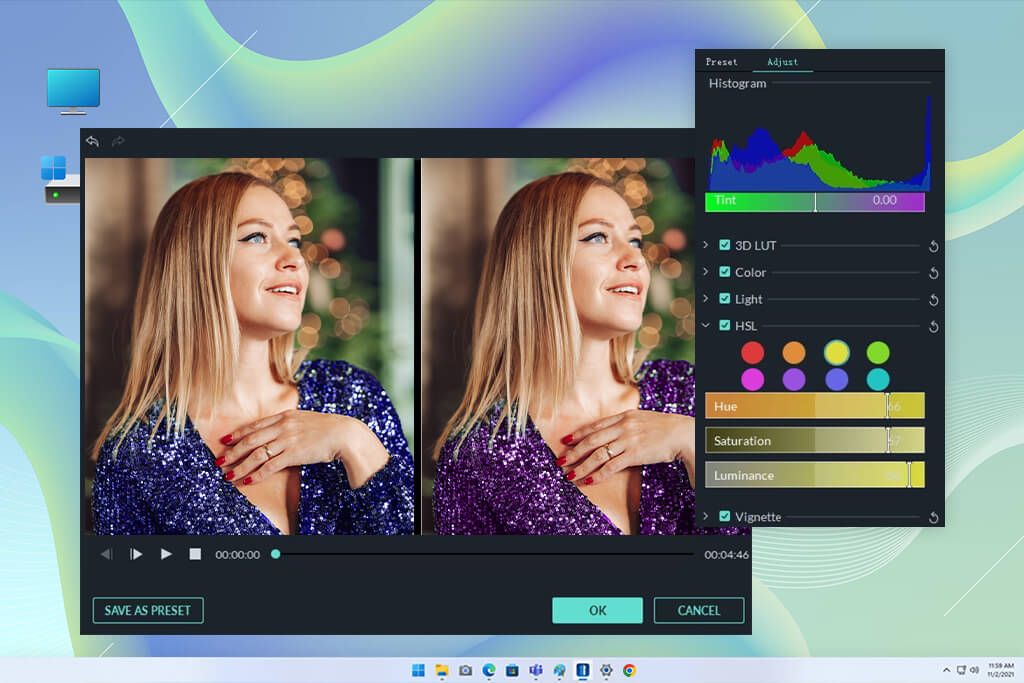
If you’re wondering which software is best for color grading on a budget, you can’t go wrong with Filmora. Even though it lacks most of the advanced features, it’s more than capable of handling any basic task. I used it for a vlog video that required white balance adjustments and a contrast enhancement.
It offers intuitive sliders for tweaking the brightness, contrast, saturation, temperature, and tint. The Color Match tool sounded very appealing, but it made it hard to achieve consistent results. However, it’s still good enough for making fast, simple edits.
My favorite aspect of Filmora is the intuitive UI that makes it easy to perform color grading even if you’re completely new to this process. That said, if you’re interested in color wheels, curves, and other robust tools, you’ll have to get Filmora Pro. The free version though, is already a great option for casual users.
Price: free version or from $4.17/mo.
9. HitFilm Pro
Key features:
- Robust color grading functionality
- Mask tracking for selective adjustments
- Cutting-edge keying for highly accurate color correction
- Built-in VFX and editing features
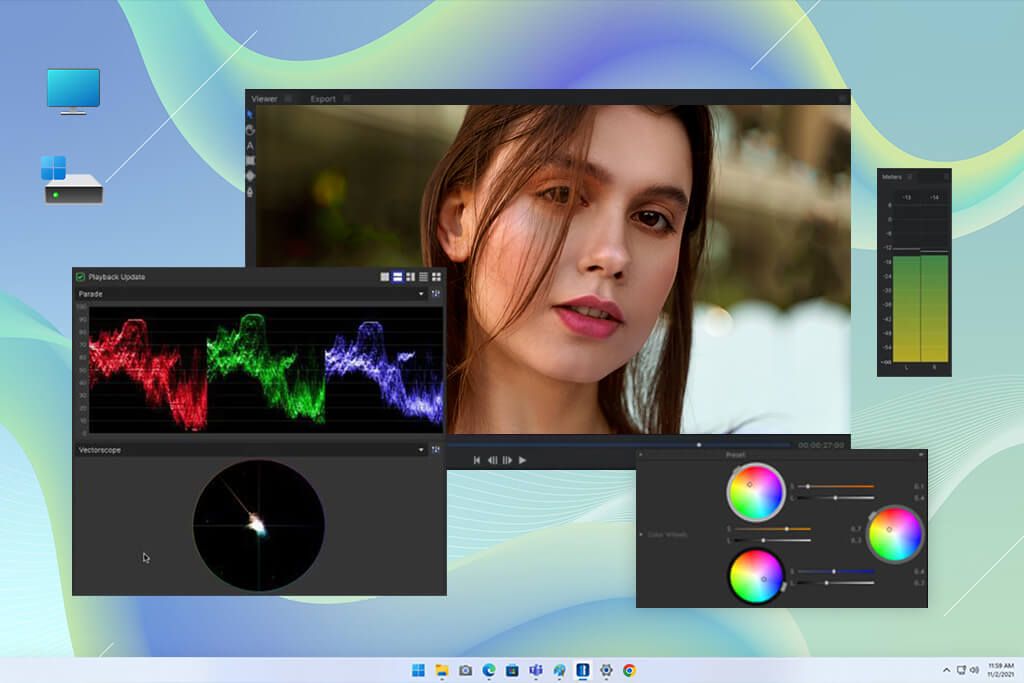
HitFilm Pro is mainly used for its visual effects, but I decided to test its color-grading functionality as well. I used it for a brief cinematic video that required an atmospheric, desaturated aesthetic. The provided color wheels, curves, and hue/saturation tools were enough to help me get the desired colors.
It allowed me to key tones and track masks, which made it easy to isolate skin tones and enhance them separately from the backdrop. That said, the clunky UI makes it a lot more difficult to navigate compared to the best color grading software ike Adobe Premiere.
If you’re already an experienced HitFilm Pro user who leverages its VFX tools, the provided color grading features are a great addition. That said, if color correction is your main priority, this option is less appealing than specialized solutions. Even though it has all the basic tools, its main benefits lie in areas outside of in-depth color grading.
Price: $349 single-time payment.