9 Best Subtitle Software to Reduce Manual Work
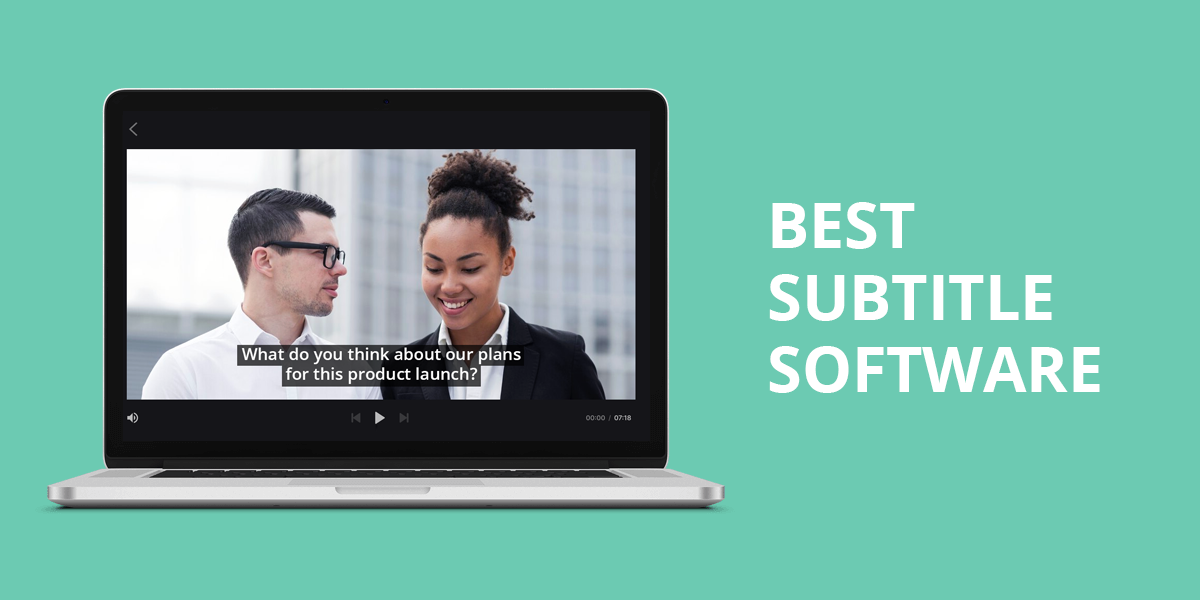
Adding captions to videos makes them more accessible, boosts viewer engagement, and adapts content for global audiences. For professionals like videographers, YouTubers, and instructors, advanced subtitle maker software can dramatically accelerate the workflow through features like AI-powered transcription, automatic timing alignment, and multilingual support.
As a video editor at WeEdit.Photos, I regularly create tutorials and review videos that need accurate subtitles. The manual transcription took too long, and inaccurate auto-captions required too much editing, slowing me down. That’s why I started testing different subtitle tools to find one that’s accurate, automated, and easy to use.
Top 8 Subtitle Software
- Adobe Premiere Pro – 99% error-free
- Movavi – Intuitive
- Nikse Subtitle Edit – Best free
- Kapwing – Complete video creation
- VEED – Best for social media creators
- Typito – For teams
- Happy Scribe – Cloud storage access
- Jubler – Quick
- AegiSub – Stylized subtitles
AI tools have revolutionized subtitling, making the process much faster and easier by automating the tedious manual work. The best subtitle editing software delivers accurate transcriptions while offering user-friendly editing features.
They work smoothly with different video formats and editing platforms, reliably handle various speaking styles and audio conditions, and process content efficiently without much delay.
Can AI Fully Replace Manual Subtitles?
I’ve often relied on AI subtitling software for quick transcriptions, and they can be incredibly handy, especially for auto-syncing subtitles with speech. I once tried an AI tool on a short interview video, and in seconds, it produced a full transcript. While it saved me valuable time, I soon noticed its drawbacks: some words were misinterpreted, punctuation was missing, and the timing required manual fine-tuning.
AI-generated subtitles have a major disadvantage: they often lack nuance. Automatic captions frequently struggle with accents, background noise, and casual speech, leading to awkward or inaccurate subtitles.
I recently worked on a travel vlog filled with slang and local expressions, and the AI failed to convey the right meaning. I had to carefully review each line, correcting mistakes and refining the phrasing to ensure it sounded natural.
Right now, I see AI subtitles as a helpful assistant, but not a full replacement. They’re great for rough drafts and can save time, but manual editing is still needed for accuracy and clarity. This is especially true for creative projects, humor, or technical content, where human-edited subtitles make all the difference.
1. Adobe Premiere Pro – 99% Error-Free
- AI-fueled transcription
- Overall manual editing control
- Works with multiple subtitle formats
- Adjustable fonts, colors, positioning
- Trouble-free integration
- Not for novices
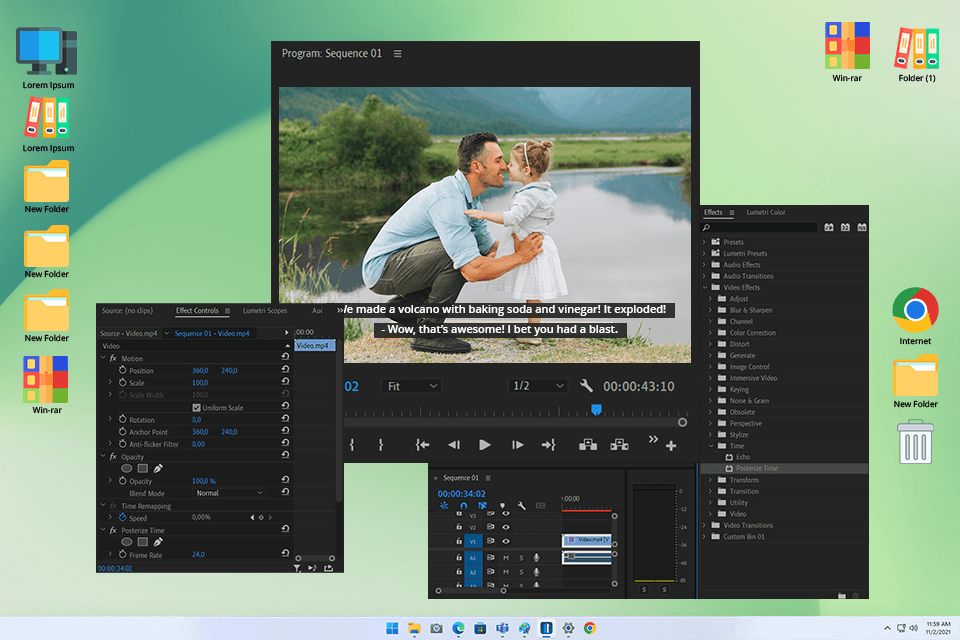
For years, Adobe Premiere Pro has been my trusted video editing software. As a longtime Adobe ambassador, I’ve relied on its features to enhance my workflow. Its combination of AI-driven transcription and manual captioning makes it a versatile option for handling subtitles across various projects.
I recently used it to add subtitles to a tutorial video, and the AI-powered captions were surprisingly precise, even with technical terms. The editing process was smooth, thanks to the Essential Graphics panel, which allowed me to adjust fonts, placement, and timing for optimal readability.
Premiere Pro is a top-tier professional tool, but its high cost makes it less ideal for beginners or one-time projects. However, its built-in subtitle generation, editing, and export features streamline the process, eliminating the need for extra software.
Price: Free trial, from $22.99/month
2. Movavi – Intuitive
- Simple and intuitive UI
- Multiple subtitle styles
- Trouble-free video synchronization
- Works with multiple formats
- Speedy processing
- Restricted functionality in a free version
- Requires some manual fine-tuning
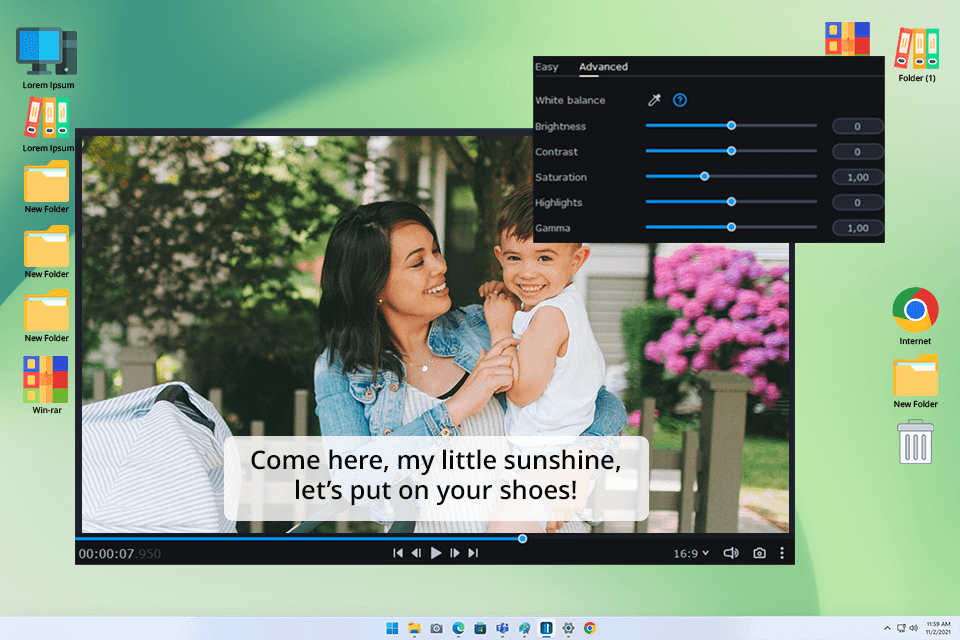
My colleague loves Movavi Video Editor for its ease of use, so I gave it a try for adding subtitles. After uploading my video, I explored the Titles tab and was pleasantly surprised by the wide range of styles, from simple to animated. Positioning text was a breeze: just drag a title onto the timeline and customize the font, size, and color as needed.
What impressed me most was how effortlessly I could place subtitles anywhere on the screen and perfectly sync them with the video. Movavi’s user-friendly design is a major advantage, especially for someone like me who doesn’t have time to navigate complicated editing software.
I’ve noticed a couple of minor drawbacks. The free version offers full access for only seven days before restrictions apply. Additionally, while adding basic subtitles is quick and easy, fine-tuning animated styles takes a bit more time. Overall, I found Movavi to be an excellent choice for beginners.
Price: Free trial, from $8.95/month
3. Nikse Subtitle Edit – Best Free Option
- Waveform-based subtitle syncing
- Works with 300+ subtitle formats
- AI-fueled speech recognition
- Integrated spell check and translation
- Live subtitle preview
- You’ll need to install third-party codecs
- No macOS version
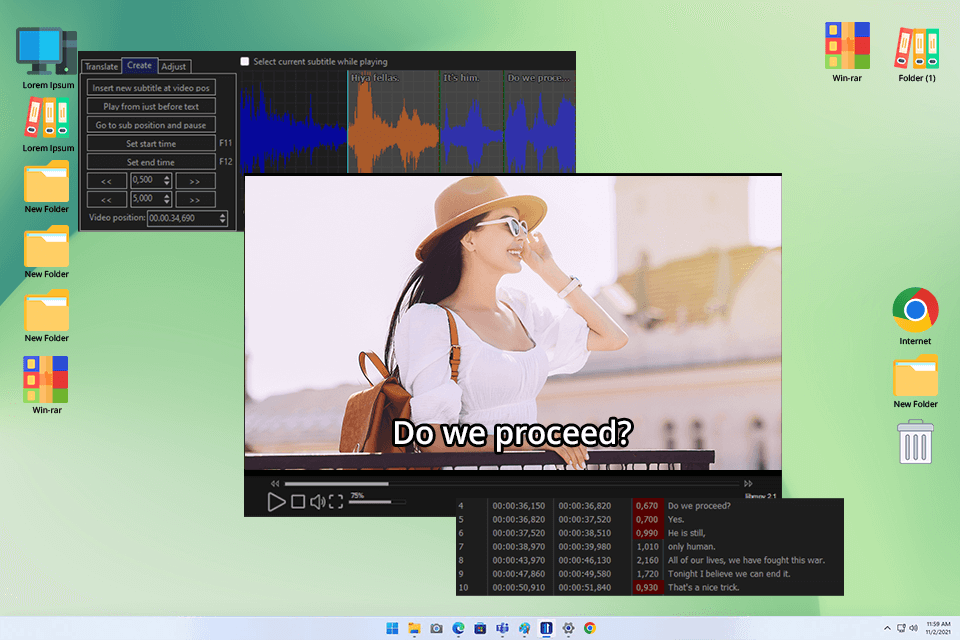
I wasn’t expecting much from a free subtitle editor, but Nikse Subtitle Edit truly surprised me. I needed precise synchronization between subtitles and dialogue for a project, so I decided to try out its waveform audio visualizer.
I also tried the Whisper AI-powered speech recognition. While not perfect, it delivered a solid base, saving me from full manual transcription, with only slight tweaks needed. Beyond timing adjustments, Subtitle Edit stood out with its advanced tools. Its built-in spell checker (powered by LibreOffice dictionaries) proved invaluable for catching those annoying little caption errors.
The only downside I ran into was the need to install third-party codecs for live video previews, but the setup was fast and seamlessly integrated into the app. I was disappointed to find that there’s no macOS version, but as a free subtitle software for Windows and Linux, it’s probably one of the best I’ve used.
Price: Completely free
4. Kapwing – Complete Video Production
- AI subtitles with extreme accuracy
- Text and style customization
- No registration needed
- Real-time collaboration option
- Only works with SRT format
- A free version is restricted
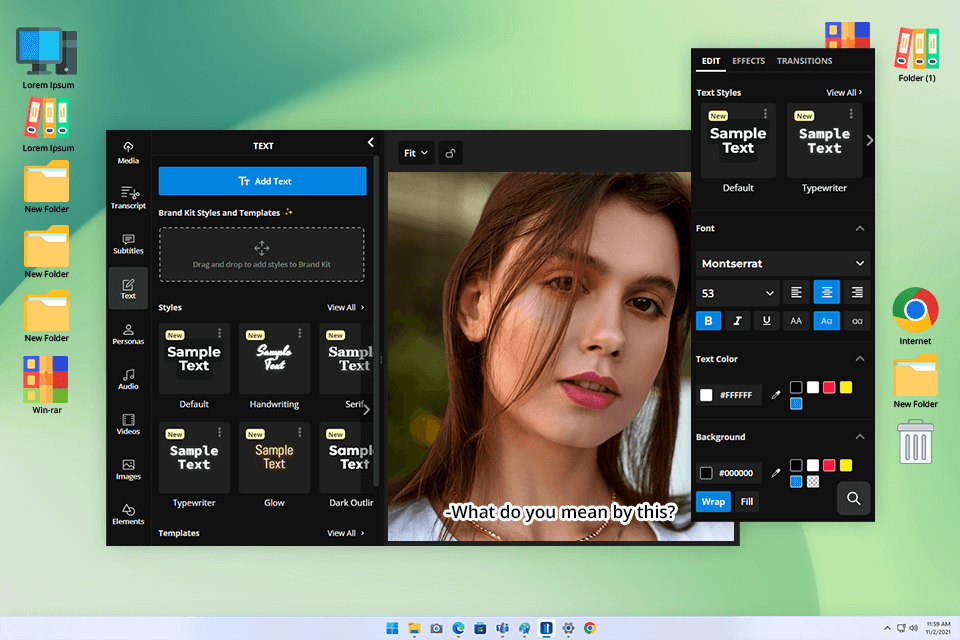
I had tried Kapwing’s free video editor, a couple of times in the past, but this was my first experience using its subtitle features. I wanted to test how effective its AI transcription was and how easy it was to tweak subtitles manually. After uploading a brief interview clip, I let the AI auto-generate the subtitles, and the accuracy was impressive, requiring only a few small corrections.
Editing the text was smooth and intuitive. I could simply click on the captions in the timeline, adjust the wording, and see the updates immediately in the video preview. Customizing the font, color, and background of the subtitles was effortless, allowing me to create professional-looking captions in just a few clicks.
I collaborated on this project with a teammate, and we were both able to edit in real-time without the hassle of downloading or re-uploading files. One limitation, however, is that while Kapwing lets you burn subtitles into the video for free, downloading an SRT file requires a paid upgrade. Additionally, this software for adding subtitles to video only supports SRT files.
Price: Free version, from $16/month
5. VEED – Best for Social Media Creators
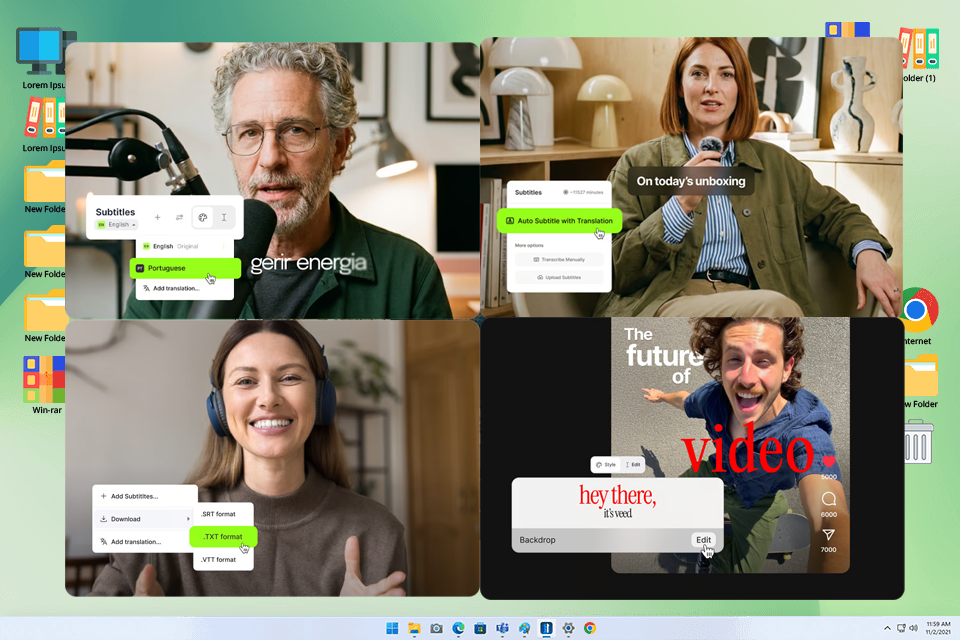
- AI-powered subtitles with 99.9% accuracy
- Dynamic animated caption styles
- No software required
- Supports 125+ languages for translation
- Multiple export formats (SRT, VTT, TXT)
- SRT file requires a paid plan
- Free version has monthly usage limits
I’ve tested plenty of subtitle tools, but VEED stood out the moment I uploaded my first clip. If you need to add subtitles to a video quickly and without installing anything, this is one of the fastest ways to do it — within seconds of clicking “Auto Subtitle,” it had transcribed a five-minute tutorial almost perfectly, with only two small errors that took less than a minute to fix.
What impressed me most were the animated caption styles. Unlike most tools that give you static white text, VEED offers karaoke-style word highlights and dynamic subtitles that pulse in sync with speech. I added these to a short product demo and the difference in engagement was immediately noticeable.
The tool runs entirely in the browser, working the same on Mac, Windows, and mobile. One thing to keep in mind: downloading an SRT file requires a paid plan. If you only need the video with burned-in captions, the free tier covers it, though it adds a watermark. For creators who regularly subtitle social content and want polished, on-brand results without juggling multiple tools, VEED is a strong pick.
Price: Free plan available; paid plans from $18/month
6. Typito – Best for Teams
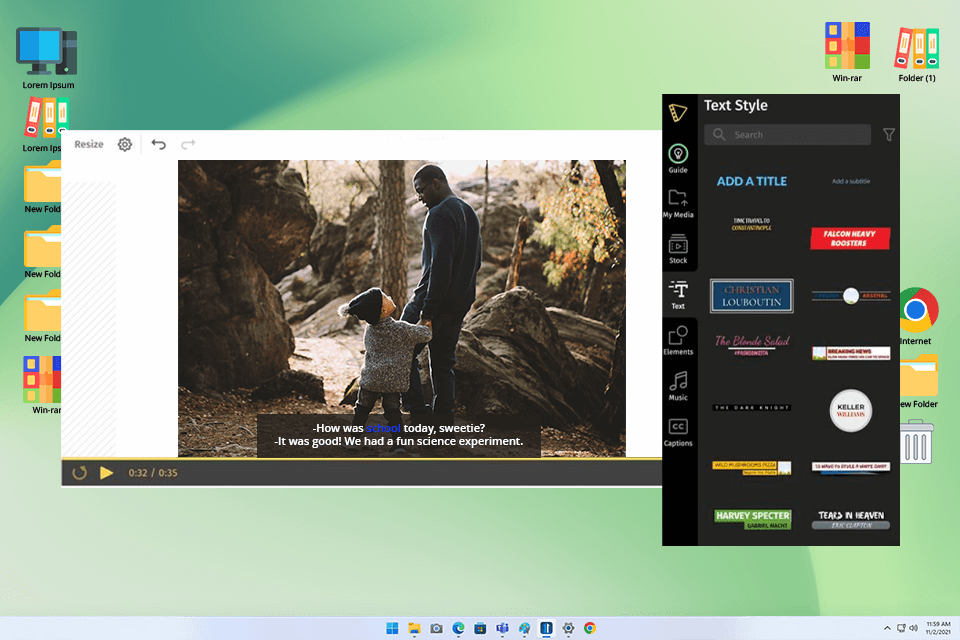
- User-friendly drag-and-drop timeline
- Customizable fonts, colors, and styles
- Real-time collaboration for teams
- Live preview of subtitle edits
- Only works SRT file format
- AI transcription requires corrections
After seeing Typito recommended on Reddit multiple times, I decided to try it out. As an online tool, I expected a straightforward interface, and it didn’t disappoint. Uploading my video was fast, and I experimented with both auto-generated subtitles and manual SRT uploads. The AI transcription was fairly accurate, though I still needed to adjust some timings and correct a few words.
The editing timeline made it easy to move captions exactly where I wanted. I also liked how I could change the font, colors, and position right in the preview window, making my subtitles look clean with little effort.
Typito only supports SRT files, so you’ll need to convert other formats separately. It also doesn’t have a desktop version, which means no offline editing. Still, it offers a good balance between automation and manual control, making it a great option for quick, professional-looking subtitles.
Price: Free version, from $15/month
7. Happy Scribe – Highly Accurate AI Subtitles
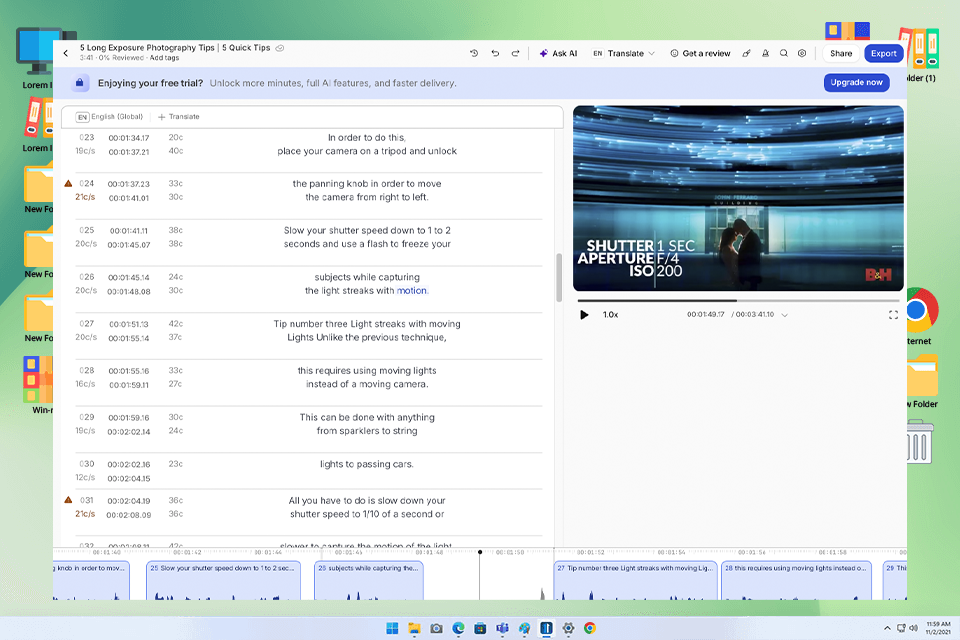
- AI transcription with high accuracy
- Automatic subtitle timing and sync
- Supports 120+ languages
- Easy subtitle editing interface
- Multiple export formats
- Free version is limited
- Manual corrections are still sometimes needed
I decided to try Happy Scribe when I needed subtitles for a YouTube tutorial and didn’t want to spend hours transcribing everything manually. Uploading the video was quick, and the AI generated a full subtitle track in just a few minutes. What impressed me most was the accuracy. Even with some technical terms, the transcript required only minor edits.
The subtitle editor was clean and intuitive. I could click on any caption, fix wording, and adjust timing without navigating through complicated menus, and the automatic synchronization worked well, so most captions were already aligned with the speech. I also liked that I could export subtitles in different formats like SRT and VTT, which made it easy to use them in other video editing software.
I did notice that while the AI is very reliable, it still struggles occasionally with heavy accents or fast speech, so a quick review is necessary. Still, compared to fully manual subtitling, it saved me a huge amount of time. For anyone who needs fast, accurate subtitles with minimal effort, Happy Scribe is an excellent solution.
Price: Free trial, from $10/month
8. Jubler – For Quick Subtitle Creation
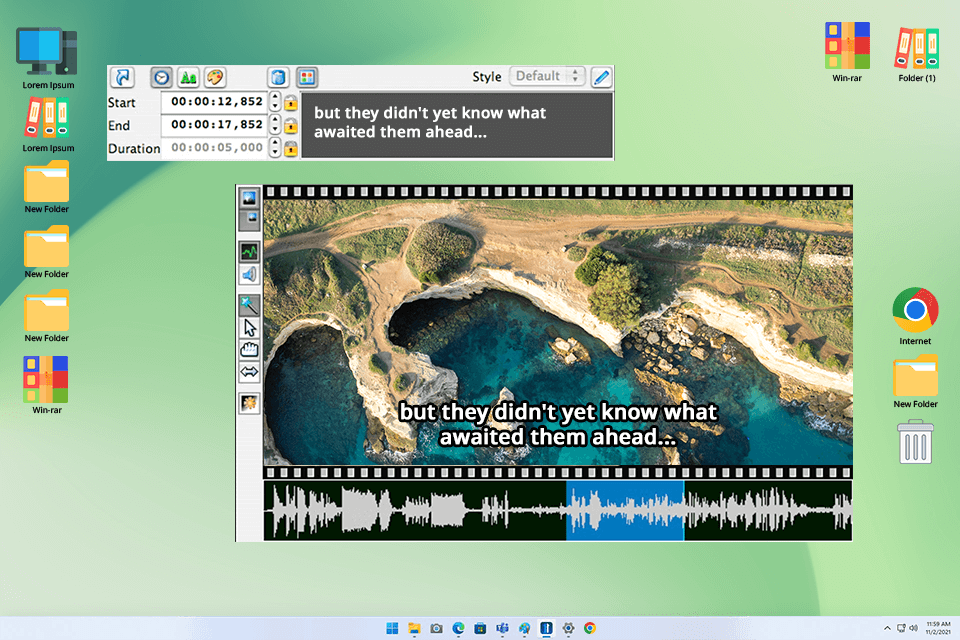
- Supports many subtitle formats
- Spell check for accurate subtitles
- Built-in translation mode
- Works on Windows, macOS, and Linux
- Needs Java to run
- Outdated UI
This is the second open-source subtitle editor I’ve tried, and it is definitely worth mentioning. While Jubler’s interface isn’t the most refined, its functionality impressed me. It supports a variety of subtitle formats, including some rare ones I haven’t come across in other free subtitling software.
I used it to adjust the timing of an SRT file, and even though the interface felt a bit old, it was easy to use. The spell-check feature was helpful, especially for longer subtitles.
A key selling point of Jubler is its built-in translation mode. I tested it by translating subtitles from English to Spanish, and while it didn’t fully automate the translation, it made the manual process easier by displaying the text side-by-side. However, syncing the subtitles was a bit tricky since the video preview feature didn’t always load correctly.
Price: Completely free
9. AegiSub – For Stylized Subtitles
- Advanced subtitle styling tools
- Accurate synchronization with audio
- Real-time preview for edits
- Spell check for accurate text
- Outdated UI design
- Restricted subtitle format support
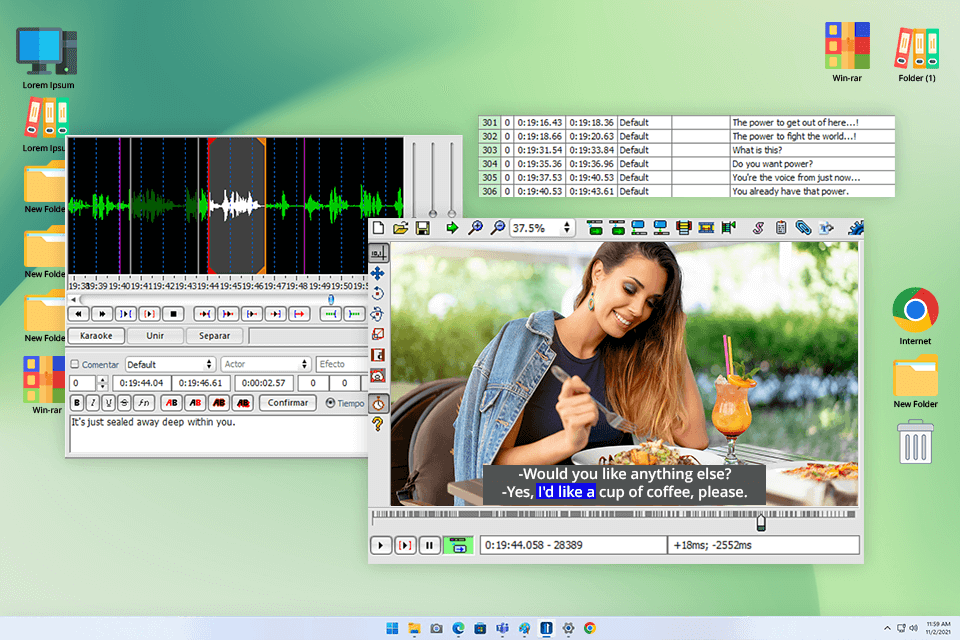
AegiSub is a popular free subtitle editor, particularly favored by anime enthusiasts like myself. It had been recommended to me multiple times, so I decided to try it out alongside animation software for anime. Immediately, I realized that AegiSub isn’t suited for quick social media videos, but is rather a more intricate editing tool intended for personal or professional projects.
Aegisub offers great styling options, letting you fully customize fonts, colors, placement, and effects. I tried the subtitle style manager and could make custom subtitles with different colors and shadows, and they looked really good in the preview.
However, there are some downsides. The interface feels old, and on high-resolution screens, some buttons and menus appear too small and hard to use. It also doesn’t support as many subtitle formats as newer software. But if you require advanced styling, the subtitle editor software is a great option.
Price: Completely free