Best Apps to Remove Objects from Photos Free
Your photos may not be disappointing because of your equipment or the lighting. The things that shouldn’t be there spoil them. That’s when the apps to remove things from photos free come in handy.
A beautiful scene can be completely ruined by strangers walking into your shot or something reflecting in a window or a brand name in the corner can also distract from what really matters. When you’re posting pictures online, selling products through your website, or creating your own brand image, these small things have a huge impact on how people respond to your photos.
When you face such issues, an AI removal tool can be of great help. These apps clean up your pictures without manual input. You can delete unwanted items, get rid of text, remove watermarks, improve backgrounds, and even take people out of your photos with just a quick swipe.
Some tools work better for handling spots on skin or specks of dust, while stronger ones are perfect for improving vacation photos, property listings, online store pictures, and portrait shots.
I tried out many different apps to find the best apps to remove things from photos free. Some tools brag about fast automatic cleanup using AI, while others give you full control to edit exactly what you want.
Common AI Removal Mistakes
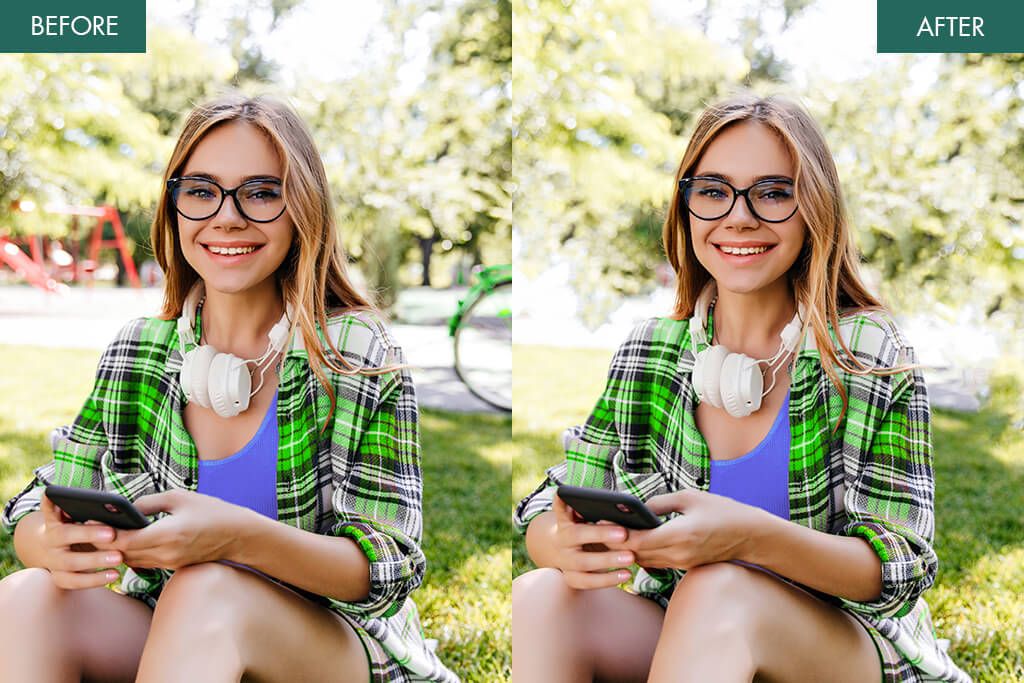
AI removal tools are really fast, but they still make mistakes that are easy to spot. If you’ve tried erasing something or someone from a photo and the result looked strange, don’t blame yourself. That’s how AI currently works.
Such apps can’t fully understand what should fill the empty space. They make a guess based on the colors and patterns they see nearby. Because of such guessing, there typically appear problems with:
- Soft, unclear patches where things were removed
- Ghostly outlines
- The same pattern repeating over and over
- Lines and edges that don’t connect properly
- Horizons or backgrounds that look bent or twisted out of shape
You can fully rely on an AI photo remover if you have simple, uniform backgrounds, e.g., sky, sand, plain walls, grass, or water. However, be extra careful when you’re erasing objects positioned in front of trees, patterns, building details, fabric, or complex textures.
In these cases, AI tends to struggle and underperform. This is why “free AI photo eraser apps” often deliver disappointing results. To achieve better outcomes, you typically need to invest additional effort, either by manually fixing imperfections or using auto photo enhancers, to adjust lighting and sharpness after the removal process is over.
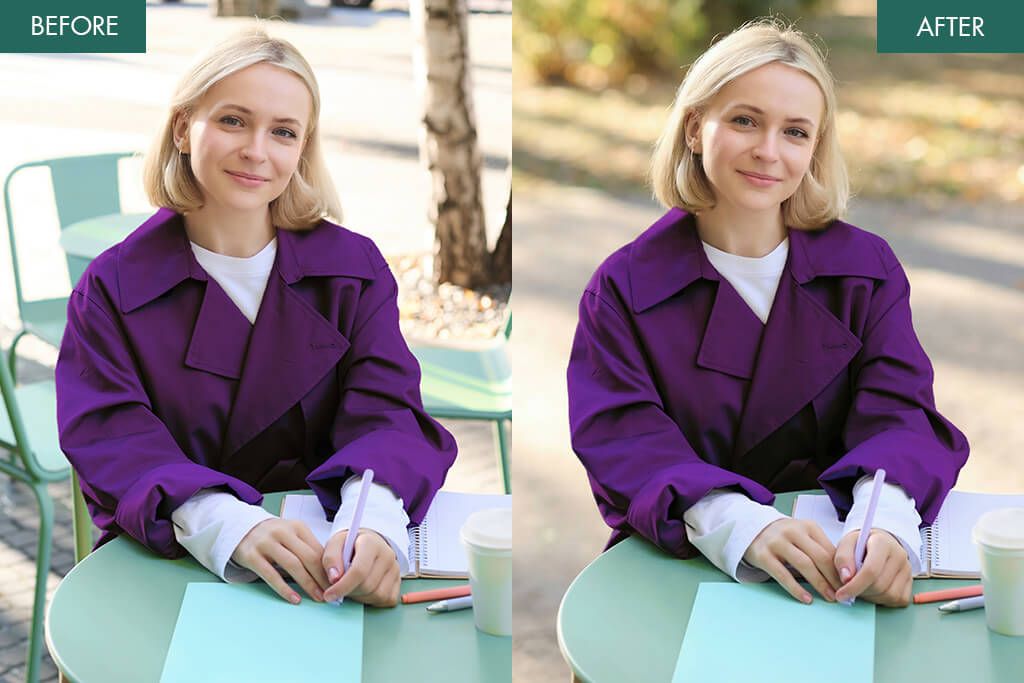
When you want your photos to look good, even the best AI object removal may dissatisfy you. A real person, on the other hand, can do it much better. They actually study the background and carefully rebuild it by hand. This is why people turn to WeEdit.Photos and similar services.
1. Snapseed (iOS & Android)
Free object remover
- Great Healing tool
- Free and no watermarks
- Supports high-quality images
- Not AI-powered
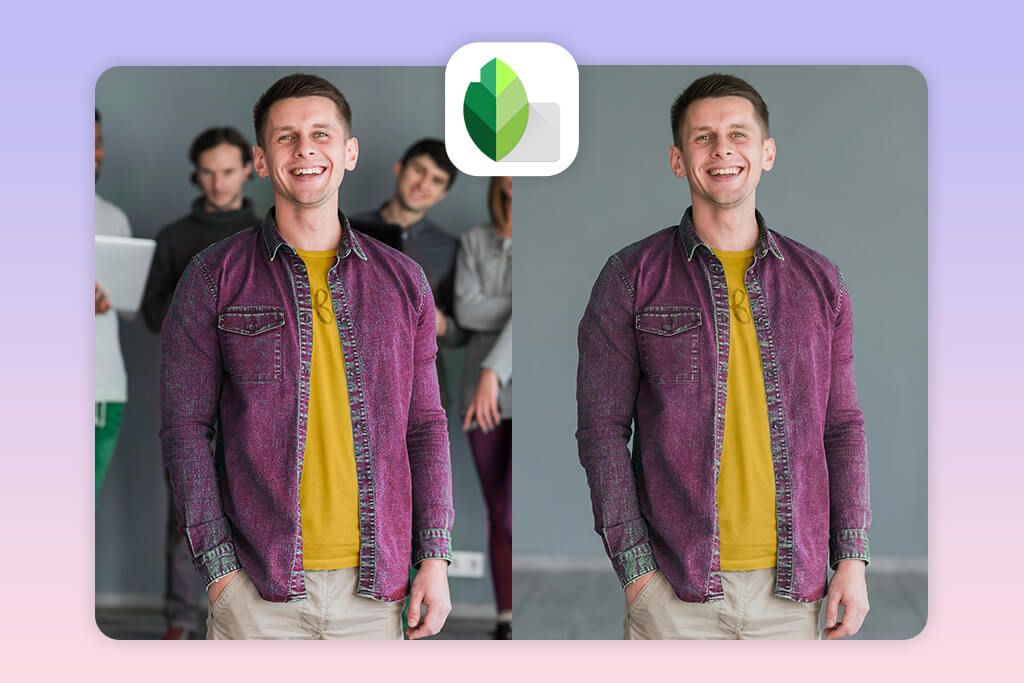
Snapseed remains one of the best object remover apps that is available for free. Instead of relying heavily on AI, it puts you in charge, letting you make natural adjustments. The Healing tool works great for fixing skin blemishes, getting rid of dust particles, deleting small items, erasing power lines, and clearing away visual clutter from the background.
You can get closer to specific areas and gradually erase unwanted elements, without sacrificing realism. It is unrivaled when it comes to simple backgrounds like skies, beaches, plain walls, sandy areas, or water surfaces. AI-based tools tend to make pictures look fuzzy but that isn’t the case with Snapseed.
Snapseed is popular with people who create content on their phones and those just starting out with photo editing. You’ll also find it recommended as an app that photographers use. Still, it struggles when you’re trying to erase big items or people from complicated backgrounds.
Price: Free
Key features:
- Healing brush for object & detail removal
- Selective editing (brush & mask)
- Supports RAW & high-resolution photos
- “Repair” spot tool for fixing minor distractions
- Complete photo tuning tools (brightness, contrast, curves)
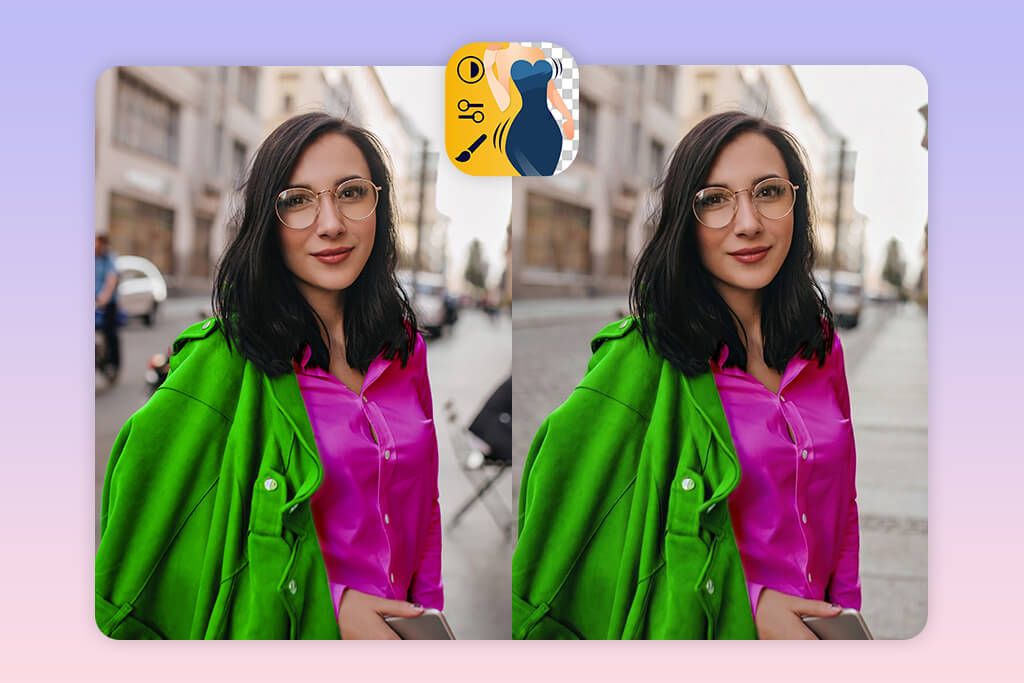
2. Fix The Photo Body Editor & Tune (iOS & Android)
Best for professional object removal
- Neat object removal
- Professional photo editing
- Lifelike results
- Takes 5–15 minutes per edit
- Requires Internet connection
Unlike most AI photo editing apps, Fix The Photo Body Editor & Tune takes a different approach. Instead of relying on automatic AI, real human editors do the work manually. This means you actually get professional-quality results that look natural.
The process is straightforward. You upload your image and select “Remove Objects.” Then you tell the editors what you want gone. The retouchers carefully reconstruct those areas by hand, making sure everything blends neatly so your photo looks completely lifelike.
Fix The Photo Body Editor & Tune isn’t just a one-purpose AI photo eraser. You can ask for several edits in a single order. For example, you can ask experts to erase unwanted items, fix lighting issues, adjust body proportions, or even smooth out skin tones the way the best tan filter apps does.
This is really handy if you need perfect photos for Instagram, vacation albums, property websites, online store listings, or headshots. You don’t have to place separate orders for each fix.
Price: First edit free; $0.99 per request
Key features:
- Manual object removal (no AI artifacts)
- Removes different types of things
- Handles complex backgrounds
- Neat background reconstruction
- Optional pro retouching tools
3. Photoshop for iPhone
Best for detailed object removal
- Precise object removal
- Meticulous control
- Natural background reconstruction
- Takes time to master
- Some tools are paid
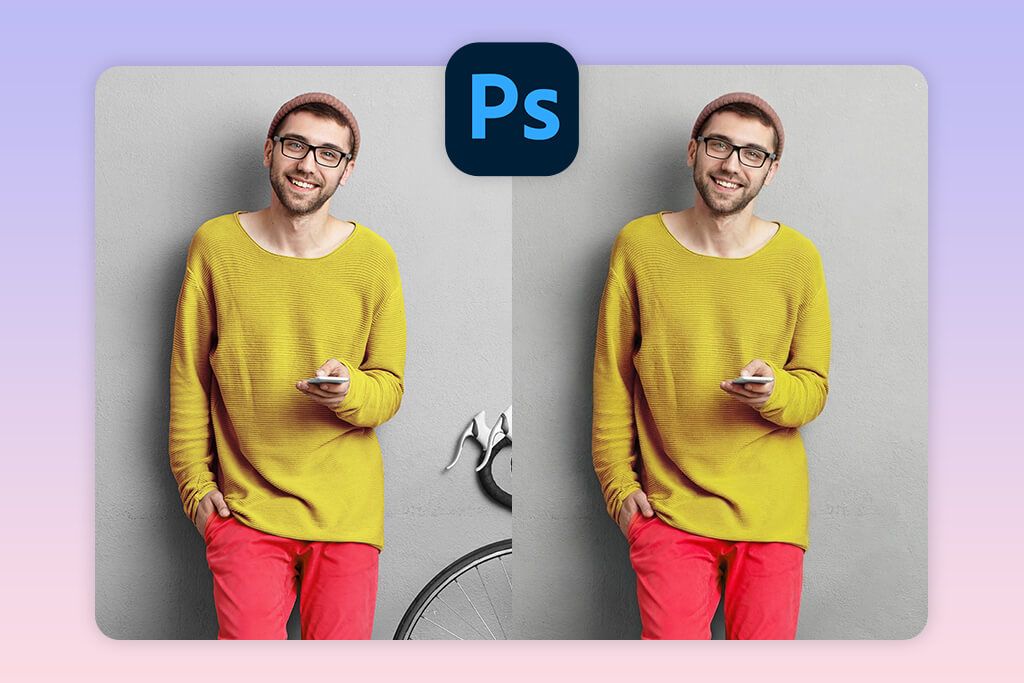
I think Photoshop for iPhone is one of the best photo editors for removing objects if you want to keep the quality high. You’re not stuck with automatic AI tools that distort natural look. Instead, you get real control over how your edits appear. The app offers Spot Healing and Clone Stamp for getting rid of people, unwanted items, street signs, or messy backgrounds in your photos.
The key difference between Photoshop and basic AI erasers is that you can zoom in close and fix every small detail yourself. You can use layers and masks to clean up tricky areas while keeping the original image safe underneath. So even if you make a mistake, your photo isn’t ruined.
If you regularly use free Adobe apps, e.g., Lightroom Mobile or Photoshop Camera, you’ll easily grasp how Photoshop for iPhone works. I think spending just a bit of extra time to improve your photos and make them look natural is worth it.
Price: Free tools available; full features require an Adobe plan
Key features:
- Spot Healing tool for small object removal
- Clone Stamp for complex cleanup
- Layers and masking support
- Edge-aware correction tools
- High-quality export without compression
4. TouchRetouch (iOS & Android)
Quick object remover
- Precise AI removal
- Smart background reconstruction
- User-friendly and quick
- Paid app
- Can’t process complex edits
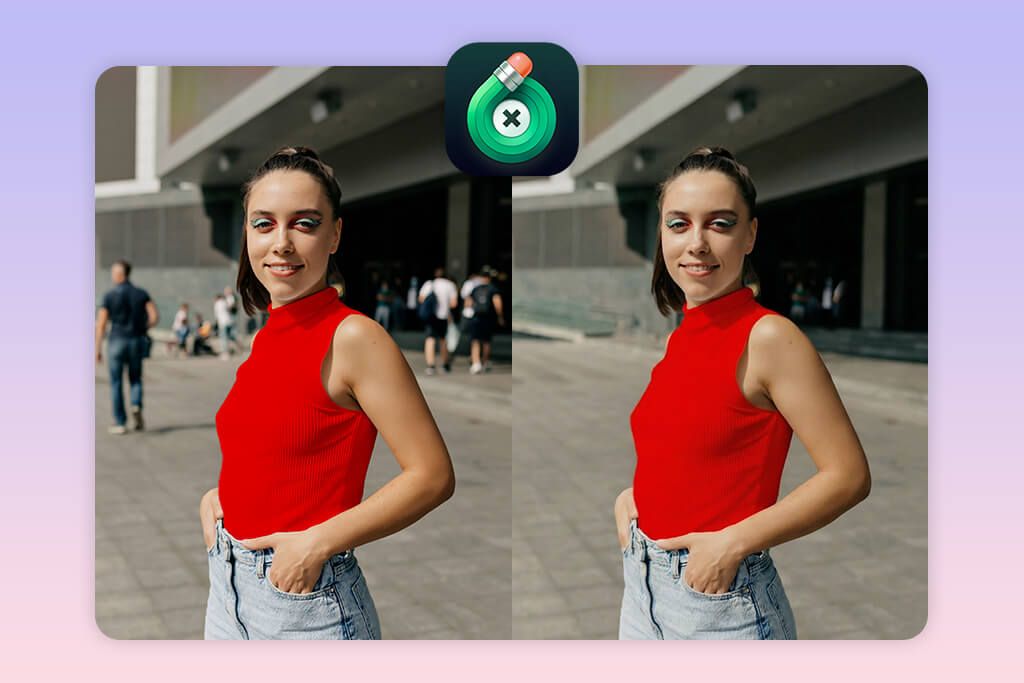
TouchRetouch is genuinely the best photo remover app if you want something user-friendly. You just point to an item you don’t want in your picture, and the app takes care of the rest. It doesn’t just delete the object, but fills in the space with realistic background details, so your photo looks natural.
TouchRetouch doesn’t spoil naturalness when removing something from your images. The texture and lighting stay natural, which isn’t often the case with other apps. There’s a Line Removal Tool that zaps away cables, power lines, cracks, and scratches instantly. Landscape and street photographers absolutely love it.
The downside is that it can stumble when things get complicated, like removing a person who’s touching something else or getting rid of objects mixed with detailed textures. Still, if you’re looking for quick and neat removal without spending hours editing by hand, TouchRetouch is hard to beat.
Price: $3.99 one-time purchase
Key features:
- AI tools for object and line removal
- Quick brush and lasso selection
- Clone stamp for precise edits
- Fast background rebuilding
- Batch cleanup tools for distractions
5. PicsArt (iOS & Android)
Creative AI background editing
- Great AI Remove tool
- Clone and retouch tools
- Works perfectly for creative edits
- Watermark in free plan
- Some AI traces on complex areas
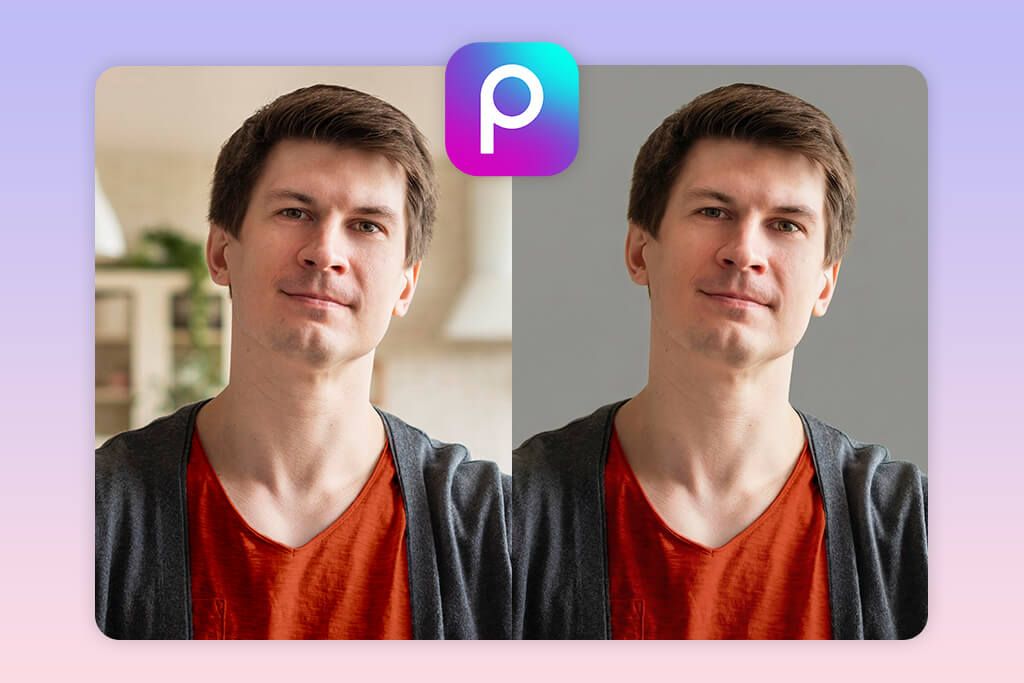
PicsArt contains tools for removing objects and editing photos after that. Their Remove feature is good at getting rid of people, brand logos, random items, and text.
What I like about it, compared to other quick-fix AI apps to remove objects from photo is that you’re not stuck with whatever the automatic removal gives you. If it doesn’t look right, you can use the Clone and Healing tools to touch it up and make it look natural.
PicsArt appeals to many because it contains different image editing tools in one place. People often combine it with other popular apps to make you look skinny or touch up your face. Still, PicsArt surpasses many analogs because it lets you control how things look instead of just applying preset filters that seem fake.
The downside is that the AI removal tool sometimes leaves behind a slight blur or repeats textures. Such elements often show up on complicated backgrounds like brick walls, water, or crowds of people.
Price: Free with ads and watermark; $11.99 monthly for Premium
Key features:
- AI Remove + manual clone tool
- Erases people, objects, and text
- Background replacement tools
- Layer-based editing
- Effects for TikTok & Instagram photos
6. PhotoRoom (iOS & Android)
For cleaning backgrounds
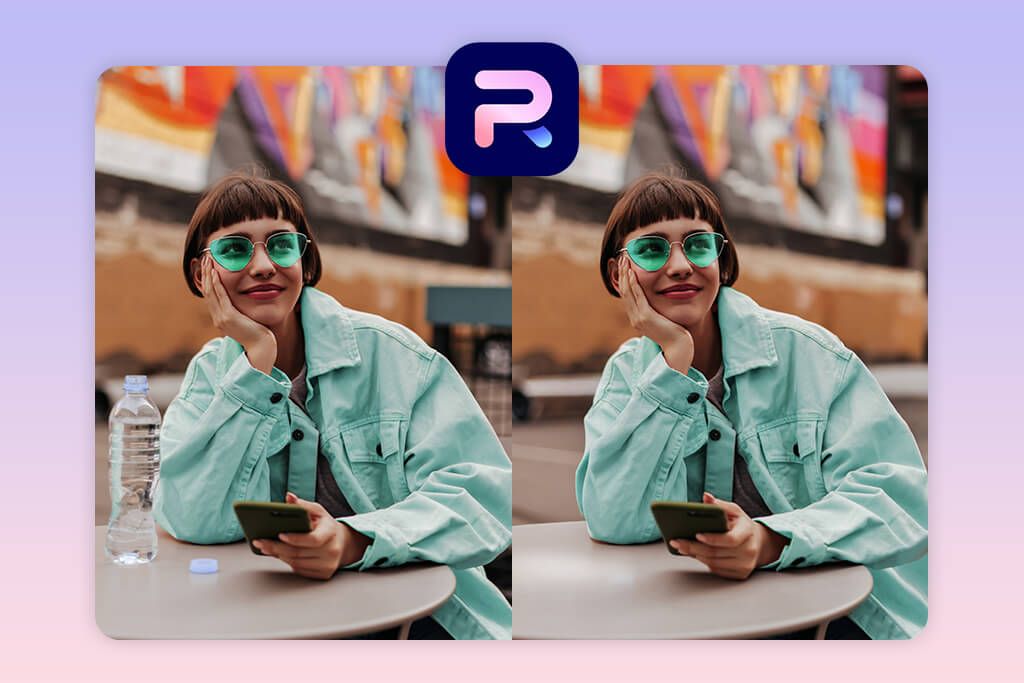
- Perfect for removing backgrounds
- Understandable interface
- Good for product photos
- AI can cause blurriness
- HD export requires registration
I think PhotoRoom is one of the top mobile apps for creating neat product pictures. The selling point is its powerful AI for removing unwanted objects. It’s great to get rid of distractions or when you need to take people out from behind what you’re photographing. This AI object removal tool is user-friendly and fast. Plus, you can clean up the background automatically and erase objects in one go.
Small business owners and people selling online like this tool. They use it to get their product pictures ready for Shopify, Etsy, Amazon, and Instagram. The app finds your main product quickly and helps you take away everything around it. You can do this with a simple brush or let the AI pick things automatically.
The downside is that the AI doesn’t always work perfectly with tricky details. For example, grass, cloth, trees, or someone’s hair can be hard for this AI image object remover to handle cleanly, so you may need to fix things yourself afterward.
Price: Free basic plan; Pro from $9.99
Key features:
- AI object remover & background eraser
- Auto subject detection
- Clean product photo templates
- Shadow and light controls
- Batch eCommerce export
7. AirBrush (iOS & Android)
Quick object removal for selfies

- User-friendly app
- Good for portrait touch-ups
- Retouching tools
- Not ideal for large objects
- Some tools are paid
AirBrush is designed for selfie editing, but I was surprised to find it has a solid tool for removing objects too. You can access it by going to Tools and then choosing Remove. In my opinion, it does a great job when you want to clean up small marks in the background, someone far away, or distractions. This AI tool to remove object from photo has a big editing toolset.
AirBrush is not as powerful as TouchRetouch or Photoshop, but it’s fantastic if you just need to quickly fix social media photos, particularly when you’re working with portraits. The AI smoothing technology works amazingly. When you remove something, the spot blends in smoothly and naturally so people can’t tell you edited it.
Still, if you’re trying to remove complicated objects, it may not be the best photo editor to remove objects. However, if you just want to touch up a selfie or vacation photo in seconds before sharing it online, this tool is incredibly easy to use.
Price: Free basic tools; VIP from $6.99
Key features:
- Quick Remove tool
- Retouch and object cleanup solution
- Neat background blending
- Portrait enhancement tools
- Easy export for social media